Overview
OAuth 2.0 allows external applications to securely access protected 6sense resources without requiring users to share their 6sense credentials. Instead of using usernames and passwords, OAuth uses access tokens that grant access only to approved resources and permissions.
Use OAuth integration when you want to:
Connect a third-party application to 6sense.
Access protected 6sense APIs.
Allow an external application to manage 6sense resources through approved permissions.
Control the level of access granted to an external application through OAuth scopes.
The OAuth integration process consists of two phases:
Application Registration and Credential Provisioning
User Authorization and API Access
How OAuth Works in 6sense
OAuth authorization involves three parties:
6sense: Provides protected resources and validates authorization requests.
External application: Requests access to 6sense resources.
User or administrator: Grants consent for the requested permissions.
During the OAuth flow:
A Primary Administrator registers an external application in 6sense.
6sense generates credentials for the application.
The user authorizes the requested permissions.
6sense issues an authorization code.
The application exchanges the authorization code for access tokens.
The application uses the access token to call protected APIs.
Before You Begin
You must be a 6sense Primary Administrator to register and manage OAuth applications.
Application Registration and Credential Provisioning
Before an external application can access protected 6sense resources, it must be registered in 6sense. Registration establishes trust between 6sense and the external application and generates the credentials required during OAuth authorization.
Application registration allows you to:
Identify the external application.
Define what resources the application can access.
Generate OAuth credentials.
Designate the person responsible for credential retrieval.
Add an OAuth Application
Sign in to 6sense as a Primary Administrator.
Go to Settings > Security and Compliance > OAuth Management.
Select Add Application.
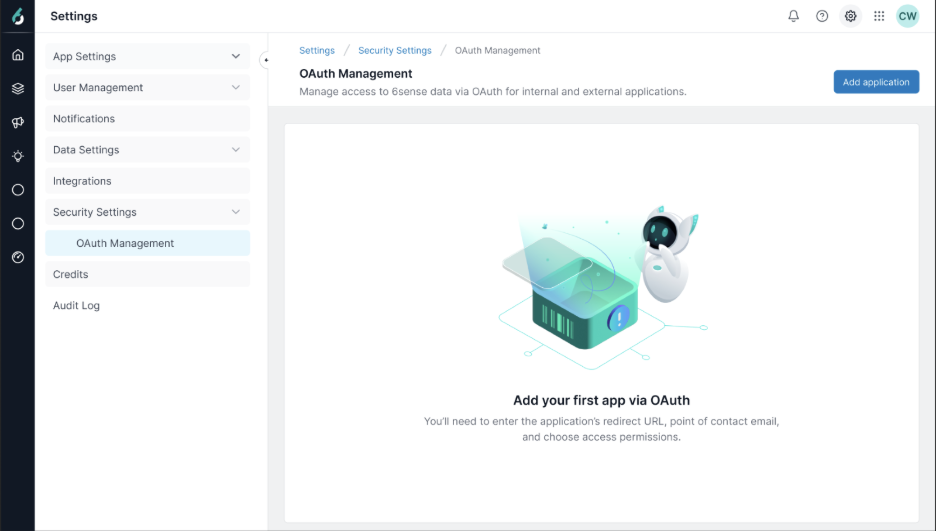
Enter the following information:
Field
Description
Application Name
Name of the external application.
Description
Purpose of the integration.
App Redirect URL
URL where users are redirected after authorization. The Redirect URI identifies where 6sense should return users after they complete authentication and authorization. After approval, 6sense sends the authorization code to this location.
App Point of Contact Email
Authorized recipient of OAuth credentials.
The Point of Contact receives the credential retrieval email and is responsible for securely retrieving the Client ID and Client Secret.Select the checkbox to confirm
Configure Application Permissions
In the Application permissions section, select the permissions required by the integration. Permissions determine which 6sense resources the connected application can access.
Grant only the permissions required for the integration.
Segments
Allows the application to work with segments and segment membership data.
Permission | What the application can do |
|---|---|
Read API segments | View segments and retrieve segment information. |
Write API segments | Create new segments and update existing segments. |
Delete API segments | Delete segments. |
Important
Request only the permissions required by the integration.
Submit the Application
After you review the application details:
Select Submit. Or, select Save draft if you want to review the details later.
A one-time passphrase is displayed on the screen.
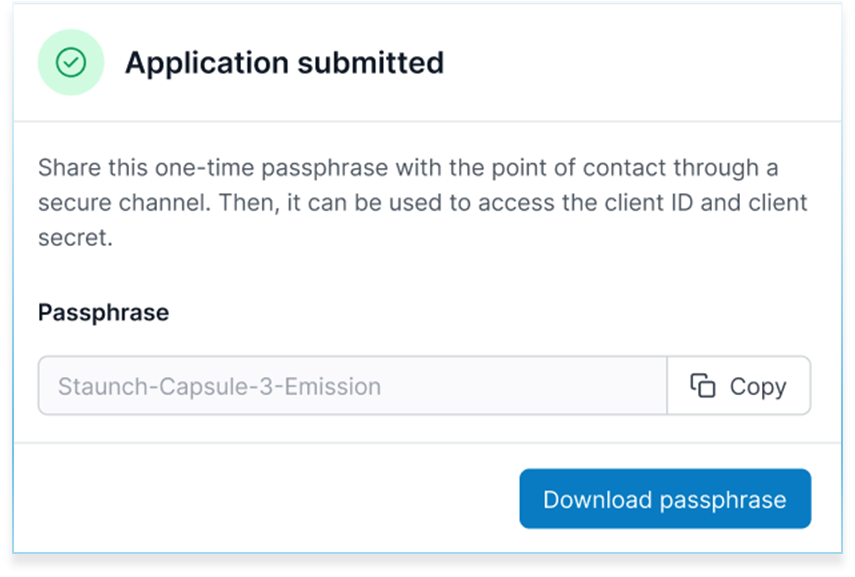
Copy or download the generated passphrase.
Share the passphrase securely with the Point of Contact.
Important
The passphrase is displayed only once for security reasons.
Retrieve Client Credentials
Client credentials uniquely identify the external application during OAuth transactions. They are required when exchanging authorization codes for access tokens.
Client ID: Identifies the application requesting access.
Client Secret: Verifies the application's identity during OAuth authentication.
Retrieve the Credentials
After application provisioning:
The Point of Contact receives a credential retrieval email.
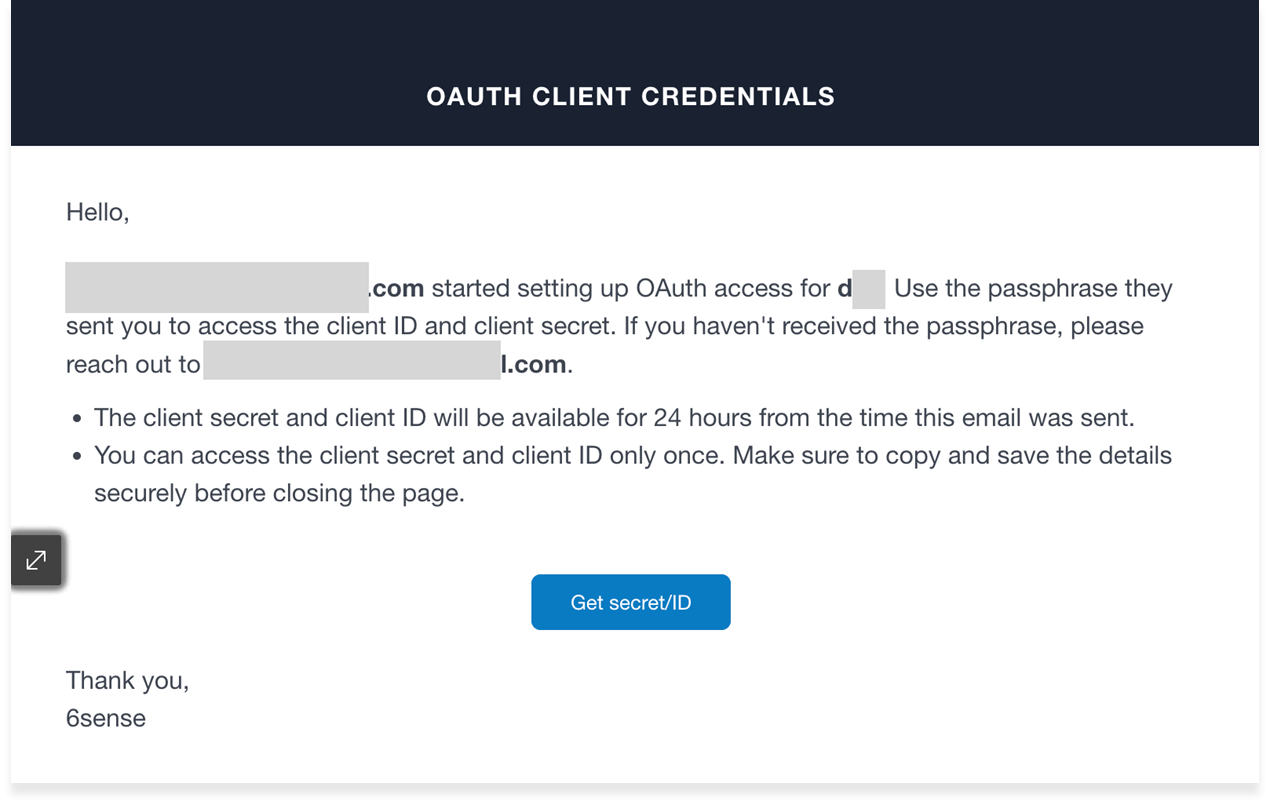
The email contains a pre-signed URL.
The Point of Contact enters the passphrase received separately from the Primary Administrator.
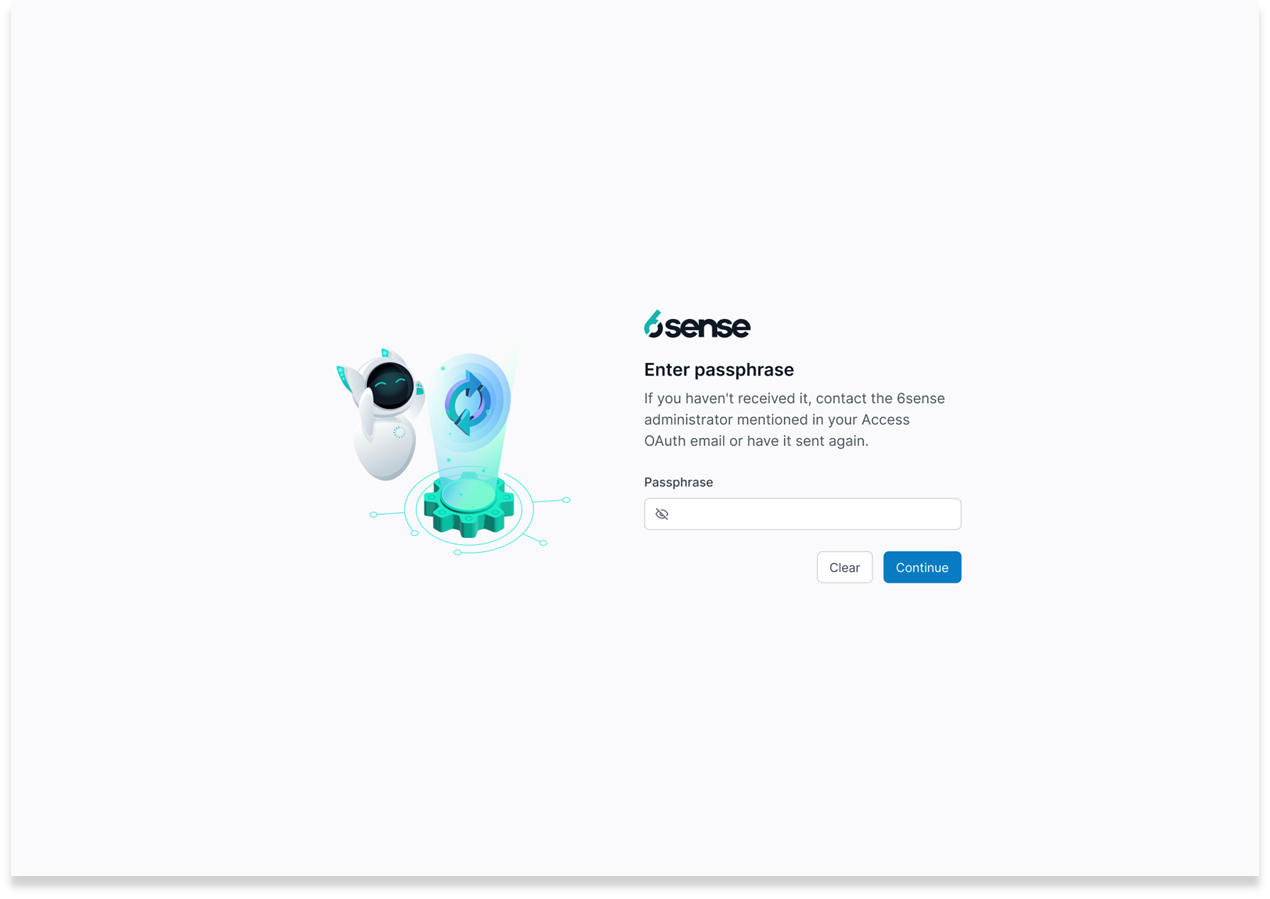
The Client ID and Client Secret become available for retrieval.
Credential Retrieval Requirements
This dual-verification process ensures only authorized users can access credentials.
The retrieval URL is valid for 24 hours.
The URL can only be opened once.
Credentials should be securely stored immediately after retrieval.
Store OAuth Credentials
Store the Client ID and Client Secret in an approved secret-management system.
Recommended options:
AWS Secrets Manager
Azure Key Vault
Google Secret Manager
HashiCorp Vault
Enterprise-approved secret storage solutions
Do not store credentials in:
Source code repositories
Shared documents
Plain-text files
Client-side applications
User Authorization and API Access
Authorize the Integration
After the OAuth application is registered and the Client ID and Client Secret have been retrieved, the external application can request access to 6sense resources.
During this process:
The external application sends the user to the 6sense authorization page.
The user signs in to 6sense.
The user reviews the permissions requested by the application.
The user approves or denies access.
If access is approved, 6sense returns an authorization code to the application.
The application exchanges the authorization code for an access token.
Initiate Authorization
When a user connects an external application to 6sense, the application starts the authorization process by redirecting the user to the 6sense authorization endpoint. The authorization request includes information that identifies the application and the permissions being requested.
Authorization Request Parameters
Parameter | Required | Description |
|---|---|---|
| Yes | Specifies the OAuth authorization flow. For 6sense, this value must be |
| Yes | The unique identifier assigned to the OAuth application during registration. |
| Yes | The callback URL configured when the OAuth application was created. After authorization, 6sense returns the user to this location. |
| Yes | The permissions the application is requesting. |
| Recommended | A value generated by the application to help prevent cross-site request forgery (CSRF) attacks. |
Example Authorization Request
https://api.descope.com/oauth2/v1/apps/authorize

 ?client_id=YOUR_CLIENT_ID

 &redirect_uri=https://yourapp.com/callback

 &response_type=code

 &scope=segments.api_segment:read segments.api_segment:write

 &state=<random_csrf_token>
Authenticate and Grant Consent
After the external application sends the authorization request, the user is redirected to the 6sense sign-in page. Authentication verifies the user's identity before access is granted to 6sense resources. Only authenticated users can approve access to the permissions requested by the external application.
Review Requested Permissions
After signing in, the user is presented with a consent screen that displays the permissions requested by the application. The consent screen allows the user to review the level of access being requested before authorizing the integration.
The user can:
Review the requested permissions.
Update the scopes to be granted, if applicable.
Select Cancel to deny access. If the user cancels the request, the authorization process ends and the external application is not granted access.
Select Authorize to grant access. If the user authorizes the request, 6sense proceeds with the OAuth authorization process and returns an authorization code to the application's configured Redirect URI. The application uses this authorization code to obtain access tokens.
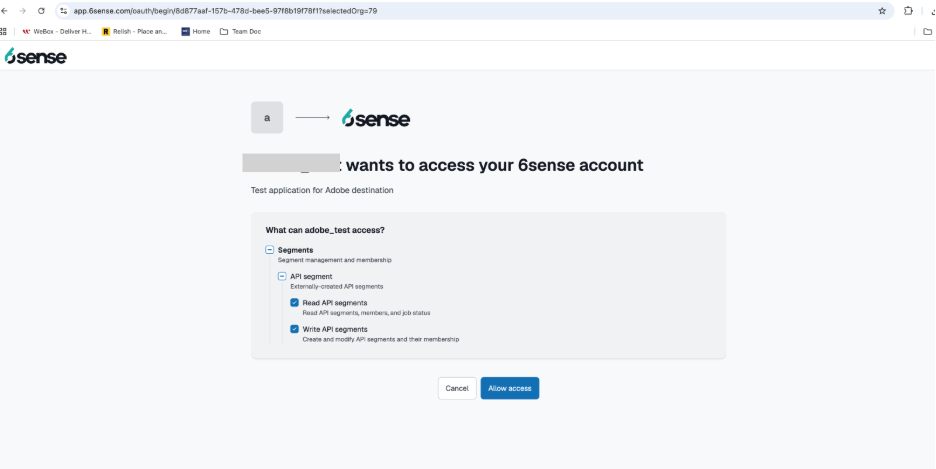
Receive the Authorization Code
After the user successfully signs in to 6sense and grants the requested permissions, 6sense completes the authorization process by redirecting the user to the Redirect URI configured for the OAuth application.
https://yourapplication.com/callback?code=AUTHORIZATION_CODE&state={STATE_VALUE} Component | Description |
|---|---|
| The Redirect URI configured when the OAuth application was created. |
| The authorization code generated by 6sense after the user grants access. |
| The same value provided in the authorization request. The application can use this value to verify that the response matches the original request. |
Exchange the Authorization Code for an Access Token
After receiving the authorization code, the external application sends a request to the 6sense token endpoint to obtain an access token. The authorization code proves that the user approved the requested permissions. The access token is the credential that the application uses to access protected 6sense resources.
The token request includes:
Parameter | Description |
|---|---|
Client ID | Identifies the OAuth application. |
Client Secret | Authenticates the OAuth application. |
Authorization Code | The code returned by 6sense after the user authorized the application. |
Redirect URI | Must match the Redirect URI used during authorization. |
If the request is validated successfully, 6sense returns OAuth tokens and related information. Example response:
{

    "access_token": "eyJhbGciOiJSU...",

    "token_type": "Bearer",

    "refresh_token": "eyJhbGciOiJS...",

    "id_token": "eyJhbGciOiJ...",

    "expires_in": 43200,

    "scope": "segments.api_segment:read segments.api_segment:write"

}
The external application stores the returned tokens securely and includes the access token when making requests to protected 6sense APIs. When the access token expires, the refresh token can be used to obtain a new access token without requiring the user to authorize the application again.
Access Protected 6sense APIs
After the application obtains an access token, it can use that token to access protected 6sense APIs. The access token represents the permissions granted during the OAuth authorization process.
Include the access token in the Authorization header using the Bearer authentication scheme. The access token must be included in every request to a protected 6sense API.
Example API Request
curl -X GET "https://api.6sense.com/api/segments/v1/lists/segments/status/123" \
  -H "Authorization: Bearer <ACCESS_TOKEN>"
When a request is received, the API gateway validates the access token before forwarding the request to the target service. The gateway:
Validates the JWT signature against the Descope JWKS.
Verifies that the token contains the scopes required by the requested API operation.
Forwards the request to the target service if validation succeeds.
If validation fails, the request is rejected.
Response Code | Description |
|---|---|
| The access token is invalid or has expired. |
| The access token does not contain the scope required for the requested operation. |
If the token is valid and includes the required permissions, the request is processed and the API returns a response.
Refresh Access Tokens
Access tokens have a limited lifetime. When an access token expires, the external application can use the refresh token to obtain a new access token without requiring the user to reauthenticate or repeat the consent process. This helps maintain access to authorized 6sense resources.
To obtain a new access token, send a request to the token endpoint using the refresh token.
curl -X POST "https://api.descope.com/oauth2/v1/apps/token" \

  -H "Content-Type: application/x-www-form-urlencoded" \

  -d "grant_type=refresh_token" \

  -d "client_id=<CLIENT_ID>" \

  -d "client_secret=<CLIENT_SECRET>" \

  -d "refresh_token=<REFRESH_TOKEN>"
Review Approved Scopes
After an OAuth application is connected, a 6sense Primary Administrator can review the permissions that have been approved for the integration.
View Approved Scopes
Sign in to 6sense.
Go to Settings > Security and Compliance > OAuth Management.
Select the connected OAuth application.
Review the approved permissions for the application.
Regenerate Client Credentials
If the credential retrieval link expires or the passphrase is unavailable, a 6sense Primary Administrator can generate a new credential retrieval package.
Regenerate Credentials
Sign in to 6sense.
Go to Settings > Security and Compliance > OAuth Management.
Open the OAuth application.
Select Regenerate from the right-hand panel.
A new credential retrieval email is sent to the designated Point of Contact (POC).
A new passphrase is generated.
Download and securely store the passphrase.
Share the passphrase with the POC through an approved secure channel.
The POC can then use the new retrieval link and passphrase to access the Client ID and Client Secret.
Revoke an OAuth Application
If an integration is no longer required or application credentials are suspected to be compromised, a 6sense Primary Administrator can revoke the OAuth application. Revoking an application immediately prevents further authorization and API access using that application's credentials and tokens.
You may want to revoke an application when:
The integration is no longer needed.
Application credentials may have been exposed.
API access must be removed
Revoking an application provides a way to:
Decommission an integration.
Respond to credential exposure.
Stop API access for a connected application.
Security Best Practices
Follow these recommendations when implementing OAuth integrations with 6sense:
Store Client IDs and Client Secrets only in approved secret-management solutions.
Never expose Client Secrets in browser-based applications.
Use HTTPS for authorization, token, and API requests.
Validate the state parameter returned in authorization responses.
Request only the permissions required by the integration.
Rotate credentials according to your organization's security policies.
Protect access tokens and refresh tokens as sensitive credentials.
Revoke OAuth applications that are no longer required, have been replaced, or are suspected to be compromised.