---
title: "WebTag 2.0 Guide: Custom GTM Data Layer Variable Names for the Company Identification API Integration"
slug: "webtag-20-guide-custom-gtm-data-layer-variable-names-for-the-company-identification-api-integration"
description: "Customize your 6sense dataLayer variable names with this step-by-step guide for effective tracking and analytics setup in Google Tag Manager."
updated: 2025-07-10T18:36:04Z
published: 2025-07-10T18:36:04Z
canonical: "support.6sense.com/webtag-20-guide-custom-gtm-data-layer-variable-names-for-the-company-identification-api-integration"
---
> ## Documentation Index
> Fetch the complete documentation index at: https://support.6sense.com/llms.txt
> Use this file to discover all available pages before exploring further.
# WebTag 2.0 Guide: Custom GTM Data Layer Variable Names for the Company Identification API Integration
Follow this guide if you wish to customize the dataLayer variable names that the WebTag 2.0 Company Identification API configuration will use.
## Step 1: Update your 6sense WebTag
1. Navigate to where your existing 6sense WebTag is configured. Either remove this tag and continue or skip to number 3 below.
1. **Note:** if you have not configured the WebTag yet, follow the guide here to configure and generate the script needed below: [6sense WebTag Setup](/v1/docs/set-up-6sense-webtag-2-0).
2. Navigate to the ‘Tags’ section and select **Custom HTML**. This is where you’ll place the actual 6sense Company Identification WebTag: 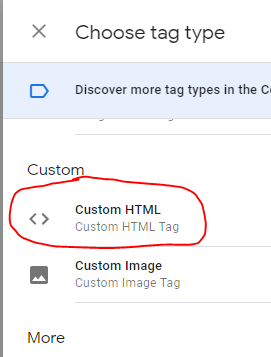
3. Place or update the tag inside the HTML input box with the following code, replacing the top script with your web tag:
**Note:** In the below code, you will customize you variable names by adjusting the “key” name in the code following ``window.dataLayer.push``.
```javascript
```
4. Make sure you have replaced the place-holder code for the WebTag with the line of code generated by the 6sense Platform.
5. Set Tag firing priority to 9999. This will ensure the tag fires as soon as possible. 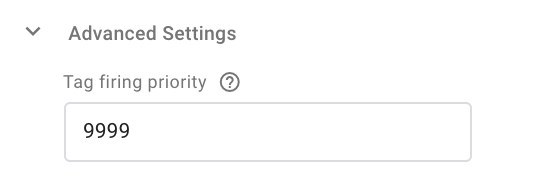
6. Under Triggering, select **All Pages**.
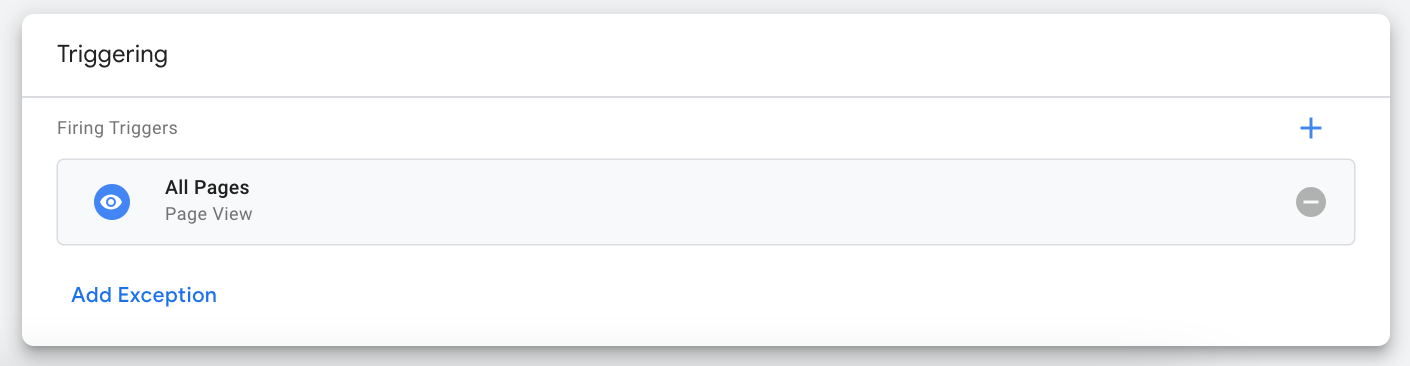
7. Save the tag.
## Step 2: Create Data Layer Variables
There is no limitation to the number of variables you may track in GTM, so we recommend setting up all 6sense Company Identification properties as GTM variables.
1. In Google Tag Manager, navigate to the ‘Variables’ section on the left: 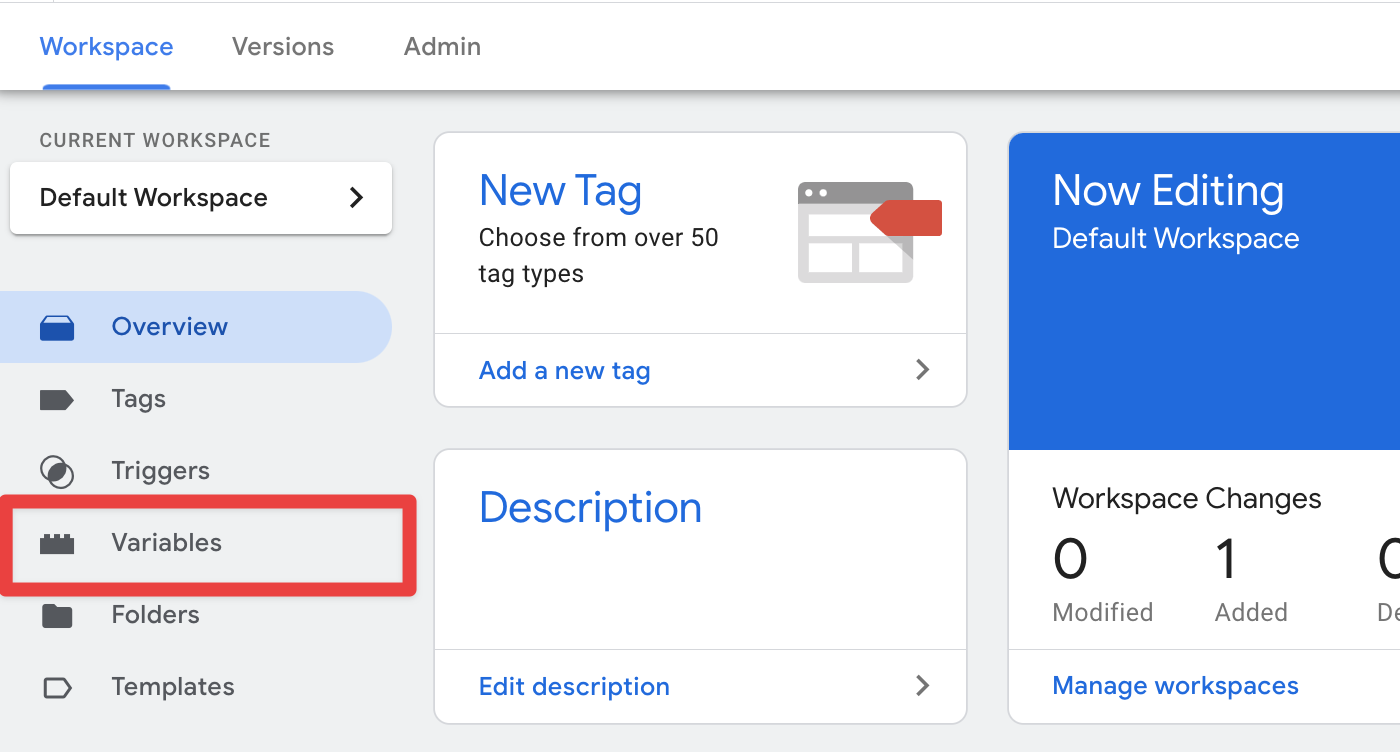
2. Select **New** under the User-defined variables section:

3. Choose the variables you wish to track. The below list reflects the Data Layer values present in the recommended code above. Numbers are provided for convenience but not used in the set-up.
**Note:** If you customized the variable names in the above script, you will need to match them here.
| **#** | **GTM Variable Name / Data Layer Name** |
| --- | --- |
| 1 | 6si_company_name |
| 2 | 6si_company_domain |
| 3 | 6si_company_match |
| 4 | 6si_additional_comment |
| 5 | 6si_confidence |
| 6 | 6si_geoIP_country |
| 7 | 6si_geoIP_state |
| 8 | 6si_geoIP_city |
| 9 | 6si_company_country |
| 10 | 6si_company_country_iso_code |
| 11 | 6si_company_address |
| 12 | 6si_company_state |
| 13 | 6si_company_city |
| 14 | 6si_company_zip |
| 15 | 6si_company_region |
| 16 | 6si_company_phone |
| 17 | 6si_company_employee_count |
| 18 | 6si_company_employee_range |
| 19 | 6si_company_annual_revenue |
| 20 | 6si_company_revenue_range |
| 21 | 6si_company_sic |
| 22 | 6si_company_sic_description |
| 23 | 6si_company_naics |
| 24 | 6si_company_naics_description |
| 25 | 6si_company_industry |
| 26 | 6si_company_is_blacklisted |
| 27 | 6si_company_is_6qa |
| 28 | 6si_company_intent_score |
| 29 | 6si_company_buying_stage |
| 30 | 6si_company_profile_score |
| 31 | 6si_company_profile_fit |
| 32 | 6si_company_segments |
| 33 | 6si_company_segment_ids |
**Note:** In the case that you have multiple models, the data layer variable name will be different for each model. Please work with your CSM or Customer Support and request the “API model name” for each of your predictive models. The Data Layer variable will be something like the following:
| **GTM Variable Name** | **Data Layer Value** |
| --- | --- |
| product1_api_name_intent_score | product1_api_name.intent_score |
| product1_api_name_buying_stage | product1_api_name.buying_stage |
| product1_api_name_profile_score | product1_api_name.profile_score |
| product1_api_name_profile_fit | product1_api_name.profile_fit |
| product1_api_name_is_6qa | product1_api_name.is_6qa |
| product2_api_name_intent_score | product2_api_name.intent_score |
| product2_api_name_buying_stage | product2_api_name.buying_stage |
| product2_api_name_profile_score | product2_api_name.profile_score |
| product2_api_name_profile_fit | product2_api_name.profile_fit |
| product2_api_name_is_6qa | product2_api_name.is_6qa |
4. Name your Variables in an understandable way, or just copy and paste the names in the table above.
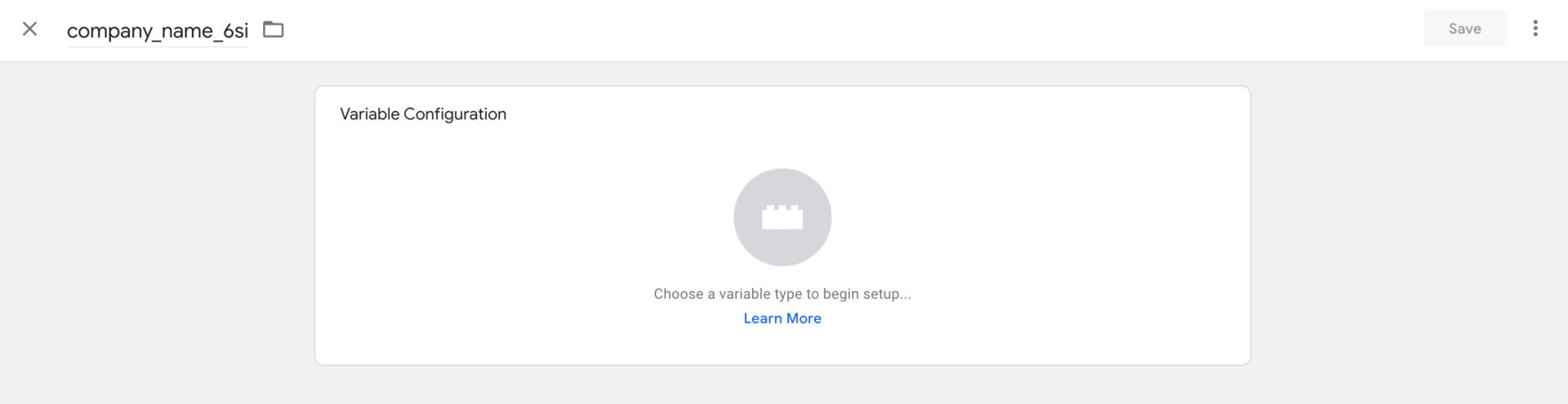
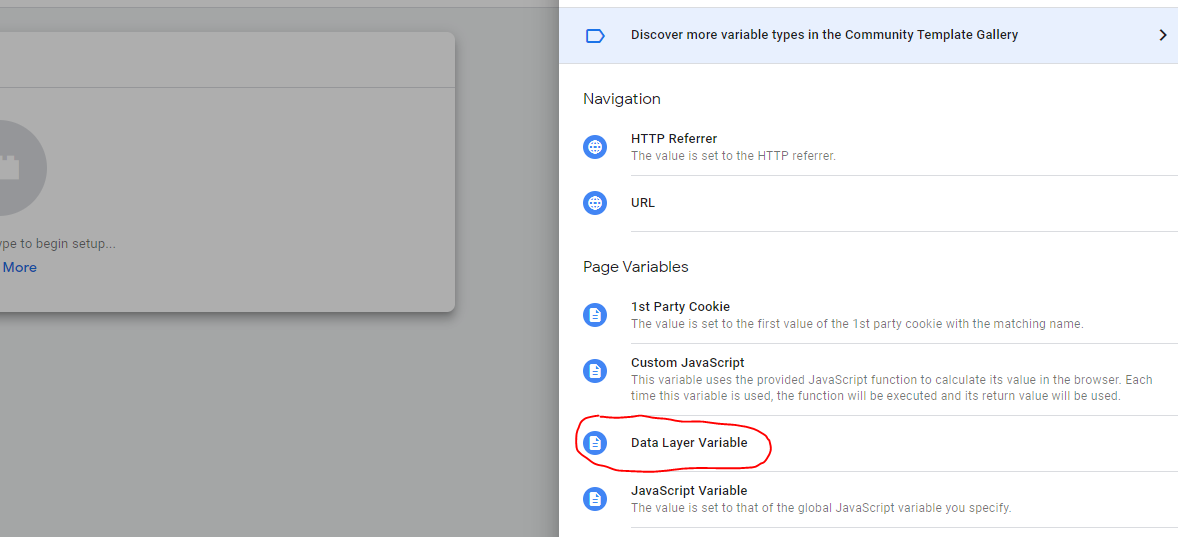
5. Click the middle **circle logo** to choose a variable type and select Data Layer variable:
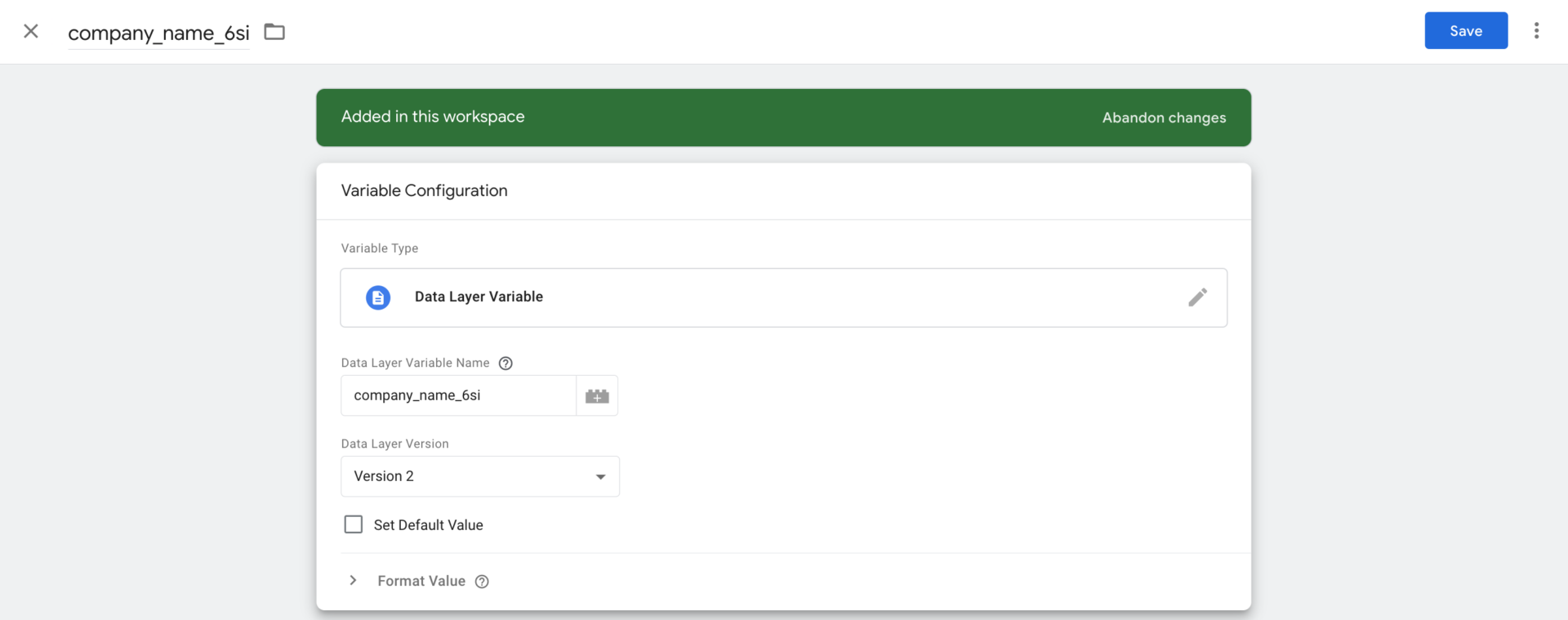
6. Name your Data Layer variable exactly as defined above. i.e. *company_name* should be exactly defined as *company_name* in the **Data Layer Variable Name** input box:
7. Save and repeat for each desired Data Layer Variable
## Step 3: Create Event Trigger
As a part of the recommended 6sense WebTag configuration, a “custom event” will be triggered that may be recognized by GTM. This event can trigger other tags such as GA4 Event or Google Analytics: Custom Event.
1. In Google Tag Manager, navigate to the Triggers section on the left: 
2. Click the **New** button and give your trigger the following settings:
- Name: **6sense Company Identification Loaded**
- Trigger Type (click and scroll down on the right): **Custom Event**
- Event Name: **6si_company_details_loaded**
- **Note:** If you customized the event name in the tag script, update the Event Name in this event tag configuration to match.
- This trigger fires on All Custom Events. 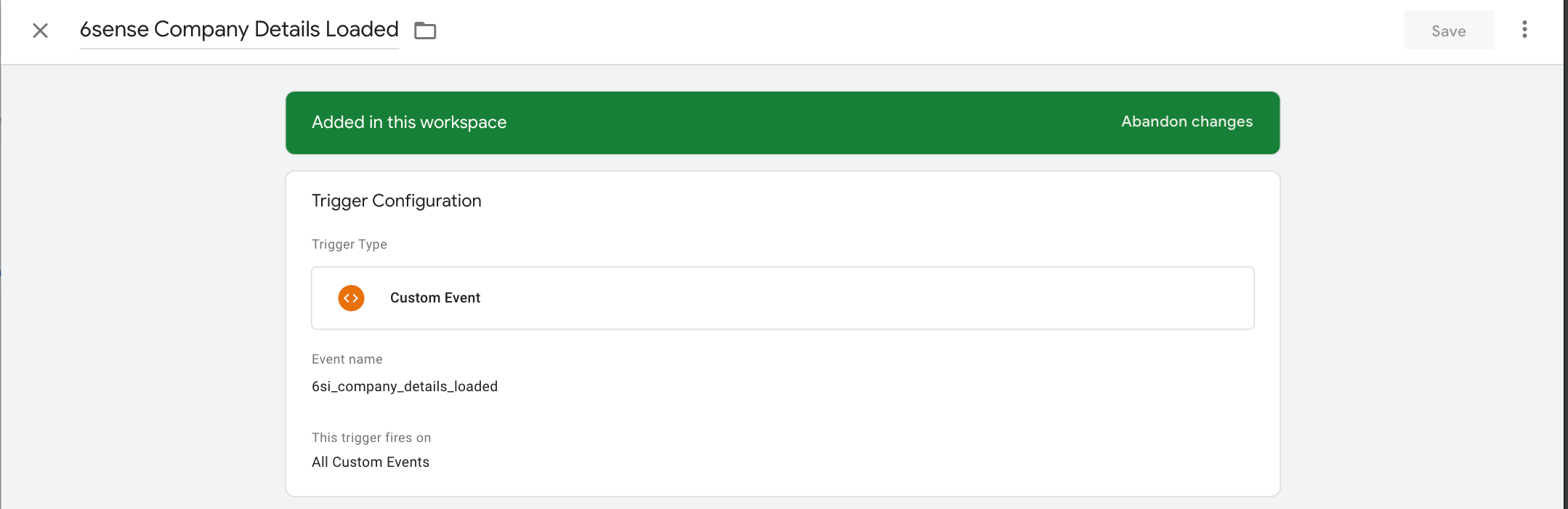
3. Save.
## Step 4: Proceed to Set Up Event Tags for Google Analytics
Continue your setup by following the [WebTag 2.0 Guide: Install the Company Identification API on Google Tag Manager](/v1/docs/webtag-20-guide-install-the-company-identification-api-on-google-tag-manager-and-ga4) guide.
A piece of code placed on a website to track user interactions and gather data for analytics and marketing purposes.
Application Programming Interface; a set of rules that allows different software applications to communicate with each other.