
This page now redirects to the Review Individual Ad Campaigns section
Use the Advertising Campaign Details page to understand the delivery, reach, engagement, and downstream impact of your advertising campaigns. This article explains what each section means and defines the metrics used in the page.
Recommended order to read the page
If you are trying to understand performance quickly, review the page in this order:
Spend and delivery pacing (Are you on pace to spend your budget?)
Highlights (What outcomes is the campaign driving?)
Campaign performance + CTV (Delivery, clicks, viewability, video completion)
Performance trend (How are key metrics changing over time?)
Account journey (Which accounts are reached/engaged, and what happened next?)
Buying stage + 6QAs (Are accounts progressing or qualifying after exposure/engagement?)
After reviewing performance, use the other tabs for deeper analysis and setup details:
Ads – Review ad groups, individual ads, and ad‑level performance.
Recommended leads – Identify contacts from accounts that engaged with your advertising campaign.
Analytics – Explore distribution and engagement breakdowns (domains, roles, geography, device type, and more).
Configuration – View campaign setup, targeting, and budget details (editing options depend on permissions).
Set the timeframe filter for the entire page
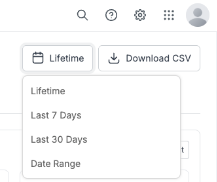
The Advertising Campaign Details page includes a delivery timeframe filter at the top right. The filter has four options only:
Lifetime: Shows data from the start of the campaign.
Last 7 Days: Shows data from the last 7 days.
Last 30 Days: Shows data from the last 30 days.
Date Range: Shows data for a custom date range you select.
The selected timeframe applies across the entire campaign performance view. Changing the timeframe updates all metrics and charts on the page to reflect data for the selected period. The active timeframe is shown next to the filter control.
Download a CSV file of campaign data
The Advertising Campaign Details page provides a Download CSV option that exports campaign data to a CSV file.
The downloaded CSV reflects the selected delivery timeframe of campaign.
If you change the filter, you must download the CSV again to get updated data.
Performance tab
The Performance tab is the default view in the Advertising Campaign Details page. It includes the following panels and metrics.
Spend and delivery pacing panel
The Spend and delivery pacing panel shows how your campaign is spending budget compared to expectations for the current delivery timeframe. In addition to showing spend and delivery status, this panel may display an Optimize option to help you take action when a campaign is not pacing as expected. The panel updates based on how your campaign pacing.
.png)
Delivery pacing status
Delivery status tells you whether the campaign is pacing as expected based on how much budget you’ve spent compared to how much you were expected to spend by this point in the flight.
Campaign spend amount
Spend is the amount spent from the configured budget since the campaign start or within the selected dates.
Days left in campaign
Days left in campaign is the number of days remaining in the campaign. The value rounds up partial days.
How pacing is calculated
Delivery pacing calculations use a Budget Exhaustion Rate (BER):
BER = Actual delivery / Expected delivery × 100
Delivery states include:
Over delivery: greater than 110%
Steady delivery: 85%–110% of expected spend
Under delivery: 50%–85%
Low delivery: less than 50%
Campaign Optimize option
The Optimize option appears in the Spend and delivery pacing panel only when the campaign needs attention based on delivery pacing. It appears when the campaign status is:
Low delivery
Under delivery
Over delivery
When you select Optimize, 6sense surfaces recommendations based on the campaign’s delivery pattern and configuration. These recommendations are designed to help you correct pacing issues before delivery is impacted further.
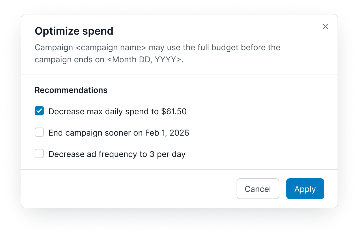
You won’t see Optimize when the campaign is delivering normally, such as:
If the campaign is in Steady delivery, Optimize does not appear.
If the campaign is completed, deactivated, or budget exhausted, Optimize does not appear.
Highlights panel
.png)
The Highlights panel shows a snapshot of key campaign outcomes, where you can select and view the accounts associated with a metric.
To view account highlights:
Select a metric card, such as Accounts reached, Accounts engaged, or New 6QAs.
The account list opens and displays the accounts associated with the selected metric.
Use Search to find specific accounts or Download to export the account list.
By default, Highlights displays a set of metrics, and you can customize which metrics appear to match what you want to focus on.
Metics | Definition |
|---|---|
Accounts reached | Unique accounts that saw at least one ad impression. |
Accounts engaged | Unique accounts that clicked or meaningfully interacted with an ad. |
Account engagement rate | Percentage of reached accounts that engaged. |
Newly engaged accounts | Accounts that engaged for the first time after seeing the campaign. |
Accounts with increased engagement | Accounts whose engagement increased compared to before the campaign. |
Increased buying stages (reached) | Accounts that moved to a higher buying stage after seeing an ad. |
Increased buying stages (engaged) | Accounts that moved to a higher buying stage after engaging with an ad. |
New 6QAs (reached) | Accounts newly qualified after seeing an ad. |
New 6QAs (engaged) | Accounts newly qualified after engaging with an ad. |
Reached with opportunities | Reached accounts that already have an open opportunity. |
Engaged with opportunities | Engaged accounts that already have an open opportunity. |
New pipeline | Value of opportunities created after accounts were reached by the campaign. |
Influenced form fills | Form submissions from accounts that saw an ad before converting. You can view more details on these form fills in the Influenced Form Fills Report. |
You can display any 5 metrics at a time.
All selected metrics:
Respect the Delivery timeframe filter (Lifetime, Last 7 Days, Last 30 Days, or Date Range).
Update automatically when filters change.
Editing Highlights does not affect other sections on the page, such as Performance Trend or Account Journey.
Customize Highlights when you want to:
Quickly review different aspects of campaign performance
Focus on short‑term delivery vs long‑term outcomes
Align the view with specific reporting or stakeholder needs
Customize Highlights metrics
You can customize the Highlights section by selecting which metrics you want to see.
To edit Highlights:
In the Highlights section, select Edit.
Choose up to 5 metrics from the list.
Select Save to apply your changes.
The Highlights cards immediately update to reflect your selection and the active filters.
Campaign performance panel

The Campaign performance panel displays metrics related to ad delivery and interaction for the selected delivery timeframe. All data shown in this panel updates based on the active delivery timeframe and applied filters. It includes:
Impressions: Count of impressions gathered by the campaign.
eCPM (effective cost per mille/thousand): Cost incurred for procuring 1000 ad impressions.
Clicks: Count of clicks during the campaign flight.
CTR (click‑through rate): Percentage of ad click-through generated out of matched ad impressions served for a campaign.
eCPC (effective cost per click): The amount you’ve paid for your campaign divided by its total clicks.
Account CTR: Accounts reached where visitors came to your website by clicking through an ad, compared to total accounts reached.
Account VTR: Accounts reached where visitors came to your website within 30 days of an impression The percentage of reached accounts that visited the website within 30 days of an impression without clicking through an ad, compared to total accounts reached.
Viewability: Percentage of ad impressions that were measured as viewable by the user.
Video (CTV) performance metrics
If the Advertising campaign includes video or CTV ads, additional video‑specific metrics appear in the Campaign performance panel, including:
Midpoints: The number of video ads watched at least halfway.
Completions: The number of video ads watched to completion.
Completion rate: Completions as a percentage of impressions.
CPCV (cost per completed view): The average cost per completed video view.
Conversion influence
This part shows downstream conversion activity associated with ad exposure. It includes, Influenced form fills, which show the number of form submissions from accounts that saw an ad before the form fill occurred.
Performance trend chart
.png)
Performance trend is a time‑series chart showing how selected campaign metrics change over time. The chart updates based on the selected delivery timeframe and applied filters.
The Performance trend chart displays one or more metrics as trend lines.
Each line represents a selected metric (for example, Spend or Impressions).
The legend indicates which metrics are currently displayed.
The chart reflects changes in metric values across the selected timeframe.
Change the Performance trend chart metrics
You can change the metric displayed in the Performance trend chart using the dropdown in the section header. Depending on the campaign setup, available metrics may include:
Spend
Impressions
Other delivery or interaction metrics supported by the campaign
When you select a different metric, the chart updates to reflect that metric across the selected timeframe.
Performance trend chart data behavior
Data points represent values aggregated by day.
All values shown reflect activity that occurred within the selected delivery timeframe.
Changing the delivery timeframe refreshes the entire chart.
Performance trend data is informational and does not affect metrics shown in other sections.
Account journey chart
.png)
The Account journey chart shows how accounts progress through different stages after being reached or engaged by the campaign. This section displays account‑level movement across buying stages and qualification states during the selected delivery timeframe. All data updates based on the active Delivery timeframe and applied filters.
Pipeline association in the Account journey chart
When available, the Account journey section also shows pipeline‑related data tied to influenced accounts. This includes:
Accounts associated with open opportunities
Pipeline created after accounts were reached by the campaign
Drill down to view account details
Select a bar in the Account journey chart to view the accounts associated with that stage of the journey. The account list displays only the accounts represented by the selected bar.
Increased buying stages chart
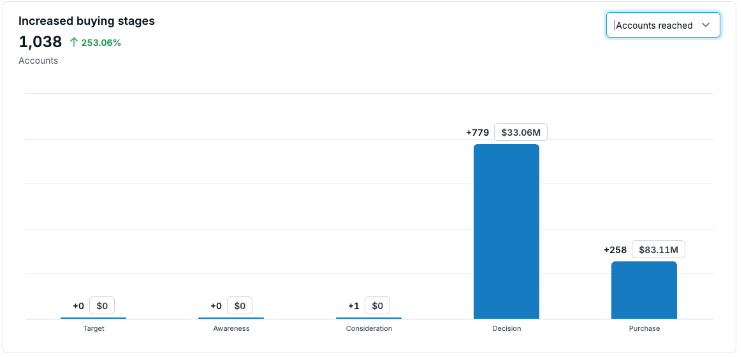
The Increased buying stages chart shows accounts whose buying stage advanced after being influenced by the campaign. This metric provides two variants, based on how the account was influenced. Use the menu at the top right of the chart to select either:
Accounts reached: the number of accounts whose buying stage increased after being reached by the campaign. An account is considered reached when it is served at least one ad impression. Buying stage changes are evaluated within a defined period after the impression event. Each account is counted once using the highest buying stage reached during the evaluation window.
Accounts engaged: The number of accounts whose buying stage increased after engaging with the campaign. An account is considered engaged when it meets the engagement criteria defined for the campaign (for example, ad interaction followed by a site visit). Buying stage changes are evaluated within a defined period after the engagement event. Each account is counted once using the highest buying stage reached during the evaluation window.
Drill down to buying stage
Select a buying stage in the chart to view the accounts associated with that stage. The account list displays accounts that contributed to the selected buying-stage segment.
New 6QA chart
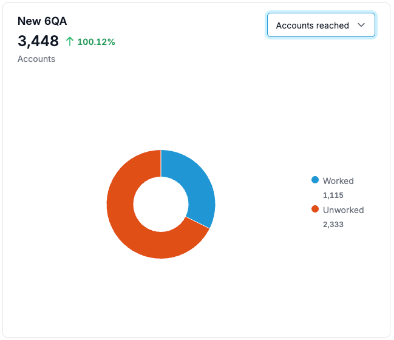
The New 6QA chart shows the accounts that became newly qualified after being influenced by the campaign. This metric is available in two variants, depending on how the account was influenced. Use the menu at the top right of the chart to select either:
Accounts reached: The number of accounts that became newly qualified after being reached by the campaign.
An account is considered reached when it is served at least one ad impression. Qualification is evaluated within a defined period following the impression. Each account is counted once.
Accounts engaged: The number of accounts that became newly qualified after engaging with the campaign.
An account is considered engaged when it meets the engagement criteria defined for the campaign. Qualification is evaluated within a defined period following the engagement. Each account is counted once.
Drill down to 6QA worked and unworked accounts
Select a segment in the New 6QA chart to view the associated accounts. The account list displays accounts represented by the selected qualification category.
Ads tab and list of ads used in the campaign
.png)
The Ads tab shows the ad groups and individual ads associated with the campaign, along with their delivery and performance metrics. This view allows you to review ad status, performance data, and manage ad groups and ads. All metrics update based on the selected delivery timeframe.
Each ad group and individual ad includes action icons at the far right of the row. These icons allow you to rename or deactivate the selected ad group or ad.
Ads and groups table
The Ads tab displays a table list of ads. The total number of ads uploaded is shown above the table. Ad groups appear at the top level and expand to show the group members.
You can select an ad group to expand the list to show the individual ads within that group.
Each ad group and ad row displays:
Ad / Ad group: Name of the ad group or individual ad.
Status: Current status, for example, Active, Inactive, or Deactivated.
An ad group can be Active even if one or more ads within it are Inactive.
Accounts reached: Number of accounts reached.
Impressions: Total impressions served.
Clicks: Total clicks.
CTR: Click‑through rate.
ACTR: Account‑level click‑through rate.
eCPM: Cost per 1,000 impressions.
eCPC: Cost per click.
Spend: Total spend.
Viewability: Percentage of ad impressions that were measured as viewable by the user.
AVTR: Account view-through rate.
Edit or deactivate an active ad
To edit the name of an active ad or ad group, use the pencil icon at the right side of its row.
To deactivate an active ad, use the power icon at the right side of its row.
Recommended leads tab (Beta)
The recommended leads feature is in Beta. Contact your CSM for questions. Refer to the Terms of Service during the Beta Period.
The Advertising Campaign Details > Recommended leads tab surfaces recommended contacts from accounts that engaged with your persona-targeted advertising campaigns. You can review recommended contacts in the Recommended leads tab and download them for sales and marketing follow-up activities.
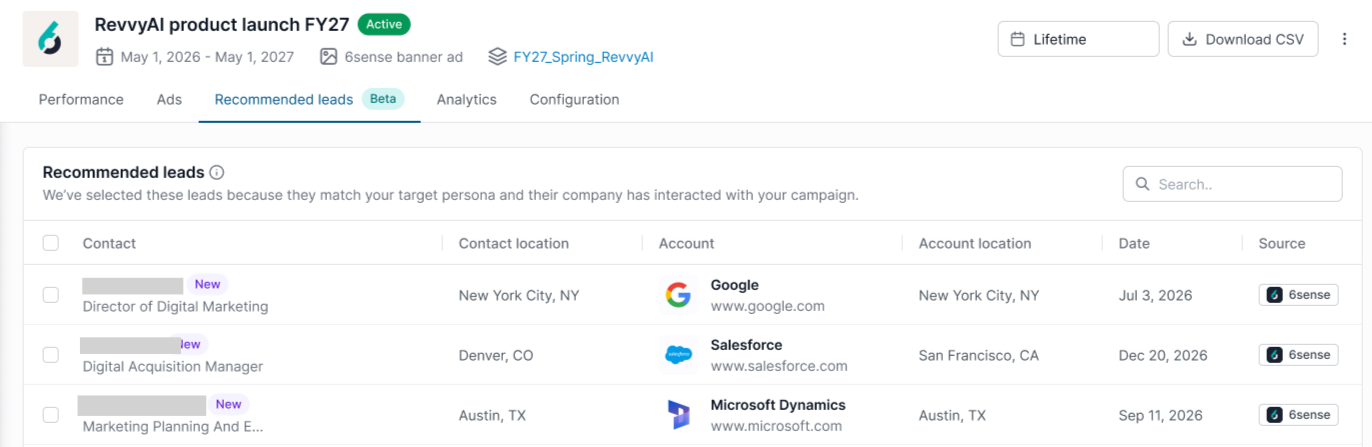
How the recommended leads feature works
For the recommended leads feature, 6sense AI surfaces contacts from accounts that engaged with your persona-targeted advertising campaigns. 6sense selects recommended contacts using campaign targeting criteria and engagement signals and displays them in the Advertising > Campaign Details > Recommended Leads tab.
Recommended leads are based on the personas selected for the campaign using the persona targeting feature.
Recommended leads does not identify the specific individuals who clicked your ads. Instead, it recommends contacts who match your campaign's persona targeting criteria and are associated with engaged accounts.
Recommended leads notes and limitations
Recommended leads is available only for eligible 6sense display campaigns. LinkedIn and External campaigns are not supported.
Up to two contacts can be recommended per account.
When multiple contacts qualify, recommendations prioritize geographic proximity and email quality.
Contacts recommended within the previous 90 days are not recommended again.
Recommendations refresh daily.
Persona targeting must be configured for the ad campaign.
Prerequisite: Configure persona targeting to enable the recommended leads feature
To generate recommended leads, your campaign must use persona targeting. Follow these instructions to enable it. Also refer to the Persona Targeting reference.
Open the campaign.
Go to Advanced Targeting.
Under Persona, select Target specific personas.
Choose the personas you want to target.
Save the campaign.
Note: Campaigns without persona targeting do not generate recommended leads.
How accounts and contacts become eligible as recommended leads
To be eligible for recommendation:
The account must be included in the campaign's target segment.
The account must have generated at least one ad click.
The contact must match the campaign's persona targeting criteria, including job function and job level.
The contact must have a verified email address that meets quality requirements.
How multiple contacts are prioritized
When multiple contacts qualify for recommendation, contacts are prioritized using:
Geographic proximity to the engagement location:
City match
State match
Country match
Email quality: When geographic proximity is equal, contacts with higher email quality are prioritized.
View recommended leads
To view recommended leads:
Open the advertising campaign.
Go to the Campaign Details page.
Select the Recommended leads tab.
Download recommended leads as a CSV file
To export recommended leads as a CSV file:
Open the campaign.
Select Download CSV.
Select Recommended leads.
Select Download
Troubleshooting: Why recommended leads may not be available
Message | Reason | What to do |
|---|---|---|
Persona targeting is required | The campaign does not use persona targeting. Recommended leads are generated based on the personas selected for a campaign. | Edit the campaign and configure persona targeting under Advanced Targeting. |
Contact Data Compliance agreement is required | Your organization has not completed the Contact Data Compliance agreement required to access contact recommendations. | Contact your Customer Success Manager (CSM) to complete the agreement. |
Campaign is not supported | The campaign started before the supported date for Recommended Leads. | Recommended Leads are only available for eligible campaigns. Review the date requirements shown in the application. |
Campaign budget is exhausted | The campaign has exhausted its budget and is no longer generating eligible engagement for recommendations. | Increase the campaign budget or wait for additional eligible engagement. |
No recommendations available yet | No eligible campaign engagement is available. Recommended Leads are generated from accounts with people who engage with the campaign. | Allow the campaign to continue running and check again after additional engagement is recorded. |
Analytics tab
The Advertising Campaign Details > Analytics tab shows how ads in the campaign are distributed across different audiences, attributes, and activity types. This tab provides breakdowns of impressions, clicks, and account engagement across multiple dimensions. All data updates based on the selected delivery timeframe and applied filters.
Download data from the Analytics tab tables
Each table in the Analytics tab lets you download the data shown in the table, using the selected delivery timeframe.
Distribution by domain table
The Distribution by domain table shows where ads were served based on website domains. For each domain, the table displays:
Impressions
Clicks
Accounts engaged
Distribution by job level and function table
The Distribution by job level and function section shows ad delivery and engagement by audience role. For each job level or function, this section displays:
Accounts reached
Impressions
Clicks
Distribution by device type chart
The Distribution by device type chart shows impression distribution counts by device type. Device types include:
Desktop
Mobile
Tablet
Use the menu at the top right to change the distribution by Accounts reached, impressions, or clicks.
By time of day chart
The By time of day bar chart shows how impressions are distributed across different hours of the day.
Use the menu at the top right to change the metrics to Accounts reached, impressions, or clicks.
Use the menu at the top right to select the time zone for the time of day.
Distribution by geography chart
The Distribution by geography section shows campaign performance by geographic region.
Use the the menu at the top right to view geographic distribution based on:
Impressions
Clicks
Accounts Reached
Distribution by industry
The Distribution by industry chart shows campaign performance by industry.
Use the menu at the top right to view distribution based on:
Impressions
Clicks
Accounts reached
Accounts engaged
Configuration tab
The Advertising Campaign Details > Configuration tab displays campaign setup, workflow associations, and targeting details for all users who have access to the campaign. Information in this tab reflects the current campaign configuration.
Edit options are available only to users with the required permissions.
Campaign details configuration
The Campaign details section shows basic information about the campaign. It includes:
Status: Current campaign status.
Campaign type: Type of advertising campaign.
Campaign ID: Unique identifier for the campaign.
Creator: User who created the campaign.
Created: Campaign creation date.
Workflow associations
For campaigns associated with an Audience Workflow, the Workflow section displays information about the workflow that created or manages the campaign. This section is available only for workflow campaigns.
The Workflow section includes:
Workflow name: The name of the associated workflow.
Segment name: Name of the segment used by the workflow campaign.
View workflow: Opens the workflow and highlights the associated campaign node.
Segment configuration
The Segment section shows the audience segment associated with the campaign. It includes:
Segment: Name of the segment.
Accounts: Number of accounts in the segment.
Select View segment to view the segment details.
Campaign setup configuration
The Campaign setup configuration shows budget, schedule, and delivery settings. It includes:
Schedule: Campaign start and end dates.
Daypart: Time of day ads are eligible to run.
Frequency cap
Alert recipients
Purchase order
Product
Campaign description
Digital billing record
Total campaign budget
Max daily spend
Max CPM
Media CPM
Persona targeting CPM
Select Edit campaign setup to update these settings, if available.
Ads setup configuration
The Ads setup configuration shows information related to ad format and uploads. It includes:
Ad format: Type of ad format.
Ads uploaded: Total number of ads added to the campaign.
Select Edit ads setup to update ad‑related settings, if available.
Advanced targeting configuration
The Advanced targeting configuration shows additional targeting and optimization settings. It includes:
Persona targeting
Inventory type
Device type
Brand safety
Domain
Optimization
Country
Language
Select Edit advanced targeting to update these settings, if available.