Overview
6sense Connected Apps are no longer the recommended or supported method for integrating third‑party applications. To align with Salesforce security and platform standards, 6sense uses 6sense External Client App (ECA). This is the only supported method for connecting 6sense to Salesforce including Salesforce CRM, Salesforce HVS, and Pardot.
6sense ECA provide a more secure and future‑proof authentication model than legacy Connected Apps.
This approach offers:
Salesforce‑supported OAuth flows
Stronger security controls and token management
Improved lifecycle and app governance
Prerequisites
Before connecting or migrating, ensure the following:
You have Salesforce Admin access
Install 6sense External Client App
A Salesforce Admin must install the 6sense ECA package.
Installation links:
Production https://appexchange.salesforce.com/appxListingDetail?listingId=a092a881-cf4a-4722-a27b-418dd34b7a3b. Or, you can use the direct link: https://login.salesforce.com/packaging/installPackage.apexp?p0=04tOH0000003W1lYAE
Sandbox https://test.salesforce.com/packaging/installPackage.apexp?p0=04tOH0000003W1lYAE
Sign in to Salesforce using an account with administrator privileges.
Open the 6sense ECA installation package.
Verify the package details before continuing:
App Name: 6sense ECA
Publisher: 6Sense Insights Inc.
Select an installation option:
Install for Admins Only – Grants access only to Salesforce administrators.
Install for All Users – Grants access to all Salesforce users.
Install for Specific Profiles – Grants access only to selected profiles.
Note: If your organization requires stricter access controls, install the package only for the dedicated 6sense integration profile.
Review the package contents by selecting View Components.
The package should include:
External Client App
External Client App Metadata (if applicable)
Acknowledge the checkbox.
Select Install.
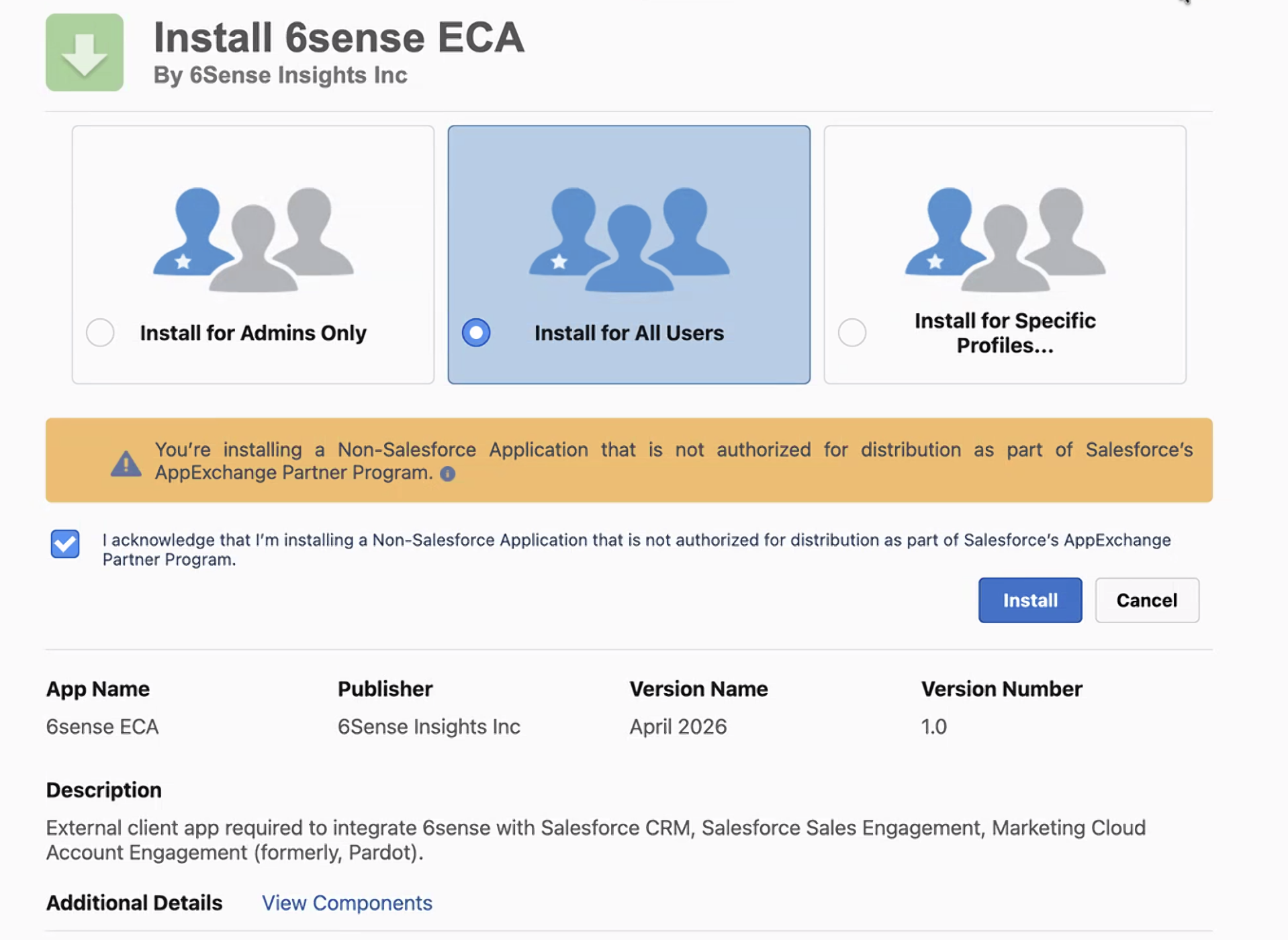
Note: The 6sense External Client App is currently being published to Salesforce AppExchange. During installation, Salesforce might display a message asking you to acknowledge that you are installing an application that is not yet available through AppExchange. This behavior is expected.
Verify installation
After the installation completes, verify that the package was installed successfully.
Log in to your Salesforce org
Go to Setup.
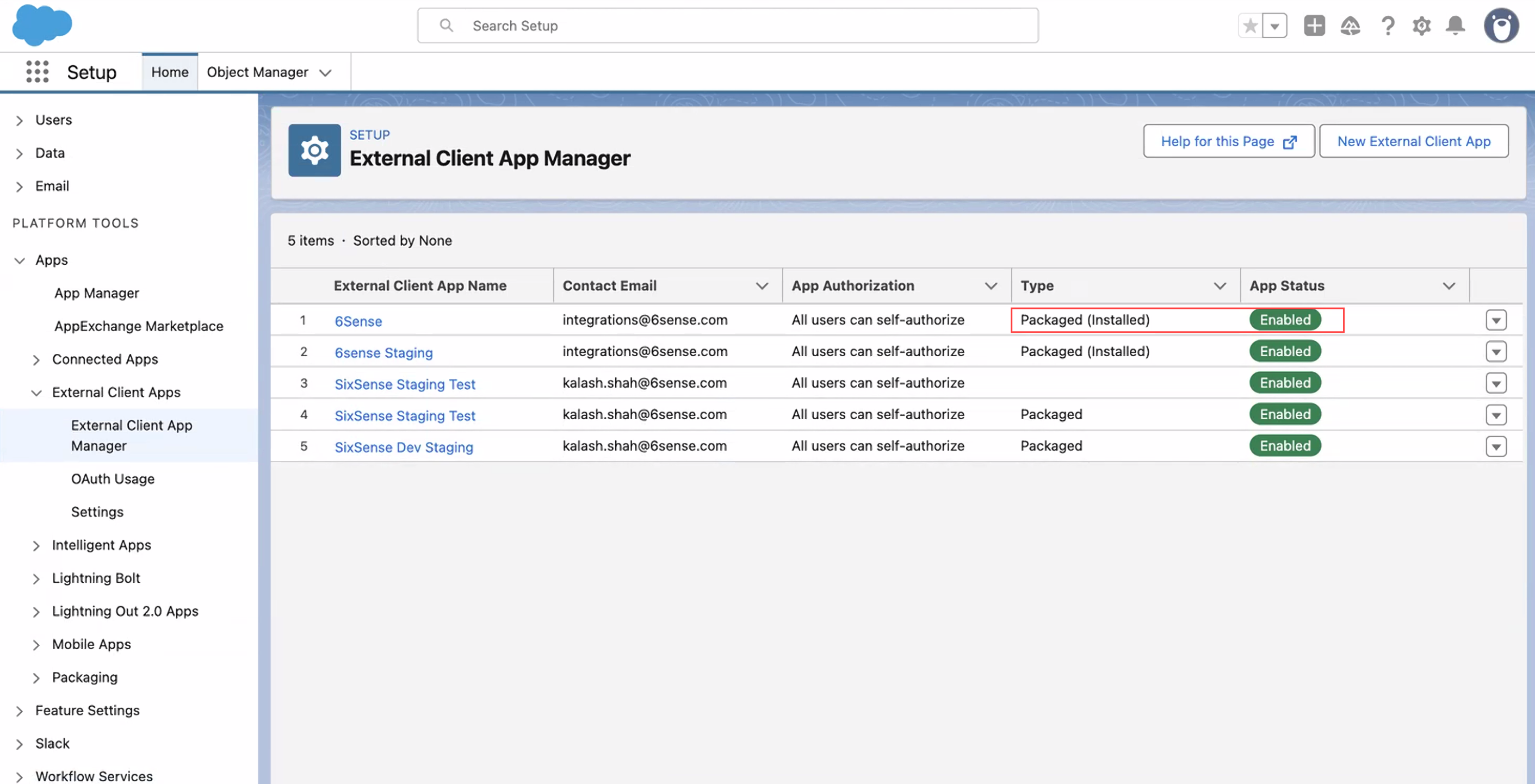
Navigate to Apps → External Client Apps → External Client App Manager
Confirm that 6sense External Client App appears with:
Type: Packaged
Status: Installed
This confirms that the External Client App is installed successfully.
Configure External Client App policies
After installation, update the app policy settings.
In External Client App Manager, select 6sense External Client App.
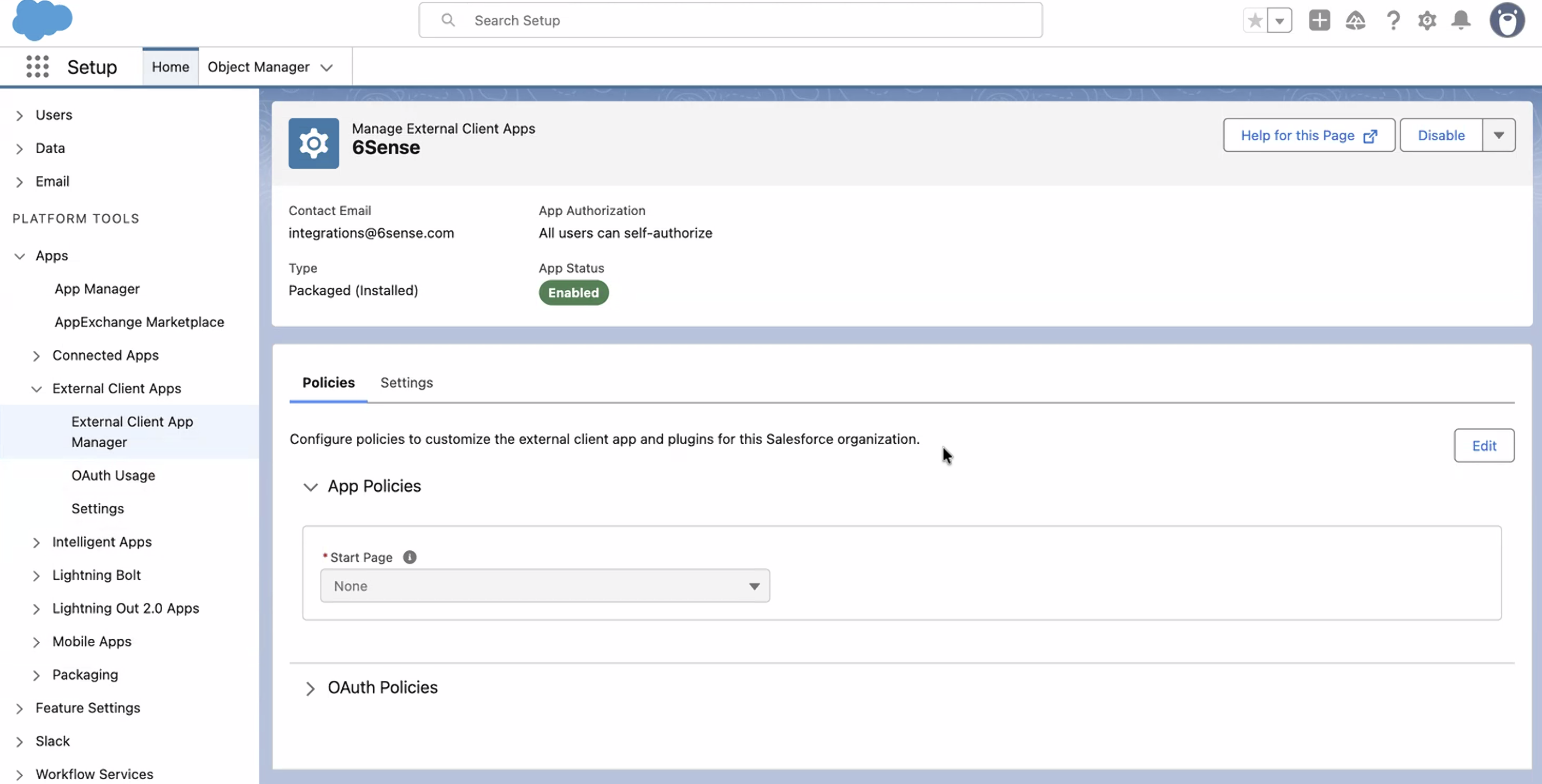
Go to Policies.
Select Edit.
In the App Policies section , select None in the Start Page drop-down.
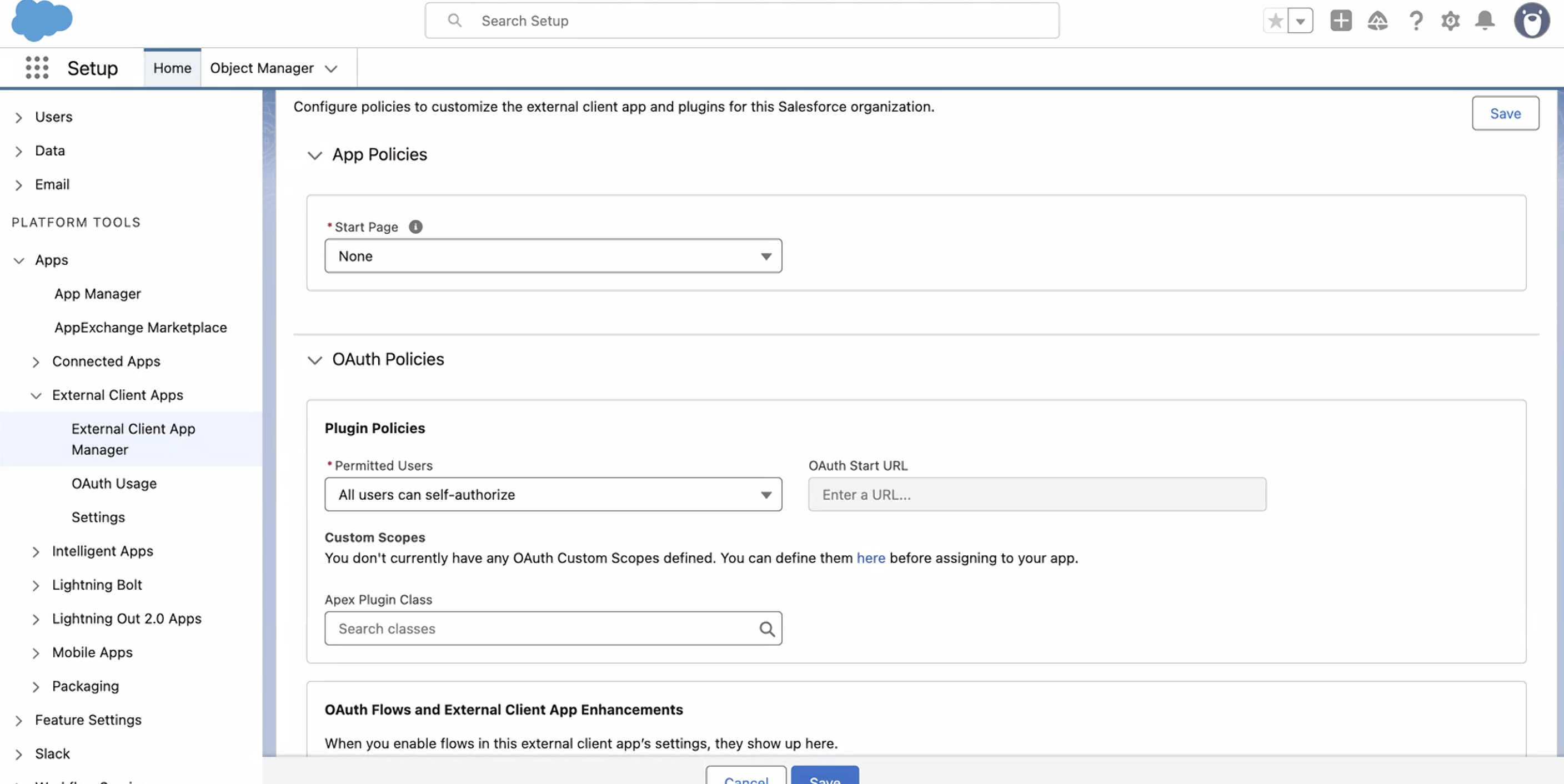
In the OAuth Policies section, configure the policies as shown below:
Setting | Required value |
|---|---|
Permitted users | You can choose All users can self-authorize. For stricter access control, select Admin approved users are pre-authorized, and then assign the 6sense Integration Profile that was selected when the package was installed. |
In the App Authorization section, select Expire refresh token if not used for specific time and configure the policies as shown below:
Setting
Required value
Refresh Token Validity Period
30
Refresh Token Validity Unit
Day(s)
IP Relaxation
Enforce IP restrictions
Session Timeout in Minutes
1 - 1440
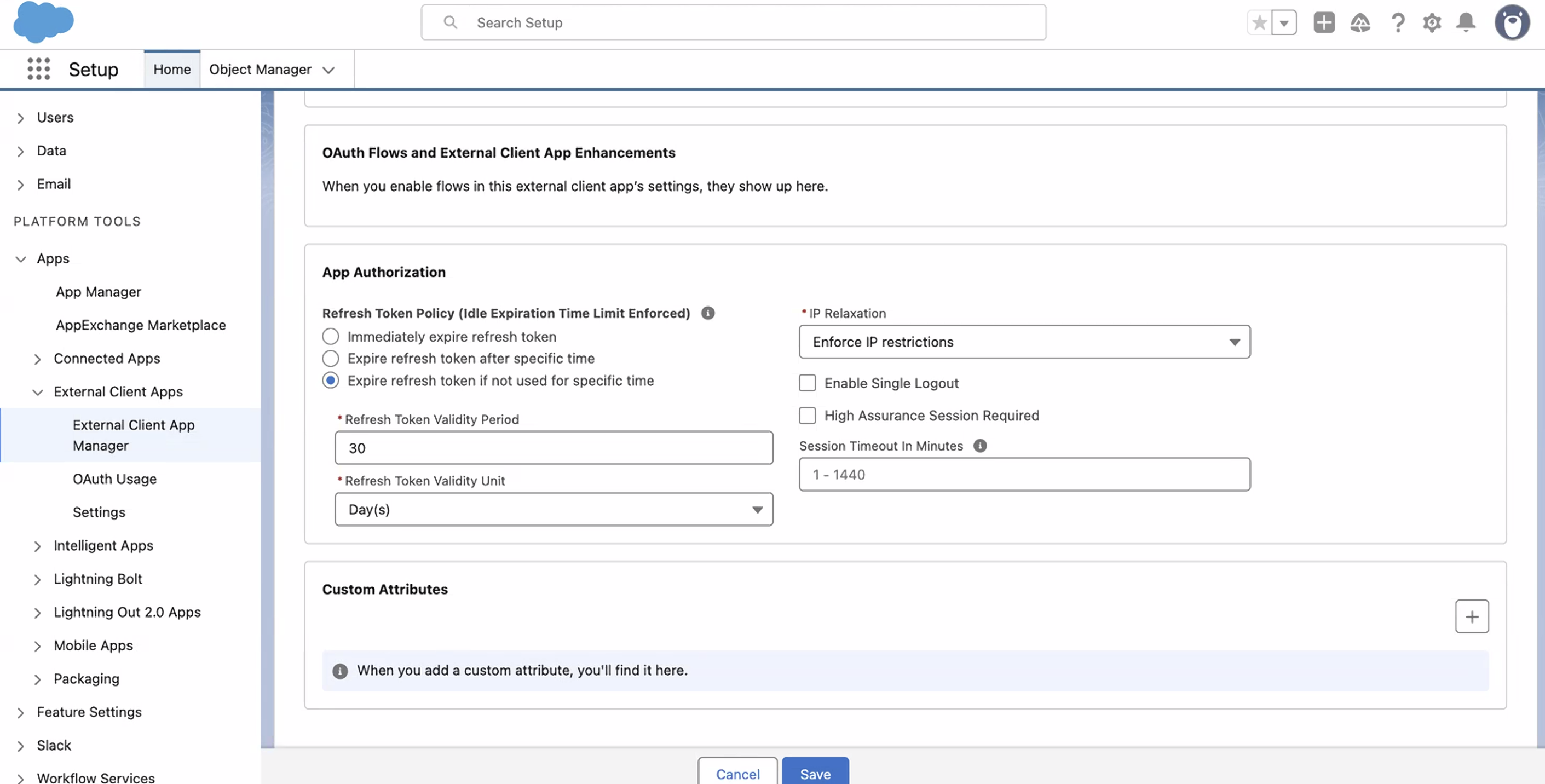
Save your changes.
Contact 6sense Support to enable ECA
Important: After you install and configure the 6sense External Client App (ECA) in Salesforce, do not re-authenticate your Salesforce integration yet.
Contact 6sense Support and request that ECA be enabled for your organization. In your request, confirm that:
The 6sense External Client App (ECA) is installed in Salesforce.
The required ECA policies are configured and saved.
6sense Support enables ECA for your organization on the 6sense backend and notifies you when enablement is complete.
Wait for confirmation from 6sense Support before re-authenticating your Salesforce integration in 6sense.
Re-authenticate your Salesforce integration
After 6sense Support confirms that ECA is enabled for your organization, re-authenticate your Salesforce integration in 6sense to complete the migration.
Sign in to 6sense as a user with permission to manage the Salesforce integration.
Navigate to your Salesforce integration in 6sense.
Start the Salesforce re-authentication process.
Sign in to Salesforce using the appropriate integration user.
Complete the Salesforce authorization prompts.
Return to 6sense and confirm that the Salesforce connection is successfully authenticated.
Important: Additional re-authentication may be required.
After ECA is enabled, re-authenticate every applicable Salesforce integration within 6sense. This includes Salesforce CRM, Marketing Cloud Account Engagement (Pardot), and Sales Engagement Platform(HVS). Installing ECA does not automatically update the authorization for each connection.
Troubleshooting
*Error: App not installed
Error code: OAUTH_EC_APP_NOT_FOUND
Cause
The External Client App is not installed in Salesforce.
Resolution
Ask your Salesforce Admin to install the 6sense External Client App
Retry the login process
*Error: App disabled
Error code: OAUTH_FLOW_DISABLED
Cause
The External Client App or OAuth settings are disabled.
Resolution
Ask your Salesforce Admin to open External Client App Manager.
Select 6sense External Client App.
Ensure:
The app is Enabled
OAuth is enabled
Save the changes and retry login
The app name may not appear as Sixsense Staging Test.
FAQ
Does the single 6sense ECA support SFDC CRM, Pardot, and Salesforce Sales Engagement integrations?
Yes. The single 6sense ECA supports SFDC CRM, Pardot, and Salesforce Sales Engagement integrations.