SCIM (System for Cross-domain Identity Management) allows you to automatically manage user access between your Identity Provider (IdP) and 6sense application.
When you enable SCIM, you can:
Automatically provision users when they are added in your IdP.
Automatically deprovision (disable) users when they leave your organization.
Keep user attributes (such as first name, last name, email, and status) in sync.
Reduce manual user management and improve security.
SCIM is included in Advanced Security as an optional feature and is not enabled by default. To request enablement, please contact your Customer Success Manager (CSM).
Prerequisites:
Before enabling SCIM, review all users in 6sense User Management and disable any users who no longer require access to the application.
This is important because once SCIM is enabled, user activation and deactivation must be managed through your Identity Provider (IdP) only.
If users remain in an Enabled state in 6sense User Management but are not present in the IdP when SCIM is enabled, a warning indicator is displayed for those users. You can use the Disable action to manually deactivate them.

This capability is available only for users who are not managed by the IdP, allowing you to disable these users directly without needing to contact 6sense Support.
Before proceeding, ensure the following requirements are met:
You have administrator access to:
The 6sense application.
Your Identity Provider (IdP) admin console.
Single Sign-On (SSO) has already been configured and tested successfully.
Your IdP supports SCIM provisioning.
The unique identifier used for SCIM provisioning is email.
6sense supports email-based identifiers only.
Set Up SCIM
If you are a 6sense customer who configured SSO using the 6sense Okta OIN application before November 13, 2025, you may enable SCIM using the same Okta application.
6sense OKTA OIN app should not be used for new SSO deployments. It is a legacy application only for supporting customers who had installed SSO before November 13, 2025.
If you are already using a 6sense OKTA OIN app, follow the instructions in Set Up SAML SCIM for 6sense Legacy OKTA OIN App.
For all other SCIM activations, follow the steps below:
Log in to 6sense.
Navigate to Settings > Security and Compliance > Identity and Access.
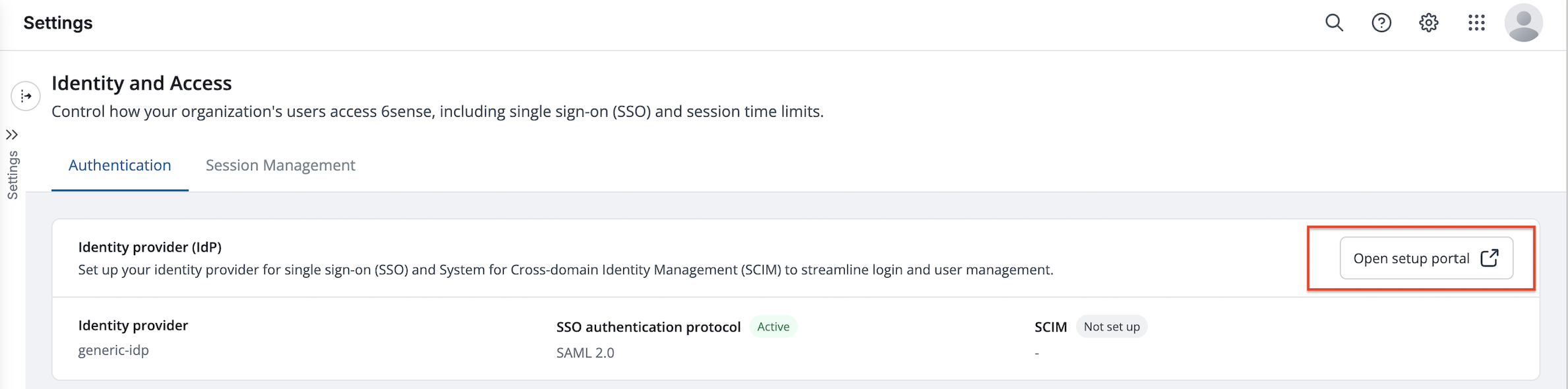
Click Open setup portal. This will navigate you to Descope‘s self-serve portal to set up SCIM.
Click Add on SCIM configuration tile.
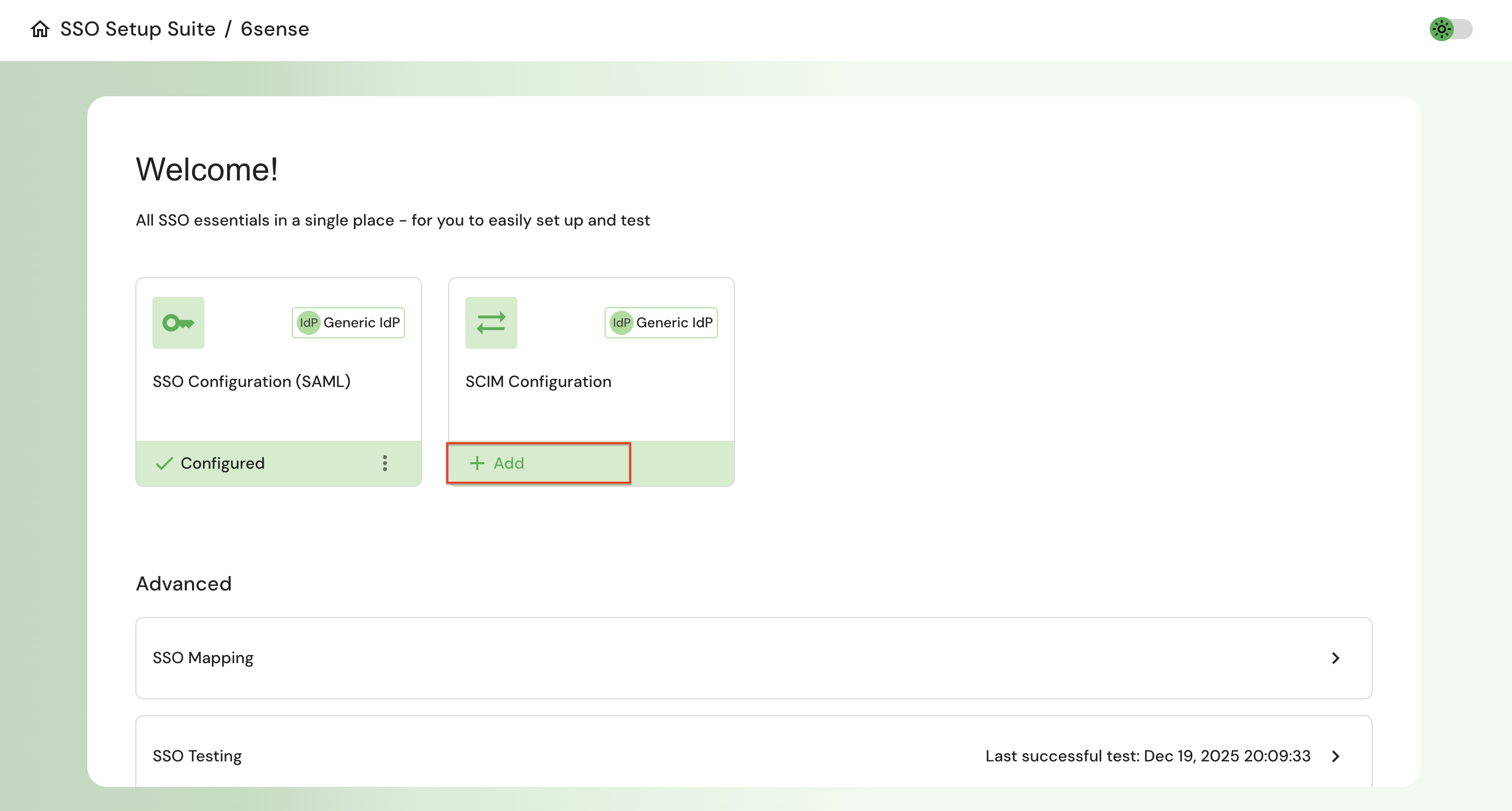
Select your IdP provider from the list shown. If your IdP is not listed, then select generic IdP.
The steps provided in the portal are tailored to your IdP. Follow the step-by-step instructions for your selected IdP to generate the SCIM bearer token, copy the SCIM connector base URL into your IdP, and then click Finish.
On the next step select Disable JIT provisioning and Save.
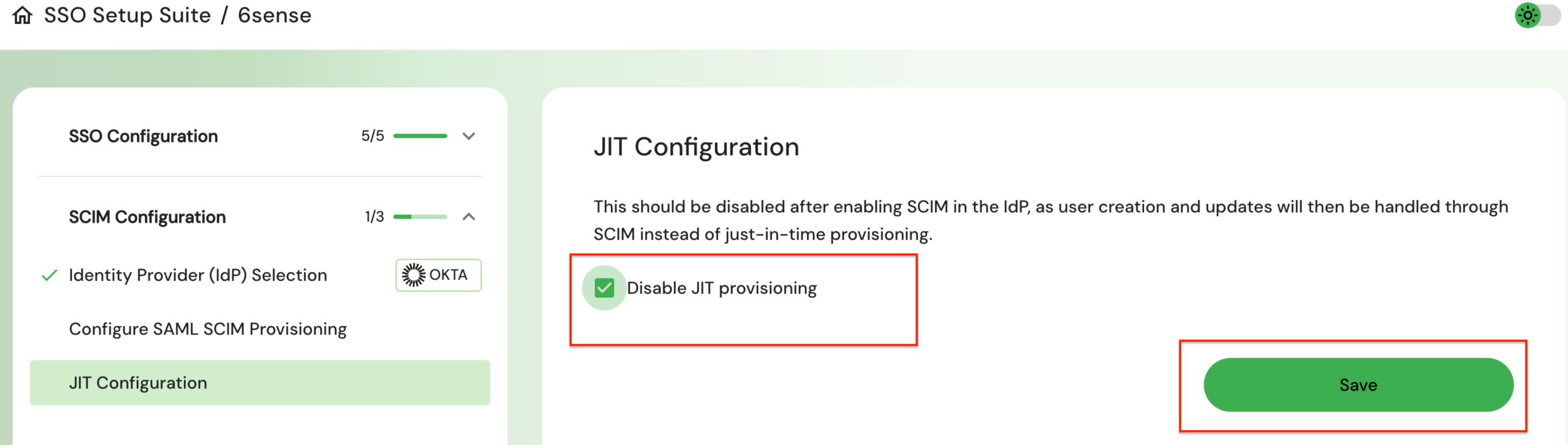
It is very important that you disable JIT provisioning after enabling SCIM in the IdP, as user creation and updates will then be handled through SCIM instead of just-in-time provisioning.
Revoke SCIM provisioning
If you need to stop SCIM provisioning for your 6sense account, you can revoke SCIM from the self-serve portal.
Once you revoke the SCIM key, ensure Disable JIT provisioning is unchecked on the portal.
Important considerations before revoking SCIM
Once SCIM is revoked, user provisioning and deprovisioning will no longer occur automatically from your Identity Provider (IdP).
Existing users will remain active in 6sense unless manually updated.
After revocation user management must be handled manually within the 6sense application.
If SCIM is re-enabled later, ensure that user attributes and identifiers are reviewed to avoid conflicts.
Steps to Revoke SCIM
Log in to 6sense.
Navigate to Settings > Security and Compliance > Identity and Access and select Open setup portal.
Navigate to the SCIM configuration section.
On the “Configure SAML SCIM” provisioning step, select Revoke SCIM key and select Finish.
On the next step, click Enable JIT provisioning.
Once SCIM is revoked, the SCIM bearer token is invalidated and the connection between your IdP and 6sense is removed.
When you disable SCIM, it is very important to enable JIT provisioning. Without this, the new users provisioned will not be able to login to 6sense successfully.
FAQ
I have enabled SCIM, but new users added in my IdP are not showing up in user management automatically. Why?
This issue typically occurs when SCIM configuration is incomplete on the Identity Provider (IdP) side.
Verify the following:
The SCIM bearer token generated in the SSO portal has been copied correctly to your IdP.
The SCIM connector base URL has been copied correctly to your IdP.
Just-In-Time (JIT) provisioning is disabled in the portal.
The unique identifier for SCIM provisioning is set to email.
I do not see any option to disable users via 6sense user management. Is this expected?
Yes. After SCIM is enabled, user provisioning and deprovisioning must be managed through your IdP. The Disable action is available only for users who are no longer managed by your idP and were added to 6sense application before SSO and SCIM were enabled.
Can I still manage users manually after enabling SCIM?
No. After SCIM is enabled, user lifecycle management activities such as user creation, deprovisioning, and profile updates must be performed through your IdP. The only exception is for users who are no longer managed by your idP and were added to 6sense application before SSO and SCIM were enabled. These users can still be manually disabled from 6sense User Management.
What should the unique identifier field for users for SCIM enablement be?
The unique identifier should be email. The 6sense platform only support emails and hence your IdP should configure the unique identifier as email only.
What happens to existing users when SCIM is revoked?
Existing users remain unchanged in 6sense. No users are automatically disabled or removed when SCIM is revoked.
Does the API Token generated for SCIM carry an expiration date?
No, there is no expiration date for the SCIM key.
What is the version of SCIM and is it compliant?
The version we use is SCIM 2.0 and yes, it is compliant.
Does SCIM control user roles or permissions?
When a user is first provisioned via SCIM, a default role is assigned at user account creation. After provisioning, roles and permissions are managed within the application and are not updated through SCIM.
What happens when a user is deleted in IdP and SCIM is configured?
The user will be disabled in user management automatically.
I have been using a 6sense Okta OIN app for SSO configuration. Can it support SCIM?
Yes, we are including SCIM as an option for legacy 6sense Okta OIN app. This app is only meant for existing customers who had installed SSO with the Okta OIN app before November 13, 2025. It should not be used for new SSO deployments for 6sense.
Follow the instructions at Set Up SAML SCIM for 6sense Legacy Okta OIN App.