Custom Scenarios enable you to create and customize reply scenarios to meet your campaign-specific requirements, extending beyond standard out-of-the-box options. This feature is designed to reduce manual review and empower more intelligent, automated conversation management.
Benefits
Expanded AI capabilities – Capture new scenarios unique to your business and automate responses
Campaign-level customization – Edit qualification criteria to match each campaign's requirements
Reduced manual workload – Minimize replies requiring human review.
Pre-requisite
Before you begin, ensure the AI replies toggle is enabled for your campaign.
Open a campaign.
Select Customize AI conversation flow in the Design AI conversation flow section.
Use the toggle key to enable AI replies.
.png)
Select Enable to confirm your selection.
Create a Custom Scenario
You can create a scenario in three ways:
Option 1: Start with a prebuilt template
Option 2: Build a scenario from scratch
Option 3: Update an existing reply scenario
Both options include the same editable fields.
Option 1: Start with a prebuilt template
Open a campaign.
Select Customize AI conversation flow in Design AI conversation flow.
Select Add custom scenario.
Select Browse scenario library when creating a new scenario.

Choose a template, such as:
Billing question
Already in contact
Already a customer
Product inquiry
Review the template’s criteria and response instructions.
Choose what happens after the agent responds:
Continue conversation: Agent remains engaged for follow-up questions
End conversation and update its status in AI Email: Closes the conversation and updates status in AI Email
(Optional) Enhance your workflow by adding routing or CRM updates in Additional agent actions.
Route to sales rep:
Choose who receives the conversation (no one, lead owner, specific rep, specific sales group)
Helpful for high-intent leads or complex requests
Update CRM field:
Tag conversations for reporting and analysis if AIE statuses are too broad
Customize the content to match your campaign, product, and tone.
Note: Templates are a starting point. Always refine the wording, criteria, and agent instructions so they accurately reflect your processes and brand voice.
Select Save.
Option 2: Build a scenario from scratch
Open a campaign.
Select Customize AI conversation flow in Design AI conversation flow.
Select Add custom scenario.
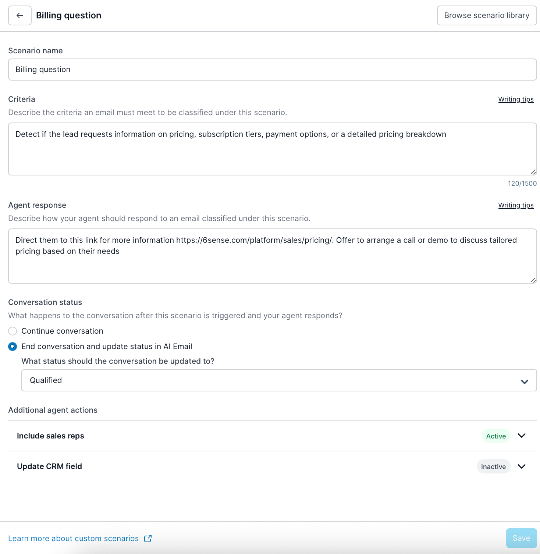
Provide your scenario a clear, descriptive name in the Scenario name field.
Examples:
Lead requests pricing
Technical support inquiry
Competitive Intel
A clear name helps you identify the scenario later and supports reporting.
Define the conditions that classify an email under this scenario in the Criteria field. For example, Contact mentions they are already a customer; Contact is based in LATAM.
Provide step‑by‑step instructions for how the agent should respond in Agent response.
Example: Thank the customer for reaching out. Acknowledge their existing relationship. Ask what specific pricing information they need. Offer to connect them with their account manager for personalized pricing.
Best practices:
Be specific about tone and messaging
Include any key information to share
Specify whether to ask follow-up questions
Reference links (optional)
Choose what happens after the agent responds:
Continue conversation: Agent remains engaged for follow-up questions
End conversation and update its status in AI Email: Closes the conversation and updates status in AI Email
(Optional)Enhance your workflow by adding routing or CRM updates in Additional agent actions.
Route to sales rep:
Choose who receives the conversation (no one, lead owner, specific rep, specific sales group)
Helpful for high-intent leads or complex requests
Update CRM field:
Tag conversations for reporting and analysis if AIE statuses are too broad
Select Save.
Option 3: Update an existing reply scenario
Open a campaign.
Select Customize AI conversation flow in Design AI conversation flow.
Enable the AI replies and custom scenarios toggle.
.png)
Select an existing reply scenario. For example, select Contact is qualified.
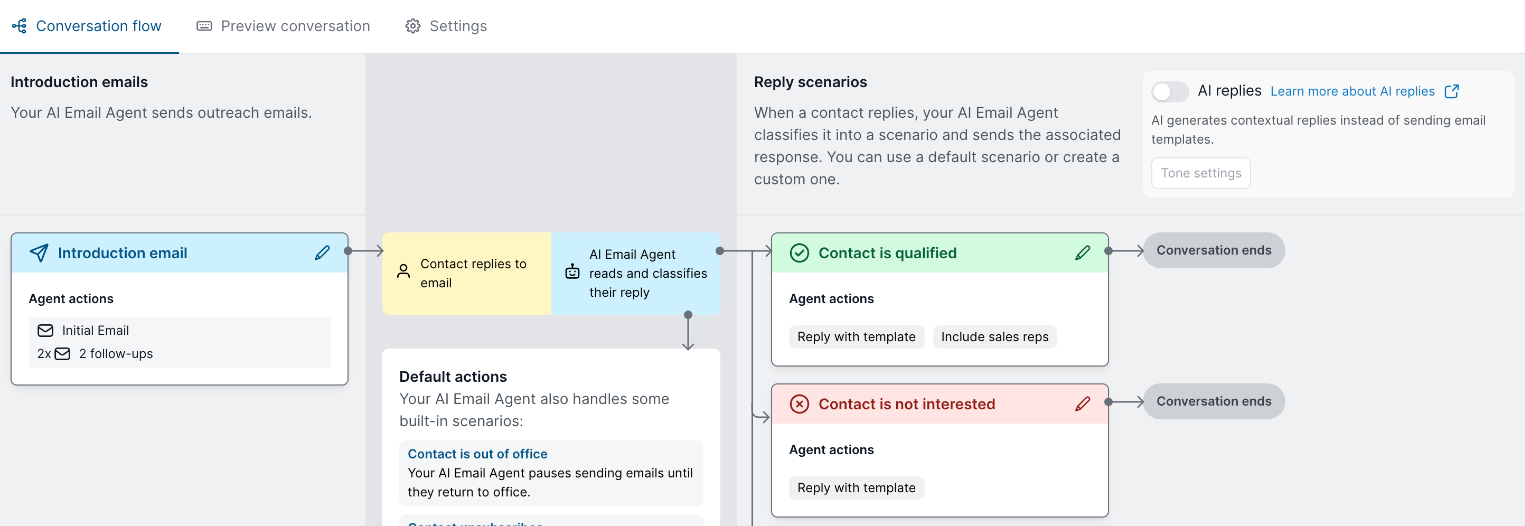
Criteria determine how AI Email classifies incoming messages into a scenario. You can’t edit the base criteria, but you can add optional criteria to further refine how messages are routed.
Base Criteria
Base criteria are always applied and cannot be changed. These are system‑defined rules that identify the primary intent of the message.
Example (system‑defined):
Lead requests for a meeting or a call, lead expresses positive intent
Base criteria ensure the scenario consistently captures the core behavior or intent it’s designed for.
Additional
Add the specific conditions that define how you would qualify the lead. For example, The lead must also indicate they want more than 50 licenses or have an employee size of more than 100.
Note: This means if a lead indicates they are interested or want a meeting but doesn't meet your additional criteria, they will not be marked as qualified and will go into human review instead.
Choose how the email agent responds:
Reply autonomously: AI writes contextual replies.
Reply as per instructions: Add instructions for the AI to follow.
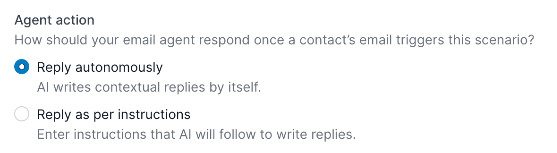
For example, if you select Reply as per instructions, you can add instructions such as “Thank the contact for their time and let them know we are reviewing their information and a product specialist will be in contact shortly.”
Test your setup until you are satisfied with the results.
.png)
If needed, you can add new custom scenarios.
Use Cases and Guidance
1. Setting Up Strict Qualification Criteria
Use Case:
You want to set stricter qualification criteria than the default where a lead simply needs to express positive interest or agree to schedule a demo.
Steps:
Select Contact is qualified.
Select Additional.
Add specific qualifying conditions. For example, The lead must also indicate they want more than 50 licenses or have an employee size of more than 100.
.png)
Leads not meeting criteria are sent for human review.
Test and refine your setup.
Create new custom scenarios for leads not meeting criteria.
2. Expanding Qualification Criteria
Use Case:
You want to broaden what counts as qualified beyond the default criteria by adding new qualifying scenarios.
Steps:
Click Create new custom scenario.
Define criteria and response strategy.
Set action to End the conversation with status Qualified.
Save and test your scenario.
Example: If a lead asks a billing question and you consider that qualified, set up a scenario that triggers on billing or pricing questions, closes the conversation as Qualified, and CCs the sales representative. You can set up a custom scenario that:
Criteria when billing or pricing questions are detected
Closes the conversation as Qualified
CCs the assigned sales representative
.png)
3. Creating Custom Scenarios to Continue Conversations
Use Case:
You want to handle specific types of inquiries by continuing the conversation automatically, keeping leads engaged without human intervention.
Steps:
Click Create new custom scenario.
Optionally, load a template from the library.
Define criteria and response strategy.
Set action to Continue the conversation.
Save and test your scenario.
Example:
If a lead asks a support question, you can create a scenario to:
Detect support-related inquiries
Respond with helpful information
Direct them to a support email or link for further assistance
Continue the conversation to see if they have additional questions
Best Practices
For detailed best practices, refer to the Custom Scenarios: Best Practices article.
FAQ
Can I change the Qualified Criteria to trigger based on clicking a link or taking an action outside of the email?
No. Custom Reply Scenarios are triggered by language in the contact’s reply, not by external activities such as webinar sign-ups, link clicks, and so on.
How do I make the Qualified Criteria stricter?
By default, the criteria for qualified is when a lead shows positive interest or intent to book a call or demo. If you want to prequalify certain conditions based on the lead's reply, you can add additional instructions. For example, lead must also indicate they are interested in having more than 50 licenses.
What happens if a lead’s reply triggers multiple detected scenarios?
If all triggered scenarios share the same action, the AI combines them into one response and proceeds with that action. For example, if both Billing Question and Product Inquiry scenarios are configured to continue the conversation without CC’ing a sales rep, and the lead asks about pricing and product details in the same email, the AI sends a single reply that addresses both topics. If the scenarios have different actions, the conversation is sent for human review.
How specific should my custom scenario criteria be?
The level of specificity depends on your goals, but clear criteria help your AI agent respond appropriately to different types of responses.
Best practice: Be specific about the types of responses you want to handle differently. When you create a narrow scenario, also create complementary scenarios to catch responses that fall outside those criteria. Aim for balanced coverage that aligns with your campaign objectives.
Examples:
Less effective: "Lead requests more information"
More effective:
Lead requests integration information. For example, API documentation, compatible platforms, implementation timeline.
Lead requests billing/pricing information. For example, subscription costs, payment terms, enterprise pricing.
This approach ensures each lead response is routed to the most appropriate handling path while minimizing gaps in your scenario coverage.
Can I save my custom scenarios to the scenario library?
Saving custom scenarios to the scenario library is not currently supported. If this is a feature you’d like to see, please submit a feature request through your Customer Success Manager (CSM).
Is there a limit to how many custom scenarios I can create?
No, there is no limit to the number of custom scenarios you can create. As a best practice, we recommend starting with 3–5 scenarios and expanding as needed based on your use cases.
Are there any limitations when using Update CRM field?
Yes. Review the following requirements before configuring Update CRM field in a custom reply scenario:
The CRM integration user must have write access to the target field.
Only string and boolean fields are supported.
The field must exist on the Lead or Contact object.
The field must belong to the same object type (Lead or Contact) as the Salesforce report used to enroll contacts in the campaign.
Don’t update CRM fields that are managed by AIE. Updating these fields can cause data to be overwritten.