The AI Email (AIE) Conversations page lists the conversations between your AI email agents and leads. You can search for a name or email address to locate an individual lead’s conversations, or use the filters to locate a subset (called a “AIE segment”) of conversations.

Conversation filters include:
Contact first name: lead’s first name
Contact last name: lead’s last name
Contact email: lead’s email address
Assigned sales rep: assigned sales reps
Account: lead’s company account name
AI: AI email agent associated with the lead or their company account
Bounce reason: reasons why emails bounced
Campaign: campaigns associated with the lead or their company account
Conversation start date: time period during which the conversations started
Conversation status: latest response or reply scenario returned by the lead
Conversation success metric: conversations that were successfully completed (that is, the emails were opened or responded to)
Email sent date: time period during which the emails were sent
Has AI replies: conversations that include or exclude AI replies
Has sales rep follow-up: conversations with a follow up from a sales rep
Is disputed: conversations with or without a raised dispute
Is unsolicited: conversations with or without campaigns
Create an AIE segment
You can save your applied filters as a AIE conversation segment. To save a segment, apply your set of filters and select Save segment.
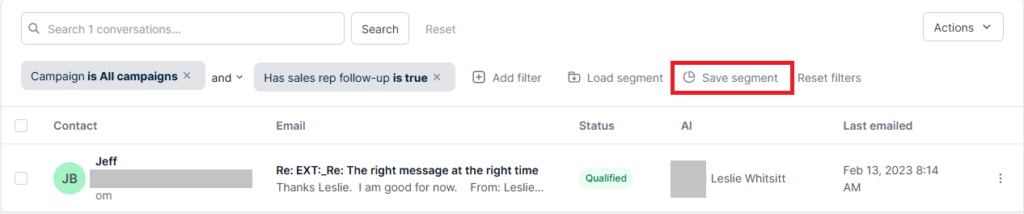
Enter a name and select Save.
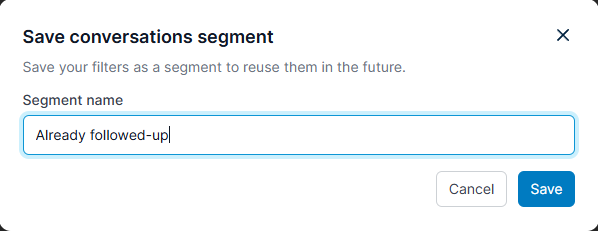
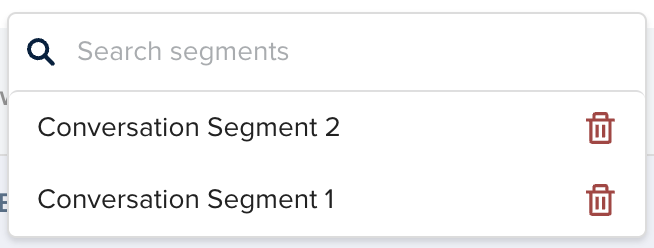
After you’ve saved a segment, you can find it under Load segment.
To delete a saved segment, select the trash bin icon next to the segment name in the Load segment drop-down menu.
Export conversations
You can export a segment of conversations (and their information such as lead name, handover rep etc.) in a CSV file. The file won’t include the email conversation thread.
After applying any desired filters, check the boxes next to the conversations you’d like to export and select Actions > Export.
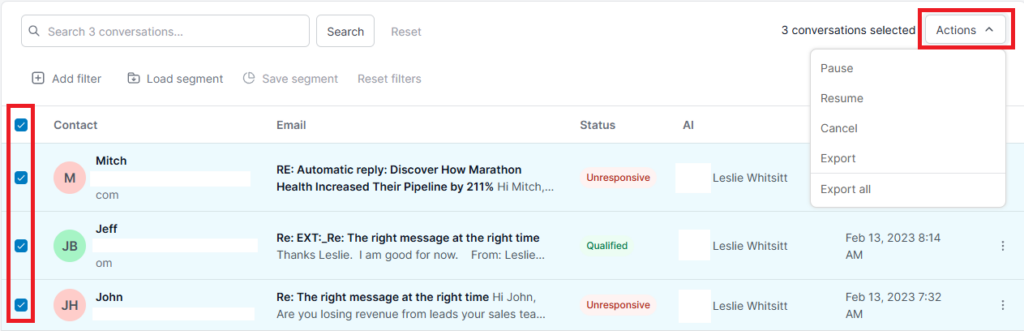
You may also choose to Export all.
Manage leads
You can find all the leads in your AIE database in the Contacts tab of the People page.
This includes:
Imported leads (via CSV, Salesforce integration or through the API)
New leads captured and created by your AI email agent
Single leads created from within the platform
In the Contacts tab, you can search a name or email address to locate an individual lead, or use the filters to locate a segment of leads.

Available lead filters include:
First name: lead’s first name
Last name: lead’s second name
Email: lead’s email address
Contact owner: email address of the person who owns the lead
Account: Name of the lead’s account
Account Billing City: The billing city associated with the lead or their company account
Account Billing Country: The billing country associated with the lead or their company account
Account Billing State/Province: The state or province associated with the lead or their company account
Account Description: Keywords that describe the lead’s company account
Account Industry: Industry associated with the lead’s company account
Account Name: Name of the company account associated with the lead
Account Owner Email: Email address of the owner of the company account associated with the lead
Account Source: A custom attribute
AI: AI Inbox associated with the lead’s account
Assigned sales rep: Sales rep assigned to the lead’s account
Campaign: Campaigns associated with the lead’s account
Conversation start date: Time period during which the lead’s conversations started
Conversation status: Latest response or reply scenario returned by the lead
Conversation success metric: conversations that were successfully completed with the lead (that is, the emails they opened or responded to)
Disputed status: Conversations with or without a dispute raised by the lead
Follow up date: Follow-up date identified by your AI email agent
Has conversation: Leads with or without a conversation with your AI email agent
Import batch: The import source of your leads, such as CSV or referral (captured lead)
Import date: A date range or time period during which your leads were imported
Import source: A custom attribute
Job Level: Job levels that have been associated with your leads
Last interacted date: A date range or time period during which your leads last had activity in their email conversation with your AI email agent, such as an email was sent or received
Marked as do not contact: filter by the do not contact (DNC) status of your leads
Number of Employees: The number of employees at the company account associated with the lead
Sales rep follow up status: Leads that had conversations with a follow up from a sales rep
Target Persona: The target persona associated with the lead
Title: The title associated with the lead
CRM‑based contact deletion sync
AIE now removes contacts that are deleted in your connected CRM. When a contact is deleted in the CRM, the matching record in AIE is deleted within 24–48 hours. This keeps contact data in AIE aligned with your CRM and helps prevent outdated contacts from being used in campaigns.
How deletion sync works
AI Email detects contact deletions during the regular CRM sync cycle.
The matching contact in AIE is deleted automatically.
No manual action is needed in most cases.
Recycle Bin limitation
If a contact is deleted in the CRM and then permanently removed from the CRM’s Recycle Bin before the next sync, AIE may not receive the deletion event.
In this case:
The contact may still appear in AIE.
You must delete the contact manually in AIE.
This is a known limitation based on how the CRM reports deletion events and when sync processing occurs.Delete a Contact in AIE.
Steps to delete a contact
Go to People > Contacts.
Select the contact you want to delete.
Select the three dots (
.png) ) and choose Delete.
) and choose Delete.Confirm the deletion message
Deletion is permanent. Make sure you no longer need the contact before confirming.
Create a lead segment
You can save your applied filters as a Lead segment. To save a segment, apply your set of filters and select Save segment.
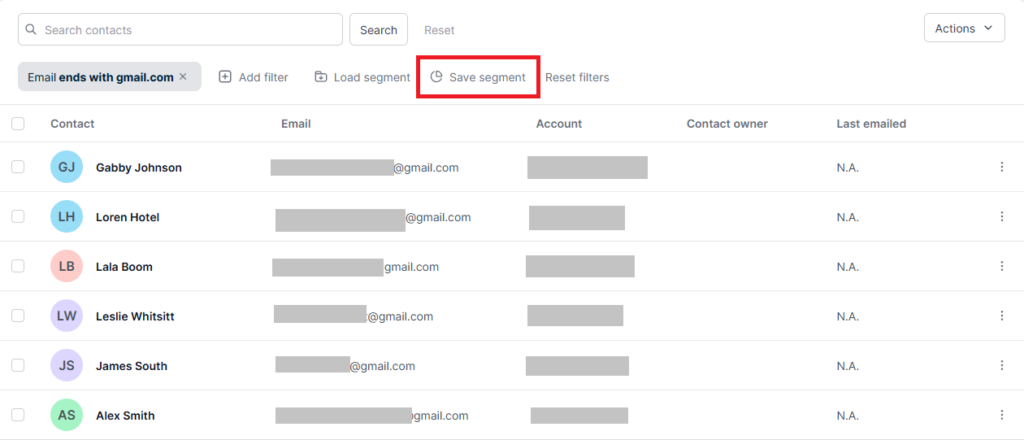
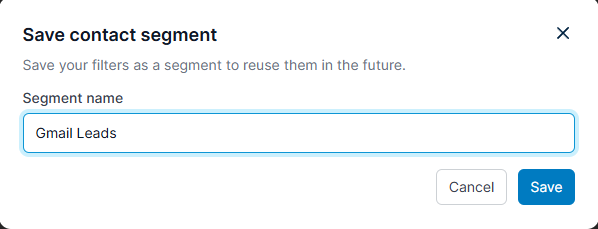
Enter a name for your segment and select Save.
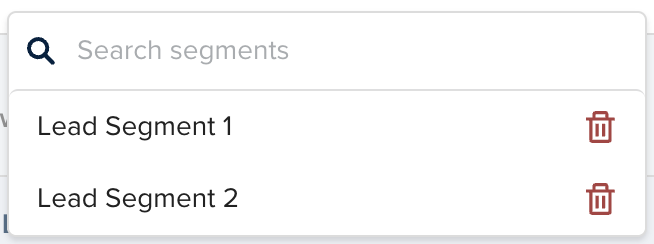
Once you’ve saved a segment, you can find it under Load segment. To delete a saved segment, select the trash bin icon next to the segment name in the Load segment drop-down menu.
Export leads
You can export a segment of leads (and their information) in a CSV file. After applying any desired filters, check the boxes next to the conversations you’d like to export and select Actions > Export selected contacts.

You may also choose to Export all contacts.