The Advertising > Segment Syncs tab helps you streamline segment syncs across your organization for both administrative and operational purposes. Administrators can oversee and manage segment sync activities across the organization.
Also refer to FAQ: Segment Sync Management and Segment Sync to Advertising Troubleshooting Messages.
Prerequisites
To edit the Segment Sync page, your user account must be a Primary Administrator or Revenue Marketing Administrator, or a Marketing User.
View-only users can use the Segment Sync page to:
Stay informed: Even if you are not directly involved in segment sync activities, you can still view and stay informed about the syncs initiated and segment usage across the org.
Training and support: If your role involves providing training or support to other team members, you can familiarize yourself with the features and functionalities of the interface since you will have access to this page.
Collaboration: Even if you’re not directly involved in marketing or administration, you may still collaborate with these teams on various projects. The interface can serve as a common platform for sharing information and coordinating efforts related to channel syncs and marketing initiatives.
Create a new segment sync
To initiate a new segment sync:
Go to ABM > Advertising > Segment Syncs.
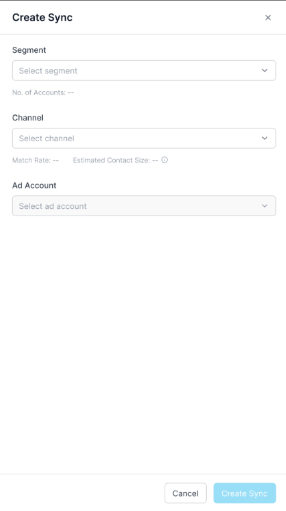
Select Create Sync from the top right.
Select the segment you want to sync.
Select the channel you want to sync the segment to.
Select the ad account within the channel where you want to make the 6sense segment available.
Note: While initiating syncs, 6sense alerts you about the sync limit, which is on your organization’s unified contracted sync limit. The contracted sync limit is the predefined or agreed-upon maximum number of syncs allowed as per the contractual agreement.
Review segment syncs as an Administrator
To review segment syncs as an Administrator:
Go to ABM > Advertising > Segment Syncs. 6sense displays the current status of all integrations and segment syncs initiated within your organization.
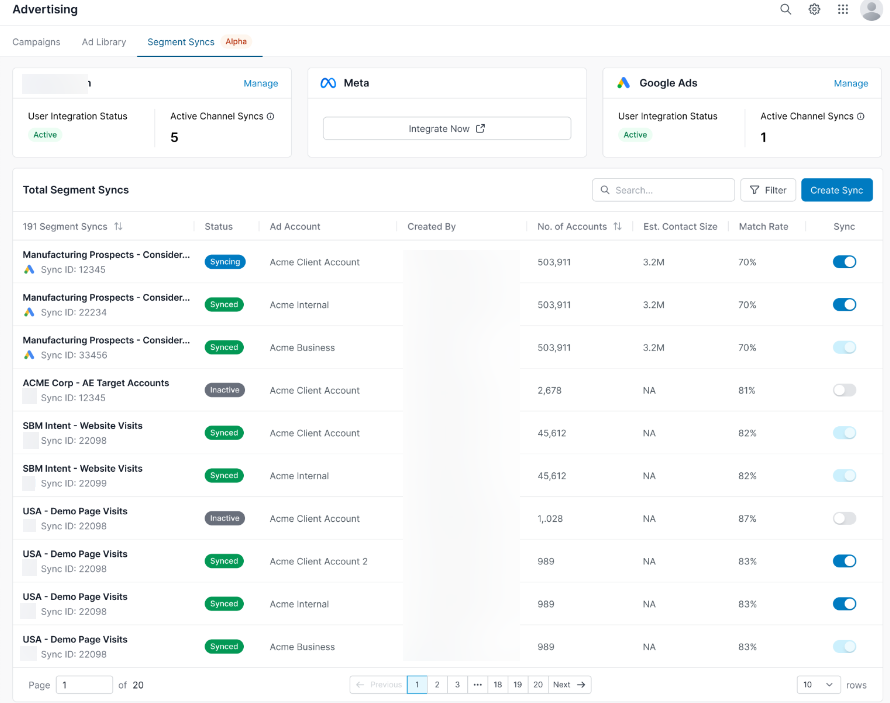
View/Manage channel integration: The Overview section provides insights into the integration status across all three channels available for integration – Google, LinkedIn, and Meta. The overview includes information about the status of each channel integration at the user level and Active Channel syncs across the organization.
Note: For security reasons, the channel integrations require every user to authenticate themselves to sync segments.View/Manage segment sync: On the Manage sync page, you will see a dashboard displaying the current status of all segment syncs initiated within your organization. The overview provides insights into which segments are syncing, synced, inactive, or failed due to any issues. This dashboard lists all syncs initiated at the ad account level for each integrated channel. You may apply filters to this page for more granular insights.
Upon clicking on the segment sync name, you will see the details associated with the segment sync, like alerts/notifications that need immediate admin attention, user segment was created by, date segment was last refreshed, etc.
Initiate syncs: To initiate a new segment sync:
Select Create Sync at the top right corner of the total segment sync dashboard.
Select the segment you want to sync.
Select the channel you want to sync the segment to.
Select the ad account within the channel where you want to make the 6sense segment available.
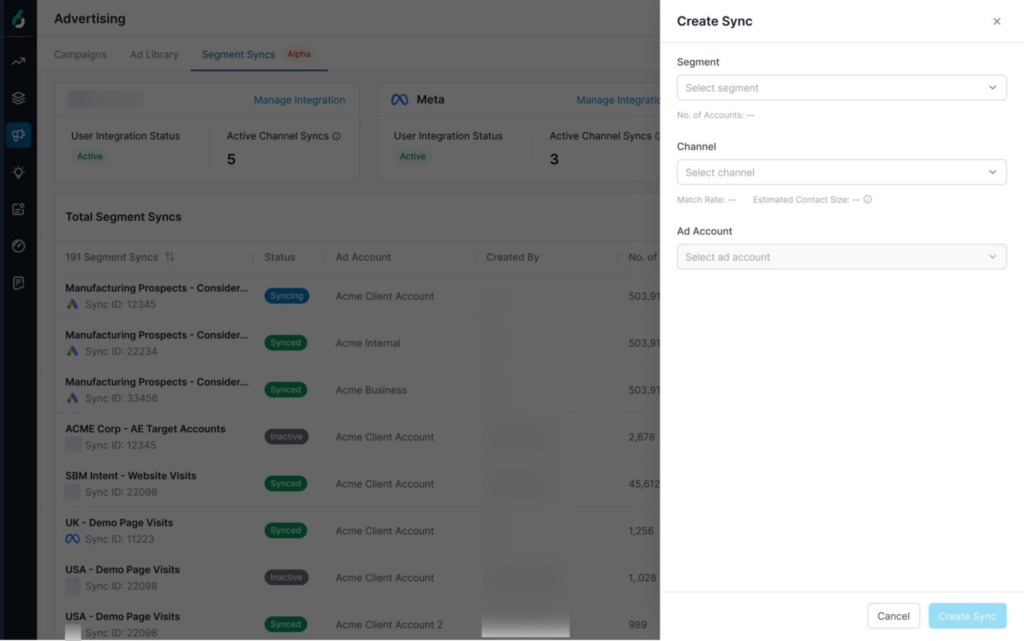
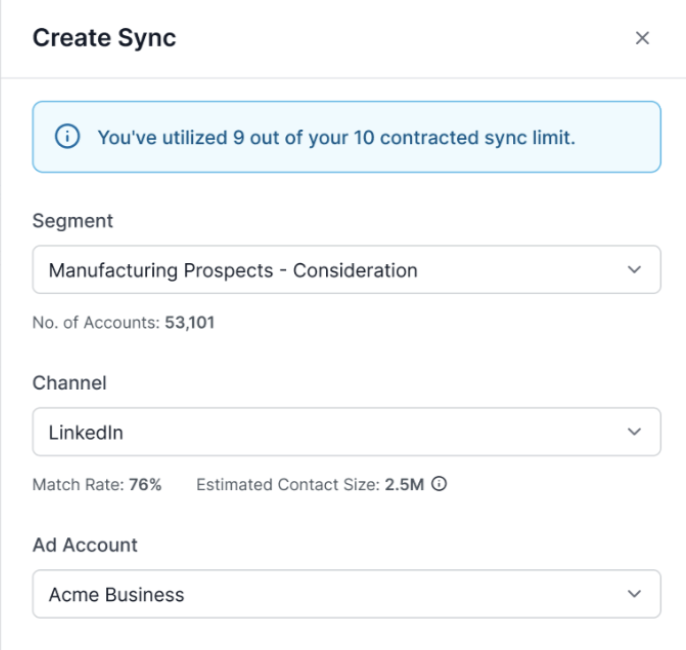
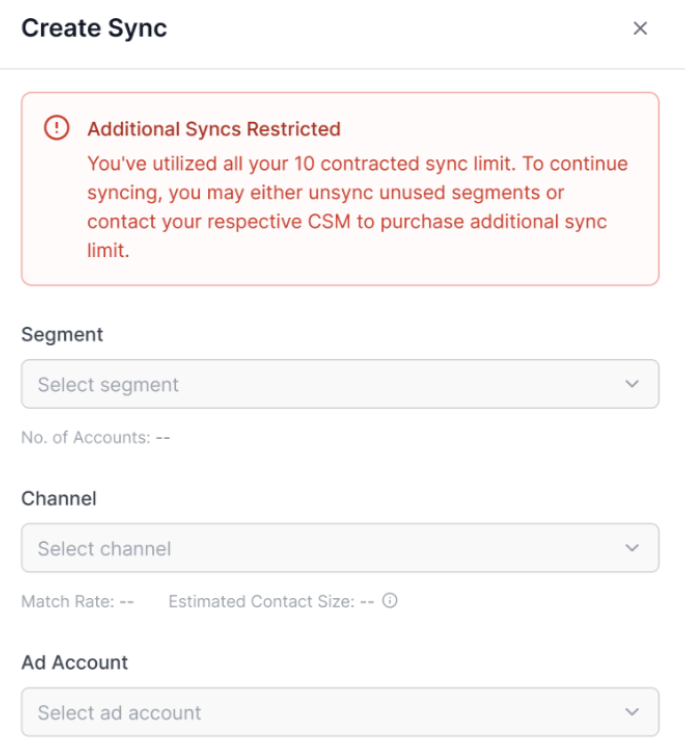
While initiating syncs, 6sense alerts you about usage based on your organization’s unified contracted sync limit. The contracted sync limit is the predefined or agreed-upon maximum number of syncs allowed as per the contractual agreement. Here are two examples of sync limit messages.
Sync limit notification:
Sync limit reached:
Monitor sync activities and usage:
Review and Audit: Periodical reviews of the list of synced segments and their statuses within the interface will ensure that no unauthorized or unnecessary syncs are active from your organization.
Toggle Sync On/Off: As an admin, having the ability to turn off segments adds an extra layer of control and security to the segment sync process. Understand how you can use this control:
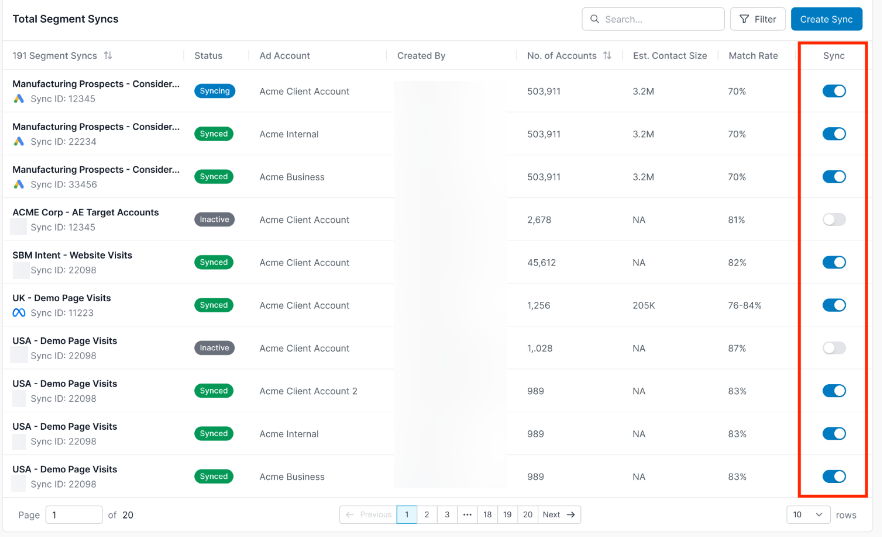
Toggle Off – If you want to turn off a segment sync, you can toggle the sync off irrespective of who initiated the sync. Before you can toggle off, you will be prompted with a notification informing you about the potential impact on the associated campaigns. Post confirmation, the sync will be successfully paused from the 6sense platform.
Note: This will only halt the segment from syncing the corresponding matched audience on the external channel. The matched audience will still be available on the channel in a stale state.
Toggle On – If you want to initiate a sync that was paused by another user, you will be able to sync that segment from your channel account as long as you have access to the ad account you want to sync to.
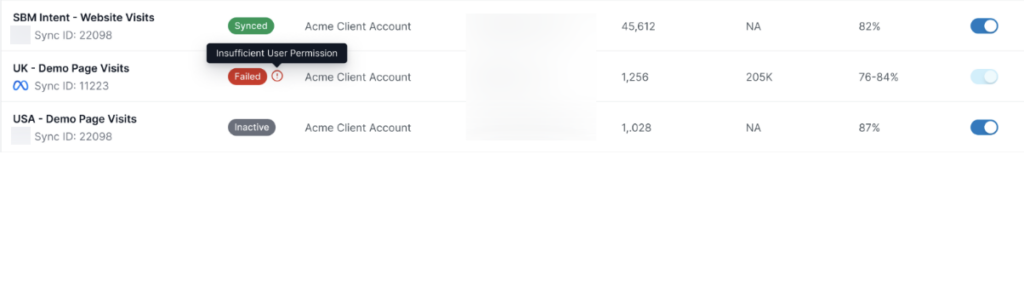
Resolve issues: If a channel integration or segment sync encounters issues or errors, the interface will provide alerts or notifications indicating the nature of the problem. You can then take appropriate actions to resolve these issues, such as troubleshooting connectivity, adjusting sync settings, or fixing permissions on external channels. Refer to Segment Sync to Advertising Troubleshooting Messages.
.png)
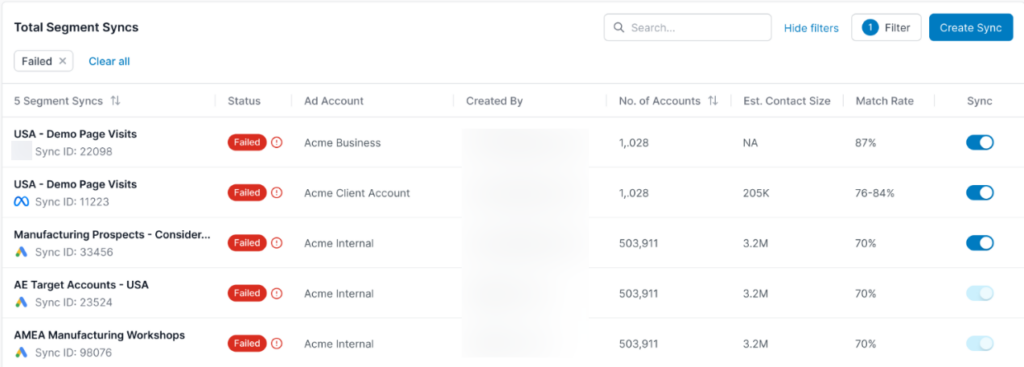
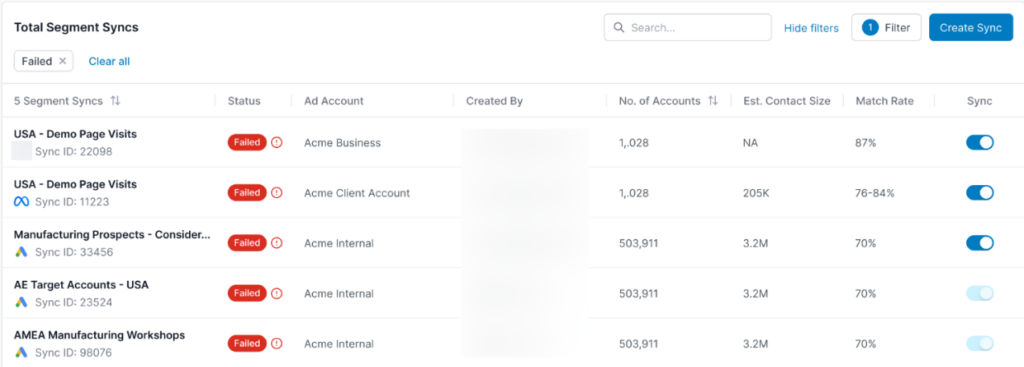
You can filter the segments by status = Failed to get the list of all failed segments across the org or created by a particular user.
Review ad segment syncs as a Marketing User
As a Marketing User, you can facilitate your marketing campaigns and optimize segment utilization outside of the 6sense platform.
To review advertising segment syncs as a marketing user:
Go to ABM > Advertising > Segment Syncs. A summary page displays the current status of all integrations and segment syncs initiated within your organization.
Review channel integrations
At ABM > Advertising > Segment Syncs, there is an overview section that describes the integration status for all channels available for integration – Google, LinkedIn, and Meta. This overview includes information about the status of the integration at the user level and active channel syncs across the organization.

Note: For security reasons, the channel integrations require every user to authenticate themselves to sync segments.
Review and manage segment syncs
At ABM > Advertising > Segment Syncs, the Total Segment Syncs section displays the current status of all segment syncs initiated by your organization. It shows which segments are syncing, synced, inactive, or failed due to any issues. It lists all syncs initiated at the ad account level for each integrated channel, irrespective of status.
Pause a segment sync
You can toggle off a sync that you do not wish to run anymore, if you created the sync. Syncs created by other users can only be paused by an Administrator or the user who created the sync.
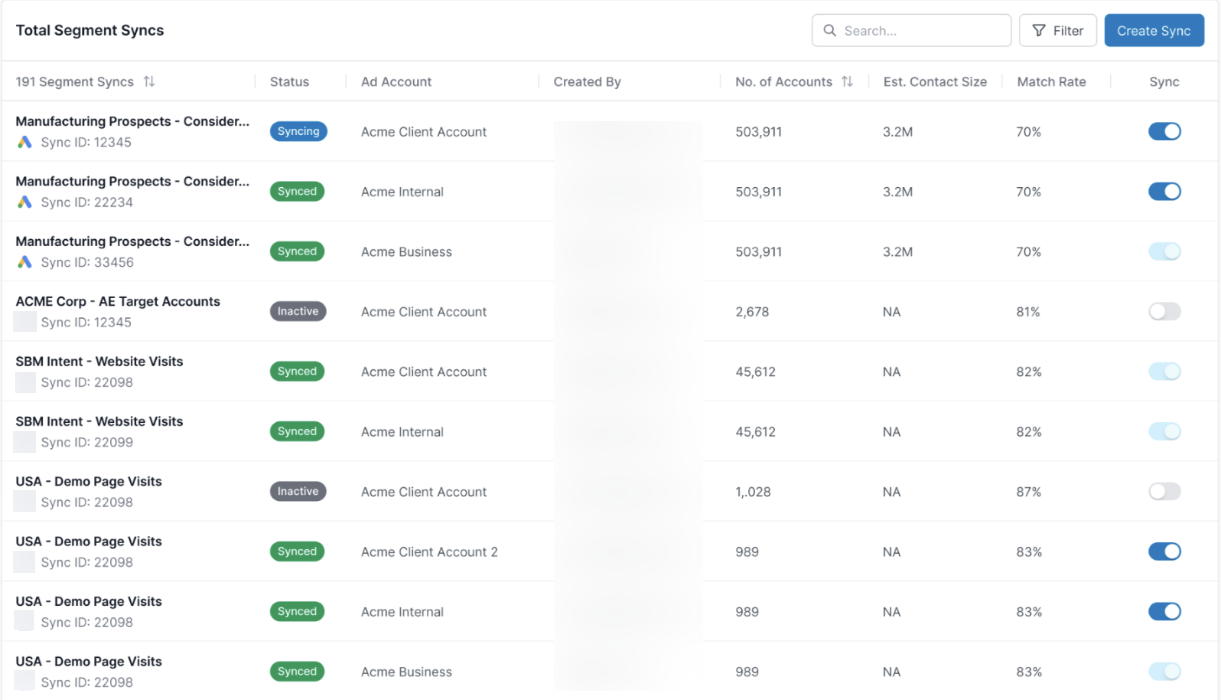
Select a segment sync to see the details associated with the segment sync, including alerts or notifications that need immediate attention, who created the segment, the date the segment was last refreshed, etc.
Bulk unsync segments
You can pause multiple active segment syncs at the same time. This helps you stop syncing segments across one or more advertising accounts. After the segment syncs are unsynced:
The selected segment syncs are paused in 6sense.
6sense stops refreshing audience membership for the associated audiences.
The audiences remain available in the destination advertising platform.
Campaigns that use those audiences might continue to run depending on the advertising platform settings.
Note: Unsync stops sync activity from 6sense. It does not delete audiences from the destination advertising platform.
To unsync multiple segment syncs:
Go to ABM > Advertising > Segment Syncs.
In the Total Segment Syncs table, select the checkbox for each segment sync that you want to unsync.
Select Unsync.
Review the selected segment syncs.
Confirm the action to pause the selected syncs.
Permissions
The following permissions apply when unsyncing multiple segment syncs:
Administrators can unsync any segment sync in the organization.
Marketing Users can unsync segment syncs that they created.
Users who have access to the destination ad account can unsync associated segment syncs, even if they did not create them.
Users without access to the destination ad account cannot unsync a segment sync unless they are Administrators.
Note: You don't need to be the creator of a segment sync to unsync it. Users with access to the destination ad account can unsync associated segment syncs. Administrators can unsync any segment sync in the organization
Best practices
Review active syncs regularly and unsync segment syncs that are no longer needed.
Coordinate with campaign owners before unsyncing segment syncs that are used in active campaigns.
Use filters to identify inactive or unused segment syncs before unsyncing them.
Re-enable paused segment syncs from the Segment Syncs page if you have the required permissions.
Monitor the progress of an ad segment sync
Once you initiate a sync, you can monitor its progress. Progress indicators, status updates, sync alerts, and refresh timestamps keep you informed about the status of each sync, allowing you to plan your marketing activities accordingly.
If you encounter any issues or have specific access requirements regarding channels and segment syncs, contact your Administrator. An Administrator can pause your segment syncs on your behalf and help fix sync errors for you in case of permission-related issues.
Resolve issues with segment syncs
If any channel integrations or segment syncs encounter issues or errors, the Segment Syncs page provides alerts or notifications indicating the nature of the problem. You can then take appropriate actions to resolve these issues, such as troubleshooting connectivity, adjusting sync settings, or fixing permissions on external channels. For a list of possible errors, refer to Segment Sync to Advertising Troubleshooting Messages.
To filter a list of segment sync issues:
Go to ABM > Advertising > Segment Syncs.
In the Total Segment Syncs panel, filter the segments by Status = Failed to get the list of all failed segments across the org or created by you.