Approved 6sense agency partners can use their agency's 6sense instance to access authorized customer instances.
With 6sense Agency Just-in-Time (JIT) Access, agency team members authenticate using their own agency 6sense instance through Single Sign-On (SSO). They can then access authorized customer instances from the Customer Accounts page. Separate customer-provisioned credentials and dedicated customer license seats aren't required.
How agency access works
Agency access provides:
Single Sign-On: Sign in to your agency's 6sense instance using your agency's corporate identity provider. You don't need to manage separate passwords or customer credentials.
Customer Accounts: View the customer accounts for which you currently have active access in one location.
Customer instance access: Launch an authorized customer instance without repeatedly signing in and out of different customer environments.
No customer license requirement: Agency access doesn't consume the customer's standard user licenses or require manual user creation in the customer's general user directory.
Time-bound, role-based access: Customer access is limited by the assigned roles and the configured access period. Access is also automatically revoked when the engagement ends or when a team member is offboarded from the agency.
Requirements
The multitenant switching capability is available to agency partners that meet the following requirements:
Approved 6sense agency partner
Your organization must be registered and designated as an approved 6sense agency partner. Contact the 6sense Partnerships team for more information.
SAML SSO
Your agency's 6sense instance must have SAML SSO enabled and configured with your identity provider, such as Okta, Azure AD/Entra ID, or OneLogin.
Non-SSO authentication isn't permitted for agency partner instances.
Active user accounts
Agency team members must have active accounts provisioned in the agency's 6sense instance.
Agency partner terms and agreements
Your Agency Primary Admin (Org Owner) must accept the 6sense Agency Partner Terms and Agreements when initially signing in to the dedicated agency instance.
Set up and manage your agency
Accept the agency partner terms
When the Agency Primary Admin signs in to the agency's 6sense partner instance for the first time after onboarding, 6sense displays a one-time consent window containing the 6sense Agency Partner Terms and Agreements.
The Primary Admin must review and accept the terms to continue. The multitenant capability isn't available to users in the agency instance until the Primary Admin provides consent.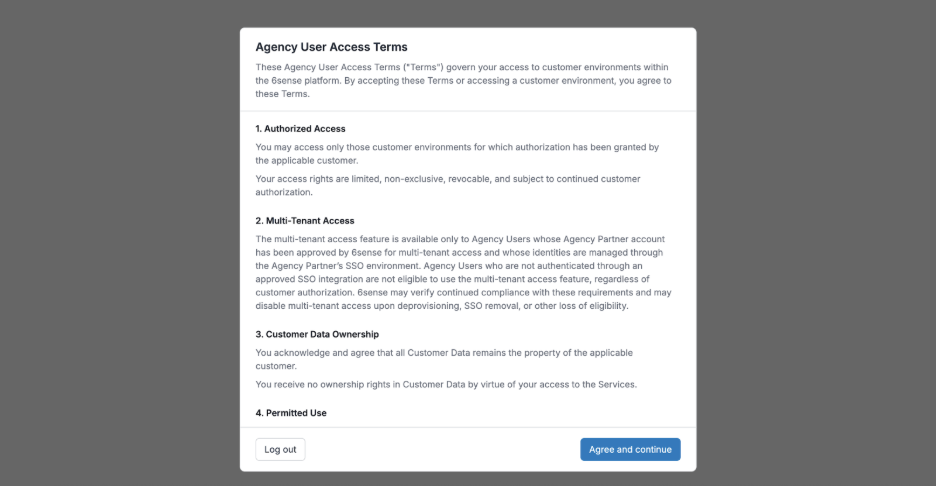
After the terms are accepted, customers can provision agency users from the agency instance through the customer's agency access workflow. For more details, refer to Grant agency partner users access to 6sense.
Provision agency team members
Make sure that team members who support customer accounts are:
Active in your agency's identity provider.
Assigned to your agency's 6sense application.
If an agency team member is deactivated or deprovisioned from your agency's identity provider, all of that user's active customer-instance access grants are immediately and automatically revoked.
Monitor agency team access
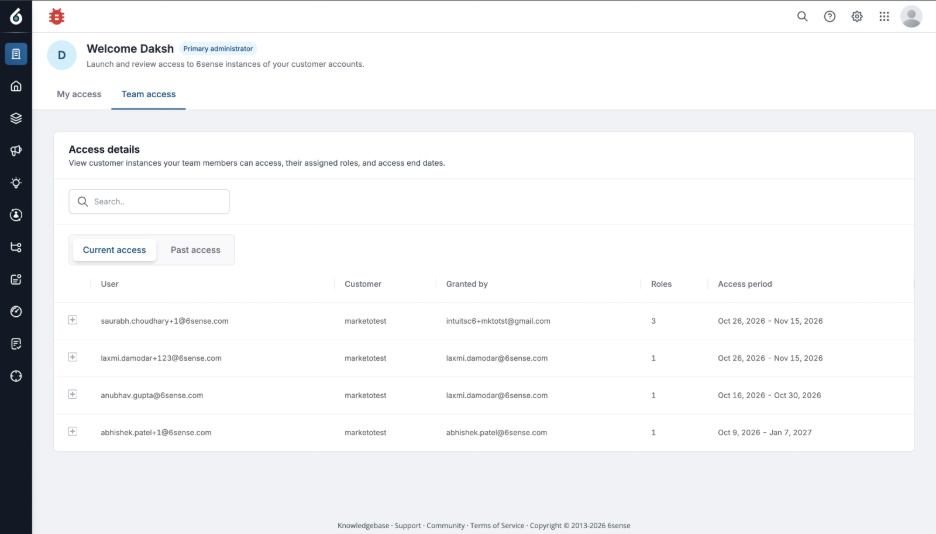
The Agency Primary Admin can view active customer engagements across the organization.
Go to Customer Accounts.
Select the Team Access tab.
The Team Access tab is available only to the Primary Admin of the agency instance.
It provides a consolidated, read-only view of:
Agency users with active access.
Customer organizations each user can access.
Assigned roles.
Access expiration dates.
Access a customer instance
1. Sign in using your agency SSO
Go to 6sense sign-in.
Enter your agency subdomain, such as agencyname.
Select Continue.
Authenticate through your agency's corporate identity provider.
2. Open Customer Accounts
After authentication, the Customer Accounts page appears.
The page lists customer instances for which you have active, valid access granted through the agency access workflow in the customer's 6sense instance.
Each entry displays:
Customer organization name.
Your assigned role in the customer instance, such as Administrator, Marketing User, or a custom role.
Access expiration date and time in UTC.
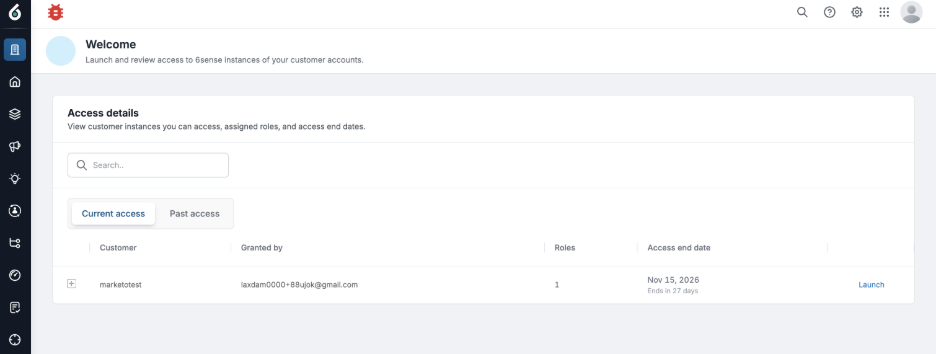
The page also displays customer instances that you previously accessed, provided that the customer granted access through the agency access workflow.
If the customer instance you need isn't listed, contact the customer's administrator. The administrator must disable your account in User Management and grant you access through the new agency access workflow instead.
3. Launch a customer instance
Find the customer instance you want to access.
Select Launch.
6sense opens the customer instance in your session.
4. Switch customers or return to your agency instance
When you're finished working in a customer instance or need to access another customer:
Select Switch Customer from the top navigation bar.
Select another customer instance to open it, or select your agency instance to return to Customer Accounts.

Session, role, and access policies
Session timeout
Agency partner sessions have a default inactivity timeout of two hours. If your session expires while you're working in a customer instance, you're prompted to authenticate again through your agency SSO.
Role permissions
The role assigned by the customer administrator determines what you can do in the customer's instance.
If your role changes during an active session, the session refreshes or signs you out so that the updated permissions can take effect.
Access expiration
Access automatically ends at 23:59 UTC on the end date set by the customer.
Notifications
Agency users are notified when a customer:
Grants access to its 6sense instance.
Modifies their access.
Revokes access before the expiration date.
Agency users are also notified when their access expires.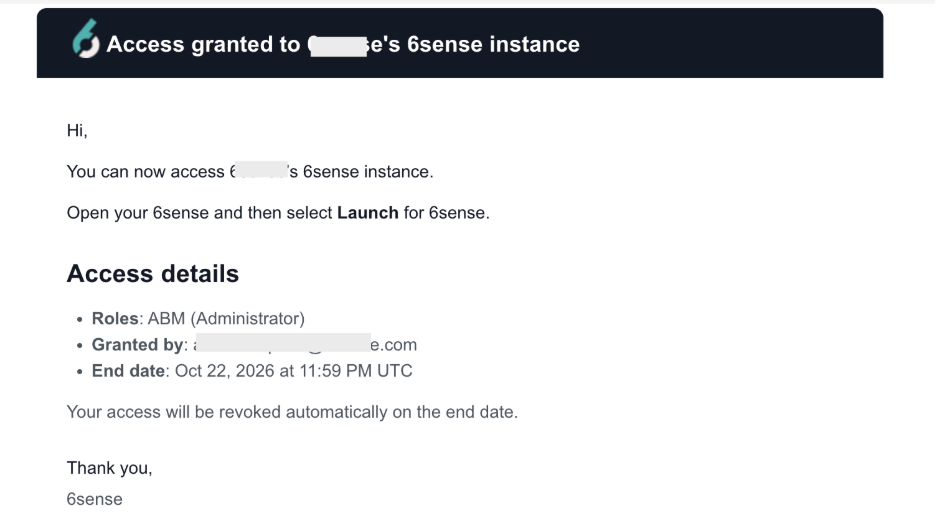
Troubleshooting
Why doesn't a customer instance appear on my Customer Accounts page?
Check the following:
How access was granted
The customer administrator must grant access through Settings > User Management > Agency Access in the customer's 6sense instance.
Access granted through the traditional User Management workflow doesn't make the customer instance appear on the agency user's dashboard.
Agency email address
Make sure that the customer granted access using the exact agency business email address associated with your agency SSO account.
Agency partner terms
Confirm with your agency's Primary Admin that the 6sense Agency Partner Terms and Agreements have been accepted.
If the terms haven't been accepted, ask the Agency Primary Admin to sign in to the agency instance and provide consent.
Access expiration
Check whether the engagement end date has passed. If it has, contact the customer's administrator to extend or reissue access.
FAQ
Can I change my assigned role or extend my access period?
No. The customer's Primary Admin or Application Administrator controls access periods, up to one year, and role assignments.
Contact the customer's 6sense administrator if you need a permission change or access extension.
What happens when an agency team member leaves the agency?
When an agency user is deactivated or removed from your agency's identity provider, the user's active 6sense account is disabled. 6sense immediately and automatically revokes all active customer access grants held by that user.