You can grant approved 6sense agency partner users access to your 6sense instance to support activities such as onboarding, campaign optimization, advertising, demand generation, and ongoing platform management.
Agency access is time-bound and role-based. You determine which agency users receive access, how long they can access your instance, and which roles they are assigned. Access granted through Agency Access does not consume your organization's user licenses.
If you're looking for a 6sense agency partner, contact your CSM.
Before you begin
Before granting access:
Make sure that you have administrator permissions in 6sense.
Confirm which agency partner users need access.
If the agency user was previously added via User Management, ensure you disable the user before using the time bound access grant feature.
To view the system roles currently available in your organization, go to Settings > User Management > Organization Users > Roles.
If your organization has purchased Enterprise Security, you can create custom roles, configure their permissions, and assign those roles to agency users.
Grant access to an agency partner user
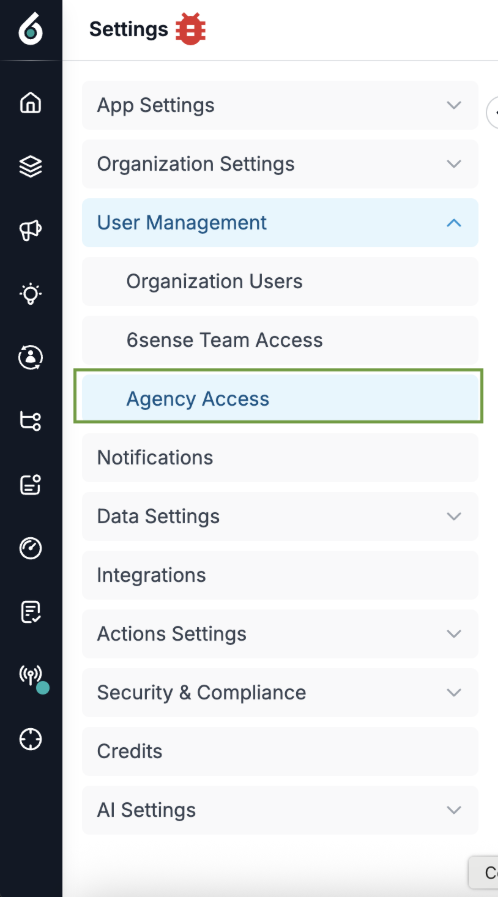
Go to Settings > User Management > Agency Access.
Select Grant Access.
Enter the agency partner user’s email address.
Select the number of days the user needs access, or specify a custom access period.
Select one or more default roles. If your organization has purchased Enterprise Security, you can select a custom role that your organization created.
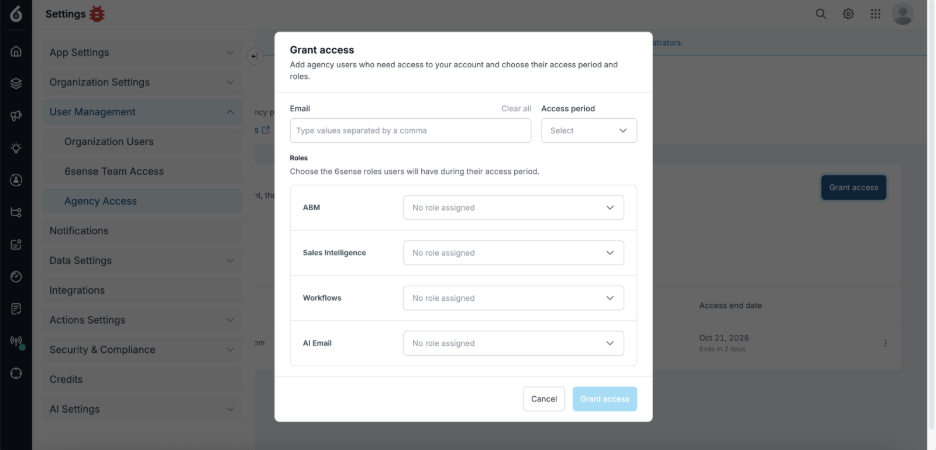
Save your changes.
After you grant access, the agency user and all administrators in your 6sense account are notified.
Important: Grant access only to approved 6sense agency partner users who actively support your organization. Review the assigned roles and permissions before saving the access grant.
Best practice: Assign only the permissions required for the agency partner’s approved scope of work. Expand the user’s permissions only when additional responsibilities are approved.
What happens after you grant access
The agency partner user can access the areas of 6sense permitted by the assigned roles. The user’s access is automatically revoked at 11:59 p.m. UTC on the specified end date.
Your administrators can update or revoke the user’s access at any time.
Revoke agency access before the expiration date
You don't need to wait for an agency user's access period to expire. You can revoke access earlier when required.
Locate the agency user and select Revoke Access.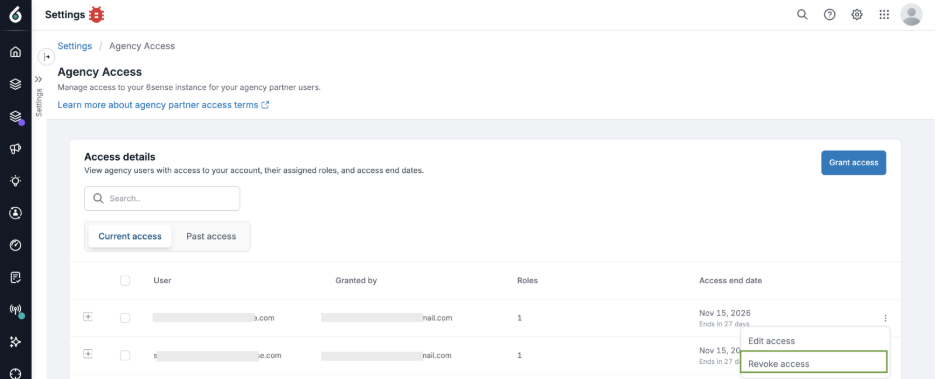
6sense revokes the user's access within a few minutes. The agency user and all administrators, including the administrator who revoked the access, receive an email notification.
FAQ
Who can grant agency access?
A user with administrator permissions in 6sense can grant agency access.
Does agency access consume a user license?
No. Access granted to a 6sense agency partner user through the Agency Access page does not consume a user license.
How long can an agency partner user have access?
You can select a predefined number of days or specify a custom access period. The end date can be no more than one year from the date access is granted.
You can extend the user’s access as needed, but each extension is limited to a maximum of one year.
When does agency access expire?
Access is automatically revoked at 11:59 p.m. UTC on the specified end date.
Which roles can I assign?
You can assign one or more supported default roles.
If your organization has purchased Enterprise Security, you can also create and assign custom roles.
Who is notified when access is granted?
The agency partner user and all administrators in your 6sense account, including the administrator who granted access, are notified.
Can administrators update or revoke access?
Yes. Administrators can update or revoke an agency partner user’s access at any time.
What level of access should I grant?
Assign only the permissions required for the agency partner’s approved scope of work. Expand access only when additional responsibilities are approved.