A mapping profile represents a saved set of mappings between 6sense fields, such as Industry, Revenue Range, and Country, and fields in your CRM or MAP.
Mapping profiles are required for the following use cases. Many of these use cases can be accomplished using Intelligent Workflows:
Use case | Reference |
|---|---|
Enrich existing records with firmographic and technographic data | |
Purchase new contacts and then create them in your CRM or MAP | |
Enrich existing CRM or MAP account, lead, or contact objects with published segment names | |
Create new accounts in your CRM or MAP | |
Create new audiences in a MAP or SEP | Create Accounts in CRM Action Node and Purchase Contacts and Save to... Action Nodes under Audience Workflows Action Nodes |
Export account temperature | |
Support the Job Change Data workflow in Data Workflows | |
Export Predictive scores to existing account, lead, or contact objects in your CRM using Data Workflows (requires the Predictive add-on) |
Mapping profiles are unique to each CRM or MAP object, such as an account, contact, or lead, and to each production or sandbox environment.
Set up a mapping profile to export records from Sales Intelligence, and to activate Enrichment, Contact Purchase, and Account Creation Workflows in Data Workflows. The same mapping profile can be used for both Sales Intelligence and Data Workflows.
Prerequisites
Write Access Required: 6sense must have write access to the CRM or MAP objects and fields included in the mapping profile. For example, Salesforce Account, Contact, and Lead objects and their associated fields.
Multiple mapping profiles
You can create up to five mapping profiles per system object. This allows you to maintain different mapping profiles for different types of enrichment activities.
For example, you can create one mapping profile to enrich accounts with the record type “Partner” using shipping address fields, and another to enrich accounts with the record type “Sales” using billing address fields.
Create a mapping profile
To create a mapping profile:
Go to Settings > Data Settings > Mapping Profiles.
Select the CRM system.
Select the tab for the object to be mapped.
.png)
Select Create [object] profile.
Enter a descriptive name for the profile.
Follow the steps in the following sections to create maps for:
Enrichment: Supports configuring the required and optional fields needed for enrichment use cases.
Scores: Supports sending Predictive scores into your CRM using Data Workflows. Requires the Predictive add-on.
Temperature: Supports exporting Account Temperature to CRM from Sales Intelligence, and regularly updating Account Temperature in your CRM through Data Workflows.
Job change: Supports the Job Change Data workflow in Data Workflows.
Other custom: Supports pushing any string value to a field in your CRM.
Enrichment mappings
Map 6sense fields to the corresponding fields in your CRM. Required and optional fields are grouped separately within the mapping profile.
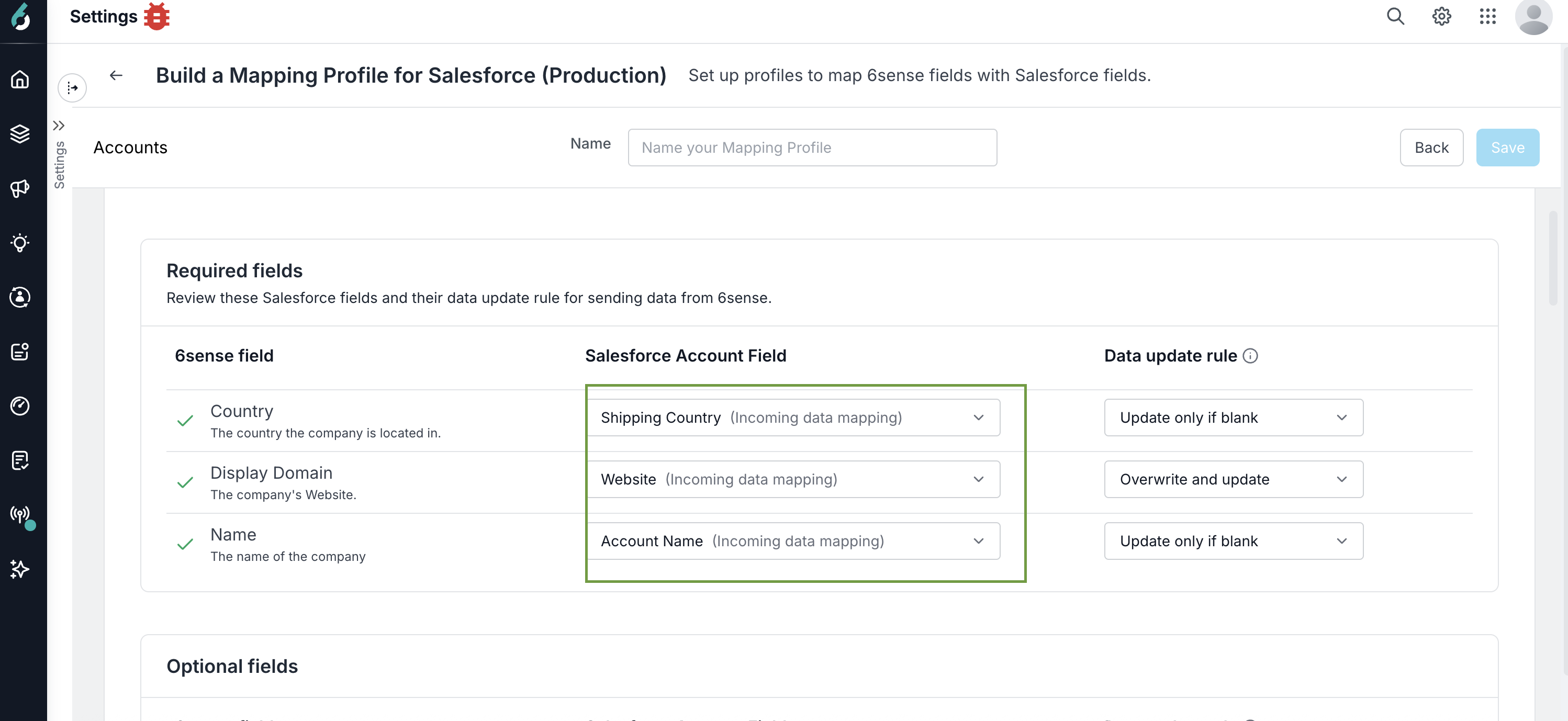
Review the complete Data Dictionary for a description of each field and its data types.
Pre-populated required field mappings
When you create a mapping profile, 6sense pre-populates required field mappings when a default mapping is available. You can use the pre-populated mapping or select a different field.
For CRM and MAP integrations, 6sense uses the corresponding inbound data mapping to pre-populate required fields.
For SEP integrations, 6sense pre-populates supported required fields with predefined mappings.
Integration | Object | Required field | Default mapping |
|---|---|---|---|
HVS Salesforce | Lead | First Name | First Name |
Last Name | Last Name | ||
Work Email | |||
Outreach | Contacts | Company Name | Company |
First Name | First Name | ||
Last Name | Last Name | ||
Work Email | |||
Salesloft | Contacts | Company Name | Person Company Name |
First Name | First Name | ||
Last Name | Last Name | ||
Work Email |
Configure enrichment mappings
To configure an enrichment mapping:
Find the 6sense field you want to enrich.
In the System Field {CRM Object} dropdown, select the corresponding field on your target object.
Salesloft tags must be configured under Enrichment Mappings, as Custom Mappings are not supported by Salesloft.
.png)
Required fields for import and export mappings
6sense mapping profiles come with a list of specific required field mappings. These required fields allow 6sense to match your CRM data to 6sense Company and Contact records for enrichment purposes.
Required account input mappings
Country: The country the company is located in.
Display Domain: The company’s website.
Name: The company name.
Required contact input mappings
First Name: The person’s first name.
Last Name: The person’s last name.
Work Email: The person’s work email address.
Required lead input mappings
First Name: The person’s first name.
Last Name: The person’s last name.
Work Email: The person’s work email address.
Company Name: The company name.
Export only contacts from 6sense
Important:
When exporting contacts or leads from Sales Intelligence, configure both a Contacts Mapping Profile and an Account Mapping Profile.
Because contacts and accounts are related objects, an Account Mapping Profile is needed to create a contact that is not an 'orphan'. Then, in the SI Integration Settings, enable Allow users to manually export Contacts and leave the other export object types disabled on Account & Leads.
Creating an Account Mapping Profile doesn't mean that your sales reps get permission to manually export accounts. The Account Mapping Profile is there to support the contact-to-account relationship.
Select the data update rule
Choose how 6sense updates the corresponding CRM or MAP field:
Overwrite and update: Replaces the existing field value with the 6sense value.
Update only if blank: Adds the 6sense value only when the field is blank. Existing values aren't overwritten.
Do not update: Prevents 6sense from updating a mandatory CRM or MAP field, even when the field is blank. 6sense can still use the field for record matching.
Note: 6sense still requires read and write permissions for the required CRM or MAP fields. Selecting Do not update controls whether 6sense updates the mapped field.
For example, if a CRM record contains a revenue value of $10M and 6sense contains a revenue value of $15M:
With Overwrite and update, the CRM value is updated to $15M.
With Update only if blank, the CRM value remains $10M.
Important: Selecting Do not update for a mandatory field prevents new record creation. For existing CRM or MAP records, 6sense can use the field for matching but doesn't update the field value.
.png)
Set up the Technologies field
The Technologies field has some additional settings to configure. Select Edit (the pencil icon) next to Technologies.
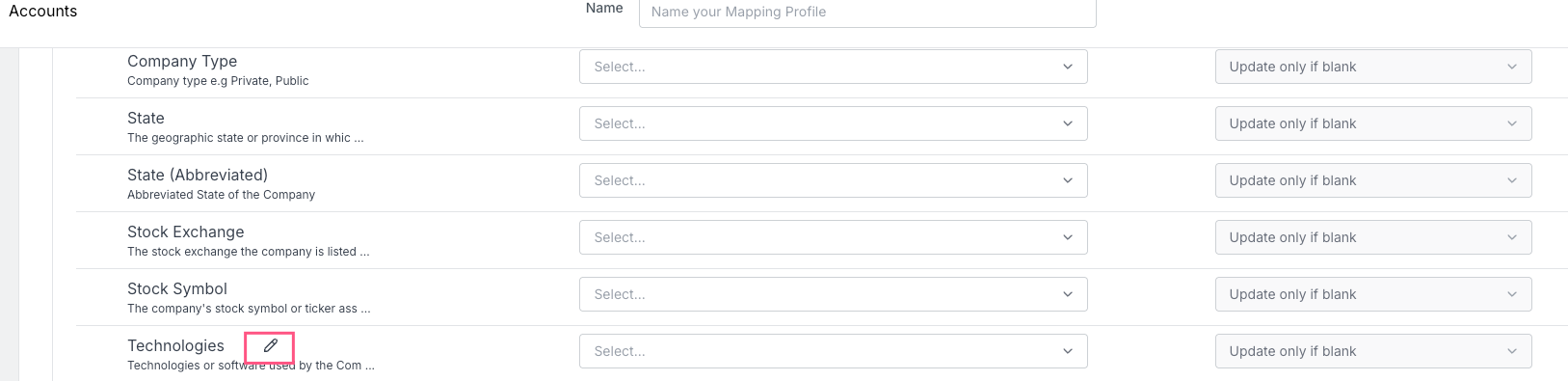
Under Push Technographic Data to your CRM, use the first section to select the technologies that you want to enrich.

Use the second section Choose What Fields You Want To See to configure additional technology details:
Technology: The name of the technology used.
Confidence Score: 6sense’s confidence in the account’s use of the technology (0 to 100).
Last Detected: The date when 6sense last detected that the account used the technology.
Tech Source: The type of indicator 6sense used to determine the technology used.

If multiple technologies qualify for enrichment, each technology is separated by a new line in the mapped field.
6sense allows you to have up to five separate mapping profiles per object. There may be scenarios where you would like to export a single technology used per mapping profile and set up multiple mapping profiles to enrich different fields with a single technographic when available.
Identify records created or modified by 6sense
Use the following default 6sense fields in a mapping profile to track records created or updated by 6sense.
Default 6sense fields
Source: Fixed value “6sense”.
Source Type: Fixed values “6sense Workflows” or “6sense Sales Intelligence”.
6sense Created By: Email address of the user exporting the record from 6sense. This field is not updated if the record already exists in CRM and is updated by 6sense.
6sense Updated By: Email address of the user exporting the record from 6sense. This field is always updated when the record is updated or newly created by 6sense.
6sense Created By (SFDC User ID): CRM user ID of the user exporting the record from 6sense. This field is not updated if the record already exists in CRM and is updated by 6sense. This field is available only for Salesforce.
6sense Updated By (SFDC User ID): CRM user ID of the user exporting the record from 6sense. This field is always updated when the record is updated or newly created by 6sense. This field is available only for Salesforce.
6sense Last Updated: Date and time when a CRM record is updated by 6sense.
Temperature mappings
Temperature mappings are required for exporting Account Temperature to your CRM from Sales Intelligence. Temperature mappings are also used in Data Workflows to regularly update Account Temperature in the CRM. Account Temperature fields can be exported using an Account Temperature Export Workflow.
To configure temperature mappings:
Go to the Account object.
Select the Temperature Mappings tab.
Map the desired CRM field to the corresponding Temperature field.
Select Save.

Predictive score mappings
Score mappings are available for customers with the Predictive package. Map score fields to push 6sense predictive scores into your CRM using Data Workflows. Refer to Export Predictive Scores Data Workflow.
To configure score mappings:
Go to the desired object.
Select the Score Mappings (Workflow-only) tab.
Map the desired CRM fields to the corresponding Score fields.
Select Save.
Review the complete list of fields in the Workflows Data Dictionary.

Job change mappings
Job change mappings support the Enrich Job Change Data workflow in Data Workflows. Refer to Update Job Changes Using Data Workflows.
We recommend creating new custom fields on your CRM object for these mappings. However, you can use other existing fields if you prefer.
To configure job change mappings:
Select the Job Change Mappings (Workflows-only) tab.
For each 6sense value field you want to update, select the corresponding CRM field. Map only the fields you want to update. The available 6sense value fields are:
New Company Email: New email address.
New Company Name: Name of the new company.
New Company Start Date: Start date of the new position.
New Company Title: New job title.
6sense Job Change Detected: Indicates a job change was detected.
6sense Job Updated Date: Date the job change was detected by 6sense.
Select whether you want the workflow to override the fields.
Select Save.
.png)
Other custom mappings
Custom mappings allow you to push any string value to a field in your CRM. These values are pushed when 6sense enriches a record or pushes a new record for accounts, contacts, or leads.
To configure custom mappings:
Select the Other Mappings (Custom) tab.
Select Add Another Field Mapping.
.png)
Enter the custom value that you want 6sense to populate in the CRM.
Select the field in the CRM object to update.
Select whether to override the CRM field or only fill it if it is empty.
Select Save.
Salesloft tags must be configured under Enrichment Mappings, as Custom Mappings are not supported by Salesloft.
Use an Update Contact, Lead, or Account node
You can also use the Update, Contact, Lead, or Account node in a Data Workflow Canvas to update a record that has been touched by 6sense with a custom value. This does not need to be in the Mapping Profile. Refer to Data Workflows Overview.
Enrichment data dictionaries (attachments)
The enrichment data dictionary spreadsheets are attached to the links below. Alternatively, access the attachments by expanding your browser window and locating the FILES section in the top-right corner. Select a file to download.
FAQ
How many mapping profiles can I create?
You can create up to five mapping profiles per system object. For Salesforce, these objects are Salesforce Account, Salesforce Lead, and Salesforce Contact.
Can the same mapping profile be used in both Sales Intelligence and Data Workflows?
Yes. The same mapping profile can be used in both apps.
Why are dropdown menus blank in my mapping profile?
6sense does not have the correct permissions on the field or object level. Grant 6sense write access to the objects and the associated fields you wish to update. This is necessary for 6sense to write to the relevant records within your CRM.
Can I map a 6sense field to multiple CRM fields?
Yes. 6sense allows one-to-many field mappings. A 6sense field can be mapped to multiple CRM fields.
Why are some CRM fields not visible in the mapping profile?
Lookup/reference-type fields are not available in the mapping profile. Also, integration users should have read/write access for fields.
Can I see an example of values pushed and the data types for each field that’s available for mapping?
Yes. This information is available in the relevant data dictionary under the FILES section in the top-right corner.
Does re-authenticating our CRM across 6sense services disrupt mapping profiles in 6sense AI Email?
No. Re-authenticating your CRM does not affect mapping profiles in 6sense AI Email.