Overview
Connected TV (CTV) campaigns deliver video ads to viewers on streaming platforms and smart TVs, including NBC, Fox, Hearst, Roku, and Warner Brothers, and so on. These campaigns are best for reaching audiences through premium video content, offering high-resolution, audio-on formats that run within long-form programming. With flexible ad durations (6s, 15s, 30s, 45s, and 60s; recommended 15 & 30s), advanced targeting, and measurable impact through completed views and reach, CTV is a powerful tool for brand storytelling. Inventory availability supports campaigns in EMEA and APAC. This article walks you through the process of creating a CTV Video Ad in the 6sense platform.
Available CTV Sources
Category | Sources |
|---|---|
Network | A&E, LG, Roku, Sling/Dish, SONY, Univision, |
News | DIRECTV, Fox Local, Hearst, NBC, Nexstar News, Samsung News, Sling/Dish News, XUMO |
Entertainment | Fox, NBC Entertainment, Nexstar, Vizio, Warner Bros & Discovery, Hulu, Paramount |
Sports | Fox Sports, fuboTV, Warner Bros & Discovery |
RON (Run of Network) | Univision |
Step 1: Select CTV Video Ad
Go to Advertising > Ad Library.
Select Create Ad.
Select CTV Video Ad from the available ad types.
Select Create Now.

Step 2: Review accepted file types and dimensions
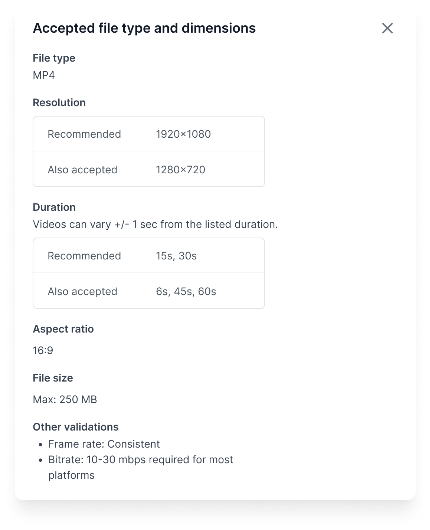
Before uploading your video, select View Accepted File Type And Sizes to review the accepted file types and dimensions.
File type: MP4
Resolution: Recommended 1920×1080; also accepted 1280×720
Duration: Recommended 15 or 30 seconds; also accepted 6s, 45s, 60s
Aspect ratio: 16:9
Max file size: 250 MB
Other requirements: Frame rate: Consistent and Bitrate: 10-30 mbps
Step 3: Upload videos
Select Select from existing creatives to choose creatives from existing creatives or Add new creatives to upload new creatives.
Select Click to upload to upload new creatives or drag and drop your creative files into the upload area.
The system will validate your file type and size. If your file does not meet requirements, you’ll see an error message.
.png)
Select Add uploaded creatives.
Step 4: Enter Ad Details
For each uploaded video, enter an ad name. Up to 100 characters.
Optionally, add a description for each creative.
.png)
Step 5: Review placement eligibility
To be eligible for premium placements, ensure your video meets the recommended resolution (1920×1080).
.png)
Step 6: Submit
Once all creatives and details are added, select Save to submit your CTV Video Ad for review.
CTV Creatives Best Practices
Follow these best practices to ensure your CTV video ads meet publisher requirements and deliver high-quality viewing experiences.
Meet Contract Specifications:
Ensure your video asset matches the bitrate, duration, file size, and other specifications outlined in your CTV contract.Enable Multiple Bitrates:
Publishers may have different bitrate requirements. Enable multiple bitrates within your creatives to accommodate these variations.Review Publisher Specifications:
Always check the publisher’s creative specifications and confirm your video asset is compliant.Use uploaded Video Ads with Highest Quality:
Upload your video ads at the highest available quality (1080p) to maximize compatibility across CTV publishers.Audio Loudness:
Ensure the loudness of your audio averages -24 LKFS for consistent playback.Thoroughly Check Creative Details:
Review all creative details in your ad group settings before launching your ad group.Supported File Types:
Only MP4 files are supported for CTV creatives. If you upload another format to The Trade Desk platform, it will be automatically encoded as MP4.Third-Party Creatives:
Use Video Ad Serving Template (VAST) tags only. VPAID tags are not supported for CTV.Tag Management:
Assign one tag per creative media asset. Avoid rotating creative files through a single tag.