Overview
6sense Sales Intelligence (SI) integrates with Gong Engage. The integration supports two SI use cases:
To set up the basic 6sense to Gong Engage integration, refer to Integrate 6sense with Gong Engage.
SI iFrame in Gong Engage
You can access 6sense and activate 6sense-collected prospect intent activities directly in Gong Engage. You can:
Explore high-value intent activities such as de-anonymized web visits, keywords researched, form fills, and more directly from the Account page in Gong Engage.
Identify key members of the buying committee using the 6sense persona map, and purchase contact info from 6sense.
Personalize sales outreach based on high-value intent signals, leading to more closed-won opportunities and revenue.
Reduce time spent moving between Gong and 6sense, increasing productivity and reducing average-time-to-close.
The Sales Intelligence integration helps you to personalize communications and activate 6sense-collected prospect intent activities directly in Gong Engage.
Enable the SI connection for the 6sense iFrame
Important: Access to 6sense in Gong is limited to users with a Sales Intelligence (SI) license. Users must authenticate using OAuth to sign in and access it.
To enable the 6sense iframe connection in Gong:
Go to Settings > My integrations > 6sense iFrame in Gong.
Enable the Activate 6sense Sales Intelligence iFrame configuration toggle.
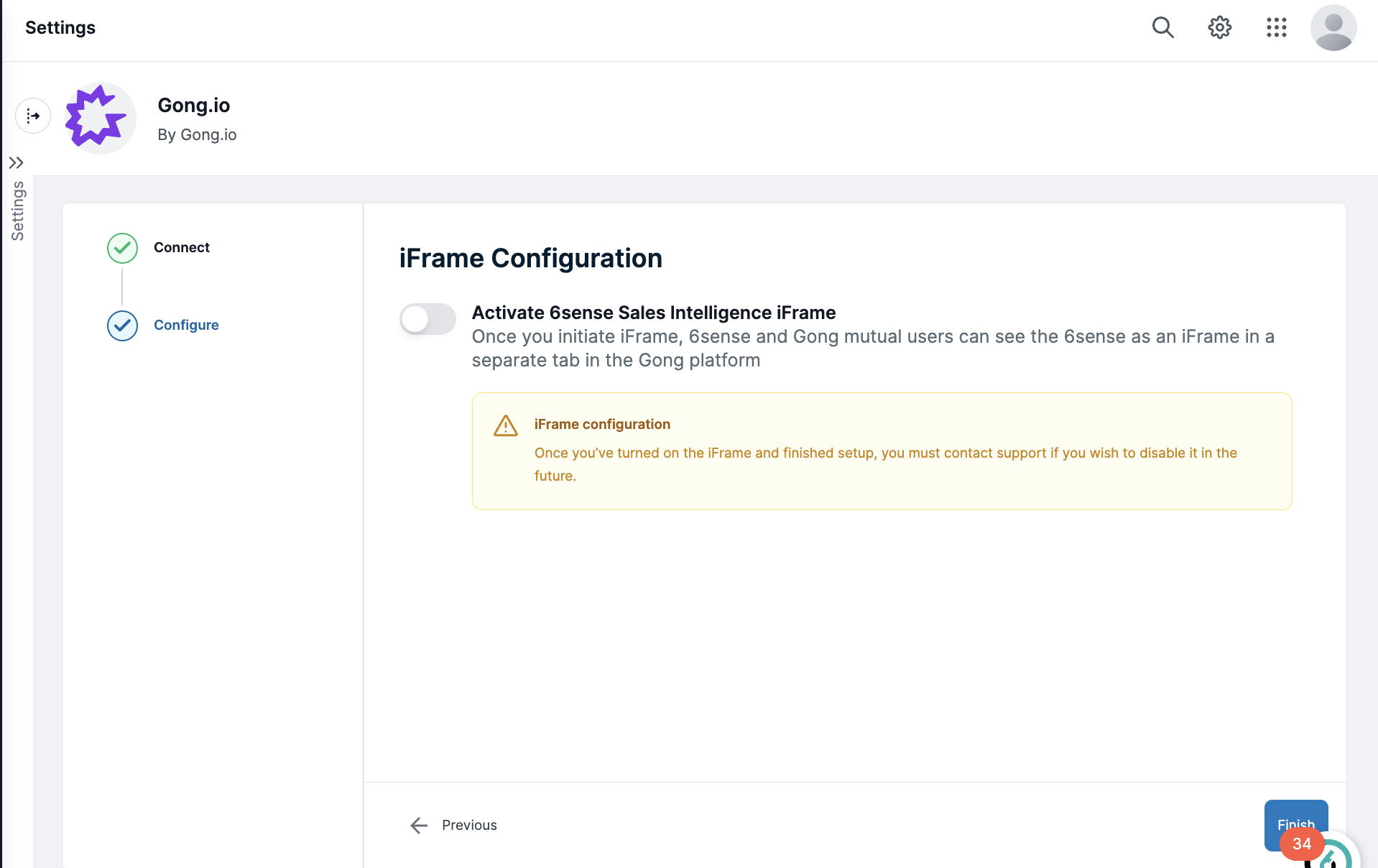
The Sales Intelligence iFrame automatically installs in Gong Engage.
Log in to Gong Engage to view 6sense data through Sales Intelligence.
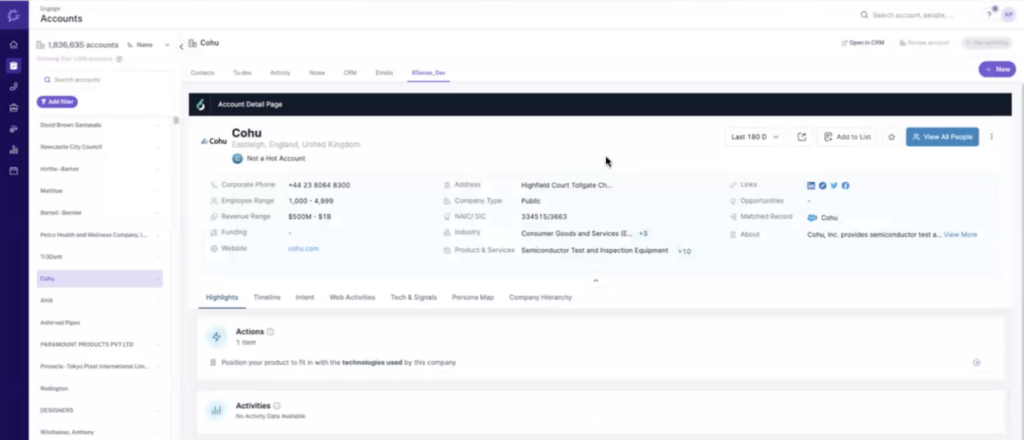
Navigate to any Account in Gong Engage.
Select the 6sense tab.
Log in using 6sense credentials to view account details from 6sense.
Upon a successful login, the Account details page appears in the respective account.
Disable the SI iFrame connection
If, in the future, you wish to disable the 6sense iFrame integration, contact 6sense Support for assistance.
Add contacts to Gong Flows from SI
After integration is set up and enabled, you can manually export Sales Intelligence contacts to Gong Flows.
Tip: Exporting contacts to Gong Flows does not use 6sense enrichment credits.
Go to any export location in 6sense Sales Intelligence:
Discovery
Contact Profile
Company Page
6sense iframe or Chrome Extension
Select one or more contacts to export.
Select Export > Add to Gong Engage.
If this option is not available, ensure that the Gong integration is enabled and the contacts exist in your CRM.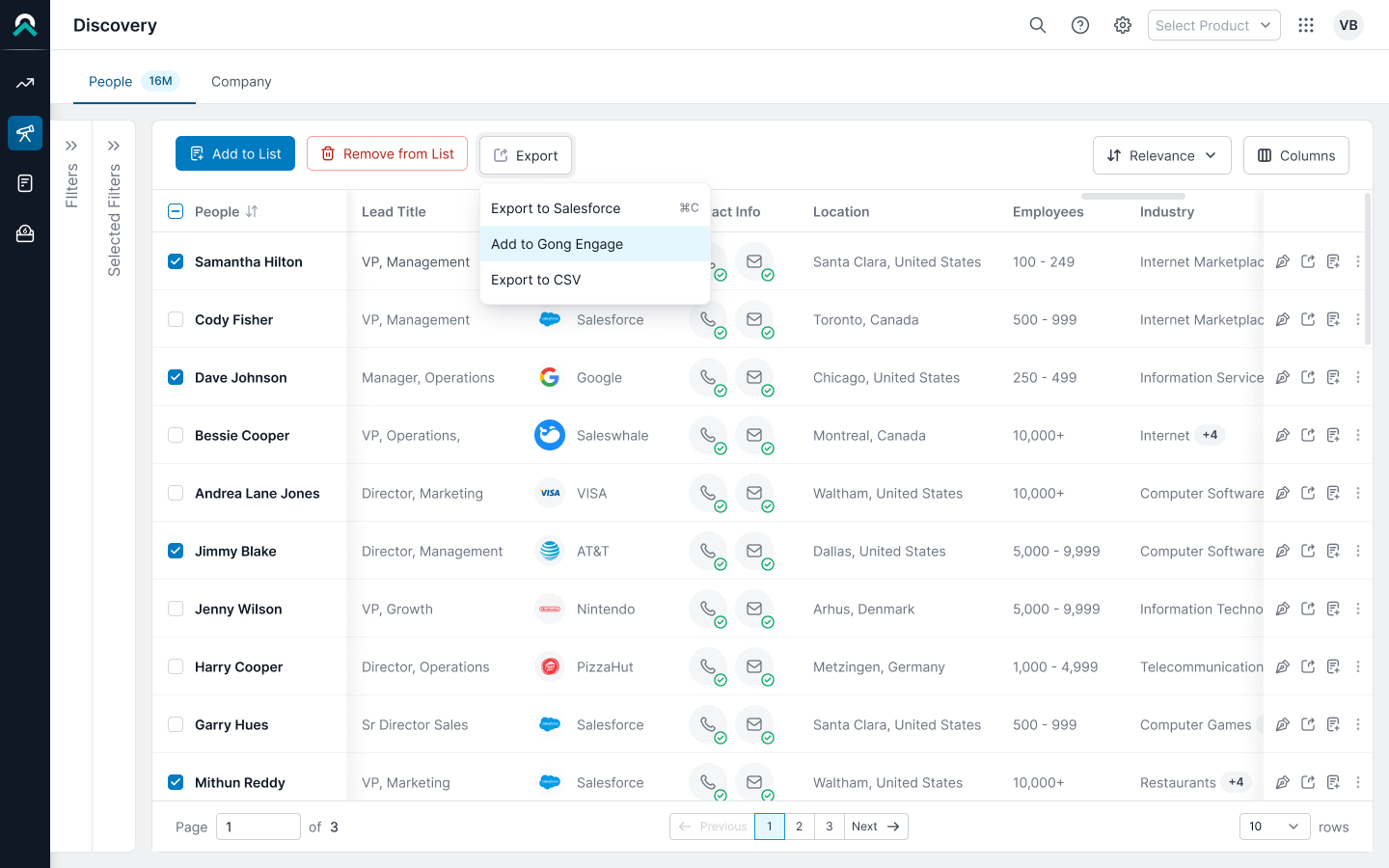
The export information panel opens.
Review the list of exports.
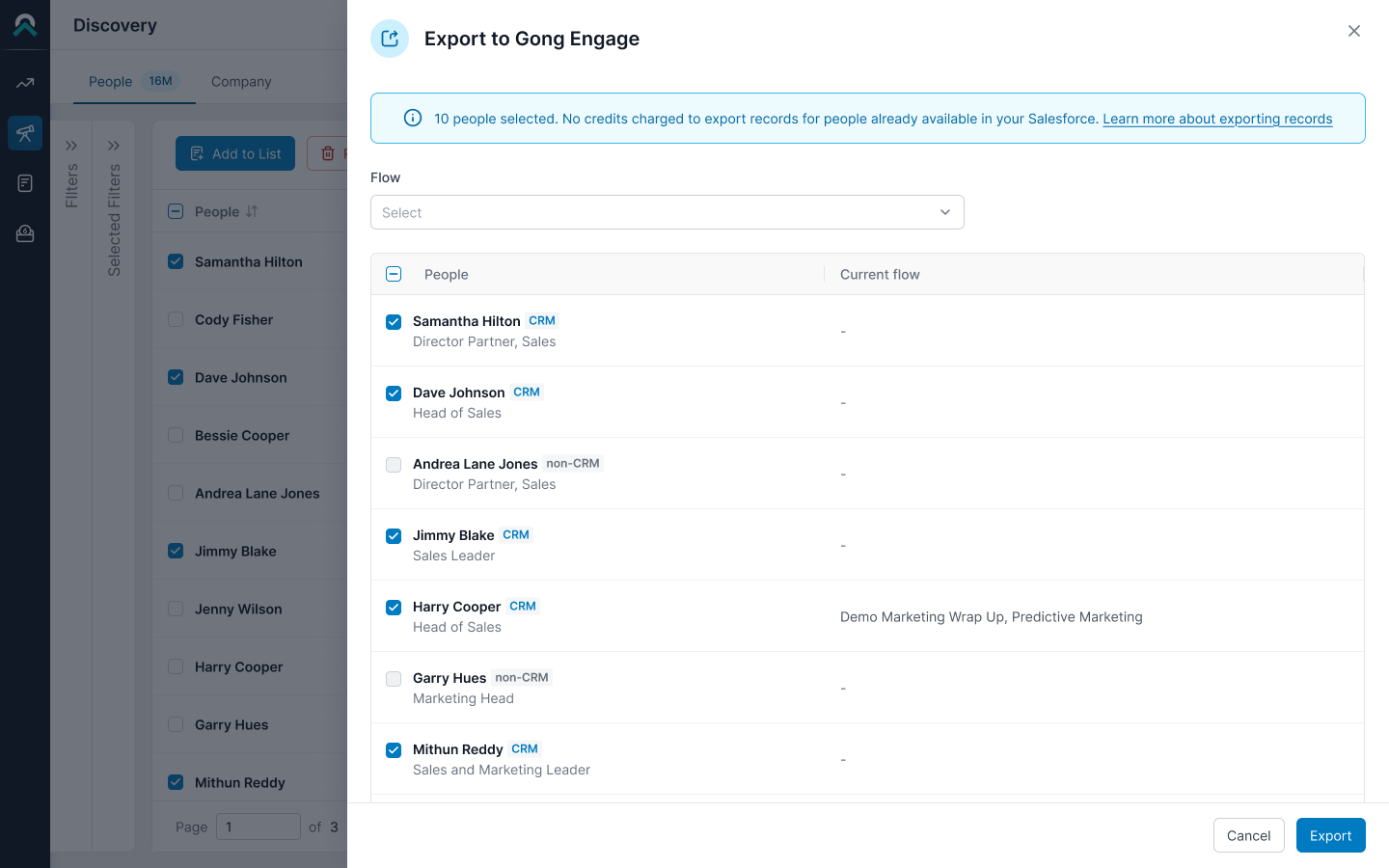
Select a Gong Flow from the available list, either:
Your Flows: owned by individual users
Company/Shared with You Flows: available to your organization
Tip: If a flow is marked Exclusive, contacts in that flow cannot be added to any other flow until they are removed.
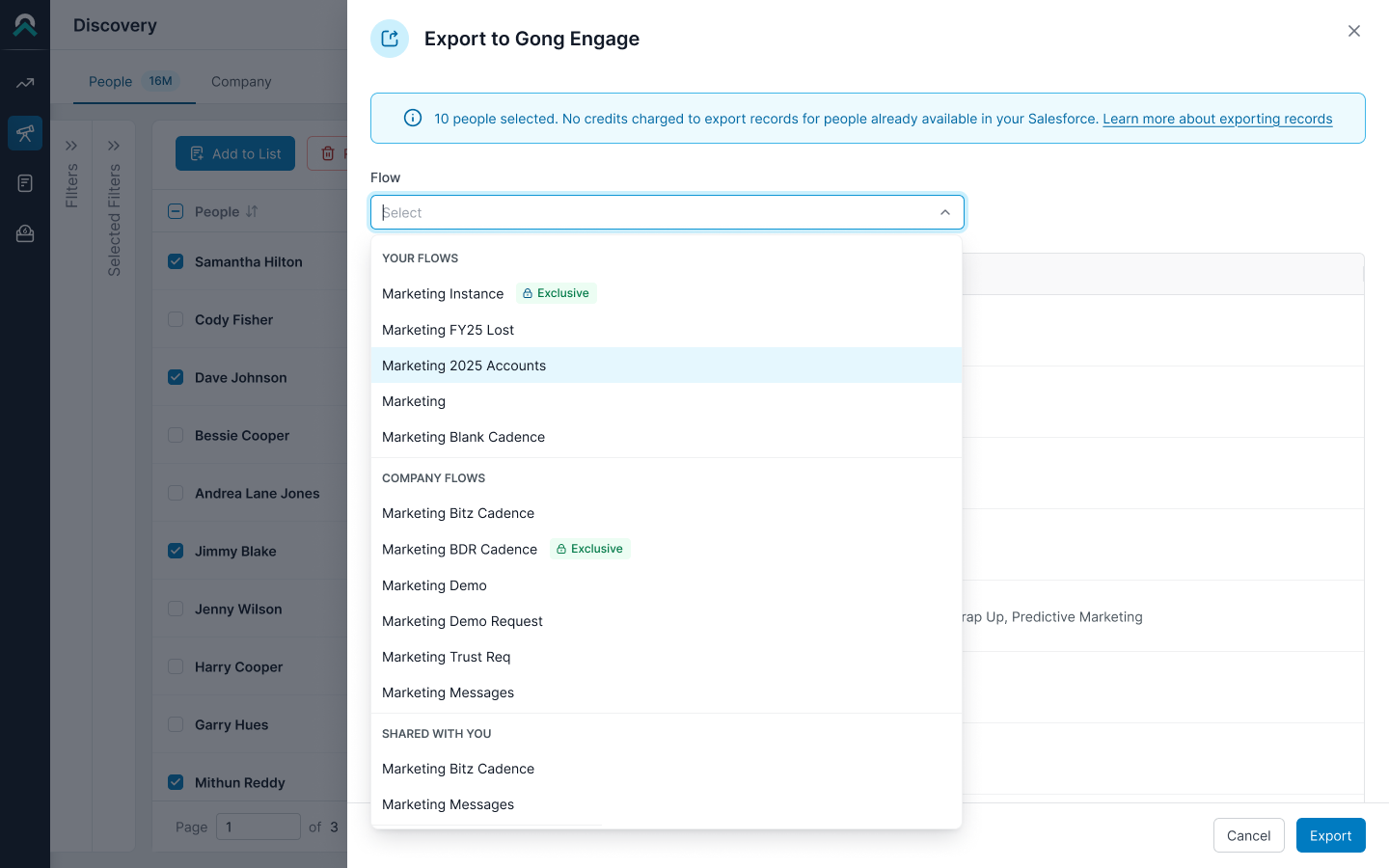
Select Export.
6sense shows a message confirming the export and providing a link to the export history panel.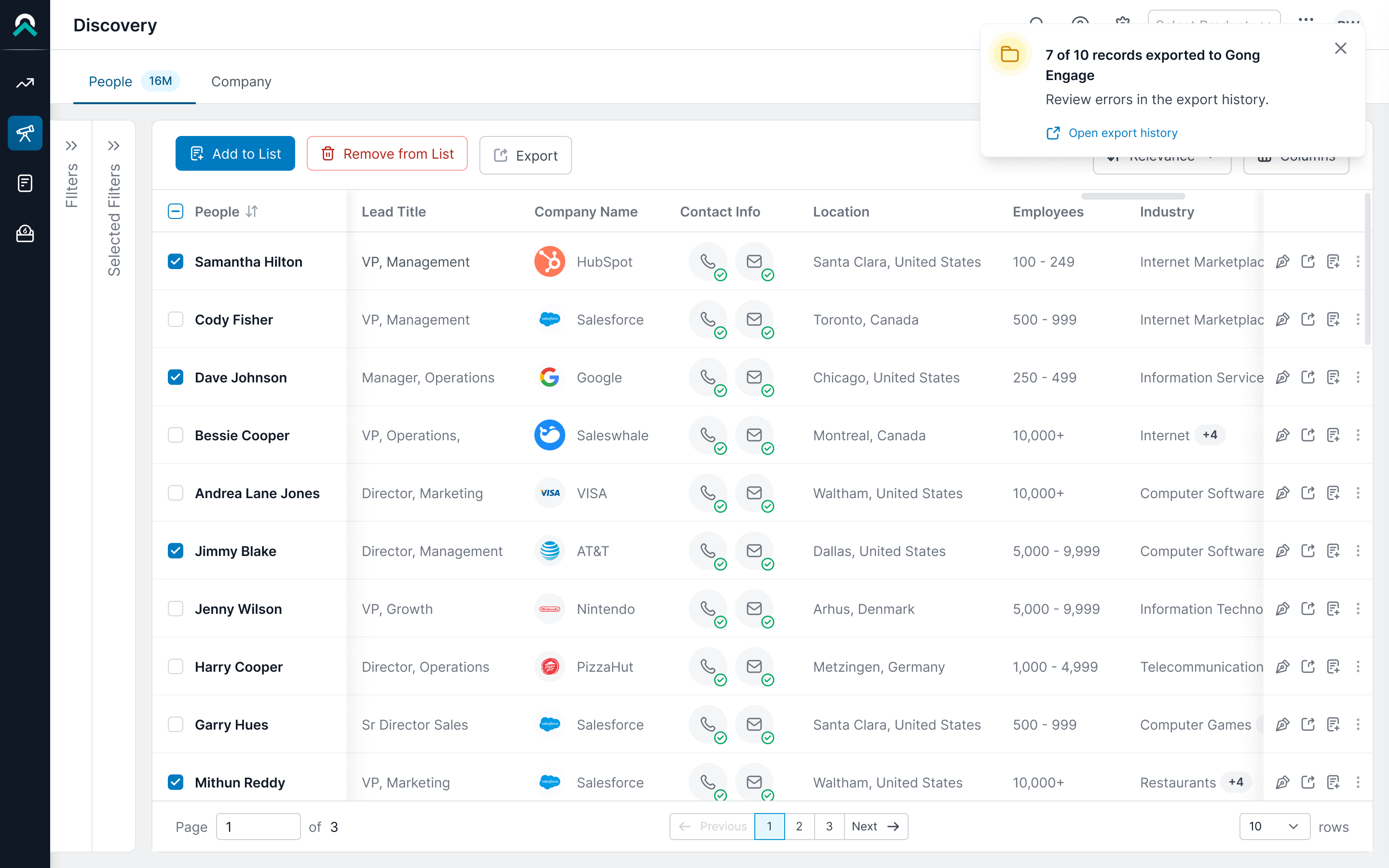
Go to Gong and confirm that 6sense added the contacts to the selected flow.
FAQ
Do all Gong users have access to 6sense once the integration is enabled?
No. Users with a 6sense Sales Intelligence license can only access the 6sense platform in Gong Engage.