6sense integrates with Gong Engage.
6sense and Gong Engage use cases
6sense supports the following Gong Engage use cases:
View, purchase, and push contacts within the Gong iFrame to streamline prospecting: You can add the Sales Intelligence (SI) iFrame to Gong Engage. Refer to Integrate Sales Intelligence with Gong.
Manually add SI contacts to Gong Flows: 6sense can push high-intent contacts from 6sense or the iFrame into Gong Engage Flows, enabling you to take immediate action without switching platforms. Refer to Integrate Sales Intelligence with Gong.
Automatically add CRM contacts or leads to a Gong Engage Flow for sales activation. Refer to Audience Workflow Action Nodes - Push to Gong Engage.
Prerequisites
6sense Revenue Marketing or Sales Intelligence products installed.
Your CRM must be integrated with 6sense.
Your user account must have a Primary or Sales Administrator role under Settings > User Management > Organization Users.
A Gong Engage subscription.
Oauth credentials for Gong.
Set up the 6sense to Gong Oauth Integration
Important: The steps to enable the OAuth are the same for Sales Engagement Platform and 6sense iFrame in Gong. If you’ve already completed the steps for one, you don’t need to repeat them.
Go to Settings > All integrations > Sales Engagement Platform > Gong,
OR
if intending to use the iframe integration with Sales Intelligence, go to Settings > All integrations > 6sense iFrame in Gong. The settings page opens.At the top right, select Connect to send a request to Gong Engage. The Connect panel opens.

Select Sign into Gong Engage.
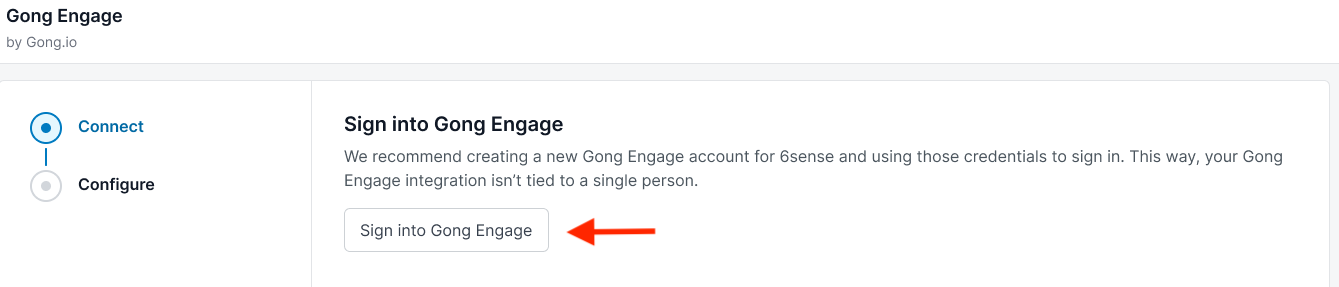
Enter the email ID and password of Gong Engage’s OAuth credentials.
Select Allow for 6sense to access Gong APIs, and to complete authentication.
Select Next to go to the configuration settings and make any needed changes.
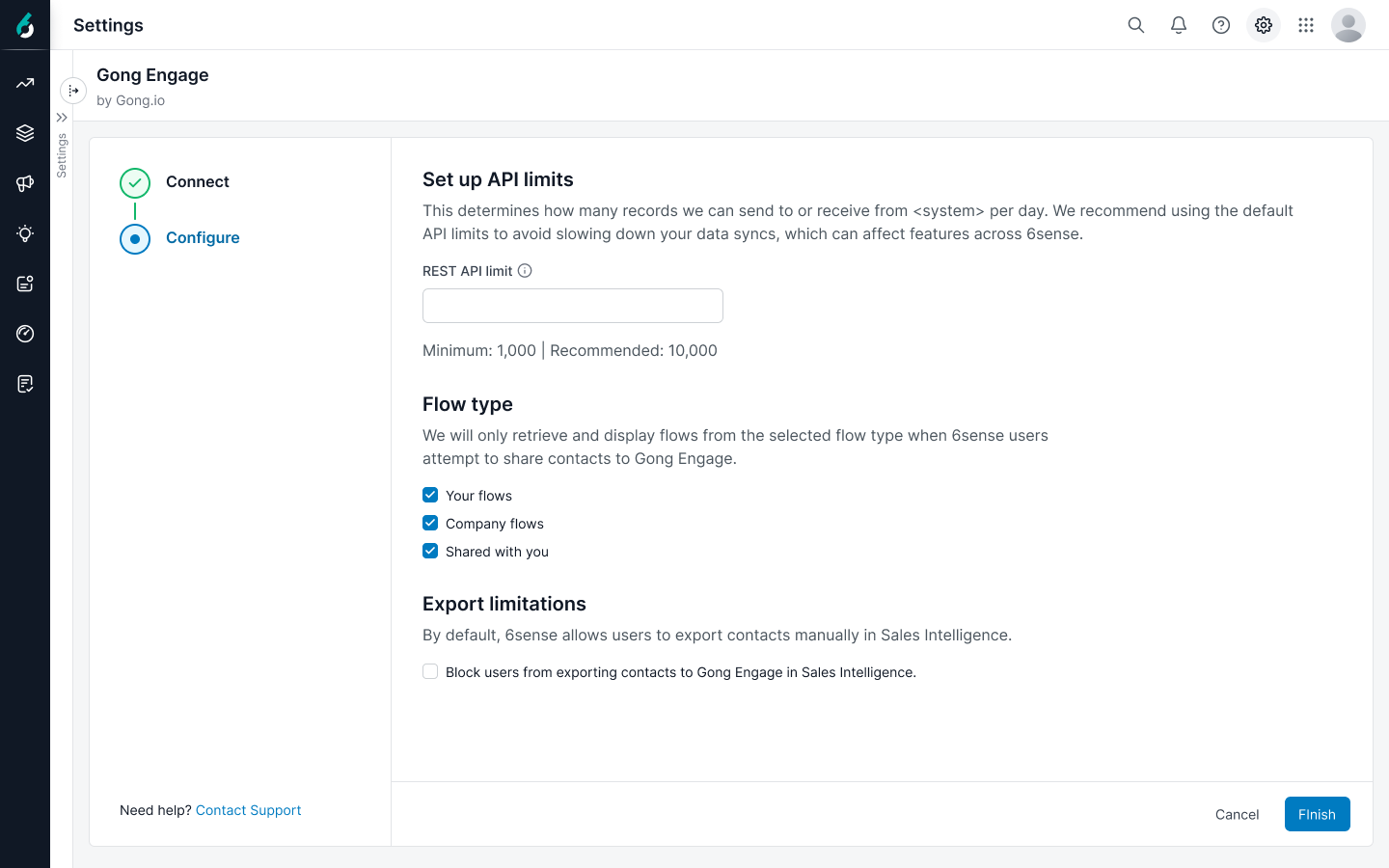
Select Finish.
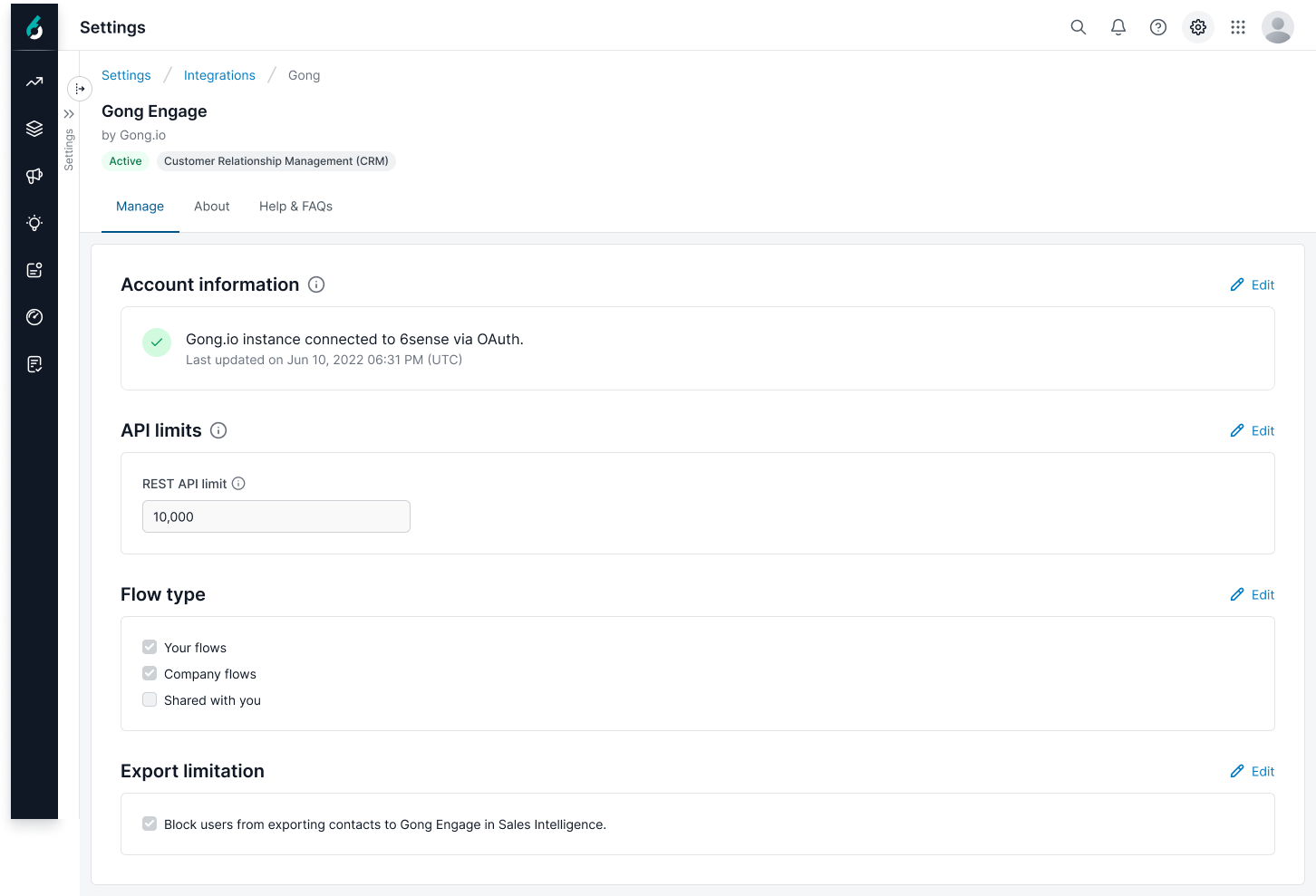
Return to the Gong Engage settings to confirm the connection. The Active icon should display, along with the updated account information. You can edit or remove the integration from this page.