The Microsoft Dynamics integration lets your marketing and sales teams import and enroll contacts (with their field values) into AI Email (AIE).
How AIE field mapping works
Field mappings show you which Microsoft Dynamics record attributes AIE will import and in which AIE fields they will be stored.
AIE integration with Microsoft Dynamics maps the Microsoft Dynamics contact objects to AIE contacts, and the Microsoft Dynamics company objects to AIE accounts.
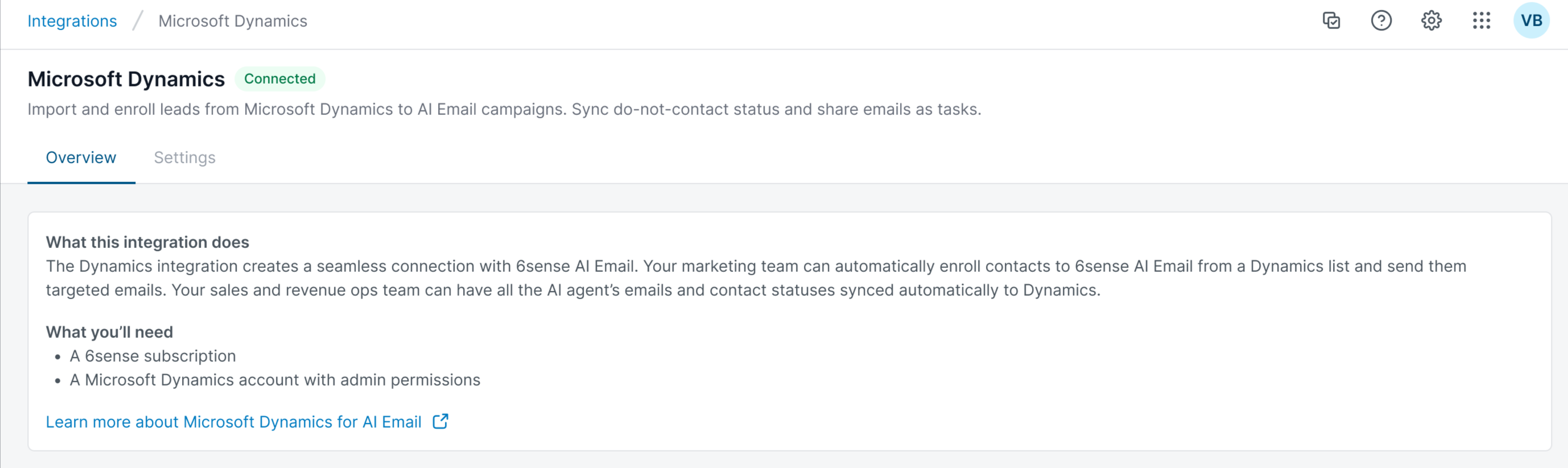
The integration with Microsoft Dynamics imports the contact, lead, and account data from the mapped fields when you enroll a Microsoft Dynamics contact or lead list in an AIE campaign. You can use the imported data to personalize the email messaging for each of your leads.
AIE only pulls in Microsoft Dynamics field values on the first import. Any subsequent changes made on your Microsoft Dynamics records will not be synced to AIE.
Map contact and lead fields
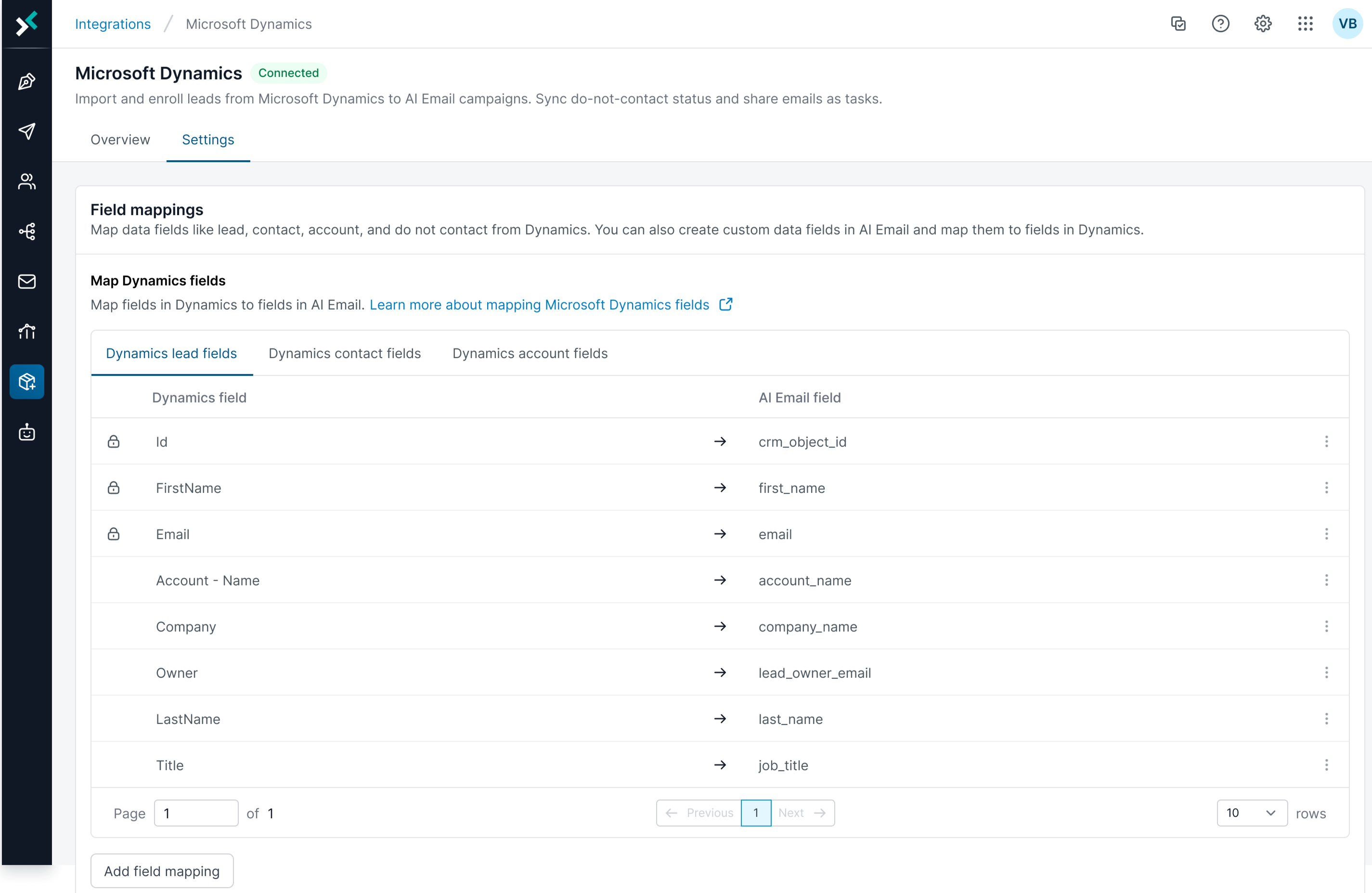
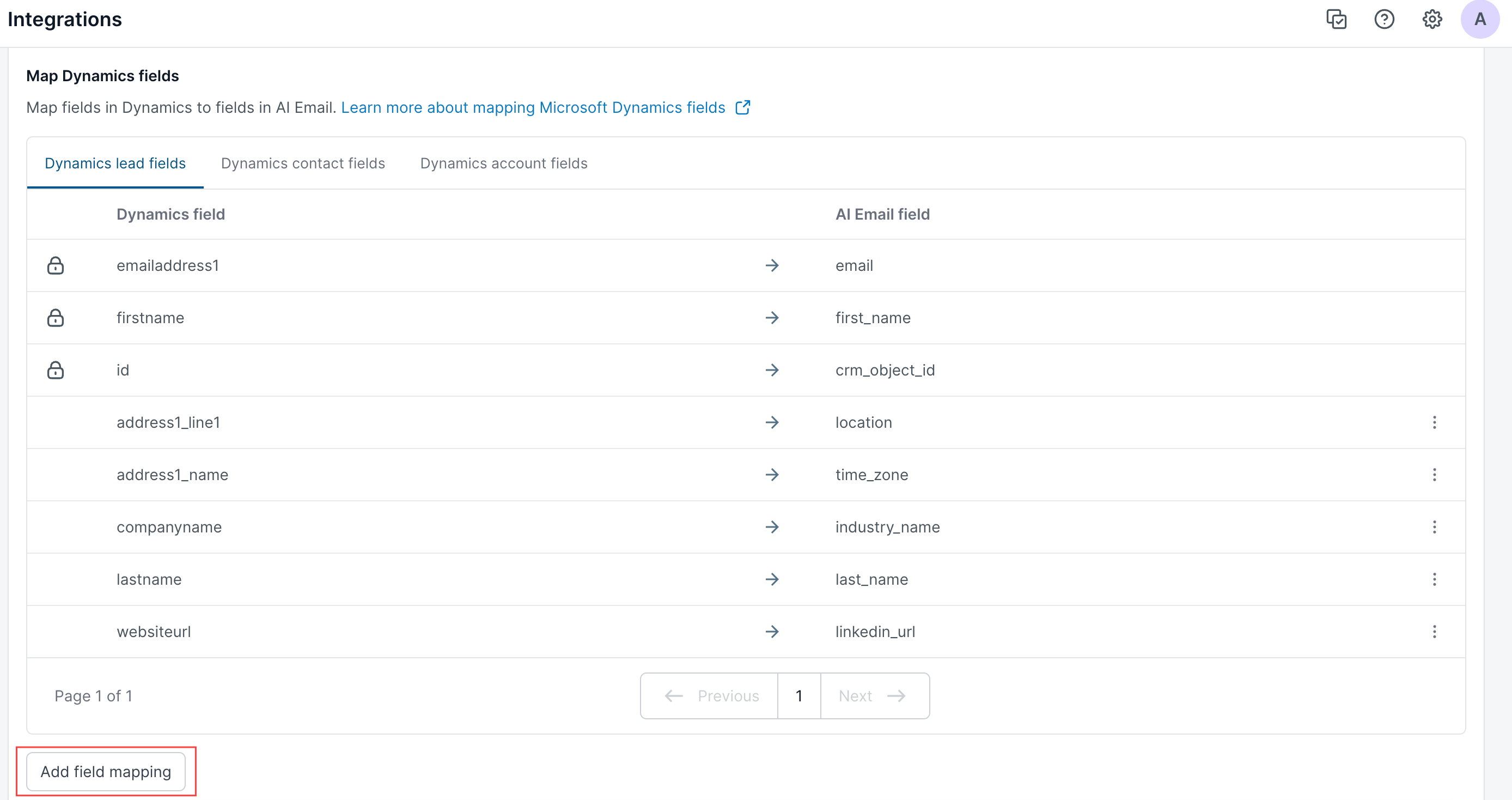
AIE pre-maps the 5 contact or lead fields below by default, because they are required by AIE to create an AIE contact record.
Id (CRM Object Id)
First Name
Email
Account – Name (for Microsoft Dynamics company) applicable for contacts only
Account – Id (for Microsoft Dynamics company) applicable for contacts only
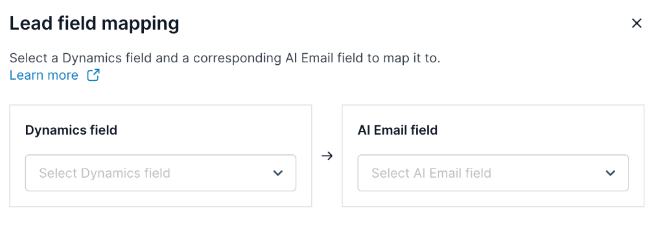
You can map any number of contact or lead fields in Microsoft Dynamics to other pre-populated and custom AIE contact fields in the Field Mappings table.
We recommend that you map the 4 fields below so that you can personalize your emails (with merge tags) using the field values:
Last Name
Company name
Job Title
Contact Owner Email
After the fields have been mapped successfully, you can find them when you navigate to the Contact’s detail page and select the Standard Fields section on the left sidebar.
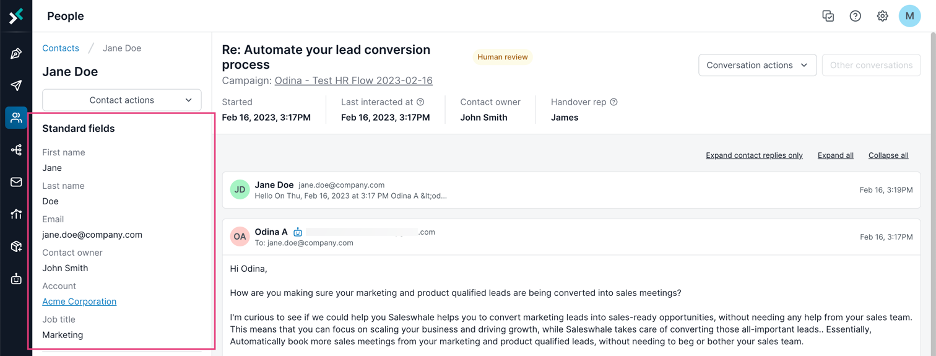
The mapped attributes are not editable in the contact’s detail page in AIE.
Map account fields
The process for mapping your Microsoft Dynamics account fields to AIE account fields is very similar to the above process for mapping contact fields.
AIE pre-maps these 2 account fields by default:
Id
Name
By pre-mapping the account ID, you can associate a Microsoft Dynamics-enrolled contact or lead in AIE with their respective Microsoft Dynamics company.
You can map other Microsoft Dynamics company fields to pre-populated and custom AIE account fields. This is a necessary step to further personalize your email messaging in AIE using the account field values as merge tags.
.png)
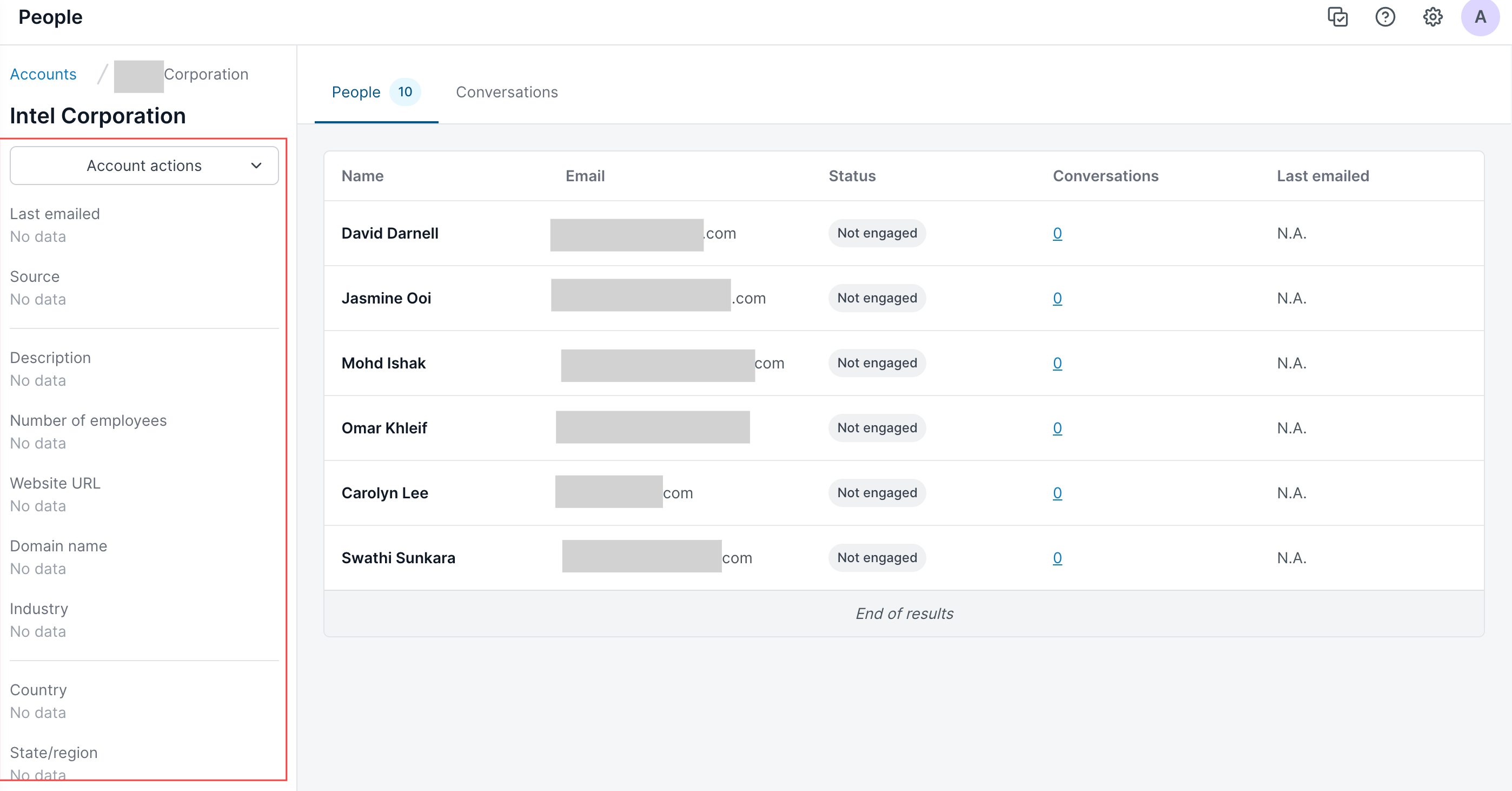
Mapping your account fields also allows you to pull in Microsoft Dynamics account field values into your Account’s detail page in AIE. Account fields with no Microsoft Dynamics field values display as “No data”.
Difference between default fields and custom fields
Default field mapping
AI Email integration with Microsoft Dynamics maps some fields automatically. These default field mappings for contacts and leads include but are not limited to:
id (Microsoft Dynamics) -> CRM Object Id (AIE)
first Name (Microsoft Dynamics) -> First Name (AIE)
emailaddress1 (Microsoft Dynamics) -> Email (AIE)
parentcustomeridvalue (Microsoft Dynamics - leads only) -> Account CRM Object Id (AIE)
new_companyname (Microsoft Dynamics - leads only) -> Account Name (AIE)
You cannot change the mappings of the default fields.
Custom field mapping
In addition to the five fields listed above, you can add, remove, and map additional fields from Microsoft Dynamics to AIE. This gives you more options to personalize AIE’s AI-generated emails and capture richer data in your CRM.
Delete custom field mappings
Only custom field mappings can be deleted in AIE.
If you no longer want to sync data between an AIE field and Microsoft Dynamics field in a custom field mapping, you can delete the mapping.
FAQ
What happens if I don’t map the contact owner field?
If you don’t map the contact owner field, or the field is not mapped successfully to the correct type, AIE round-robins qualified leads to the list of sales reps in AIE, ignoring the pre-assigned contact owner in your Microsoft Dynamics settings.
What happens after I map a field?
AIE imports the field data when you enroll a contact list from Microsoft Dynamics to an AIE campaign.
What happens after I change the mapping of an existing field mapping?
AIE imports the data from the new mapping when you enroll a contact or lead list from Microsoft Dynamics to AIE.