You can enable and disable auto import and enrollment of leads from Microsoft Dynamics to AI Email (AIE). You can auto enroll or enroll leads directly from Microsoft Dynamics contact lists into AIE.
After auto import is enabled, contacts meeting your specified rules are automatically imported into AIE. On an ongoing basis, as long as auto import is enabled, any contacts in your Microsoft Dynamics that meet your specified criteria are also imported into AIE. Once imported, the lead is automatically enrolled in your AIE campaign.
Auto enrollment rules must be set up for each AIE campaign.
Prerequisites
Before you enable auto import and enrollment:
Enable your Microsoft Dynamics integration.
Map the required fields for dynamic merge tags.
Enable auto import and enrollment
To set up the auto enrollment process:
Select Campaigns and choose a campaign.
Select the Enroll contacts section.
Choose Enroll contacts from an integration.
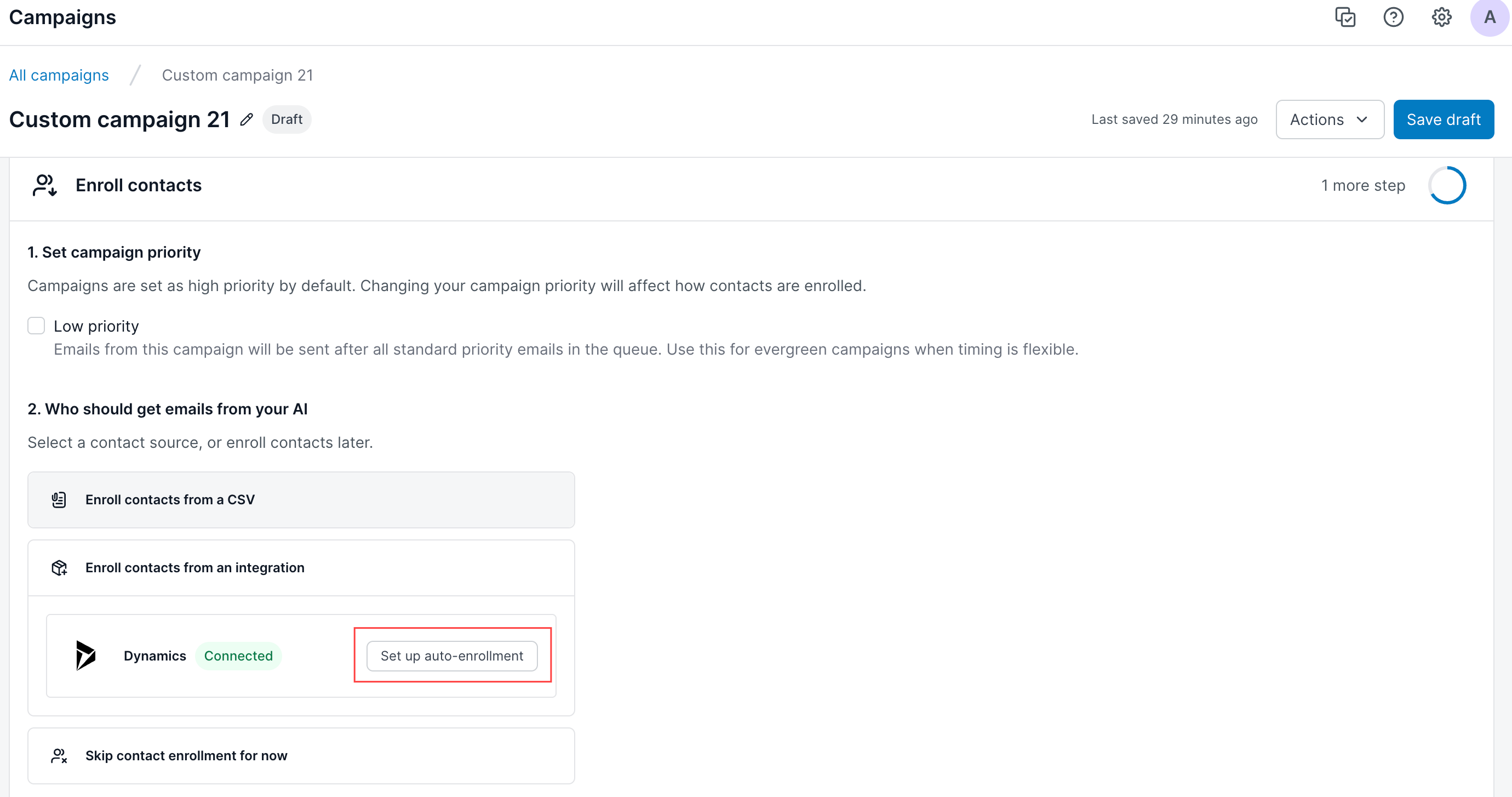
From the Auto Enrollment page, select the relevant Microsoft Dynamics contact list.
Select a report to see the number of contacts and filters detected.
.png)
Review the detected filters and enrollment count before linking the report to your campaign.
Select the Filters detected count to view the actual filters detected from the report.
Ensure the number of contacts and filters matches your expectations.
.png)
Select Link to campaign.
After you link the CRM report, a message appears to confirm that contact processing has started. Processing typically finishes within 1–5 minutes. You’ll receive a notification when it’s complete. After processing, AIE validates each contact to determine whether it can be enrolled.
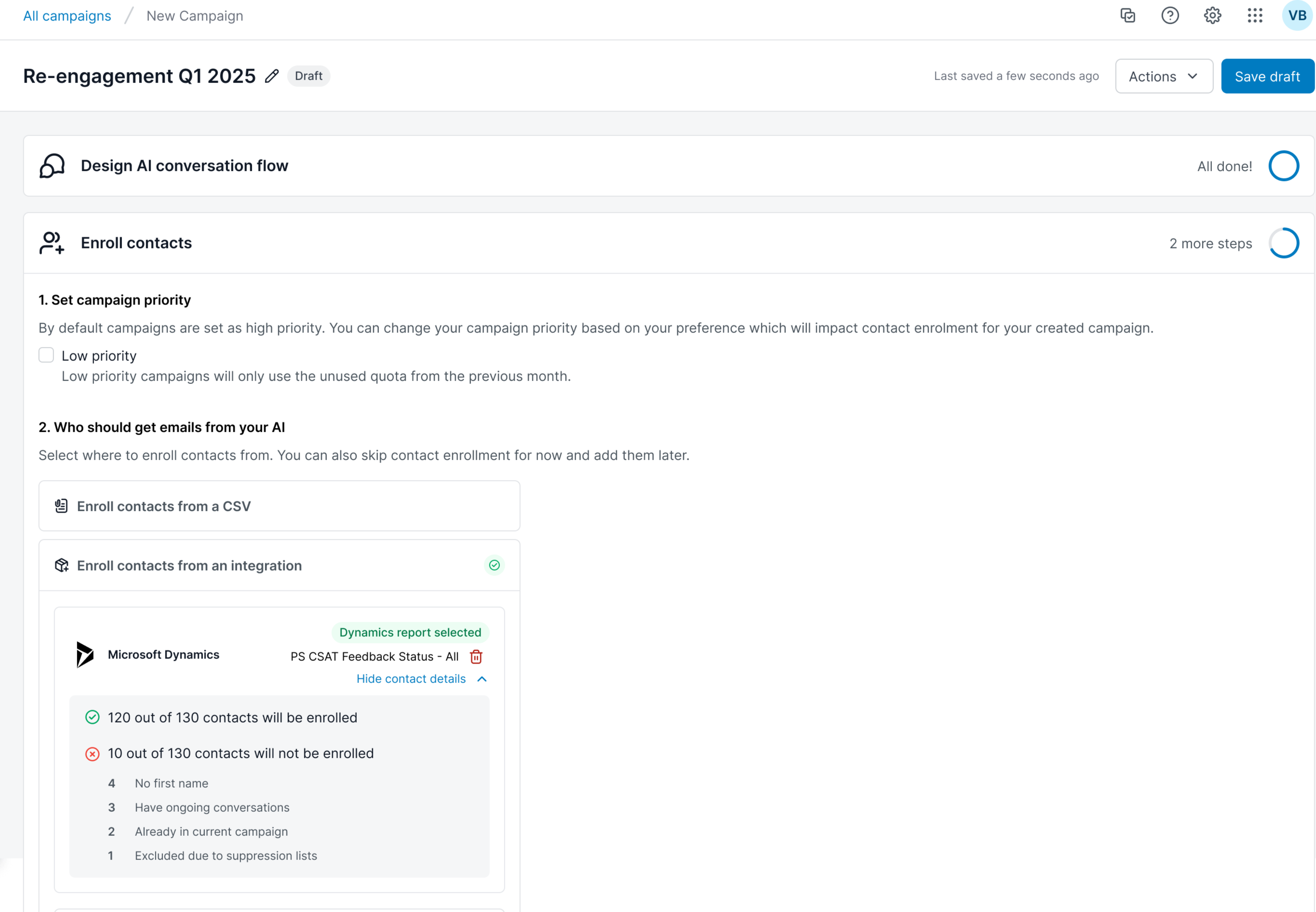
The number of contacts who passed all validation checks and will be added to your campaign
The number of contacts who cannot be enrolled, along with specific reasons:
Invalid email — The email format is incomplete or incorrect.
Invalid Email Server — The domain doesn’t have a valid mail server.
Emails in CRM and AI Email don't match — The CRM email differs from the email stored in AI Email.
Same email domain as AI email agent — The email uses your internal company domain.
Same email as sales rep — The email matches a sales rep in your CRM.
No first name — The first name field is required for personalization.
No merge tags — Required personalization fields are missing.
No merge tags or fallback — Required fields are missing and no fallback values are set.
Invalid lead owner email — The assigned lead owner’s email is invalid.
Email linked to other CRM leads — The same email appears on multiple CRM records.
In the Preview and Launch section, review the final enrollment breakdown one more time before activating your campaign.
Check auto import status and contact list
To check the Microsoft Dynamics contact list connected to each campaign and to view the auto import and enrollment status, go to the campaign’s page.
.png)
Disable auto import and enrollment
To disable auto import and enrollment:
In AIE, go to Campaigns.
Select the relevant campaign.
Select the Contacts enrollments tab.
Select the Actions menu, select Turn off Dynamics enrollment.
.png)