Overview
The Pixel Activity report helps you analyze account engagement from campaigns running outside 6sense. It shows how external media exposure, impressions, and clicks relates to downstream account activity.
Use this report to:
Identify accounts reached by external campaigns
Understand how accounts engage during exposure
Analyze how media activity overlaps with website visits and pipeline activity
Pixel Activity data is aggregated at the account level and provides directional insights into engagement.
.png)
The Pixel Activity consolidates activity from your tracking pixels to help marketing and ABM teams identify active accounts, monitor engagement trends, and gain directional insights for optimization and reporting.
All metrics reflect pixel events within the selected time frame.
Only accounts with pixel activity in that period are included.
Reporting is account‑level only (not user‑level).
Prerequisites
Tracking Pixels are created and deployed in external campaigns
Pixel events (impressions or clicks) are firing
Data appears after traffic flows through the deployed pixel
Access the report
Navigation: Advertising > Pixels > Pixel Activity or Reports > Pixel Activity
View options
You can select how pixel activity is displayed using the Dimension dropdown.
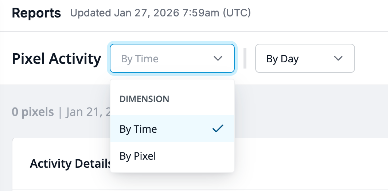
By Time
Shows how activity trends change over the selected date range.
Useful for analyzing:
Daily or weekly impression and click patterns
Spikes or drops in activity
Engagement lift during external campaigns
Timing alignment between media exposure and website visits
By Pixel
Shows activity broken down by each individual pixel.
This view helps you:
Compare performance across campaigns, creatives, or platforms
Identify which pixels drive the most impressions or clicks
Spot underperforming placements or audiences
Evaluate experiment‑ or channel‑level differences
Metric Selector: Impressions and Clicks
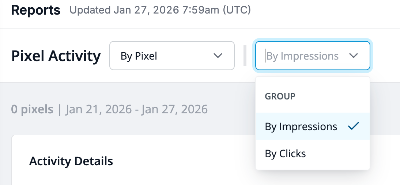
Use the metric selector. For example, By Clicks, By Impressions to toggle the dataset you want to analyze.
Impressions — Understand ad delivery volume
Clicks — Measure deeper engagement or action on the creative
Both metric views reflect account‑level activity, not user‑level interactions.
Filters
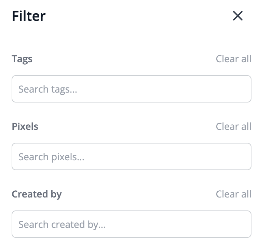
Select Filter to refine the dataset shown.
You can filter pixel activity by:
Tags
Search and filter by any tag applied during pixel creation.
Examples include:
Channel:
Display,Video,CTVPlatform:
CM360,DV360,TTDRegion:
EMEA,NA,APACObjective:
Awareness,ABM,Retargeting
Filtering by tags helps isolate results for a specific campaign type, region, or platform.
Pixels
Filter by one or more specific pixels to analyze individual campaign or placement performance.
Created By
Filter results by the person who created the pixel.
Useful for large teams or shared media operations.
Metrics and definitions
Impressions — An impression is logged when the ad renders on the page and the impression pixel loads successfully.
Clicks — A click is recorded when an account clicks an ad and the click pixel fires.
Accounts Reached — Accounts with ≥1 pixel event (impression or click) during the selected time frame.
Accounts Engaged — Visited accounts that interacted on your site (for example, video plays or link clicks).
Account Visits — Reached accounts that also visited your website in the same time frame.
Account Form fills — Reached accounts that submitted a form during the time frame.
6QA — Reached accounts that were in active 6QA status at any time during the time frame.
New 6QA — Reached accounts that became a 6QA for the first time during the time frame.
All opportunities — Reached accounts linked to relevant CRM opportunities that were open at any point during the time frame.
New opportunities — Reached accounts linked to CRM opportunities first opened during the time frame.
Use Tracking Pixels data for directional insights and influence analysis. It’s not a replacement for ad‑platform delivery or billing metrics and does not provide user‑level attribution.
Important limitations
When reviewing Tracking Pixel data in 6sense, keep the following limitations in mind to ensure accurate interpretation:
Only accounts with pixel activity are included.
Reporting shows only accounts that generated at least one pixel event during the selected timeframe. Accounts without pixel activity are not displayed.Metrics reflect activity only within the selected date range.
Reports show impression and click events that occurred during the chosen timeframe, regardless of when the pixel was created or first deployed.Pixel data retention is limited to 24 months.
Historical pixel data is stored for up to 24 months and may not be available beyond that window.All reporting is account‑level, not user‑level.
Pixel activity is attributed to accounts, not individuals. Metrics are intended for directional insights and influence analysis, not deterministic or user‑level attribution.Works only where third‑party pixels are supported. If an ad platform or placement does not allow third‑party image pixels, the pixel will not fire and no events will be tracked.
Coverage depends on identity resolution. If 6sense cannot resolve the pixel event to a known account, for example, unknown visitor/IP, some exposure will not map to an account.
Does not replace full ad‑platform metrics. Tracking Pixels do not capture delivery or billing metrics such as impressions, clicks, spend, frequency at the user level. Continue using your ad platform’s reporting for those insights.
Incorrect placement reduces accuracy. Inconsistent or incorrect placement across creatives, campaigns, or experiments will cause incomplete or misleading reporting.
Only supports 1×1 image pixels (GIF). Tracking Pixels do not support JavaScript‑based or HTML script tags; only image‑based pixel placements are allowed.