Updated timer node setup
As of November 7, 2025, 6sense simplified timer node setup from multiple timer nodes into one node.
Existing workflows automatically update to the new timer node, called Conditions and time settings are met.
All existing workflows continue to run the same as before.
The timer node, called Conditions and time settings are met, sets time periods and, optionally, conditions during which accounts remain in the previous action node.
You can access it from the Nodes menu in the Audience or Data Workflows canvas.
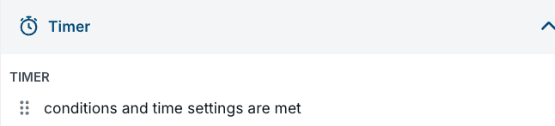
Use a timer node with a previous action node to ensure that accounts remain in that action for a maximum time period, or until specific filter conditions are met.
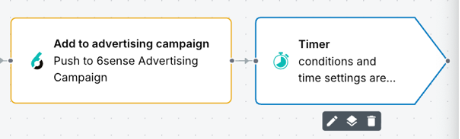
The timer node moves accounts to the next node when either:
The timeframe setting is met, OR
The timer node’s filter conditions are met.
This OR logic is very important, because an account may meet a condition and move along through the workflow before the time period is passed.
Example workflow with a timer node that does not have filter conditions
A simple timer node specifies just a time period, with no additional conditions.
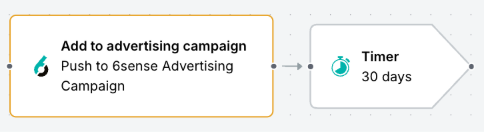
You may wonder, why use the workflow and timer node instead of relying on the particular action node campaign’s settings? It depends on what you want to happen next. If you rely solely on a campaign’s timeframe or removal logic, the audience is removed from the campaign but does not continue down a workflow. This limits your ability to take follow-on actions or branch based on what you want to happen next.
Example workflow with a timer node that has filter conditions
The following workflow shows an advertising campaign that goes for 30 days, and if someone from one of the accounts registers for a webinar they get added to an AI Email campaign.

Timer node requirements
A timer node receives the accounts of a previous action node; therefore a timer node must be preceded by an action node.
A timer node may be needed when using a Remove Audience node. If you use a Remove Audience node, it must be preceded by either a timer node or a decision node. This is because Remove Audience causes an ending action, not an entry action (such as the Add to Audience node). The Remove Audience node explicitly unenrolls accounts. Without a timer, accounts could be removed immediately after being added, even in the same evaluation cycle. The timer guarantees a minimum hold period or a clear exit condition before removing accounts from the workflow.
Use cases for timer nodes
Common use cases for keeping accounts in a push-action activity for a specified time period include the following.
Fixed time exposure or cooling-off period use cases
Timer nodes assist you in running ads, emails, or syncs for a defined duration, such as “show ads for 14 days".
The sync or campaign’s timeframe controls when the workflow’s action actually runs. The timer controls how long accounts stay in that action. Without a timer, accounts may exit immediately and stop receiving the push action.
For example, you may want to show LinkedIn ads to target accounts for 30 days, regardless of whether accounts exhibit engagement activity.
Or, as another example, you may want to ensure that downstream actions in a flow don’t trigger immediately.
Wait-until-conversion logic use cases (timeframe OR filter condition)
You can continue the action until the account converts, or the maximum time is reached. The timer’s OR logic allows:
Early exit from the workflow, such as to stop sending ads, when an account demonstrates engagement activity.
Holding accounts in a low-touch action, such as adding accounts to an always-on awareness campaign and only progressing an account further if it starts demonstrating intent.
Guarantees that the workflow ends after a maximum duration or date.
For example, a workflow could run ads to an account until someone registers for a webinar OR 30 days pass (whichever happens first).
Sync accounts for a specified time use case
You probably do not always want to keep a workflow path’s actions running indefinitely. Use a timer node in Data Workflows to keep accounts synced to your CRM, advertising, or AI Email channels for a controlled window of time.
Use cases where you would NOT use a timer node
In some workflows you would not want to use a timer node, such as:
When audiences should be pushed to ad platforms immediately after they qualify, with no intentional delay.
When people-level action nodes follow a Contact Purchase node, since only newly acquired contacts are pushed immediately.
When multiple push-action nodes are configured to run in parallel branches rather than sequentially.
When campaign exit or audience removal is handled directly within the action node itself.
How the workflow schedule affects timer nodes
The schedule of a workflow affects how timer nodes operate and how workflow status is reported.
On-demand schedules with timer nodes
On-demand workflow schedules run only once, when you select Publish in the workflow canvas.
If there is a timer node, it holds the accounts for the specified timeframe. For an on-demand workflow, the timer node settings can be a duration or until a specific date.
For on-demand schedules with a timer node, the Run History panel displays an icon that shows the run as completed but has a timer node still running.
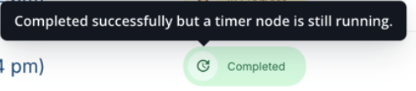
The "Completed - with timer" icon indicates that all non-timer paths in the workflow have finished, and the remaining progress is waiting on one or more timer nodes rather than additional workflow execution.
Recurring schedules with timer nodes
For recurring schedules, daily or weekly, a workflow runs after the daily 6sense pipeline runs.
If there is a timer node, it starts each time the workflow runs.
We recommend that you use a duration for recurring schedules and not a specific date. If a timer node is configured with a specific date, it will not have any effect on the workflows that run after that date. After the specified date, the workflow runs as if the timer node doesn't exist.
Consider whether the timer node duration is longer or shorter than the workflow schedule. For example, if you have a weekly schedule and a timer set for a day, the timer will complete prior to the next scheduled run.
However, if the timer is set for longer than the schedule, accounts will be held by the timer after the subsequent run begins.
For example, with a recurring workflow set to run weekly on Mondays:
When the workflow runs on Monday, accounts enter the timer node.
A 1-day timer schedules a callback independent of the next workflow run.
Accounts will resume on Tuesday, even though the next scheduled workflow run is the following Monday.
The timer node is not dependent on another workflow run to continue; it resumes asynchronously based on time/conditions.
The “paused” state at a timer node does not require the workflow to run again.
Conditions in timer nodes
Conditions in timer nodes are optional. They help you further filter the accounts that move through a workflow.
The conditions, which consist of filters, in a timer node are the same as the ones available in a decision node.
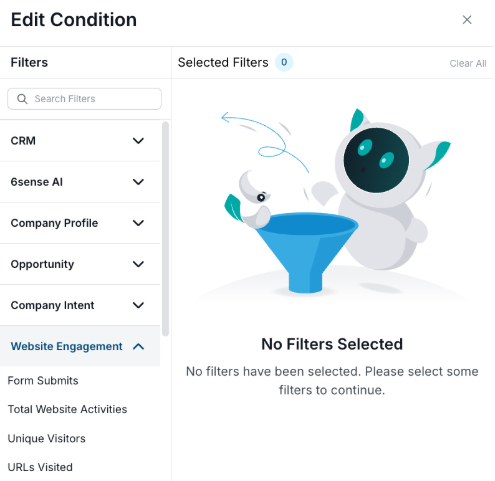
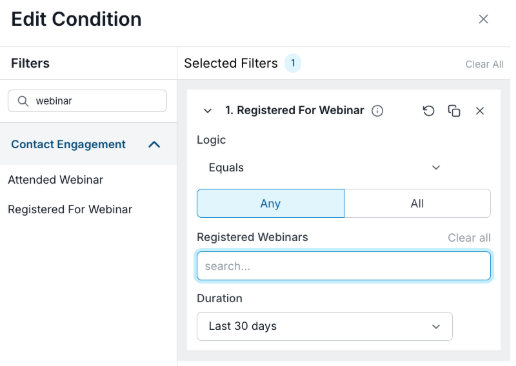
For more information about where to use filter conditions, refer to Filter Conditions in Segments and Nodes.
Set up a timer node
Using the Conditions and time settings are met node, time settings define a duration or a date and time after which filters are applied to the audience, and then moves to the next node.
Drag the node from the Nodes menu to the canvas.
Connect it node to an action node.
Select the timer node’s Edit (the pencil) icon.
In the properties panel, add a name and description.
Node name (required): A brief description that displays on the node’s icon. You cannot save a timer node without a name.
Description (optional, and recommended): A lengthier description of what the node does.
Select the timeframe, either:
Number of days: Select the duration in number of days, hours, and/or minutes. Refer to the previous section How the workflow schedule affects timer nodes.
OR
Date and time: Select a specific time when the workflow will stop.
Intended for workflows with on-demand scheduling.
Not recommended for recurring (daily or weekly) workflows.
(Optional) Add conditions that must be met before the workflow moves to the next node.
Select When these conditions are met, create a new branch. The branch is where you attach the next node.
Select Add condition and pick filters that match your needs.
The filters are the same as the ones you can apply when creating a segment or decision node.
All filters return accounts.
Contact-related filters return accounts that are associated with those contacts.
Name the branch. By default the branch’s name is Yes.
(Optional) Add what to do if the previous conditions were not met. Either:
Do nothing.
ORAdd another branch. Update the branch name if needed.
Select Save.
Run status for recurring workflows with timer nodes
For more information about workflow run status refer to Monitor Audience Workflows.
Recurring workflow performance improvement for timer nodes
(New in February 2026) You may have a recurring (daily or weekly) workflow with one or more timer nodes. We improved the processing for these types of workflows and changed how 6sense reports the run status.
Previously, runs were marked “Competed with timer” until the timer node was done. For example, a 30-day timer that ran every day would show a status “Completed with timer” for each run until the 30 days was over.
The status reporting for recurring workflows now works as follows:
Run status for the daily (latest) and previous day (second-latest) runs are marked as In Progress.
Run status for previous runs are marked as Completed, even if those runs had a timer node, because this information is consolidated into the run status of the second-latest and latest runs.
Recurring runs will not show “Completed with timer”. (However an ad-hoc run may show that status.)
This improves efficiency while maintaining the functional behavior.
FAQ: Run status for recurring workflows with timer nodes
Are records skipped or delayed?
No. Every record processes on the day it becomes eligible.
Does this change affect the workflow results?
No. The run is more efficient and functional behavior remains the same.
What if a run fails?
There is a built-in automatic functionality that retries the logic 5 times before marking it as failed.
Document Changelog
Feb 3 2026: Update for changes to timer node processing
Jan 13 2026: Updated for DWF, now this page applies to both AWF and DWF
Jan 12 2026: Added more information about functionality and use cases
Nov 12 2025: Section about changing duration settings
Nov 7 2025: Timer node consolidation updates
Mar 24 2025: General Availability
1st Published Jan 15 2025: Beta