Integrating 6sense with Snowflake requires key pair authentication, a secure method that uses a public/private key pair instead of a password. This approach ensures strong encryption and compliance with modern security standards.
Integration with Snowflake allows the user to send Data Packs (f.k.a. Standardized File Export (SFE)) data directly to your organization’s Snowflake instance via Data Loading to an Internal Named Stage. For more details on Data Packs, refer to 6sense Data Packs (Standardized File Exports) – Data Dictionary.
Prerequisites
You must be a 6sense Data Packs customer.
Your organization must be using Snowflake internally.
You must contact your CSM, PC or Support to turn on this integration if eligible.
Account identifier for your Snowflake instance.
Once Snowflake has been configured as your organization’s Data Pack destination, by default we will no longer send the data to the SFTP server if you were previously using it.
Step-by-step procedure
Step 1: Start the connection process
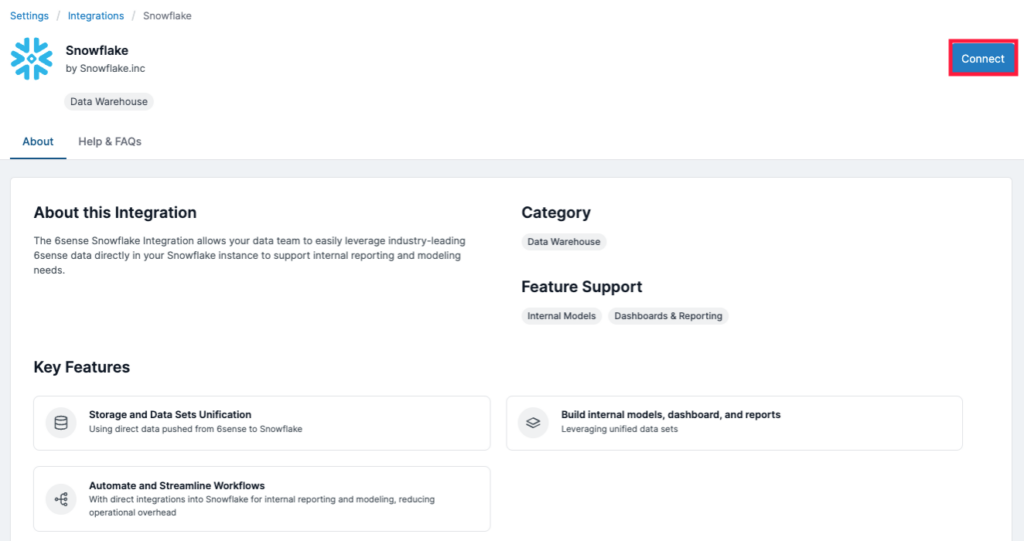
In 6sense, go to Settings.
Select Snowflake from the Integrations page under Data Warehouse.
.png)
Choose Connect.
Step 2: Enter connection details
In the connection form, enter the following:
Username: The Snowflake service account username. Example:
6SENSE_USERAccount Identifier: Your Snowflake account identifier.
Key Size: Choose the desired key size (e.g., 2048 or 4096 bits). Larger keys offer stronger security.
.png)
Step 3: Generate and save the public key
Wait for the public key to generate.
.png)
Save the generated key securely in your system.
.png)
Add the public key to your Snowflake user profile. For more details, refer to Configuring key-pair authentication.
Step 4: Test the connection
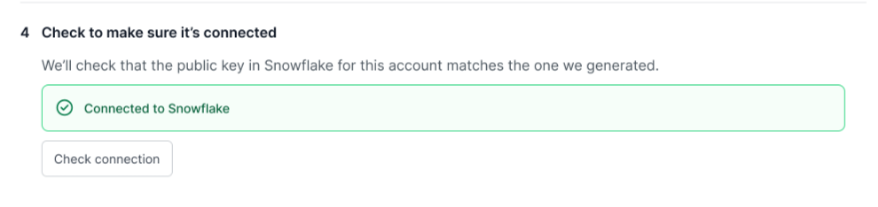
Return to the 6sense UI and select Test Connection.
If successful, you’ll see a confirmation message.
If the test fails:
Double-check the public key setup.
Ensure the account identifier and username are correct.
Confirm that the key was added to the correct Snowflake user.
Select Next to proceed.
Step 5: Configure the integration settings
After testing the connection, you’ll need to provide Snowflake metadata so we can validate and confirm the exact endpoint for data export.
In the Configure screen, enter the following details:
Role: The Snowflake role that grants access to the required objects, for example, SIXSENSE_ROLE.
Warehouse: The compute warehouse used for query execution, for example, SIXSENSE_WAREHOUSE.
Database: The database where 6sense will write or read data, for example, SIXSENSE_DATABASE.
Schema: The schema within the database for storing tables, for example, SIXSENSE_SCHEMA.
Stage Name: The Snowflake stage for file storage during data transfer, for example, SIXSENSE_STAGE.
Tip: Ensure these objects already exist in Snowflake and your service account has the necessary privileges.
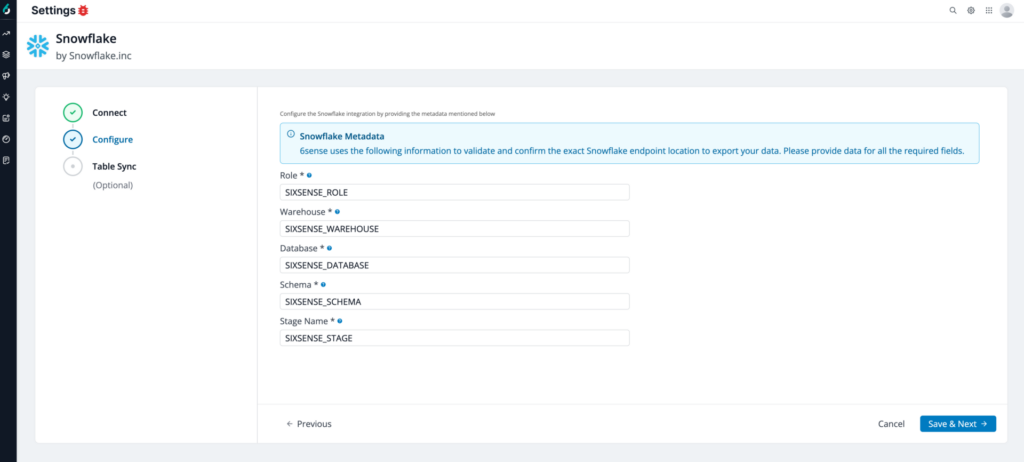
Select Save & Next to proceed to optional table sync settings.
Step 6: Finalize the setup
If you want to sync data from 6sense files into Snowflake tables, complete the Data Sync step.
Use this step to specify which Snowflake tables should receive the file data.
Select the Purge checkbox to remove the file from your Snowflake internal stage after the data is successfully copied into the table.
Important:
The Snowflake tables you specify in 6sense must already exist in Snowflake. 6sense does not create tables for you.
The number of columns in the Snowflake table must match the number of columns in the 6sense file. For example, if the file has 9 columns, the table must also have 9 columns.
The Snowflake role assigned to 6sense must have WRITE permissions for the specified tables.
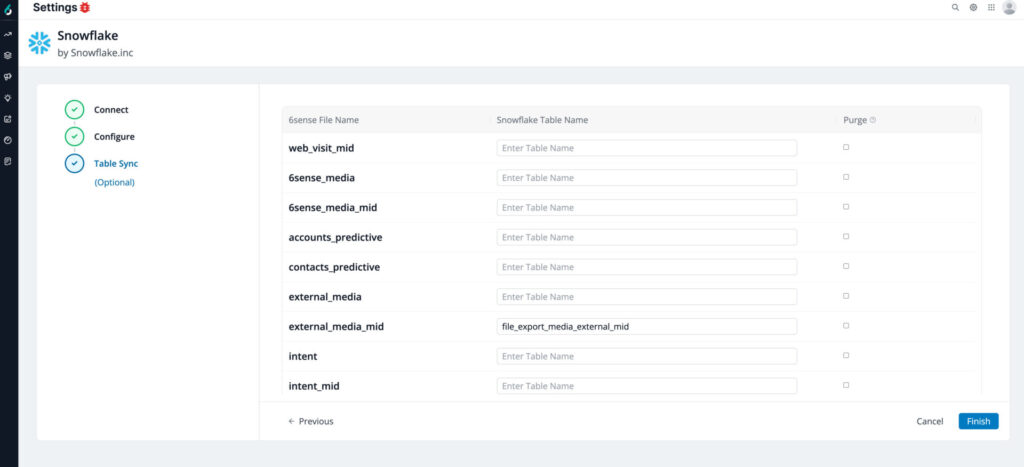
Select Finish to complete your integration.
Manage the integration
After setup, you can:
View the connection status.
Re-authenticate if needed.
Disconnect or update credentials.
Regenerate the public key.
FAQ
Does 6sense support OAuth for Snowflake integration?
No. 6sense currently supports key pair authentication only for connecting to Snowflake. OAuth-based authentication is not supported.