To help protect accounts that use a 6sense username and password, 6sense requires multi-factor authentication (MFA). MFA adds a second verification step, making it harder for an unauthorized person to access your account even if your password is compromised.
6sense supports the following MFA verification methods:
Email-based verification codes: 6sense sends a unique verification code to your registered email address.
Authenticator app (TOTP) codes: A supported authenticator app generates a six-digit, time-based code that you enter when you log in.
6sense supports the following authenticator apps:
Authy
Google Authenticator
Microsoft Authenticator
Note: MFA applies to organizations that use basic 6sense authentication. If your organization uses single sign-on (SSO), authentication is managed by your SSO provider, which may enforce its own MFA policies.
Log in with an email-based verification code
To log in using email-based verification:
Go to 6sense login.
On the unified login screen, enter your organization's subdomain in the field next to https://login.6sense.com. For example, if your organization's subdomain is transpectral, enter transpectral, and then click Continue.
Note: You can find the subdomain in the link you received in your activation email.

If your organization has not configured SSO, enter your email address and password, and then click Log In.
Note: Use the credentials that you set up when you received your invitation email. If you don't remember your password, click Forgot password? to reset it.
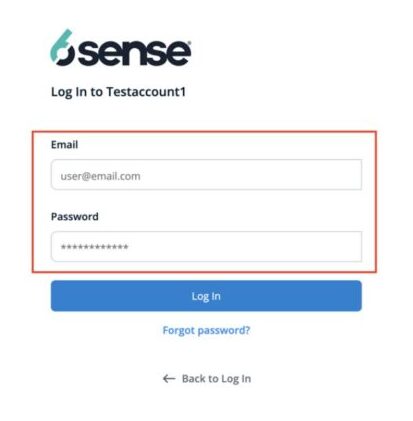
After your credentials are authenticated, check your inbox for an email from no-reply@6sense.com containing a six-digit verification code.
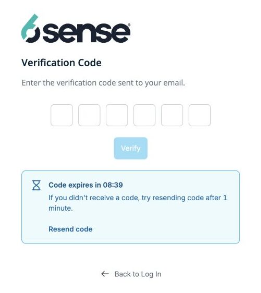
Enter the verification code on the login page. After the code is verified, you can access your account.
The verification code expires after 10 minutes. If the code expires, request a new code.
Troubleshoot email-based verification
If you don't receive the verification code
If you don't receive the email containing your verification code:
Check your spam or junk folder.
Make sure emails from 6sense.com are added to your trusted domains or allowlist.
Check your organization's internet and firewall settings to make sure they don't block emails or other relevant communication from 6sense.
Click Resend Code to request another verification code.
You can resend the code five times. After five attempts, 6sense blocks additional resend attempts for 15 minutes.
If you're locked out
You have five attempts to enter the verification code. After five unsuccessful attempts, your account is locked for 15 minutes.
Security recommendations for email-based verification
Keep your email account secure. Because the verification code is sent by email, secure your email account with a strong password.
Use unique passwords. Don't use the same password for your 6sense account and the email account registered with 6sense.
Use verification codes promptly. Email verification codes expire after 10 minutes.
Report suspicious activity. If you receive a verification code that you didn't request, report it to your organization's Primary Administrator and change your password.
Set up authenticator app (TOTP) verification
For new customers, authenticator app (TOTP) verification is the default MFA method. Existing customers that use email-based verification codes can switch their organization to authenticator app verification.
You must be a Primary Administrator or Application Administrator to configure your organization's MFA method.
To configure authenticator app verification:
In 6sense, go to Settings > Security and Compliance > Identity and Access.
Select MFA.

Select App as the MFA method.
6sense supports:
Microsoft Authenticator
Authy
Google Authenticator
Select Save.
Important: Before switching MFA methods, notify users about authenticator. The change takes effect immediately after you save it. Users must register an authenticator app the next time they log in and cannot use email-based verification codes for subsequent logins. Plan for a brief interruption while users complete registration.
Register an authenticator app
After your organization switches to authenticator app verification, you must register an authenticator app with your 6sense account.
To register an authenticator app:
Go to 6sense login.
On the unified login screen, enter your organization's subdomain in the field next to .login.6sense.com, and then click Continue.
Note: You can find the subdomain in the link you received in your activation email.

If your organization has not configured SSO, enter your email address and password, and then select Log In.
Note: Use the credentials that you set up when you received your invitation email. If you don't remember your password, select Forgot password? to reset it.
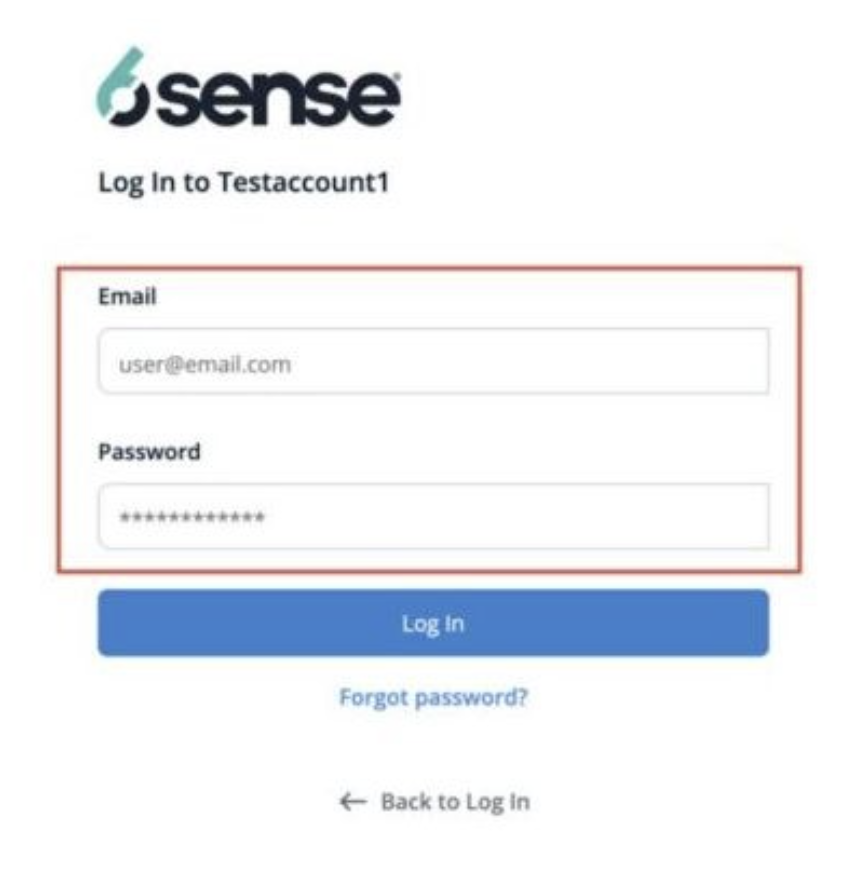
After your password is verified, enter an email-based verification code when prompted. This verification is required once before you register your authenticator app.
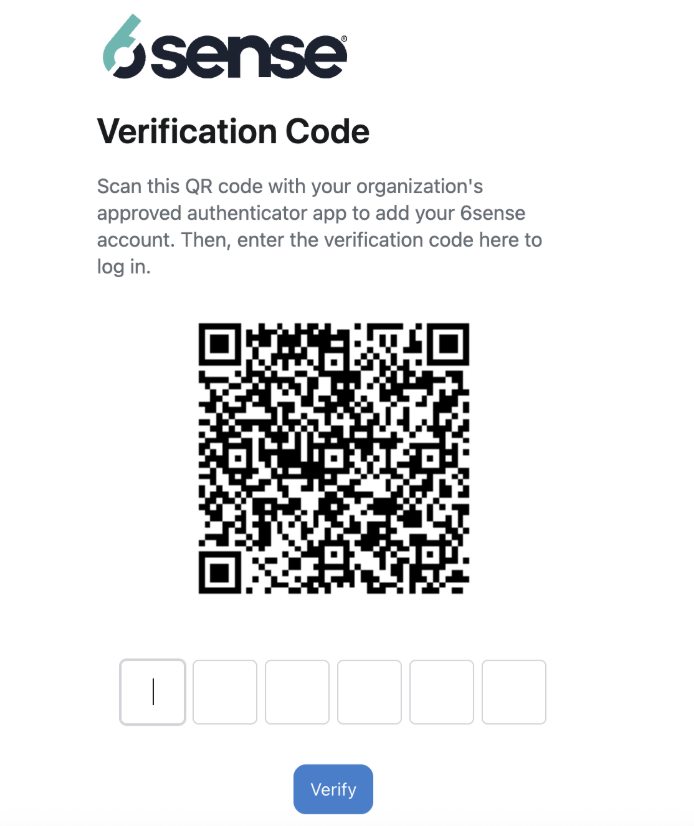 After registration, subsequent logins use the TOTP method configured for your organization.
Install one of the authenticator apps approved by your organization on your mobile device.
Open the authenticator app and scan the QR code displayed on the 6sense registration screen.
Enter the six-digit code generated by the authenticator app to complete registration.
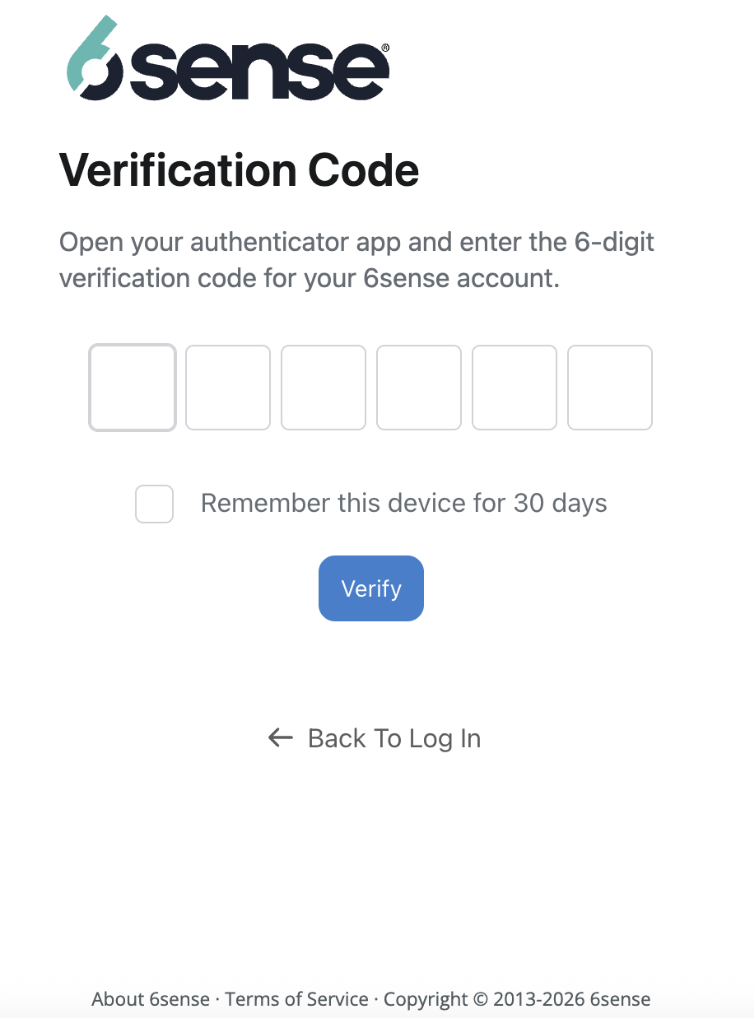
The six-digit TOTP code refreshes every 30 seconds. If the code expires before you submit it, enter the new code displayed in your authenticator app.
Remember your device
Starting with your next login after registration, the TOTP verification screen includes a Remember my device option.
If you select Remember my device, you won't be prompted for a TOTP code on that device for 30 days. You will still need to enter your email address and password when required.
Reset authenticator app access
If a user loses or replaces the mobile device containing their authenticator app, a Primary Administrator or Application Administrator can reset the user's app authentication.
To reset app authentication for a user:
Sign in as a Primary Administrator or Application Administrator.
Go to the user-management page and search for the affected user.
Select Reset app authentication for the user.
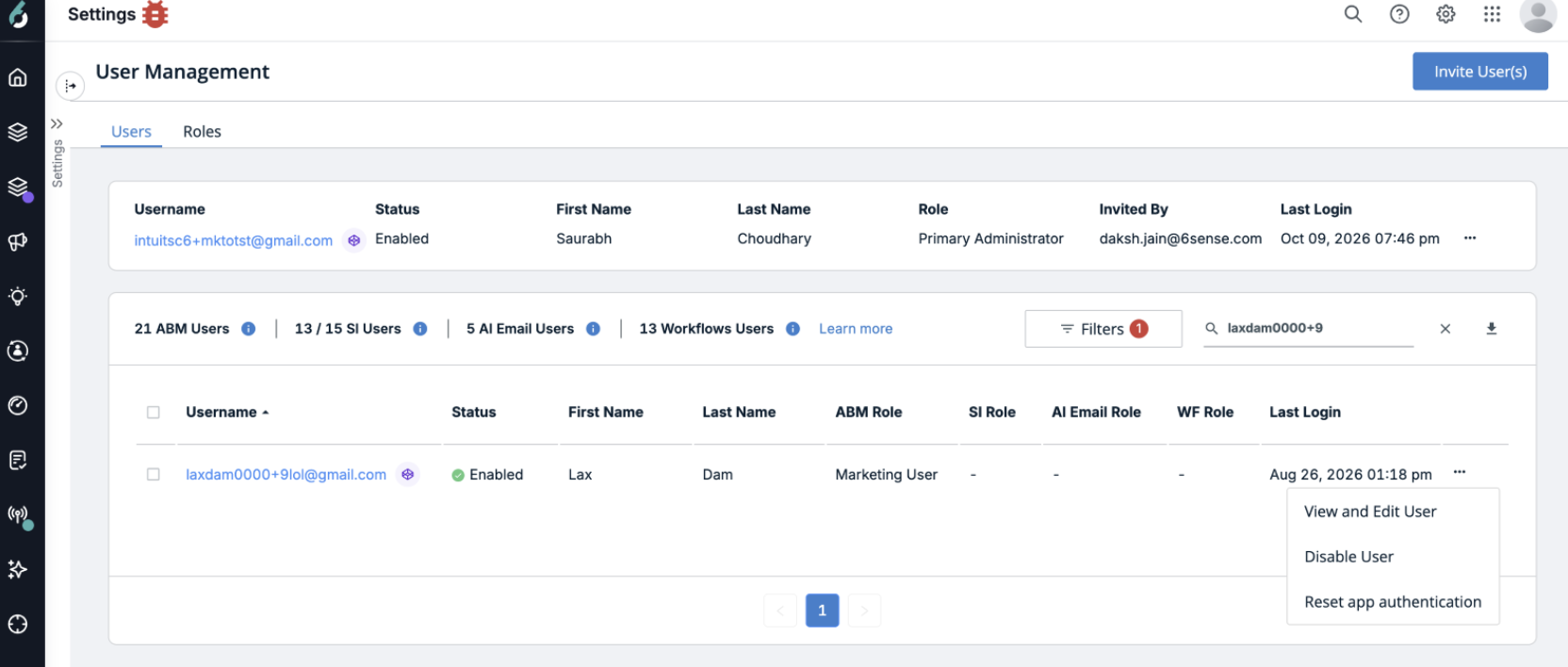
The user must register an authenticator app again the next time they log in.
The following restrictions apply:
Application Administrators can reset app authentication only for non-administrator users.
A Primary Administrator can reset app authentication for all other users but cannot reset their own authentication.
If a Primary Administrator needs their own app authentication reset, contact 6sense Support.
FAQ
Can I opt out of MFA?
No. MFA cannot be turned off for your organization.
My organization uses SSO. Does this apply?
No. This article applies only to organizations that use basic 6sense authentication. For organizations that use SSO, authentication is centrally managed by the SSO provider, which may enforce its own MFA policies.
From which email address will I receive an email verification code?
Email verification codes are sent from no-reply@6sense.com.
Can I choose the email address that receives the verification code?
No. 6sense sends the verification code only to the email address registered with your 6sense account.
What should I do if I receive a verification code for a login that I didn't initiate?
Report the activity immediately to your organization's Primary Administrator. For additional security, change your password promptly.
What should I do if I lose or replace the device that has my authenticator app?
Contact your organization's Primary Administrator or Application Administrator. An eligible administrator can reset your app authentication so you can register an authenticator app on your new device.
If you're a Primary Administrator and need your own app authentication reset, contact 6sense Support.
Can I choose between email-based verification and an authenticator app?
No. Your organization's administrators select the MFA method based on the organization's security policies. Individual users cannot choose or switch their MFA method.
Can an administrator configure different MFA methods for individual users?
No. The selected MFA method is an organization-wide policy and applies to all users in the organization. Administrators cannot disable MFA or configure email-based verification for some users and authenticator app verification for others.