Companies organize hierarchies of accounts in their CRM or CRMs in different ways. Your organization may prioritize country-level hierarchies, while others consolidate everything under a single global headquarters account. 6sense supports both of these approaches when matching 6sense data to your CRM data.
This document covers the consolidation approach, which we call “headquarters matching” or “HQ matching”, as used in Data Workflows.
6sense headquarters matching functionality evaluates data and matches it to a headquarters account instead of regional or subsidiary accounts. A headquarters is defined by 6sense in its Master Company Database.
For additional discussion refer to Account Identification and Enrichment and the RevCity discussion at Syncs and Country vs HQ Account Creation.
Use case examples for HQ matching
At the high level, HQ matching is useful when you want to simplify CRM data structure and unify all subsidiaries under their global HQ parent, such as mapping all Amazon contacts to a single Amazon USA account (instead of regional accounts).
Purchase HQ contacts and save to the CRM use case
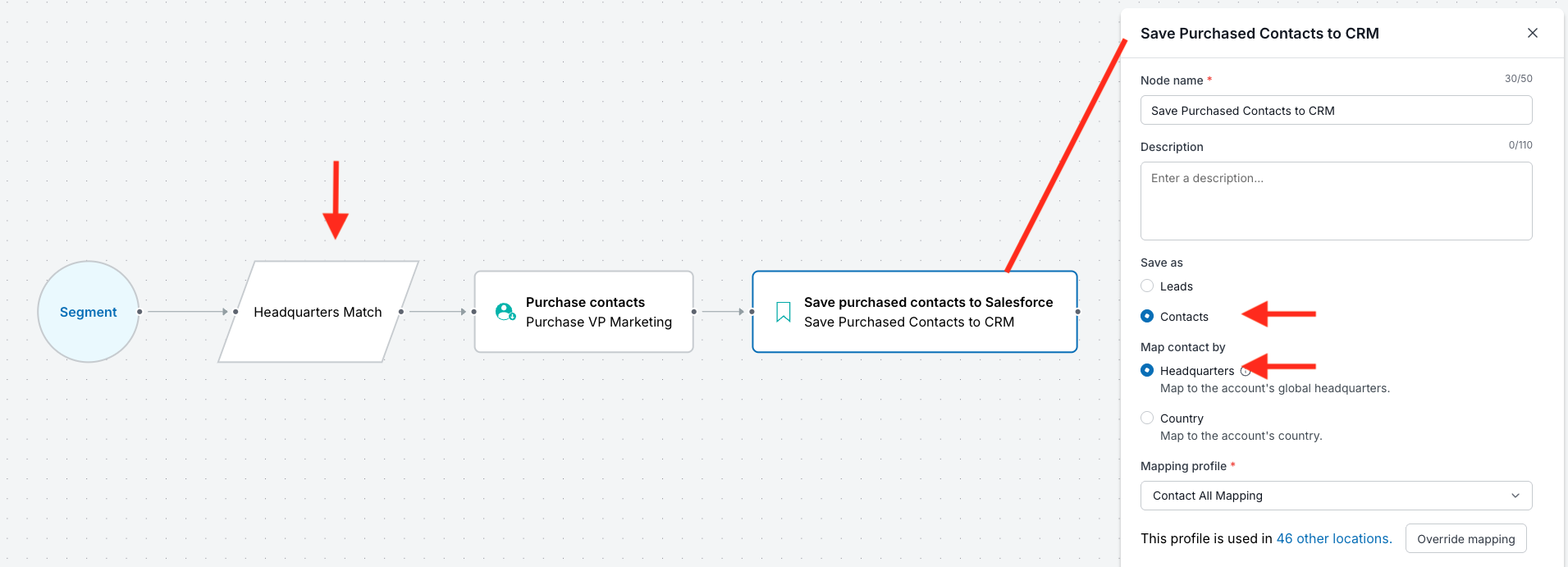
This workflow example starts with all accounts related to an enterprise, matches the HQ contacts, purchases the HQ contacts, and saves the purchased contacts to the CRM HQ account:
Segment (All enterprise-related accounts across multiple sites) → HQ Match → Purchase Contacts → Save Purchased Contacts to CRM (map contact by HQ)
Purchase HQ contacts and save to a CSV use case
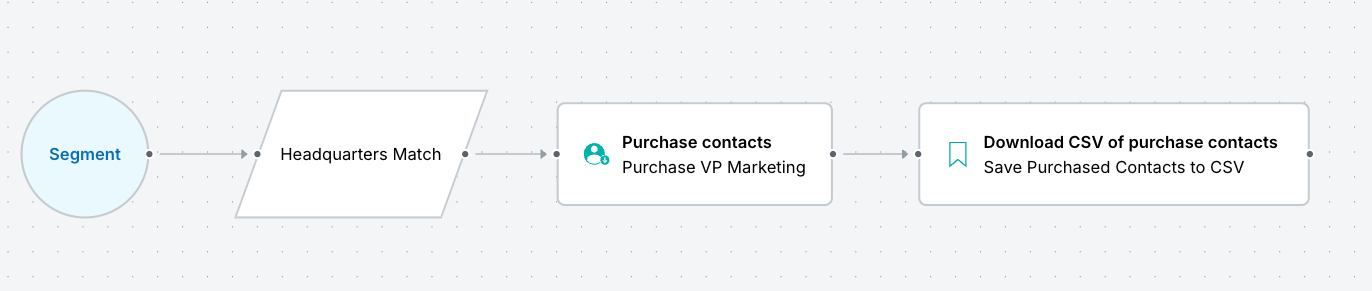
This workflow example starts with a segment of all accounts related to an enterprise, matches the HQ contacts, purchases the HQ contacts, and saves the purchased HQ contacts to a CSV file.
Segment → HQ Match → Purchase Contacts → Save Purchased Contacts to CSV
Use HQ matching in a workflow
Use the Is the Global Headquarters filter in a decision node
When you start with a segment that has country-level accounts, use the Is the Global Headquarters filter to ensure that only the HQ account is used for account creation workflows.
Tip: Preview the workflow to ensure you are getting the accounts you want.
When defining a decision node in Data Workflows, use the Is the Global Headquarters filter. If you select the filter, by default it is set to Yes.

Use the Headquarters Match node
The Headquarters Match node is available from the Nodes > Match menu.

You can use the Headquarters Match node when the workflow’s start node is either:
Start from Segment
Start from Accounts
All nodes that follow the Headquarters Match node map records to or purchase records from an account's global headquarters.
The node produces HQ accounts that enter the next node. The Headquarters Match node processes records as follows:
Non-HQ accounts are assigned to the relevant HQ account.
If there is no matching HQ account, the record account is dropped from the workflow and an error message displays.
If there are multiple records that are not HQ accounts, and they all have same HQ, then that one HQ account moves through the node.
When the Purchase Contacts node follows a Headquarters Match node, then the Purchase Contacts node buys all contacts that match the HQ from around the globe, regardless of the contacts’ individual locations. Company attributes for purchased contacts are derived from the HQ account.
Use HQ matching properties
The following nodes have properties for mapping contacts or leads to headquarters.
Save Purchased Contacts to [CRM], either:
Salesforce
HubSpot

HQ matching error messages
Global headquarters not in CRM
Message: "Contact couldn't be saved because the global headquarters wasn't found in your CRM"
Cause: The headquarters account is not present in the CRM.
Important: If saving a contact fails because the HQ account is not present in CRM, a credit is still charged. This is because the credit is charged on the Purchase node and not the Save node.
FAQ: HQ matching in Data Workflows
Does HQ matching consume credits?
Yes. When HQ matching applies, credits are consumed per unique headquarters account entity. Credits are charged on Purchase Contacts nodes.