Two factor authentication is a required part of login process for your organization.
To improve the security of accounts using basic password authentication, 6sense has implemented Two-Factor Authentication (2FA) with email-based verification codes. This additional security measure ensures that logging into your account requires both your password, and a unique verification code sent to your registered email address. This extra step helps protect your account from unauthorized access.
Below are the steps to log in with Two-Factor Authentication:
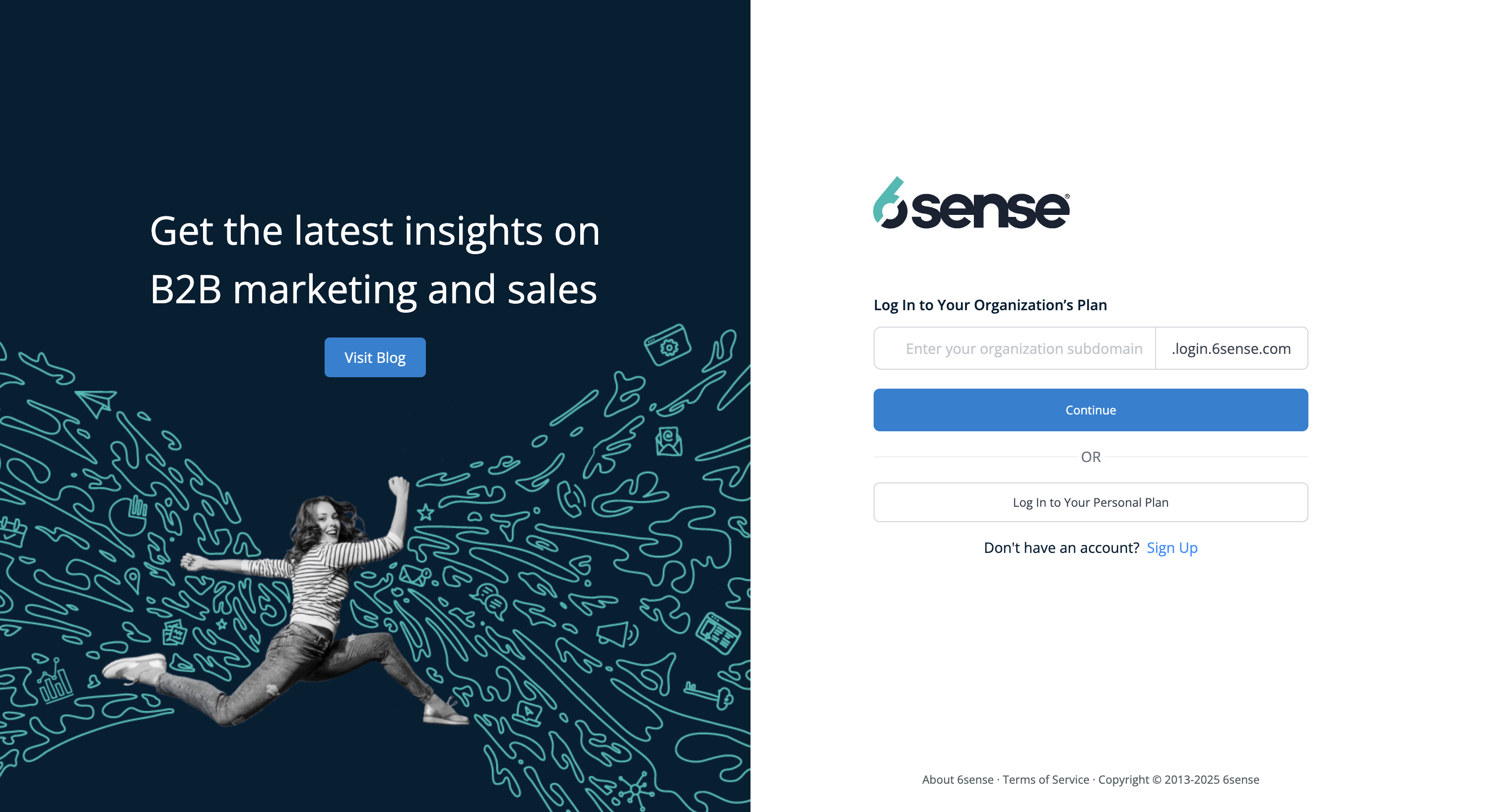
Go to login.6sense.com
In the unified login screen, enter your sub-domain name in the field next to “.login.6sense.com”. For example, if your company’s sub-domain is Transpectral, type transpectral in the box. Click Continue.
Note: The subdomain name is the one that also appears on the link that you received in the activation email.
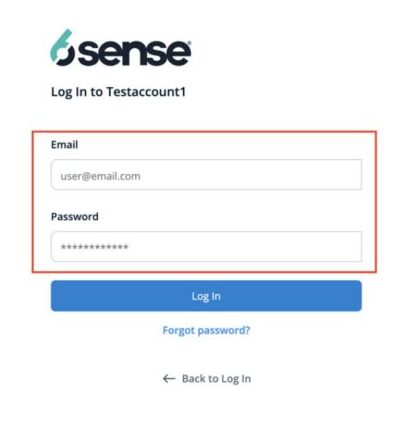
If your organization has not set up a single sign-on (SSO), you will be prompted to enter your email and password. Enter your credentials and click Log In.
Note: The credentials are the ones that you set up in response to receiving your invitation email. If you can’t remember your password, click Forgot password? to reset your password.
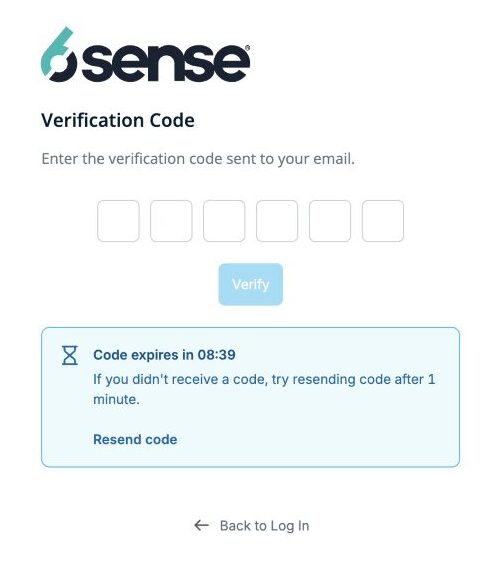
After successful authentication, check your inbox for the email from no-reply@6sense.com containing the 6-digit verification code. Enter the verification code in the prompted field on the login page. Once the code is verified, you will gain access to your account.
Use the Code Promptly: The verification code expires in 10 minutes, so be sure to enter it quickly.
Troubleshooting
If You Didn’t Receive the Code
Check your spam or junk folders in case the email was filtered there.
Make sure emails from 6sense.com are added to your trusted domains or whitelist.
Check Internet/Firewall Settings: Ensure your organization’s network doesn’t block emails or other relevant communication from 6sense.
Try resending the code using the Resend Code button.
You have five attempts to resend the code, after which, for security reasons, we will block resending codes for the next 15 minutes.
If You’re Locked Out
You have five attempts to enter the code. After five failed attempts, your account will be locked for 15 minutes.
Important Information and Security Tips
Keep your email secure: Since the verification code is sent via email, ensure your email account is secured with a strong password.
Use Unique Passwords: For enhanced security, do not use the same password for 6sense platforms and your email inbox for email registered with 6sense.
Code expiration: The verification code is time sensitive. If you don’t use it within 10 minutes, you’ll need to request a new one.
Report Suspicious Activity: If the user notices any suspicious activity (such as receiving verification codes the user didn’t request), the user should report it immediately to their organization’s Primary Administrator. For added security, we recommend changing your password promptly.
FAQ
Can I opt out of Two-Factor Authentication (2FA) for my account?
No, 2FA cannot be turned off for your organization.
To protect the integrity of your account and sensitive information, 2FA is mandatory and cannot be disabled. This is part of our commitment to maintaining a secure and trusted environment for all users.
My organization uses Single Sign On. Does this apply?
No, this only applies to organizations using the basic 6sense authentication. For organizations using SSO. authentication is centrally managed by the SSO provider, which may already enforce its own multi-factor authentication (MFA) policies.
From which email address will I receive the verification code?
The sender email for verification code will be received from no-reply@6sense.com.
Can I choose the email address where I would like to receive the verification code on?
No, the verification code will only be sent to the email address you registered with 6sense.
I received an email from 6sense in my inbox about the verification code for a login that I did not initiate. What should I do?
If you notice any suspicious activity (such as receiving verification codes you didn’t request), you should report it immediately to your organization’s Primary Administrator. For added security, we recommend changing your password promptly.