The Advertising Campaign details page helps you analyze, monitor, and manage an individual ad campaign.
General best practices for monitoring ad campaigns
Use the filter and download buttons to help review the ad campaign data.
Set the timeframe filter for the entire Campaign details page
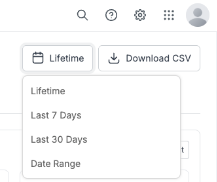
The Advertising Campaign details page includes a delivery timeframe filter at the top right. The filter has four options:
Lifetime: Shows data from the start of the campaign.
Last 7 Days: Shows data from the last 7 days.
Last 30 Days: Shows data from the last 30 days.
Date Range: Shows data for a custom date range you select.
The selected timeframe applies across the entire campaign performance view. Changing the timeframe updates all metrics and charts on the page to reflect data for the selected period. The active timeframe is shown next to the filter control.
Download a CSV file of ad campaign data
The Advertising Campaign details page provides a Download CSV option that exports campaign data to a CSV file. The downloaded CSV reflects the selected delivery timeframe of campaign.
If you change the filter, you must download the CSV again to get updated data.
Questions when reviewing individual ad campaigns
The Advertising Campaign details page can help you answer the following questions.
Is the ad campaign on pace to spend its budget?
The Spend and delivery pacing panel of the Advertising Campaign details page shows how your campaign is spending budget compared to expectations for the current delivery timeframe.
What outcomes are the campaign driving?
The Highlights panel of the Advertising Campaign details page shows key campaign outcomes, where you can select and view the accounts associated with a metric.
How are key metrics changing over time?
The Performance trend panel of the Advertising Campaign details page has a time‑series chart showing how selected campaign metrics change over time.
Which accounts are reached/engaged, and what happened next?
The Account journey chart of the Advertising Campaign details page shows how accounts progress through different stages after being reached or engaged by the campaign.
Are accounts progressing or qualifying after exposure/engagement?
The Increased buying stages chart of the Advertising Campaign details page shows accounts whose buying stage advanced after being influenced by the campaign.
The New 6QA chart of the Advertising Campaign details page shows accounts that became newly qualified after being influenced by the campaign.
How are the campaign’s ads performing?
The Campaign performance panel shows metrics related to ad delivery and interaction. If the Advertising campaign includes video or CTV ads, additional video‑specific metrics display.
You can also review ad groups, individual ads, and ad‑level performance in the Advertising Campaign details > Ads tab, which shows the ad groups and individual ads associated with the campaign, along with their delivery and performance metrics.
Who are the leads that is 6sense recommending?
6sense recommends leads from an ad campaign. Leverage 6sense AI-recommended leads to identify contacts from accounts that engaged with your advertising campaign using the Advertising Campaign details > Recommended leads tab.
Where are the ads distributed and how are they engaged?
Explore distribution and engagement breakdowns (domains, roles, geography, device type, and more) in the Advertising Campaign details > Analytics tab.
How is my campaign set up and budgeted?
View campaign setup, targeting, and budget details using the Advertising Campaign details > Configuration tab.