Overview
From time to time, customers raise questions about their contact data quality. Because data flows through multiple systems—discovery tools, enrichment processes, and CRM configurations—these questions often require investigation across the entire workflow.
This article outlines a structured approach to troubleshooting data quality concerns, explains why gathering examples is essential, and highlights common scenarios where perceived data issues stem from downstream processes rather than the 6sense data itself.
Why examples are critical
Data quality or integrity questions cannot be investigated without specific examples.
High-level feedback such as “the data isn’t reliable” or “contacts don’t look correct” does not provide enough context to identify a root cause. In many cases, investigation reveals that:
Data is accurate in 6sense but altered after syncing
CRM rules or permissions restrict enrichment updates
Existing contact data takes precedence over new data
Field mappings or automations modify values
Concrete examples allow us to trace data from discovery → enrichment → CRM, which is essential for accurate troubleshooting.
Step 1: Clarify the data quality concern
Start by aligning on expectations.
Questions to consider:
What does “data quality” mean in this case?
Inaccurate?
Incomplete?
Outdated?
Not usable for your workflows?
Which expectations are not being met today?
What would a successful outcome look like?
Data quality is best evaluated relative to a specific use case or action.
Step 2: Identify the most important attributes
Determine which fields matter most for your teams.
Common examples include:
Phone numbers
Email addresses
Job titles
Departments
Company or location data
Questions to consider:
Which attributes are required for your team to take action?
Are these fields used in routing, automation, or outreach?
Step 3: Understand who is experiencing the issue
Clarify which teams are raising concerns:
Sales
Marketing
SDRs
Operations
Questions to consider:
Is the feedback coming primarily from Sales, Marketing, or both?
Do different teams have different expectations for the same data?
This context often helps distinguish data issues from workflow or usability issues.
Step 4: Trace how contacts are introduced
Understanding contact origin is key to troubleshooting data integrity.
Questions to consider:
How are contacts being discovered?
6sense Chrome Extension
Other 6sense workflows
Third-party tools
Are the contacts:
Net-new?
Existing Salesforce contacts being enriched?
How are contacts added to Salesforce?
Automatically
Manually by reps
Step 5: Engage your RevOps team
When investigating data quality questions, it is helpful to include your RevOps team.
RevOps can help make sure that any observations about data issues are evaluated in the context of the intended system behavior, not just individual records.
Questions to consider:
Has RevOps reviewed how enrichment is configured?
Are there known CRM rules or restrictions that could affect updates?
Have recent automation or workflow changes been made?
Who can validate or adjust CRM configurations if changes are required?
Step 6: Confirm the source of truth
Once a contact exists in Salesforce or another CRM, ownership matters.
Questions to consider:
Which system is the source of truth post-creation?
Is enrichment allowed to update existing fields?
If a field already has a value in Salesforce:
Can it be overwritten?
Or is updating restricted?
Step 7: Review CRM rules and controls
CRM configurations frequently explain data discrepancies.
Ask about:
Validation rules
Deduplication logic
Field-level permissions
Enrichment locks or vendor restrictions
Examples:
Are vendors allowed to update phone or email fields?
Are non-empty fields protected from updates?
Have there been cases where data looks correct in 6sense but different in Salesforce?
Note: You might want to consider adding 6sense specific fields, depending on your current CRM rules. For example, a “contact phone number” field might have a secondary “6sense contact phone number” field.
Step 8: Compare data across systems
Using real examples, compare:
The contact record in 6sense
The record as created in Salesforce
Any changes made after creation
This often surfaces:
Blocked updates
Overwritten values
Permission or mapping issues
Common causes of data quality concerns
CRM rules preventing enrichment updates
Existing contact data overriding new enrichment
Manual edits introducing variation
Field mappings that exclude certain attributes
Misalignment on post-sync ownership
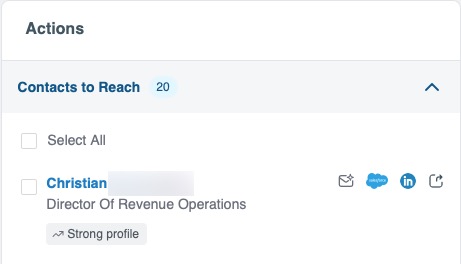
Within Sales Intelligence, you will likely see some Contacts to Reach recommendations when reviewing an account. These are based on your existing CRM records, not contact data from 6sense. If the contact details shown in this section feel inaccurate, then the issue is typically with the underlying CRM record.
6sense can support improvements through an enrichment workflow.
What to share with 6sense when raising data quality questions
To enable faster resolution, please provide:
3–5 specific examples
The field(s) in question
Where discrepancies are observed
Whether contacts are net-new or pre-existing
Screenshots or timestamps if available