6sense offers an application available for native installation within an organization’s Salesforce CRM, which allows sales users with access to 6sense Sales Intelligence (SI).
Compatibility
The 6sense SI application is compatible with Salesforce Enterprise, Professional, Unlimited, and Performance Editions.
The 6sense SI application creates additional objects and tabs within SFDC. These created objects do not count against Salesforce org limits.
The application optimizes for Salesforce Classic and Lightning Experience.
To integrate with Salesforce Professional Edition, purchase the required API access add-on from Salesforce
Prerequisites
Installing and configuring the 6sense SI application takes approximately 30 minutes. Before you begin, complete the following steps as a Salesforce user with admin access.
SI API Token
The SI integration requires a system-generated API token. To locate the API token required for the integration, complete the following steps:
Go to Settings > Integrations > API Token Management.
On the API Token Management page, review the list of available API tokens.
Locate the API token with the following attributes:
API Group Name: Sales Intelligence
API Token Name:
SI_<Your Organization Name>API Token: The alphanumeric value displayed in the API Token column.
.png)
Use this API token when configuring the SI integration with Salesforce.
Note: If you can't locate the SI API token, contact 6sense Support to generate a new token for your organization.
Install the SI application
Complete the following steps to install the 6sense SI application in Salesforce.
Go to the 6sense Sales Intelligence AppExchange page.
Select Get It Now, then sign in to AppExchange.
Select Install in the SFDC environment of your choice.
Review the terms and conditions, then select Confirm and Install.
On the Upgrade 6sense Sales Intelligence page, select Install for All Users.
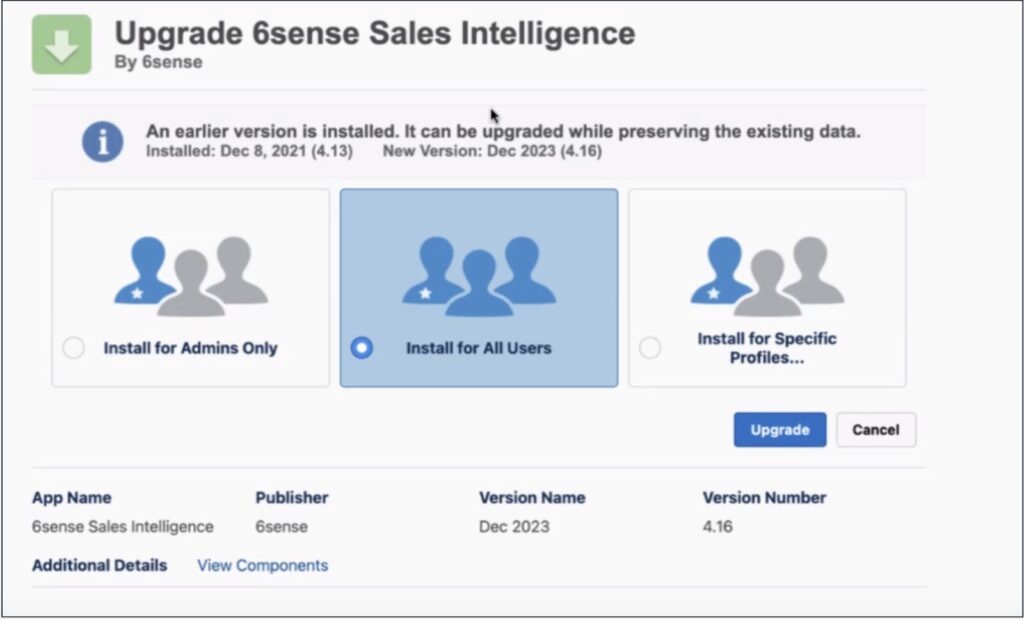
Note: Install the package for profiles assigned to registered 6sense users.
After the installation is complete, mapped profiles receive the 6sense custom profile permissions.
The installation typically takes 15–20 minutes. When the installation is complete, the SFDC admin receives an email notification, and the package appears under Installed Packages.
Configure 6sense SI
After installing the application, the SFDC admin must complete the following three setup steps.
1. Enter SI API token
After the application is installed, select the App Launcher icon in Salesforce, then go to the 6sense Admin page.
Enter the 6sense SI API token, then select Save. For more information, see Prerequisites.
.png)
2. Set up 6sense SI user permissions
You assign the 6sense user permission to the SFDC users based on the number of user licenses purchased. This is the same list of users assigned a 6sense Sales Intelligence License within the 6sense product.
The 6sense application offers two Permission Sets to perform specific tasks based on specific features of the application. The Application creates additional user types that are not relevant to the SI product and can be ignored.
6sense Admin permission set
Allows users full access to configure and use the 6sense application.
Allows users to access the SI extension.
6sense Admins will also need to be assigned to the 6sense user permission set to validate and QA set up.
6sense User permission set
Allows users to access the SI extension which will be installed on the account and/or lead object in the next step. It also grants view access to the 6sense Dashboards tab that is created upon installation.
6sense users from SFDC are required to have a license in the 6sense Platform with user type equal to Sales Intelligence.
Here is one of the ways to assign permission sets to multiple users at once.
In Lightning, all users must have access to the Apex class named ‘Indicator’, otherwise they will see a permission error.

The 6sense User and 6sense Admin Sales Intelligence permission sets are not supported when used within Salesforce Permission Set Groups. These permission sets are intended to be assigned directly to individual users.
To assign the 6sense User Permission in SFDC follow the steps below:
From Setup, enter Users in the Quick Find box, then select Users.
Select a user.
In the Permission Set Assignments related list, Select Edit Assignments.
Under Available Permission Sets, select the permission set, then select Add.
To remove a permission set, select it under Enabled Permission Sets, then select Remove.
Select Save.
6sense Batch Job permission set
Allows users to sync data from 6sense into Salesforce.
Allows users to write to the Batch Log object.
This permission is typically provided to those with 6sense Admin permissions as well.
6sense Operations permission set
Allows users access to all 6sense score data within the custom data objects (CDO) created on install.
Allows users to view and set dispositions for 6sense-sourced New Companies in the New Company CDO.
3. Configure the SI Visual Force Object on Accounts and Leads
The SI user interfaces can currently be deployed to the Account and Lead objects within Salesforce. The steps mentioned below for the Account object need to be done for the Lead object if desired.
The SI extension cannot be installed for Contacts Object at this time.
Set up Salesforce Lightning Experience
From any Account record, select Set Up in the upper-right corner.
Select Edit Page to open the Lightning App Builder.
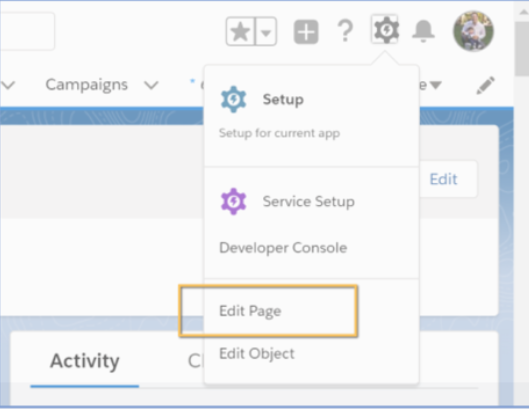
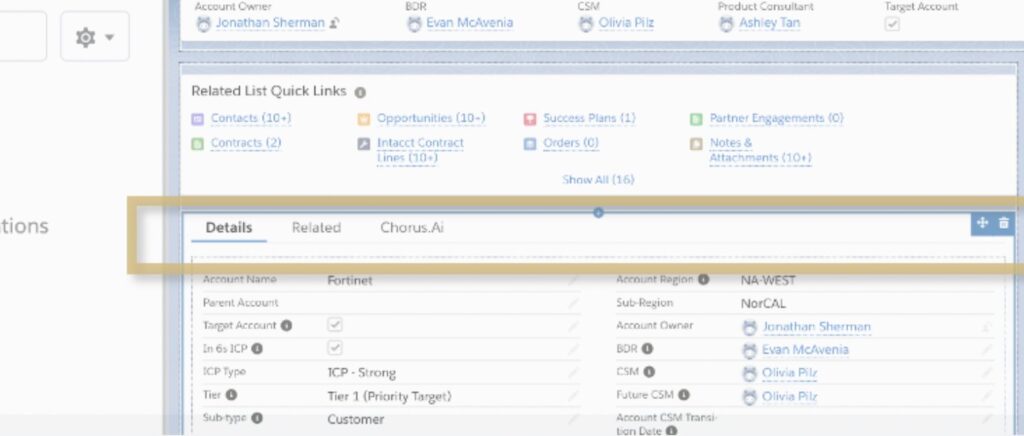
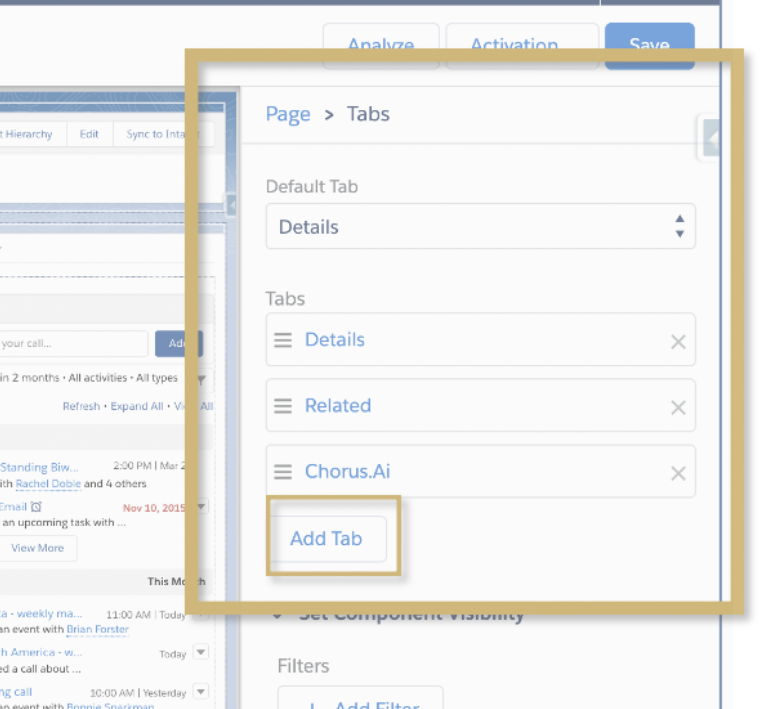
Select the Tabs section. The Pages > Tabs pane appears.
Select Add Tab.
Select the Details tab. A dialog box opens where you can configure the tab.
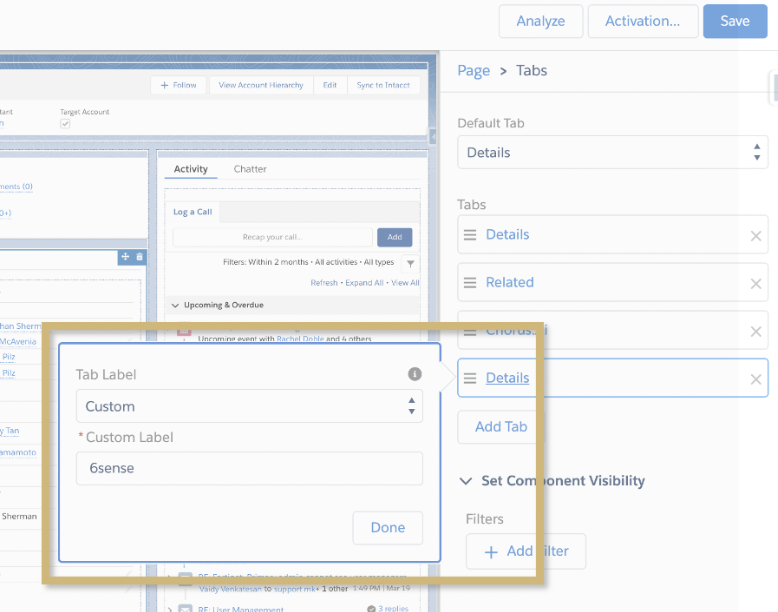
In the dialog box:
Set Tab Label to Custom.
Set Custom Label to 6sense.
Select Done.
Select the 6sense tab.
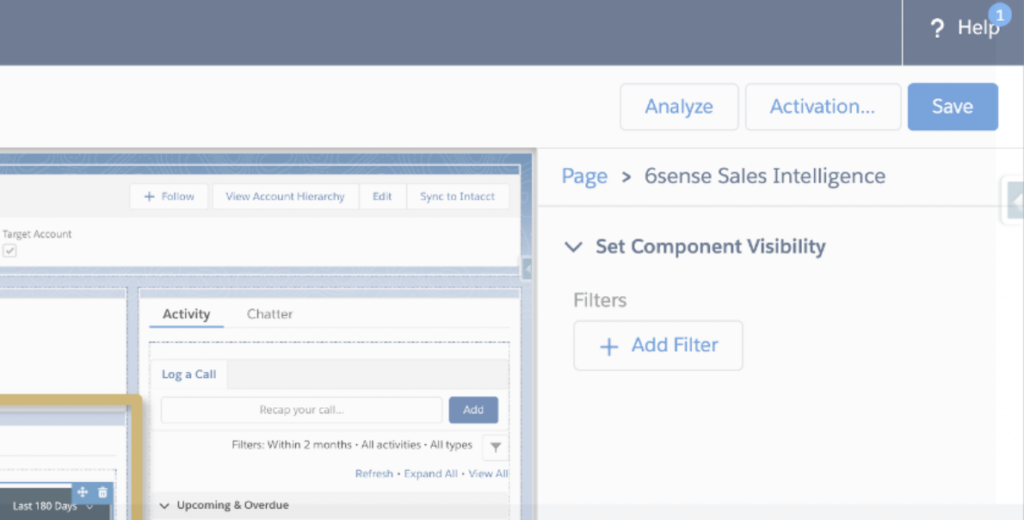
In the Components pane of the Lightning App Builder interface, search for Sales Intelligence.
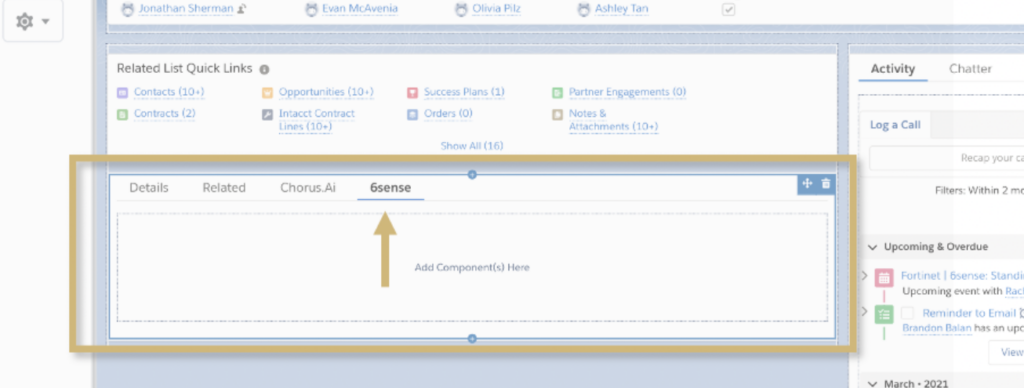
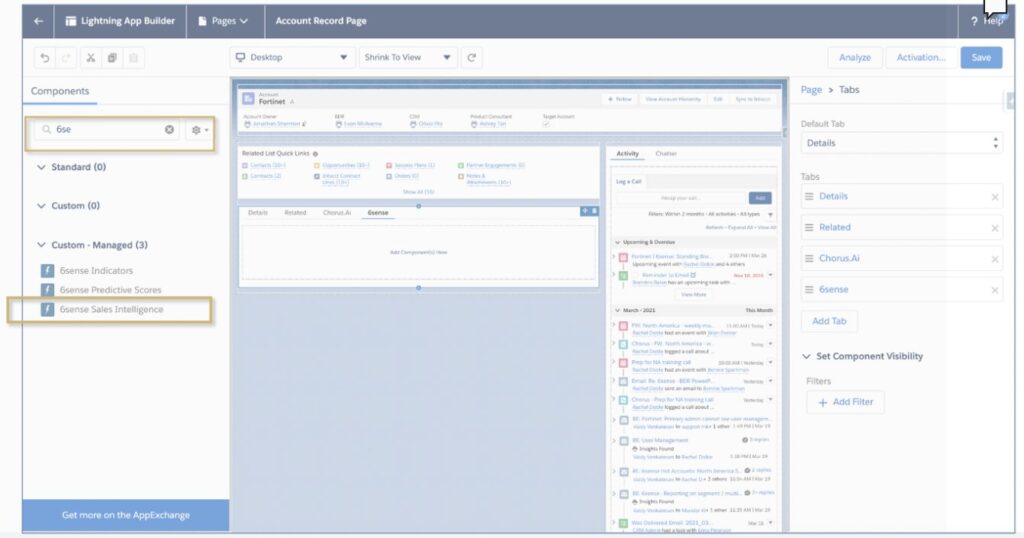
Drag the SI Component in the blank space under the newly created 6sense tab. We recommend placing the component in a region with maximum width for usability purposes.
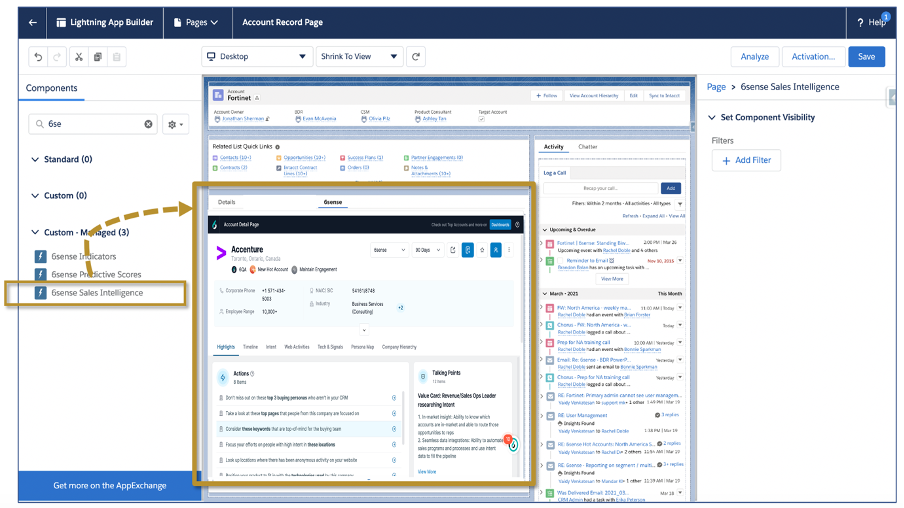
Select Save.
Set up Salesforce Classic Experience
From any Account record, select Edit Layout.
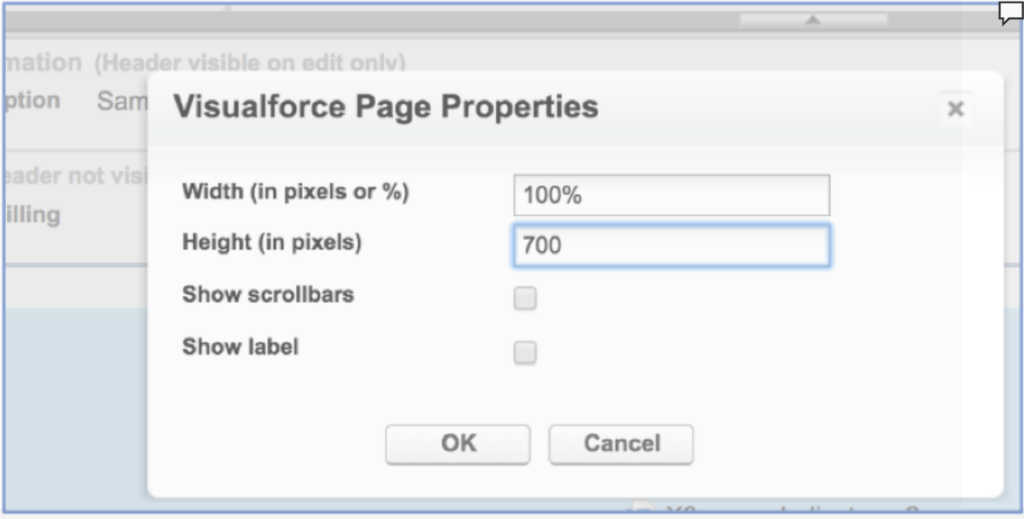
Create a Section on the account page layout for SI. The recommended height for this section is 700 pixels and can be configured in the section settings.
Select Visual Force Pages.
Drag the Sales Intelligence component to the section you created.
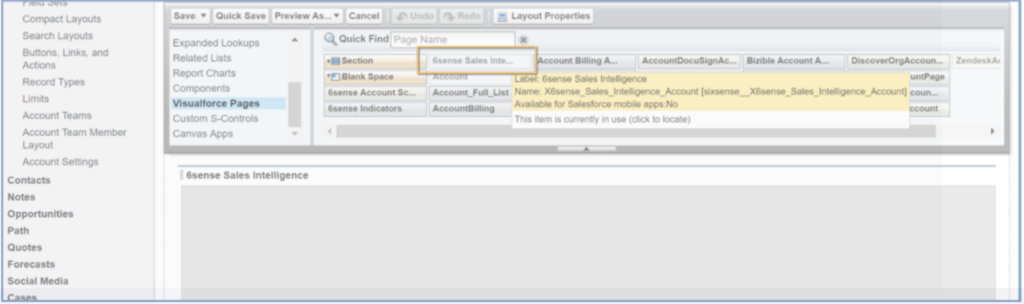
Preview the page layout.
Select Save.
FAQ
Q: When viewing the 6sense Lightning component, some users are getting the error “To access this page, please have your system administrator assign 6sense User or 6sense Admin permission set to your user profile”. What do we need to do to fix this?
A: In order to access the 6sense iFrame and Dashboard, SFDC users will need permissions granted. Please see the user assignment steps above.
Q: What does the “Cannot Modify Managed Components” error message mean?
A: While assigning the permission set, try the following work arounds to fix the error message:
Create your own permission set, and enable indicator class to that permission set and assign it to the user.
Enable indicator class directly to certain profiles or user groups.
Clone the existing permission and add the Apex class and then assign it to the user.
Q: Why is the Sales Intelligence extension blank in Salesforce?
A: Several things could cause a blank Sales Intelligence extension:
6sense Installation & 6sense Permission issues:
A user could be lacking the appropriate permissions. (see steps above)
In Lightning, “Install for all Users” must be selected during the installation. (see step
The SFDC app must have read access to the PermissionSetAssignment object.
SFDC Permission issues:
The VisualForce page layout is not assigned to all the users.
Browser issues – Safari:
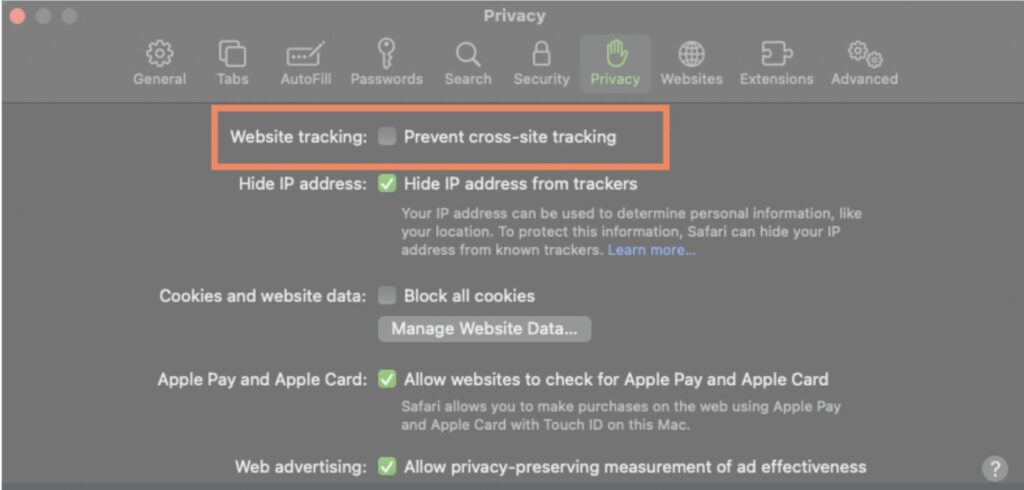
If a user is seeing a blank Sales Intelligence extension in Safari, it may be caused by Safari preventing cross-site tracking. To disable Prevent cross-site tracking in Safari select Settings from the File menu.
In the Privacy pane, uncheck Prevent cross-site tracking for Website tracking
Browser issues – Chrome:
If users are loading multiple Sales Intelligence extensions on the same page, Chrome may block this.
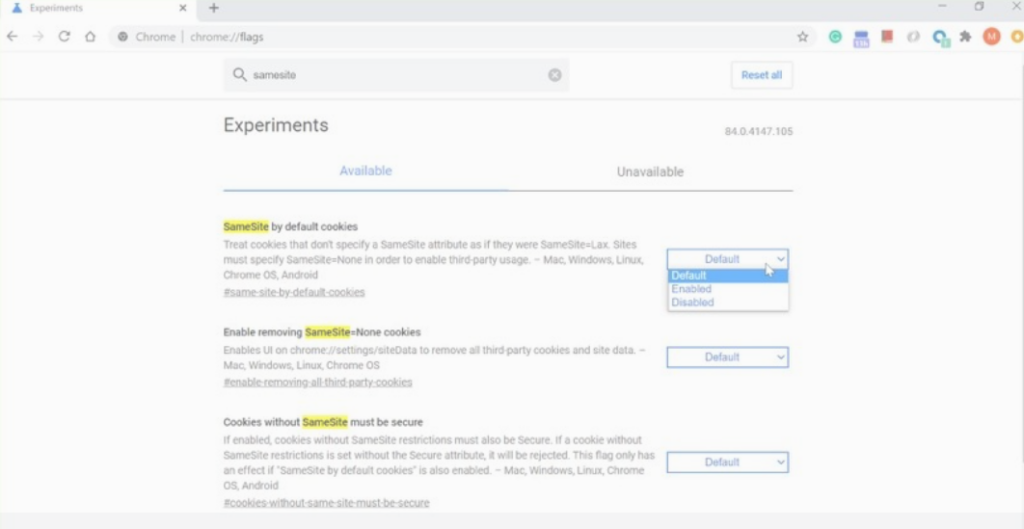
Follow these steps to unblock the Sales Intelligence extension from loading. To disable blocking same-site cookies in Chrome:
Type chrome://flags in the URL address box, and press Enter.
Search for samesite in the search box, and press Enter.
Select Disabled for the first two options you see on screen.
Q: How can I see the list of users with access to the Sales Intelligence extension in SFDC?
A: Visibility of the Sales Intelligence extension within Salesforce is controlled based on the permissions given to the users. To get the list of the users who have access to the Sales Intelligence extension, you must work with your Salesforce admin or whoever set up those permissions on Salesforce.
Q: Lightning component is visible to the System administrator only and other roles/profiles are seeing blank Sales Intelligence extensions.
A: This is a permission configuration challenge on your Salesforce end. There could be multiple reasons for this:
The user who is trying to access may not have the 6sense user permission attached to it’s profile/role (depending on your Salesforce configuration).
There are two Sales Intelligence components installed on your layout page (Sales Intelligence extension and Lightning component).
Bad cache on your browser.
Permission configuration at the page layout > Activation tab.
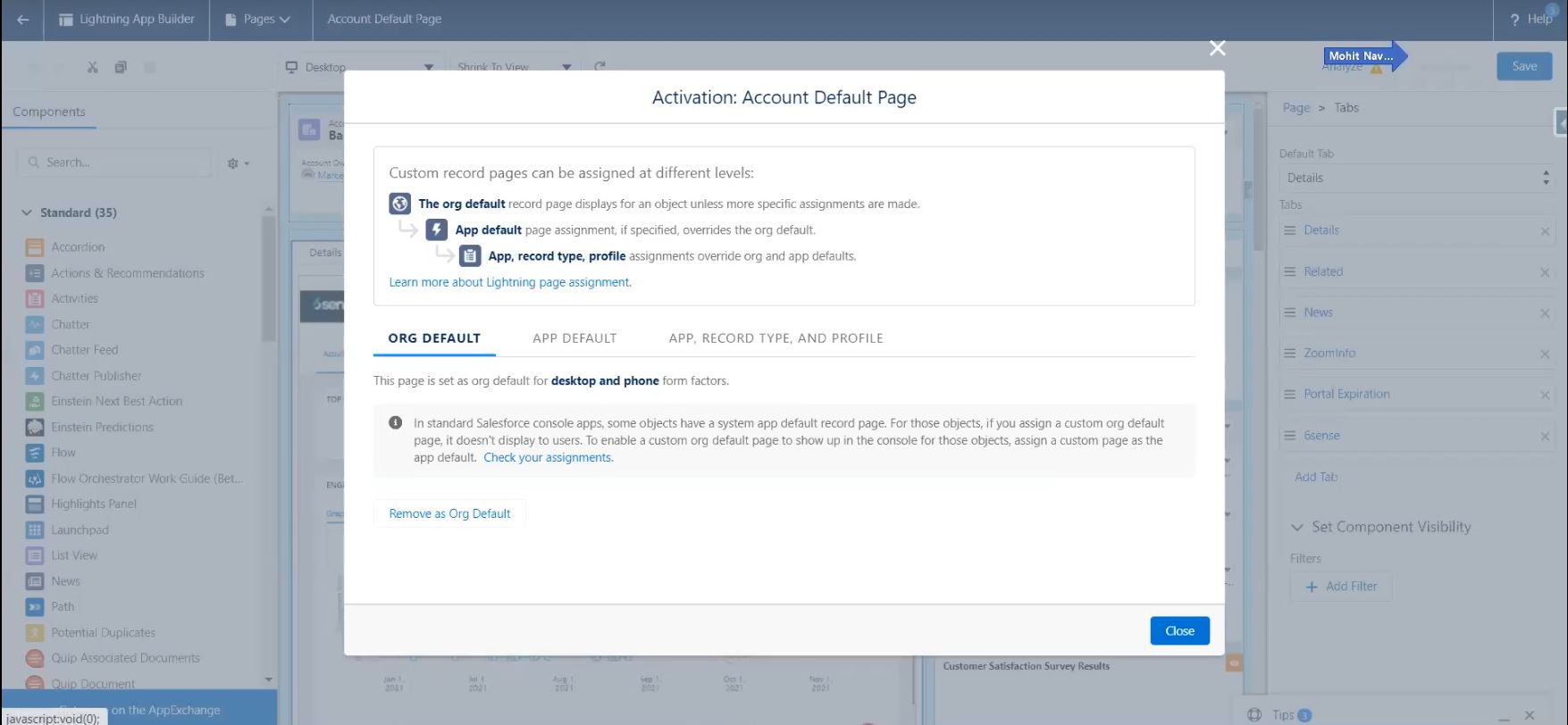
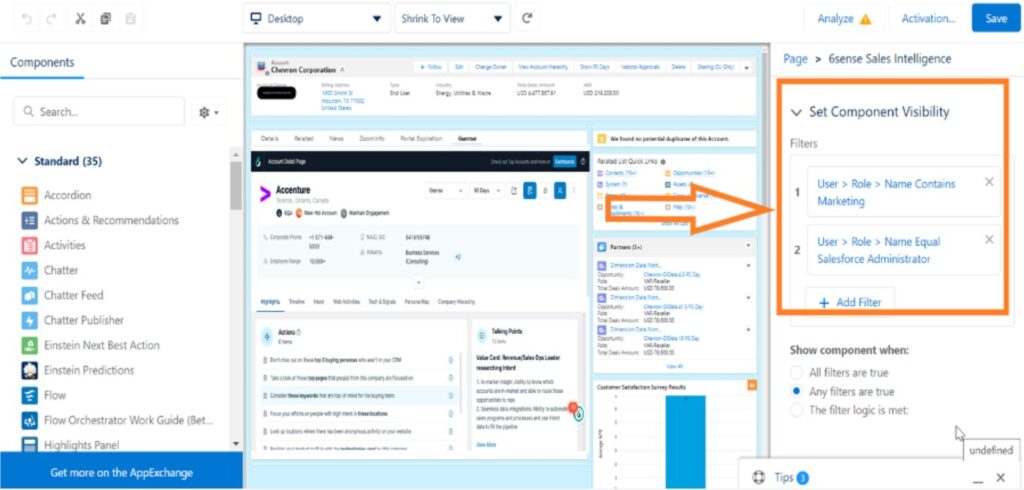
There are component level permission settings in Salesforce like this which might restrict certain roles to view the component/Sales Intelligence extension.
Q: How to upgrade the managed package?
A: Usually the managed package needs to be upgraded in the below scenarios.
SFDC upgrade or releases.
6sense makes changes to visual force pages or custom objects,
SFDC allows for gradual package updating only so if the customer is on a very old package, then the customer would required to be running upgrades at least twice to meet the latest version .
Please follow this article.
Q: How do I control which users have access to the 6sense Sales Intelligence package in Salesforce?
A: Once the installation is complete, the admin can assign the 6sense permission set to a desired set of users. Please see the screenshot below for the required permission set: 6sense_user. Only users with this permission set will be able to view the 6sense Sales Intelligence extension.
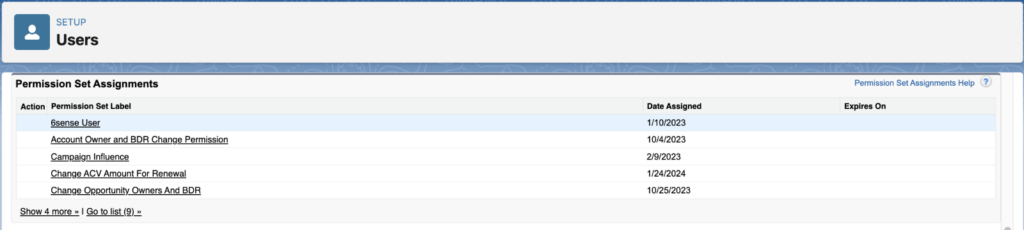
Note: 6sense recommends that the Salesforce administrator meticulously plans which users get access to the 6sense extension and selectively allocates the 6sense_user permission set.
Q: Can the managed service package be installed in a SFDC Sandbox environment?
A: Yes, the same managed package can be installed in SFDC sandbox with the same API key and process. Note, the admin will have to follow this process twice if starting in a sandbox before moving to production.