This article explains how Administrators and Primary Administrators (Primary Admins) can review their organization’s 6sense product usage based on its subscription or license type.
As an Administrator or Primary Admin, you can view license-usage information in User Management. If you are a Primary Admin, you can also invite users to the 6sense applications they need to access.
Your organization must use the same Primary Admin across all its 6sense applications.
The Primary Admin uses one license in each 6sense application. For example, if your organization purchases both Revenue Marketing (RevM), formerly Account-Based Marketing (ABM), and 6sense Sales Intelligence (SI), the Primary Admin uses one RevM license and one SI license.
License type in the 6sense platform | Applicable 6sense subscription types | User roles |
|---|---|---|
Revenue Marketing (RevM or ABM) |
| Primary Administrator, Administrator, Operation User, Marketing User, View Only User, Insights User, Sales User |
Sales Intelligence (SI) |
| Primary Administrator, Sales Administrator, Sales SDR, Sales AE, Sales Lite (with Predictive Add-On) |
CRM/SEP Users for Sales Intelligence (SI) Application |
| No user role |
AI Email (AIE) | — | Primary Administrator, AI Email Administrator, AI Email Marketing User |
Data Workflows |
| Primary Administrator, Workflow Administrator, RevOps User, View Only User |
Subscriptions and user roles by license type
Find the license usage
As an Administrator or Primary Admin, go to Settings > User Management > Organization Users to review your organization’s license usage.
The information you see depends on the 6sense packages and applications your organization purchased and the roles its Administrators assigned to users. These roles can include RevM (ABM), SI, AI Email, and Workflows roles.
The following example shows the license-usage information available from the User Management page. Your view may differ based on your organization’s applications and purchased packages.
.png)
Revenue marketing (RevM) license type
If your organization has access to the Revenue Marketing (RevM, ABM) platform, go to Settings > User Management > Organization Users to compare the number of users its Primary Admin invited with the number of contracted platform licenses. The platform displays this license usage as ABM Users.
RevM (ABM) license enforcement
Your organization is responsible for ensuring that your Primary Admin does not invite more users to the 6sense RevM platform than your organization has purchased licenses for.
Currently, the 6sense RevM Platform does not enforce contractual license limits within the application. This means that your Primary Admin can invite more users than your organization has purchased licenses for.
If your organization’s usage exceeds its contracted license count, contact your 6sense Customer Success Manager (CSM) or Account Manager (AM) to ensure that your company complies with its contractual license limits. Your CSM or AM will guide you through updating and procuring additional licensed seats as required.
If you do not contact your CSM or AM when your usage exceeds the contracted license limit, your CSM or AM may contact you to help align your contracted licenses with your current usage.
SI license type
If your organization has access to SI, User Management displays a two-part notation: #/# SI Users | # SI CRM/SEP Users.
#/# SI Users: The numerator shows the number of SI users the Primary Admin invited. The denominator shows the number of SI licenses your organization purchased.
# SI CRM/SEP Users: The number of unregistered SI CRM/SEP users who interacted with SI in a CRM or SEP during the last 90 days. Interactions include selecting, scrolling, and hovering. Unregistered SI CRM/SEP users do not have an SI user role in the 6sense User Management section of the platform. For more information about how this usage type works within Sales Intelligence plans, see Registered vs. unregistered SI users.
The Primary Admin invites registered SI users. These users can access 6sense through a CRM iframe, the web application, or the 6sense Chrome Extension.
New SI users starting May 12, 2026:
Each new SI user must have a corresponding Salesforce or Salesloft user account. Only users registered in Salesforce or Salesloft can access SI.
SI license enforcement
A Primary Admin cannot invite more SI users after your organization reaches its purchased license limit.
If your Primary Admin attempts to invite users beyond the limit, the following message appears:
“License limit exhausted. Please get in touch with your CSM“
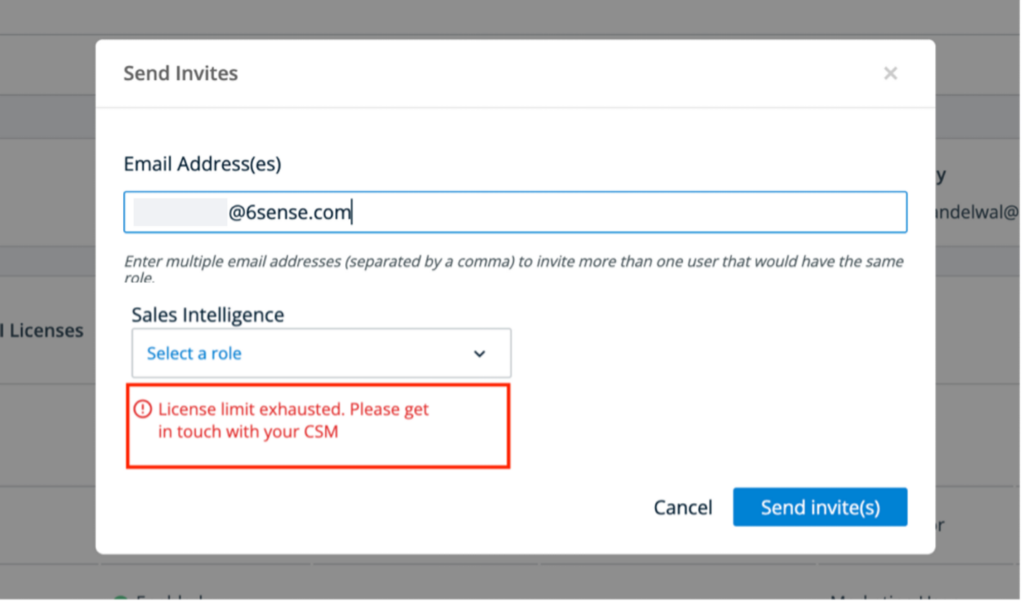
If your organization has exceeded its license limit and the Primary Admin needs to invite another user, complete one of the following actions:
Contact your organization’s 6sense representative to increase its licensed seats.
Disable users until the combined number of enabled and invited users is lower than the contracted license limit.
CRM and SEP users for SI
Depending on your organization’s third-party integrations, users can access certain SI features within its CRM or SEP.
For the convenience of customer distribution and the enablement of their teams, integrated experiences for SI, such as those available in Salesforce CRM, Hubspot CRM, MS Dynamics CRM, Outreach SEP, Salesloft SEP, and Salesforce Sales Engagement (HVS), may not require a user to create a registered login within the 6sense platform to start using its services.
Integrated SI experiences in CRMs and SEPs, such as those available in Salesforce CRM, HubSpot CRM, Microsoft Dynamics CRM, Outreach SEP, Salesloft SEP, and Salesforce Sales Engagement (HVS), may allow users to access SI features without creating a registered login in the 6sense platform.
These unregistered SI CRM/SEP users still count toward your organization's licensed user allowance.
Registered vs unregistered SI users
Registered SI users: Users who have an email address and an SI user role in User Management.
Unregistered SI users: Users who do not have an SI user role in User Management. (Unregistered SI CRM/SEP Users)
The # SI CRM/SEP Users message shows the number of unregistered SI CRM/SEP users who interacted with SI through an iframe in your organization’s CRM or SEP during the last 90 days. Interactions include selecting, hovering, and scrolling.
Salesforce (SFDC) users
When you install SI in your organization’s Salesforce CRM, you must restrict access based on user role. For instructions on how to install the SI iframe features within your Salesforce CRM, see Installation of Sales Intelligence for Salesforce.
If you install SI incorrectly and fail to restrict unlicensed users from accessing SI through your Salesforce instance (see learn how to install SI for Salesforce), the total number of users in the SI CRM/SEP Users section may exceed the total number of licensed users permitted to access SI features.
Outreach.io users
When you install SI in your organization’s Outreach SEP, you must restrict access based on user email or profile set. For instructions on how to install SI iframe features within your Outreach SEP, see Installation of Sales Intelligence for Outreach.io.
If you install SI incorrectly and fail to restrict unlicensed users from accessing SI through your Outreach instance (see learn how to install SI for Outreach), the total number of users in the SI CRM/SEP Users section may exceed the total number of licensed users permitted to access SI features.
Salesloft users
Salesloft SEP product and API limitations can prevent 6sense Administrators from restricting unlicensed users’ access to SI features in your organization’s Salesloft instance. Therefore, everyone with access to the Salesloft instance can see the embedded SI features.
If an unregistered SI CRM/SEP user interacts with the 6sense SI iframe in Salesloft, 6sense includes that user in the SI CRM/SEP user count for 90 days. Interactions include selecting, hovering, and scrolling.
If the combined number of registered and unregistered SI users exceeds the contracted SI license count, your organization must restrict access to comply with its license allowance.
Contact your organization’s Customer Success Manager (CSM) or Account Manager (AM) to ensure compliance with its contractual license limits. The CSM or AM will guide your organization through updating and procuring additional licensed seats as required.
If your organization does not contact its CSM or AM when its usage exceeds the contracted license limit, the CSM or AM may contact your organization to help align its contracted licenses with its current usage.
Revenue marketing license type with predictive add-on (formerly advanced)
If your organization has purchased a 6sense Platform subscription with a Predictive Add-On (formerly known as the Advanced add-on and sometimes referred to as Legacy 6sense Sales Intelligence), Settings > User Management displays two license types.
ABM Users: The numerator shows the number of users the organization’s Administrators enabled or invited to Revenue Marketing. The denominator shows the number of licenses included in the organization’s contract.
SI CRM/SEP Users: If the Primary Admin installed a CRM or SEP package that displays certain 6sense features in an iframe, this value shows the number of unique users who accessed 6sense through that iframe.
6sense tracks usage in the CRM or SEP iframe for the last 90 days. 6sense counts someone as an active CRM or SEP user if they interact with the applicable iframe during that period. Interactions include selecting, hovering, and scrolling.
AI Email licenses
If your organization has access to AI Email, go to Settings > User Management > Organization Users to compare the number of users its Primary Admin invited with the number of contracted AI Email licenses. The platform displays this license usage as AI Email Users.
AI Email license enforcement
Your organization is responsible for ensuring that your Primary Admin does not invite more users to AI Email than your organization has purchased licenses for.
Currently, AI Email does not prevent a Primary Admin from inviting users beyond the contracted license limit. A Primary Admin can therefore invite more users than the number of AI Email licenses the organization purchased.
If your organization’s usage exceeds its contracted license count, contact your organization’s 6sense Customer Success Manager (CSM) or Account Manager (AM) to ensure compliance with its contractual license limits. The CSM or AM will guide your organization through updating and procuring additional licensed seats as required.
If your organization does not contact its CSM or AM when its usage exceeds the contracted license limit, the CSM or AM may contact your organization to help align its contracted licenses with its current usage.
Data workflow licenses
If your organization has access to Data Workflows, go to Settings > User Management > Organization Users to review the number of users with Workflows access. The platform displays this number as Workflows Users.
FAQ: 6sense license usage
Can 6sense track usage by registered and unregistered users who use ad blockers?
Yes, 6sense can track usage even when users use ad blockers.
Do Administrators and the Primary Admin also have a license?
Yes, all users, including Administrators and Primary Admins, have a license.