You can review information about the results of running an Audience Workflow in the Workflows List Last Run Status column and Run History panel. Each run has a status. For a log of each processed record, use the Performance Details page.
Last Run Status column
Every published workflow in the Workflows List has a Last Run Status column with icons so you can easily find out what is going on when they run.
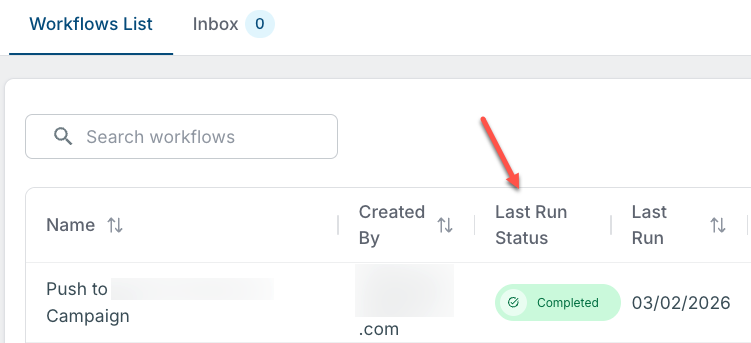
Run History panel with details
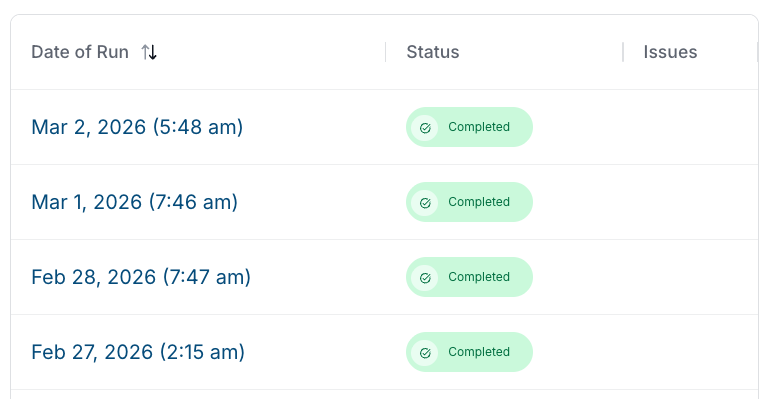
To get details about a run’s status, use the Run History panel. It shows a list view of each run of the workflow. For example, a workflow scheduled to run daily has a run history that lists each day’s run from the start date until the present or end date.
To access a workflow’s run history:
Go to Audience Workflows > Workflows List. If a workflow has run, a View button appears in its Run History column. Use Search or filter by Published to narrow down the results.
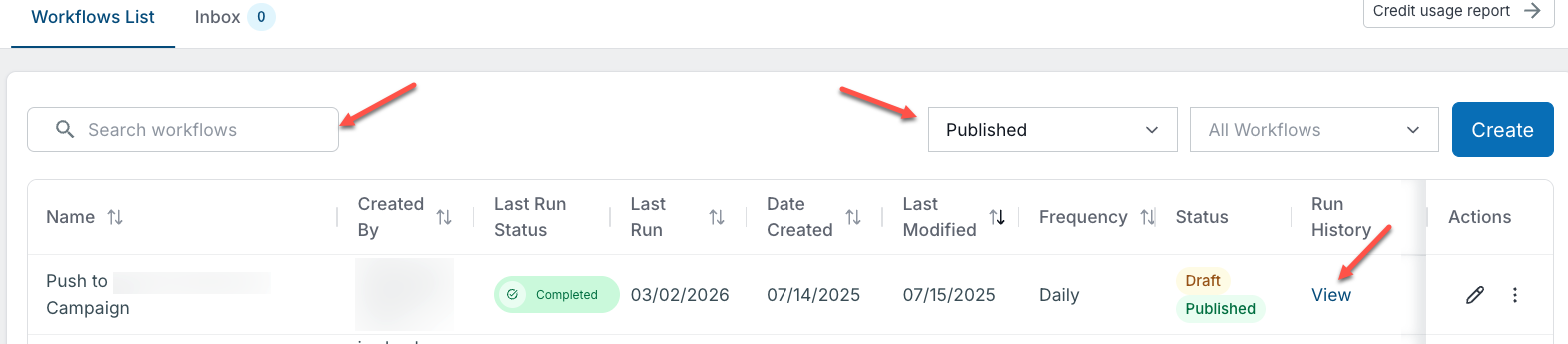
In the Run History column for a workflow, select View.
The Run History panel opens and lists the runs by date, shows the run status, and explains issues, if any.
Tip: To understand how the Run History panel handles workflows that has timer nodes, refer to Workflows Timer Node.
Run status icons and meanings
Hover over a status icon for a brief explanation. Statuses include:
Blank: Workflow has not yet run.
In Progress: Workflow is still running.
.png)
Completed: Workflow completed successfully.
.png)
Completed with at least one error: Workflow processed successfully, and there is a problem with records (such as when updating an external application). Hover over the icon and/or click the run date to for more information. Refer to Troubleshoot Audience Workflows.
.png)
Completed with timer (on-demand workflows only): Workflow processed successfully, and there is a timer node. Refer to Workflows Time Node.
Completed with timer and error (on-demand workflows only): There is at least one error and a timer node is still running. Refer to Workflows Time Node.
.png)
Failed – The workflow process failed. This may be due to a delay in the nightly pipeline. Hover over the icon for a message. Refer to Troubleshoot Audience Workflows.
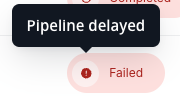
Tip: A workflow may have a non-blank last run status even if its status is unpublished. This would indicate that the workflow was published and ran for a time and was later unpublished.
Performance Details (audit log) page
The Audience Workflows Performance Details page is a log of all records processed by that workflow over a specific date range.
To access performance logs:
Go to Audience Workflows > Workflows List.
For the specific workflow, go to Actions > More > View Performance Details. The Performance Details page, also called an audit log, opens.
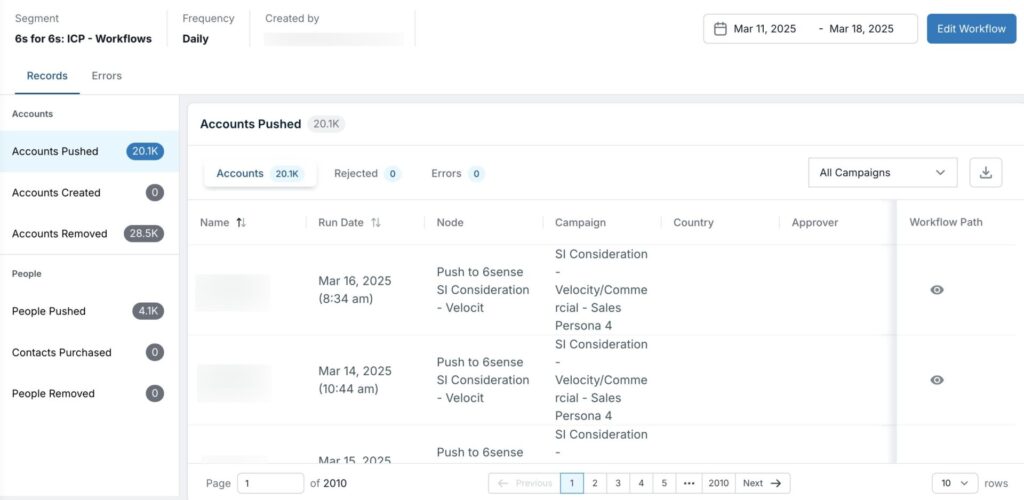
Browse workflow performance records details
The details in the Performance Details page vary depending on what your workflow does. You can choose between the Records and Errors tabs. For more information about errors refer to Troubleshoot Audience Workflows.
You can change the date range as needed, at the top right corner of the page.
The Performance Details Records tab is the default and it has multiple subtabs:
Each tab lists the name of the account or person record on which the action was performed, and other details.
Each tab’s Accounts section has a Workflow Path column and eye icon. Select the icon to open the Workflow Path diagram. It shows the path taken by each account from the entry node (the segment) to the node that performed the action.
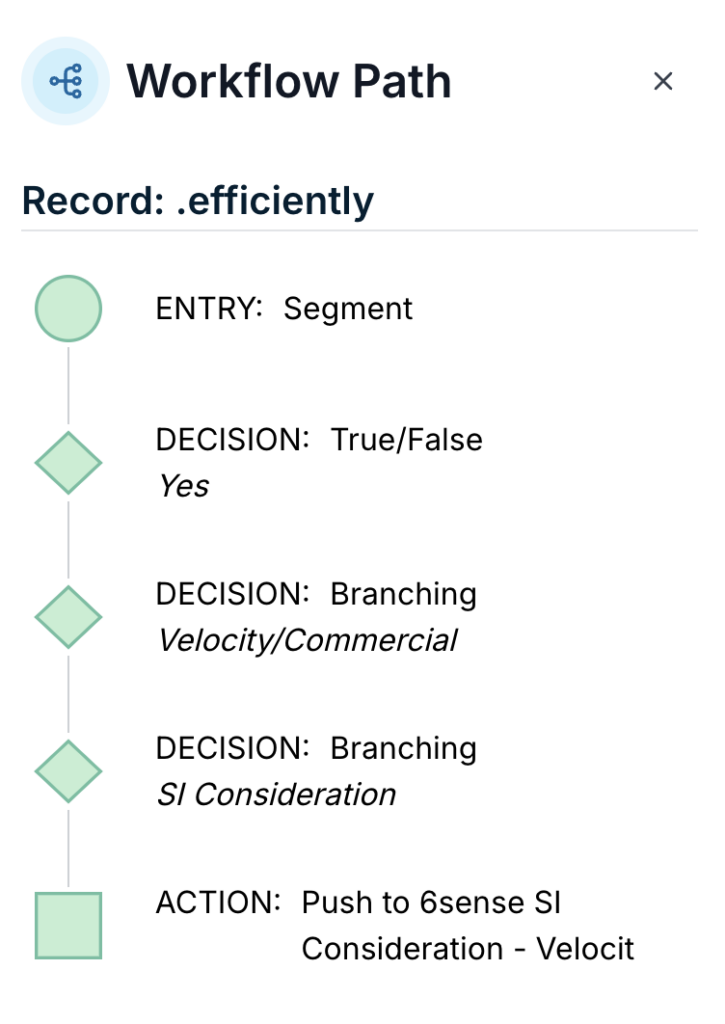
For a full list of records, download a CSV from each tab. Click the download icon at the top right of each tab.
Accounts Pushed tab
The Accounts Pushed tab has these sections:
Accounts: The total number of accounts pushed across the workflow over the specified date range, and a list of the accounts.
Rejected: Not yet implemented.
Errors: The total number of accounts that were not successfully pushed to their intended destination. Refer to Troubleshoot Audience Workflows.
Accounts Created tab
The Accounts Created tab has these sections:
Accounts: Lists the accounts created over the specified date range.
Rejected: Not yet implemented.
Errors: Lists the accounts that were not successfully created in the CRM. Refer to Troubleshoot Audience Workflows.
Accounts Removed tab
The Accounts Removed tab has these sections:
Accounts: The total number of accounts removed from a campaign using the Remove Audience node, and lists the accounts.
Errors: Accounts that were not successfully created in the CRM. Refer to Troubleshoot Audience Workflows.
People Pushed tab
The People Pushed tab has these sections:
People: The total number and a list of contact records exported over the specified date range.
Accounts: The total number and a list of accounts associated with the people exported over the specified date range. Rejected: Not yet implemented.
Errors: The contact records that were not successfully exported to their intended destination. Refer to Troubleshoot Audience Workflows.
Contacts Purchased tab
The Contacts Purchased tab has these sections:
People: The list of contact records purchased over the specified date range.
Accounts: The list of accounts associated with the records purchased over the specified date range.
Rejected: Not yet implemented.
Errors: The contact records that were either not successfully purchased or successfully purchased but not saved to the designated CRM or MAP system or CSV file. The Description column provides details, such as “User not found for given email.” Refer to Troubleshoot Audience Workflows.
People Removed tab
The People Removed tab lists contact records removed from a campaign using the Remove Audience node.
People: The total number and a list of contact records removed over the specified date range.
Related Accounts: The list of accounts associated with the people exported over the specified date range.
Errors: The records that were not successfully removed. Refer to Troubleshoot Audience Workflows.
Document Changelog
Mar 2 2026: Complete list of status icons and meanings
Mar 24 2025: Updated for General Availability
Mar 18 2025: UI changes
1st Published Jan 15 2025: Beta