You can set up AI Email (AIE) to automatically enroll leads and contacts from Salesforce into an AIE campaign. Two sources are supported:
Salesforce report: AIE pulls rows from a saved Salesforce report. For as long as auto import is enabled, any records that meet the report criteria are imported into AIE and enrolled in the linked AIE campaign.
Salesforce campaign: AIE pulls members of an active Salesforce campaign, both leads and contacts, and enrolls them in the linked AIE campaign. As AIE works through those members it writes each member's status back to the native Campaign Member Status field in Salesforce, so your existing campaign reporting reflects AIE activity without extra setup.
Reports continue to work exactly as before. Salesforce campaign is an additional option, available to organizations on the shared Salesforce connection.
Each AIE campaign has its own import and enrollment setup.
Prerequisites
Prerequisites for auto import from Salesforce include:
A configured Salesforce integration. Refer to Integrate AI Email with Salesforce.
Configured dynamic merge tags. Refer to Map AIE Contact and Account Fields to Salesforce Fields.
The Salesforce integration user, the account that configured the integration with AIE, needs a permission set for objects used by the Salesforce report that is connected to the AIE campaign. Refer to AI Email – Salesforce Object Integration Permissions.
Some Salesforce objects should have View All Fields permissions enabled. If they are not enabled, depending on the report used, your enrollments may not be accurate.
AIE supports the following Salesforce report types:
Leads
Contacts & Accounts
Campaigns with Leads
Campaigns with Contacts
Leads & Opportunities (Custom Report Type)
Contacts & Opportunities (Custom Report Type)
Set up auto import and campaign enrollment
To set up automatic import:
In AIE, go to Campaigns. The All campaigns list opens.
Select the relevant campaign.
Select Enroll contacts.
Select Enroll contacts from an integration. You can see that Salesforce is connected. If it’s not, check your Salesforce integration.
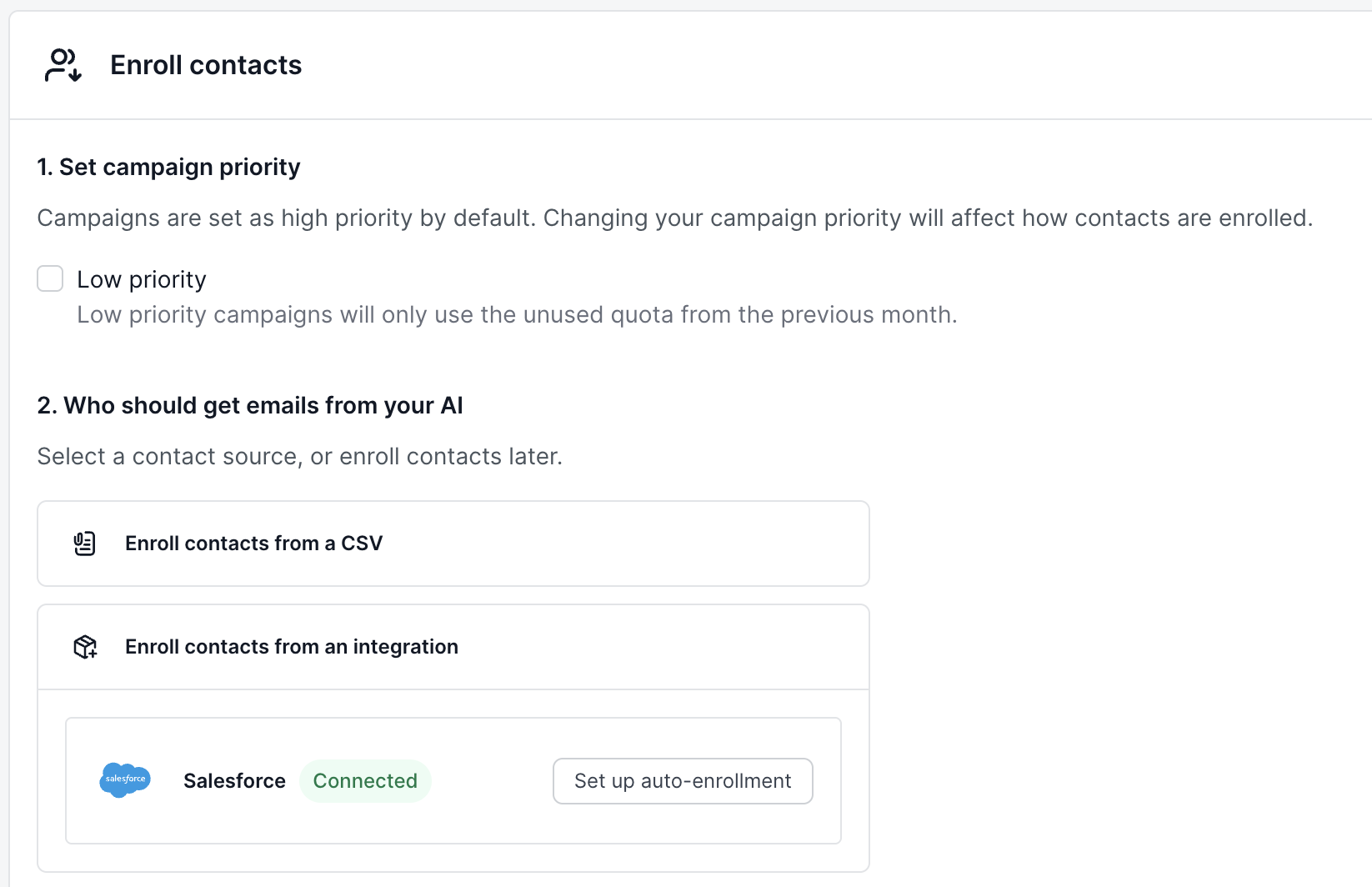
Select Set up auto-enrollment. A list of Salesforce reports opens.
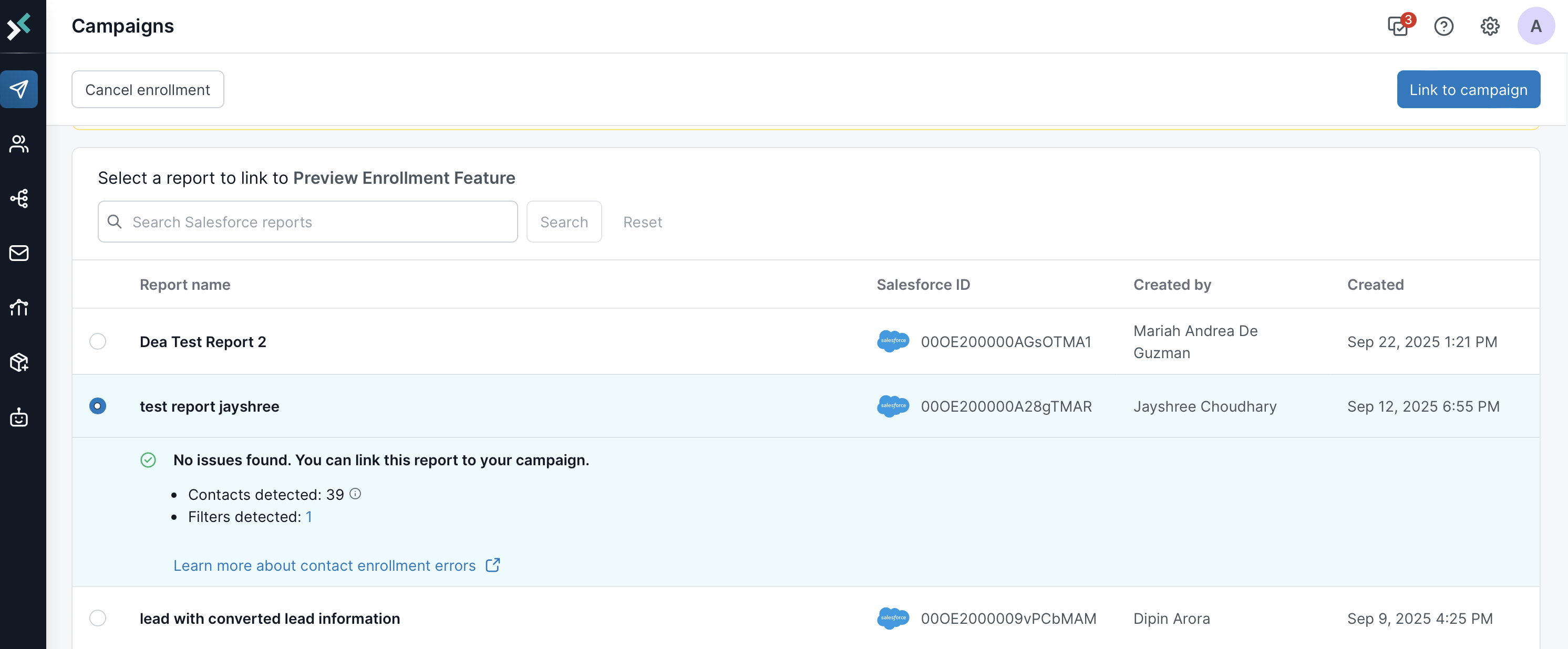
Select a report.
If the report type is not supported by AIE, a warning message lets you know.
If the report type is supported, a message lets you know.
Common Error Messages and Fixes:
Error Message
Fix
Unsupported report format. Contact the report creator to change its format to tabular, summary, or matrix.
Change report to tabular, summary, or matrix format
Unsupported report type. Contact the report creator to change it to a supported report type.
Change to a supported report type
Report already linked to another campaign.
Select a different report
Report must have 19 or fewer filters. Remove some and try again.
Reduce filters to fewer than 19
We don’t have access to all filters in this report. Contact your Salesforce admin.
Contact your Salesforce admin to provide access
Important
You can select or change the CRM report used for contact enrollment only before launching the campaign.
After the campaign is launched, you can’t replace the linked report with a different report.
You can update the filters or criteria within the original report, and those changes affect enrollment.
Review the number of contacts and filters detected before linking the report to your campaign.
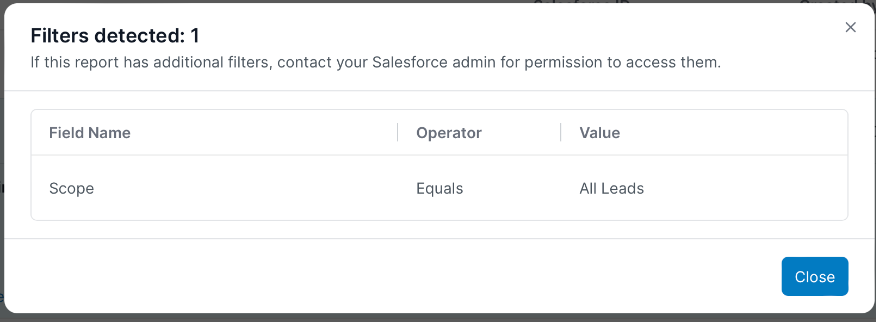
Select the number of filters to showcase the actual filters detected from the report.
Ensure the number of contacts and filters are accurate to the report.
Select Link to campaign at the top right.
After you link the CRM report, a message appears to confirm that contact processing has started. Processing typically finishes within 1–5 minutes. You’ll receive a notification when it’s complete. After processing, AIE validates each contact to determine whether it can be enrolled.
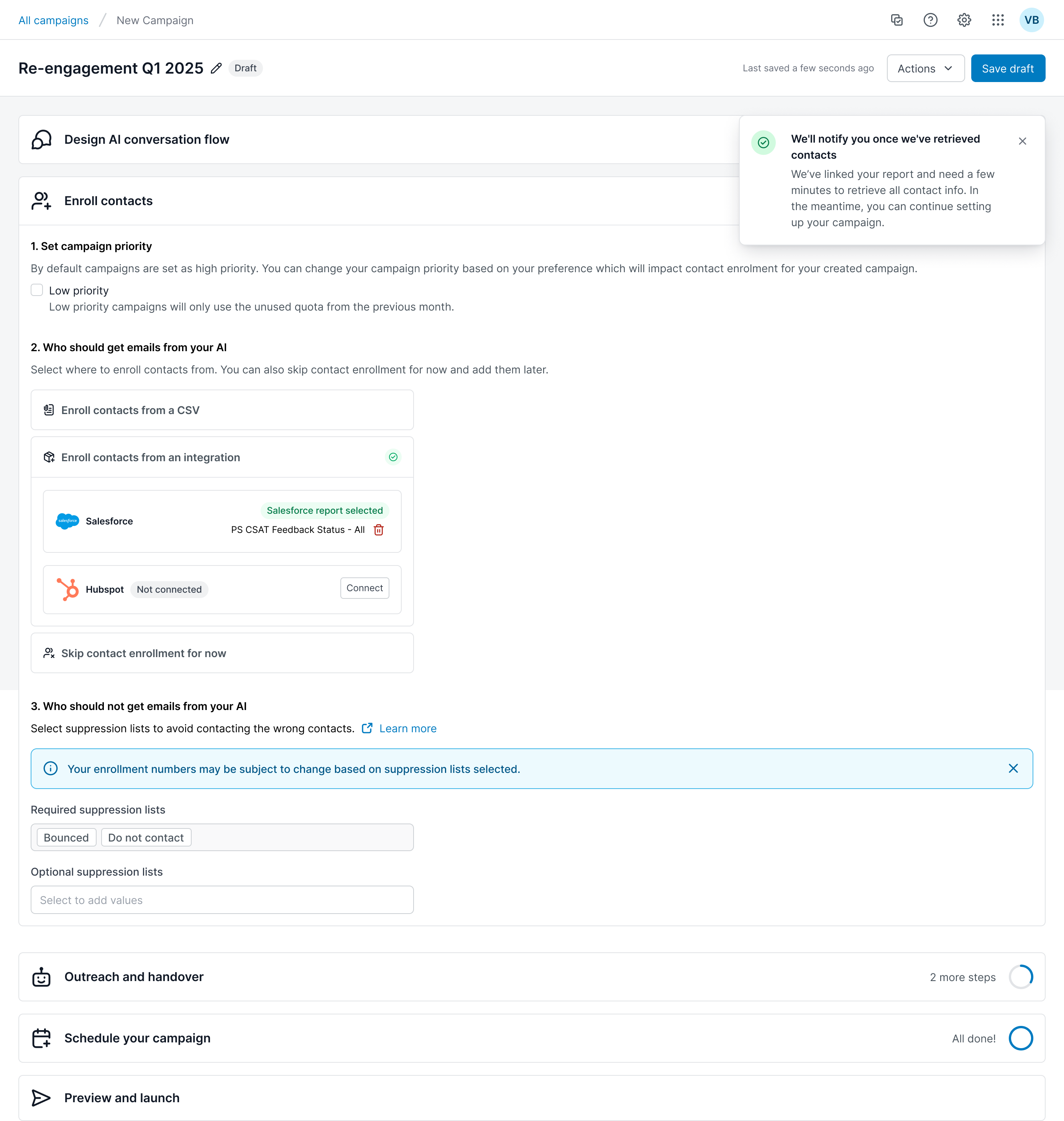
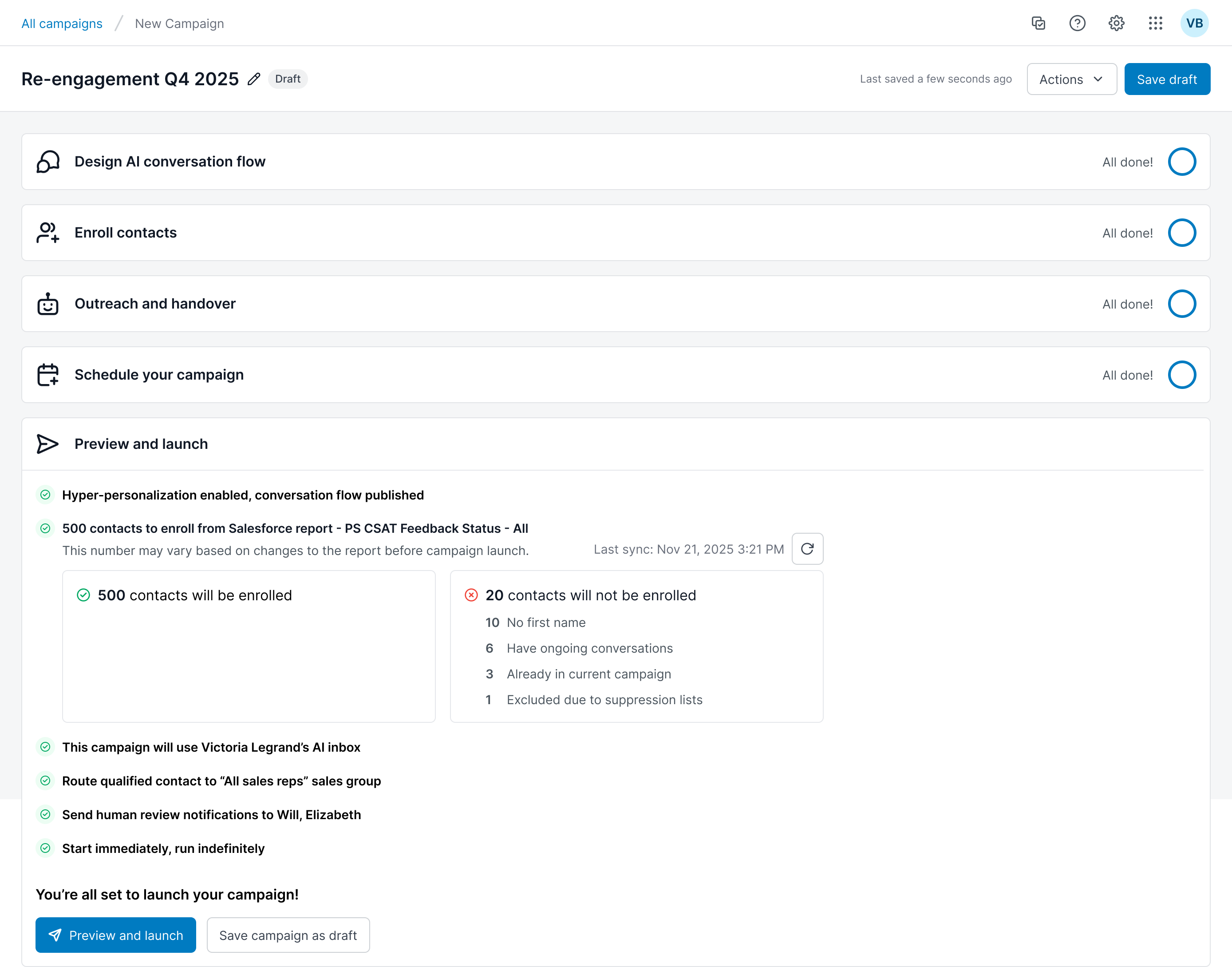
Navigate to the Enroll Contacts to see your enrollment breakdown:
The number of contacts who passed all validation checks and will be added to your campaign
The number of contacts who cannot be enrolled, along with specific reasons:
Invalid email — The email format is incomplete or incorrect.
Invalid Email Server — The domain doesn’t have a valid mail server.
Emails in CRM and AI Email don't match — The CRM email differs from the email stored in AI Email.
Same email domain as AI email agent — The email uses your internal company domain.
Same email as sales rep — The email matches a sales rep in your CRM.
No first name — The first name field is required for personalization.
No merge tags — Required personalization fields are missing.
No merge tags or fallback — Required fields are missing and no fallback values are set.
Invalid lead owner email — The assigned lead owner’s email is invalid.
Email linked to other CRM leads — The same email appears on multiple CRM records.
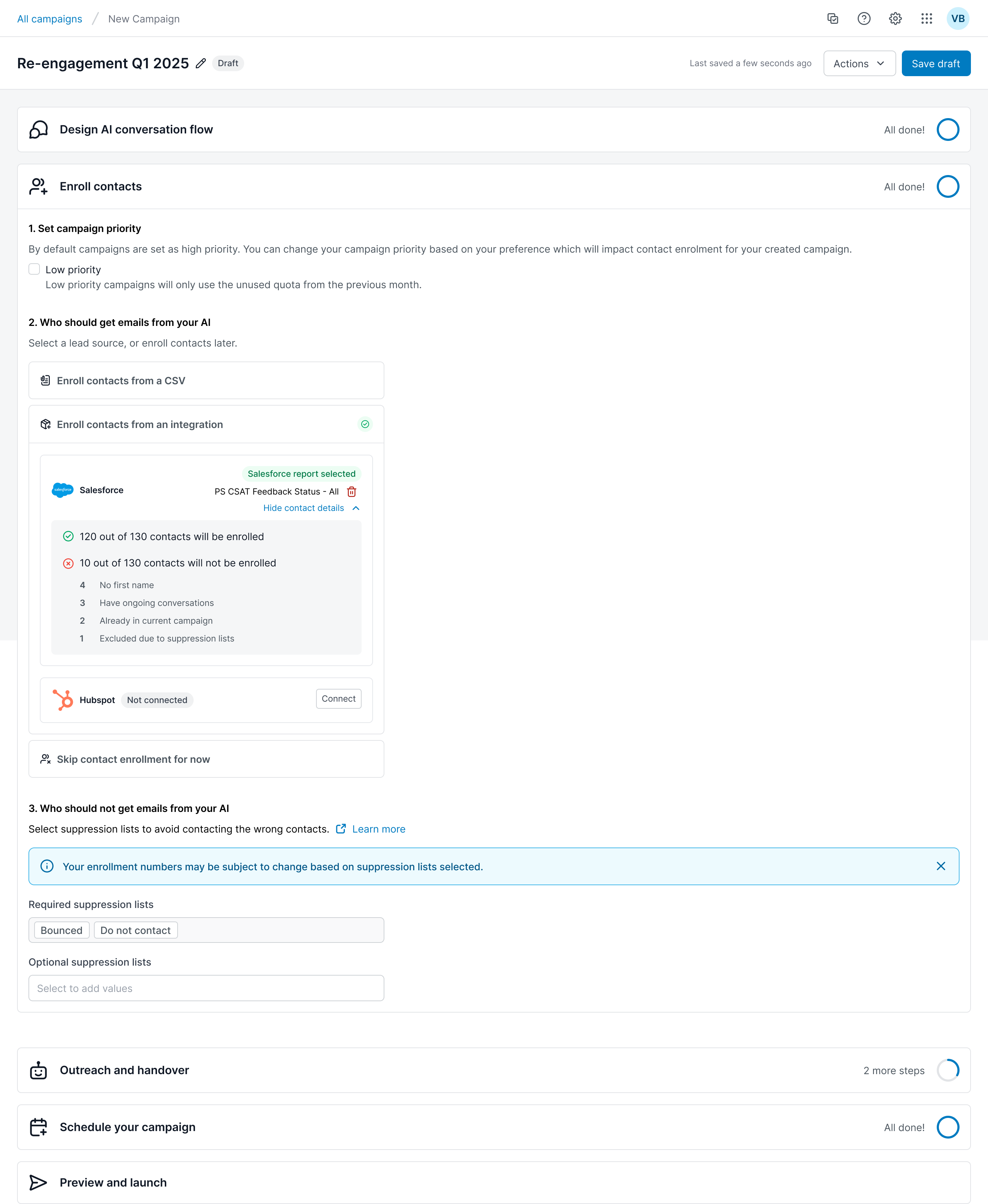
In the Preview and Launch section, review the final enrollment breakdown one more time before activating your campaign.
If the Salesforce objects for the report do not have the recommended permissions, a warning messages displays. You can link the report to the campaign, however your enrollments may not be accurate. Refer to AI Email – Salesforce Object Integration Permissions.
Monitor the auto import status
To check on the enrollment status:
In AIE, go to Campaigns.
Select the relevant campaign.
A Salesforce enrollment enabled message shows at the top.
Select the Contacts enrollment tab and view the Enrollment sources panel for details.
Disable auto import and enrollment
To disable auto import and enrollment:
In AIE, go to Campaigns.
Select the relevant campaign.
Select the Contacts enrollment tab.
In the Enrollment sources panel, select Turn off enrollment. (See the screenshot above.)
FAQ
Does campaign sync replace reports?
No. Reports still work exactly as before. Campaign is an additional source and reporting option, available to customers on the new ECA based connection.
Can any customer use campaign sync?
Only customers on the ECA connection with RTI. Customers on the legacy connection have to migrate first.
Does migrating to the new connection turn campaign sync on automatically?
Yes. Migration makes a customer eligible.
Does it enroll leads only, or contacts too?
Both. AI Email pulls every eligible member of the campaign regardless of type.
What exactly gets written back to Salesforce?
Each engaged member's native campaign member status, updated as AI Email progresses along with custom AIE specific data on the custom fields created. Lead and Contact level status writeback continues as it does today.
Why is a specific campaign not showing up as a source?
The campaign has to be active in Salesforce. Inactive campaigns are not selectable.
Why is nothing being written back to the campaign?
Most likely the campaign member status mapping is not configured.
Does I need to build new campaigns in Salesforce for this?
No. Campaign sync works against their existing active campaigns.