Gain insights into a company using the 6sense Sales Intelligence (SI) Extension for Chrome.
Launch Chrome extension
Load a prospect’s website and click the 6sense SI Extension for Chrome icon on your toolbar to open it. You can also prospect from a company profile in LinkedIn.
.png)
The SI Extension for Chrome doesn’t currently provide 6sense company information by prospecting from Linkedin Sales Navigator.
If you haven’t previously pinned the 6sense SI Extension for Chrome icon on the Chrome toolbar, click the Extensions icon and look for it listed there.
.jpg)
Scan the company overview
The 6sense SI Extension for Chrome drawer displays high-level company information at the top of the drawer. You can immediately scan for the company’s:
Location
Social media links
Industry sector
Corporate contact information
.png)
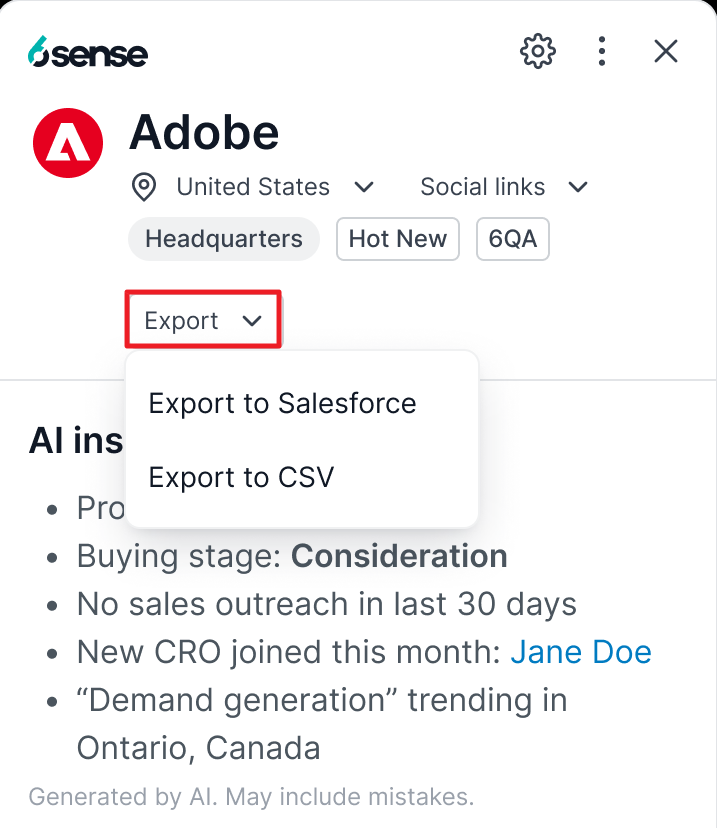
The Export button at the top of the company profile lets you easily export company information to a CSV file or to your integrated CRM/SEP. Exporting one company’s information costs 1 credit.
AI insights
Below the export button is the AI insights section, which provides high-level insights into the company account. View additional information on AI insights.
AI Insights are not turned on by default. If a user does not have AI Insights, they will instead see Signals, as shown below.
.png)
Click on Signals to see a list of available options:
.png)
Activity timeline: A chronological view of the account’s key engagement and intent signals.
Search for a specific activity.
Filter for engagement, reach, or anonymous activities, locations, or a specific activity type.
Keywords: Specific terms the account is actively researching. Configure keywords.
View branded or generic keywords.
Filter for a specific keyword or location.
Keyword groups: Clustered keyword themes the account is researching. Configure keyword groups.
View branded or generic keyword groups.
Filter for a specific keyword group or location.
Web activities: Recent visits to relevant sites, pages, or content indicating buying intent.
View visits by location or top pages visited.
Technographics: Insights into the current tech stack being used by the target company.
Search for a specific technographic.
Filter for relevant technologies only, specific technographic categories, confidence score, or status.
Psychographics: Topics being searched for or discussed by the target company.
Search for a specific psychographic.
Filter for relevant psychographics only, specific psychographic categories, or confidence score.
Job postings: Recent job openings at the account that may indicate priorities and growth opportunities.
Talking points: Notes written by your company to coach you on how best to sell your product or service.
Review company details and find business contact information
Below the AI insights section are the People tab, 6sense data tab, and CRM data tab.
People tab
The people tab lists recommended contacts at the company. Click on a name to see more details of that contact.
.png)
Additional resources on contacts:
Filter for Available Contact Information in SI Extension for Chrome
Unlock a Single Profile Using the 6sense SI Extension for Chrome
Unlock Multiple Profiles Using the 6sense SI Extension for Chrome
Export Contact Details Using the 6sense SI Extension for Chrome
CRM matching
When a contact record exists in your CRM but is outdated or mismatched, a caution icon will appear beside the contact’s name and all mismatched contact information for them.
.png)
.png)
Priority contacts
Contacts that are verified to be fresh and have accurate data will be flagged with a crown icon.
.png)
6sense data tab
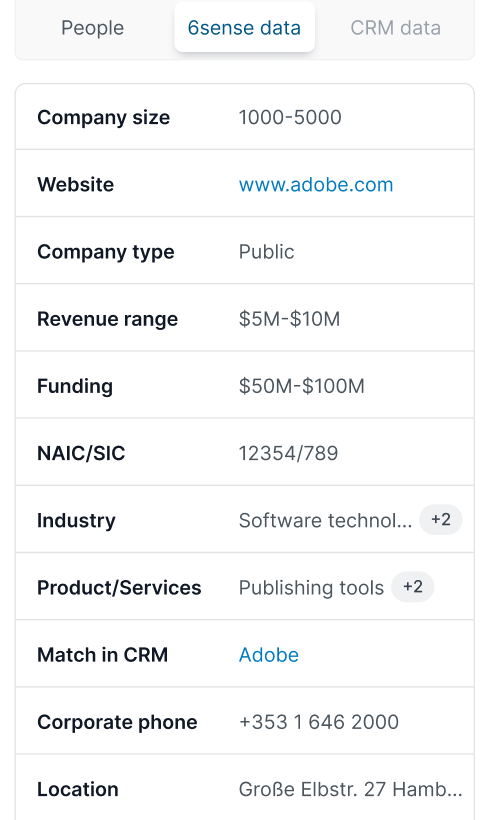
The 6sense data tab shows details of the company collected from our data.
CRM data tab
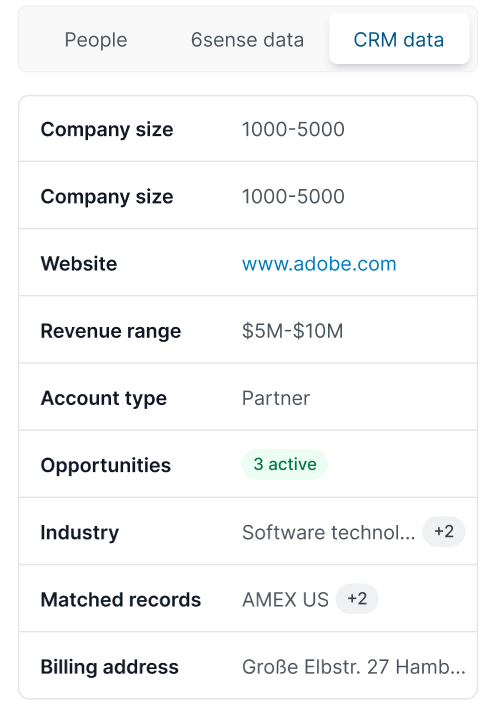
The CRM data tab shows details of the company collected from your integrated CRM.