Integrating Microsoft Dynamics with AI Email (AIE) automates much of the manual work required to reach out to contacts using an AIE campaign. A Microsoft Dynamics contact list can connect to an AIE campaign. AIE can periodically import and enroll new contacts into the campaign.
These are the high-level steps required to set up the integration:
Set up your AIE team
Connect AIE to Microsoft Dynamics
Set up a Microsoft Dynamics contact list
Connect your contact list to an AIE campaign
Review your contacts and campaigns
(Optional) Let AIE push updates to Microsoft Dynamics
Prerequisites
Before integrating AI Email with Microsoft Dynamics, ensure the following:
Microsoft Dynamics is integrated with 6sense and Real-Time Data Sync is enabled. Refer to Integrate 6sense with Microsoft Dynamics 365.
Your Dynamics instance meets the minimum required CRM object and permission requirements for AIE‑only customers (including Account, Contact, Lead, List, and ListMember objects). Refer to Minimum Object Requirements for HubSpot and Microsoft Dynamics CRM Integrations for AIE-Only Customers.
Step 1: Set up your AIE team
Before connecting a contact list, ensure your AIE team has:
Added one or more sales reps, to whom the AI email agent will hand over qualified contacts
Step 2: Enable Real-Time Data Sync
Navigate to your ABM settings and ensure that Real-Time Data Sync is toggled ON.

Step 3: Connect AIE to Microsoft Dynamics
Go to Integrations > Microsoft Dynamics, select Connect and begin the setup with the desired Microsoft Dynamics account. For more detailed instructions, see Integrate AI Email with Microsoft Dynamics CRM and Minimum Object Requirements for HubSpot and Microsoft Dynamics CRM Integrations for AIE-Only Customers.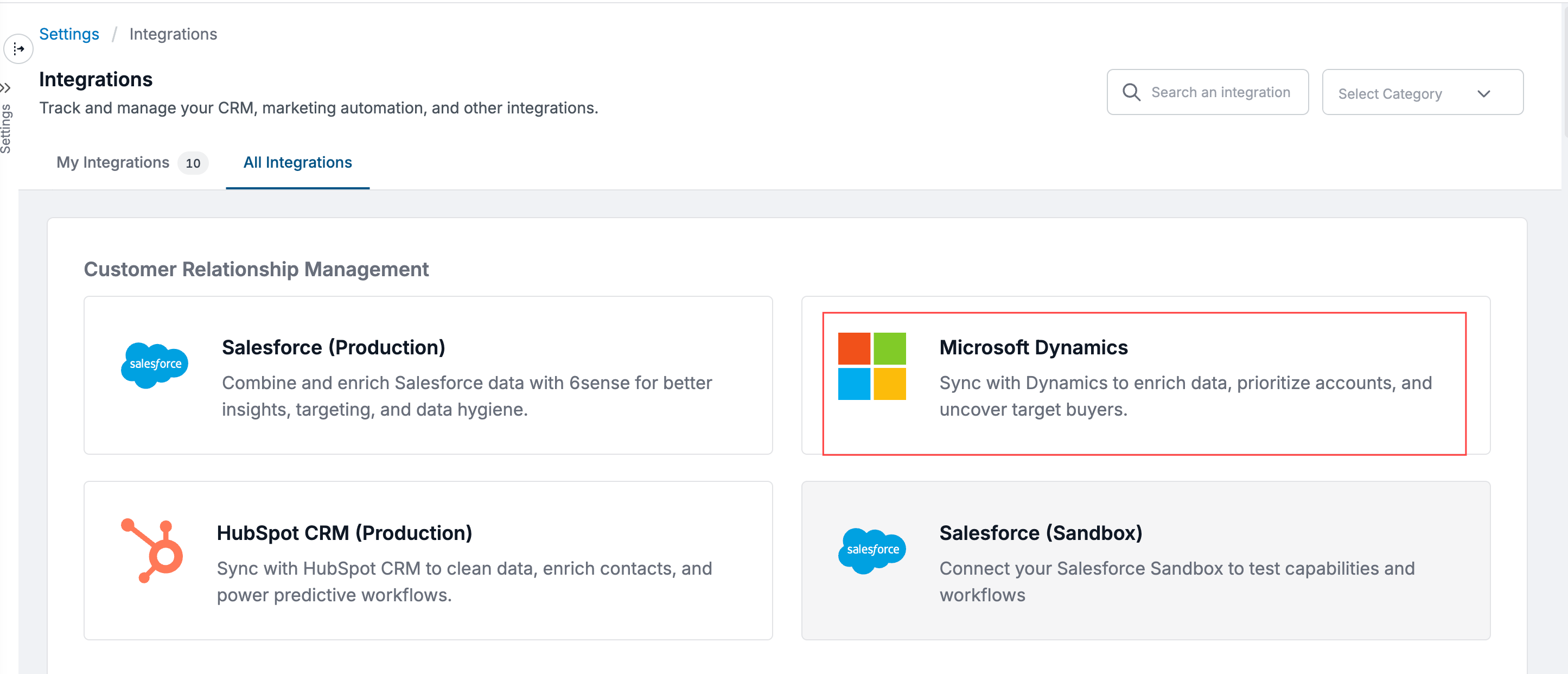
Upon connection, 6sense automatically creates the following custom contact properties on Microsoft Dynamics:
Campaign name (sixsense_ce_campaign_name)
Campaign status (sixsense_ce_campaign_status)
Campaign creator (sixsense_ce_campaign_creator)
Campaign URL (sixsense_ce_campaign_url)
Contact email conversations and status (sixsense_ce_status)
Contact last synced date (sixsense_ce_last_synced_at)
AIE use the fields to push conversation status updates. Refer to Sync AI Email Data to Microsoft Dynamics.
Step 4: Set up a Microsoft Dynamics contact list
Next, ensure you have a valid Microsoft Dynamics contact list.
To create a contact list:
In your Microsoft Dynamics account, go to CRM > Lists.
In the upper right, click Create list.
Select to create a Contact-based list.
How AIE syncs the contact list
AIE syncs contacts in each Microsoft Dynamics contact list when you create or update the list. However, because of Microsoft Dynamics API limitations, 6sense cannot sync deleted records if you remove or delete contacts from the list after syncing.
For example, if a contact list were created in Microsoft Dynamics on July 1, 6sense will sync the contacts from that list as of July 1, even if the list is not used in a current campaign. New contacts added after that date will be synced to AIE campaigns. However, if contacts are removed from the list in Microsoft Dynamics after syncing with 6sense, those contacts will not be removed from 6sense due to the limitations of the Microsoft Dynamics APIs.
We recommend creating and saving the contact list in Microsoft Dynamics when you are ready to launch the campaign, or creating the contact list with specific filter criteria before the campaign launch.
Step 5: Connect your contact list to an AIE campaign
To connect the Microsoft Dynamics Contact List to an AIE campaign:
In AIE, go to the Campaign you wish to connect.
In the Campaign page, select the Enroll contacts section, and then select Enroll contacts from an integration.
Select Set-up auto enrollment.
Select the contact list to connect and then select Link to campaign.
Preview the AI email agent’s introduction emails with sample data from the contact list.
For more information, refer to Enable Microsoft Dynamics Auto-Enrollment into an AI Email Campaign.
Each contact list can only be connected to one campaign. If your contact list is already connected, you would see the following error. Please select another contact list, or create a new contact list for the campaign.
Step 6: Review your contacts and campaigns
Your contacts from the contact list are enrolled automatically to the selected AIE campaign and reflected in the campaign’s records.
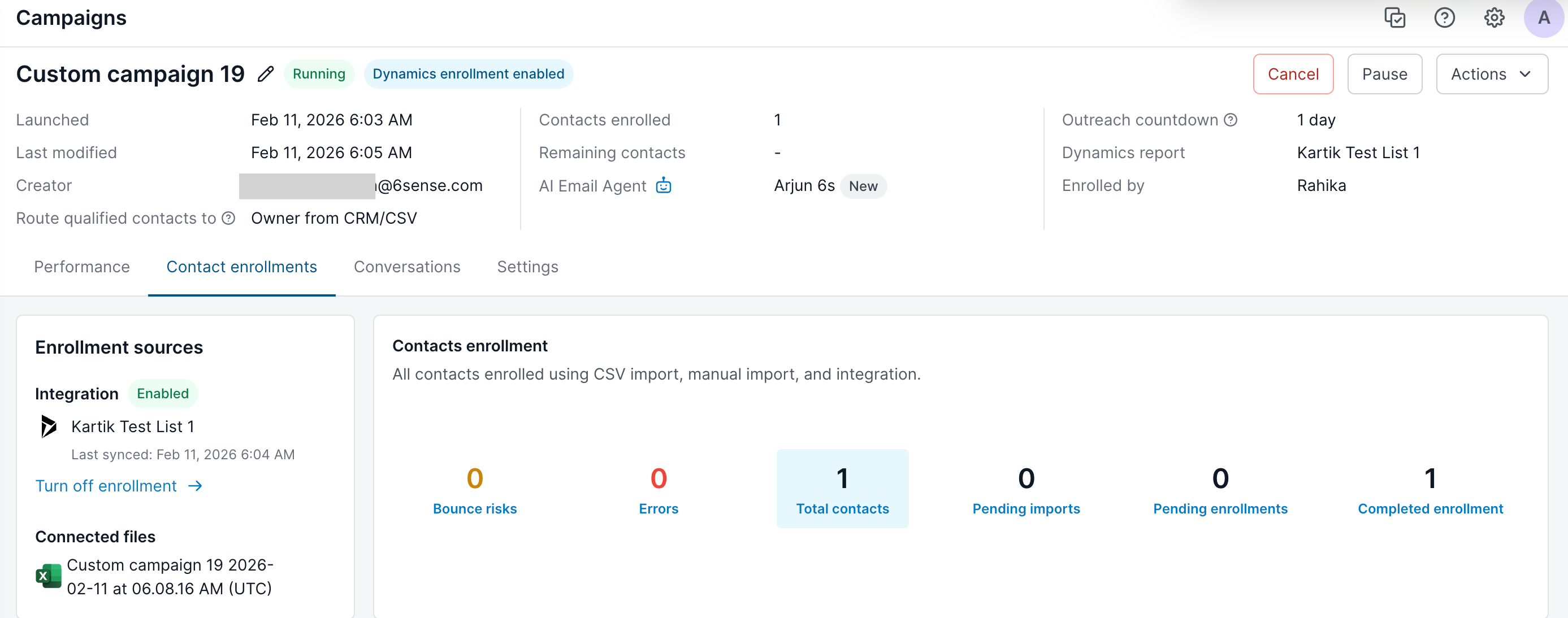
You can turn off the campaign auto enrollment anytime from the campaign Actions dropdown. To review all contacts imported and enrolled, go to Actions > Enrollment History.
You can also download a file of contacts with import error to re-import them through our CSV.
Step 7 (optional): Let AIE push updates to Microsoft Dynamics
If you would like AIE to send conversation statuses and emails sent/received by the AI email agent to Microsoft Dynamics, go to Integrations > Settings > Data syncing, and toggle on the option in Data syncing. This setting is on by default and you can toggle it in the settings..png)
See more information at Sync AI Email Data back to Microsoft Dynamics.
When the AI email agent marks a contact as Do Not Contact, AIE can also push this information to Microsoft Dynamics. You can define your Microsoft Dynamics DNC field in Integrations > Microsoft Dynamics > Map Dynamics fields.
.png)
After you’re done with the setup, AIE can take over the contacts from your campaigns and start the conversations.
FAQ
Why the AIE with Microsoft Dynamics integration status is still shows as In progress?
The Real-Time Data Sync should be active in order to keep the AIE campaign member status up to date in real-time when using Microsoft Dynamics CRM.
Can we integrate a different CRM with 6sense AI Email or does it have to be the same CRM across the 6sense Platform and 6sense AI Email?
You need to use the same CRM across the entire 6sense Platform and 6sense AIE.
What data does 6sense use if job title, seniority, or function is not available in CRM?
If these fields are missing in your CRM, AIE automatically sources the data from the 6sense platform. 6sense enriches lead and account details using trusted third-party data providers.