6sense lists all the Audience Workflows that you and your organization create in the Data Workflows > Workflows list. From there you can manage and monitor your workflows.
Manage workflows from the Workflows list
The Data Workflows > Workflows list tab helps you manage your workflows.
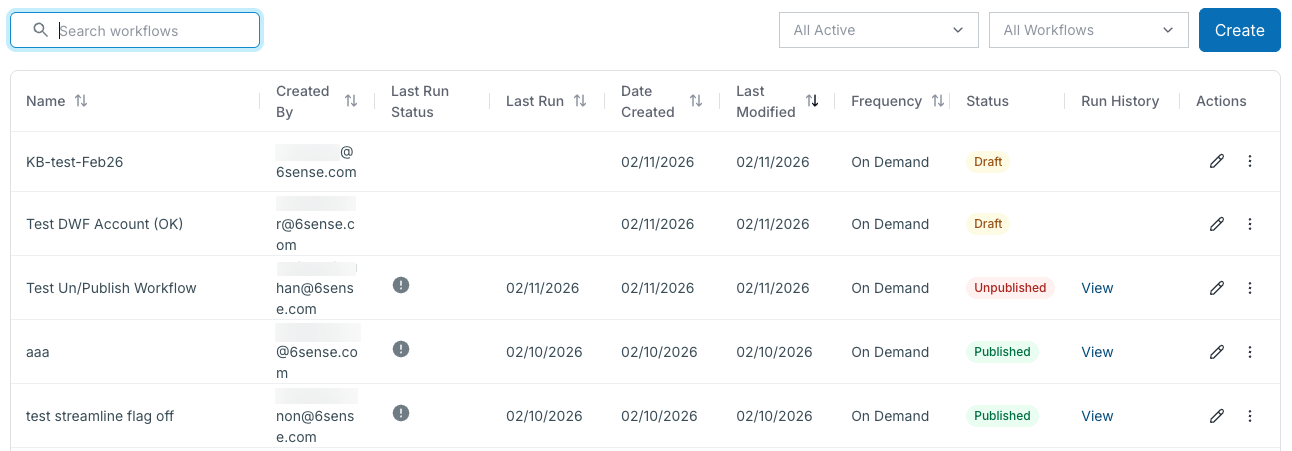
Search for workflows by name
You can search for a workflow that has the text you enter in its name. The search is not sensitive to case and returns both upper and lowercase names. The workflows list updates to only show workflows with the entered text in the name.
To clear the search, erase the term.
Filter workflows by status
All Active (the default): All workflows in the organization.
Draft: The workflow was saved as a draft but has not been published. The workflow will not run in this state. If there is an existing published version of the workflow, that version will continue to run. You can have both a draft and a published version of a workflow at the same time.
Published: The workflow runs at the configured schedule or on-demand, depending on its schedule frequency. If it’s on a schedule, it continues to run until it is unpublished. You publish a workflow from its Edit Canvas > Publish button.
Unpublished: The workflow no longer runs at the configured schedule. You unpublish a workflow using its Actions > More > Unpublish menu. Refer to Edit or Unpublish a Published Workflow.
Archived: An archived workflow that you do not intend to use anymore. You cannot edit an archived workflow; however, you can copy it for a new workflow.
Filter Workflows by all or by creator
Filter by all workflows or those created by you.
Tip: you can also sort by creator using the Created By column’s sort icon.
Sort Workflow List columns
Click the Sort icon on a column to sort it ascending or descending.
See a published workflow’s run history
The Run History column has a View link that opens the Run History panel. For details refer to Data Workflows Run History and Performance Details.
The column is blank if the workflow has never been published or run.
Edit a workflow
Use the Actions > Edit (pencil) icon to open a workflow in its canvas. You cannot edit an archived workflow.
If you are unfamiliar with using the canvas, refer to Create Data Workflows.
For details about what happens when you edit a published workflow, refer to Edit or Unpublish a Published Workflow.
Workflow properties can only be edited when the workflow is a draft.
Data Workflows CRM or MAP destination selections cannot be changed after a workflow is created.
More actions for draft workflows
Use Actions > More > Discard Draft to delete a draft.
Use Actions > More > Duplicate to make a copy of a draft.
More actions for published workflows
Use Actions > More > View Published Version to see a workflow canvas in view-only mode.
Use Actions > More > View Performance Details to see audit log data related to the results of running a published workflow. For details see Data Workflows Workflow-Level Errors and Data Workflows Record-Level Errors.
Use Actions > More > Versions to open the published version history list.
Use Actions > More > Unpublish to unpublish the workflow and prevent it from running. The Status column updates to show “Unpublished”. Refer to Edit or Unpublish a Published Workflow.
If the workflow is configured to run on demand (see the Frequency column), then Actions > More > Run Now is available. Use this option to immediately run the workflow.
Use Actions > More > Duplicate to copy a published workflow.
More actions for unpublished workflows
If a workflow is unpublished, and it was previously published, you can see its log history. Use Actions > More > View Performance Details.
If a workflow is unpublished, and it was previously published, you can see its previously published version history. Use Actions > More > Versions.
You can archive an unpublished workflow. Only unpublished workflows can be archived. First, unpublish the workflow using Actions > More > Unpublish and then use Actions > More > Archive.
Use Actions > More > Duplicate to copy an unpublished workflow.
For details about what happens when you unpublish a published workflow, refer to Edit or Unpublish a Published Workflow.
Duplicate an archived workflow
If a workflow is archived, you cannot edit it. However, you can make a copy of it. Use Actions > More > Duplicate to copy it and edit the new copy.
Change a workflow’s run schedule
To change the schedule for when a workflow runs:
From the Workflows list, locate the workflow and select its Actions > Edit (pencil) icon. The workflow’s canvas opens.
At the top of the canvas, select Properties Edit. The Edit Workflows Properties popup opens.
Change the Frequency pulldown to what you want.
Select Save.
Review details about start nodes
Each type of start node has a properties panel. On a canvas, select the start node’s View button to open its properties.
SI List start node properties
SI List start node properties include:

Match statistics: information about how many companies or people matched. You can download the details.
Used in segments: Whether and what segments use the list.
Additionally, DWF shows the SI list properties that were defined when the list was created:
Type (CSV upload)
When it was last updated
Who created it
Where the data source originated (SI or CSV upload)
SI List category it’s using (Company/Account or People)
Access type (public or private)
The original CSV file used to create the list, which you can download.
SI Filter start node properties
SI Filter start node properties include:

Filters used: The filters used in the saved filter.
External lists in filters: Any external list used in the filter, if any.
Segments in filters: Any segment used in the filter, if any.
Used in other segments: Where the filter is used in segments, if any.
Activations: Where the filter is used in activations, if any.
Additionally, DWF shows the SI list properties that were defined when the list was created:
Location of the filter in the filters list folders
When it was last updated
Who last edited it
Who created it
Access type (public or private)
Manage Data Workflow credits
6sense Administrators manage Data Workflow credits. Refer to Credits Overview and Distribute Credits Between Applications.
Access the Data Workflows Credit Usage report
To review how many credits have been used in Data Workflows:
Go to Data Workflows > Workflows Reports > Workflow Credits. The Workflows Credit Report page opens.
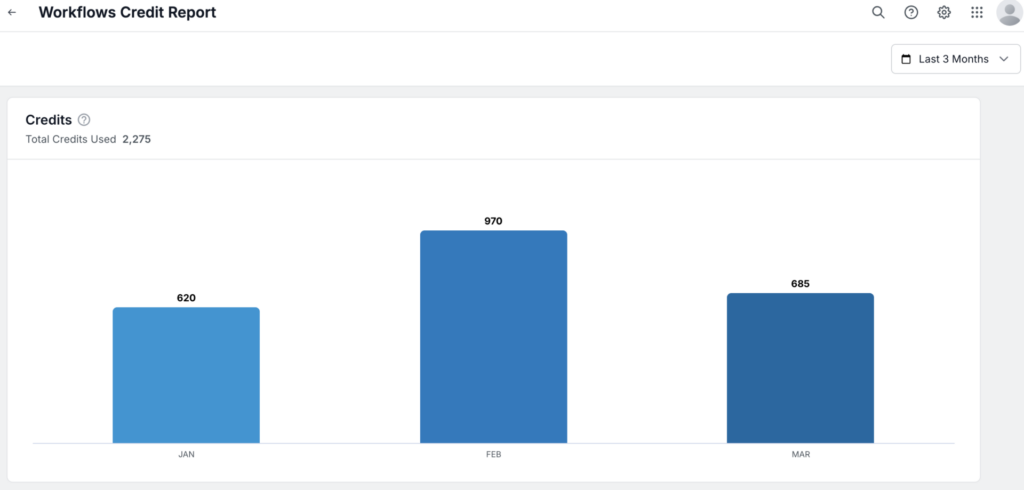
At the top right of the report, select the date range. By default it is the last 3 months.
The first panel of the report, Credits, shows the total number of credits used by both Audience and Data Workflows. The bar chart breaks that down by month.
Additional bar charts show:
Accounts Created: Unique accounts created within the selected date range. Use the menu to select either Audience Workflow or Data Workflow or both.
Accounts Enriched: Unique accounts enriched within the selected date range.
Contacts Purchased: Contacts purchased during the selected date range. Use the menu to select either Audience Workflow or Data Workflow or both.
Contacts and Leads Enriched: Unique contacts and leads enriched during the selected date range.
Document Changelog
Aug 12 2026: Added SI list and filter start node properties
Feb 11 2026: First published, links to new info about what happens when you edit or unpublish a workflow