People-level channel action nodes send contacts or leads to systems like CRM, MAP, SEP, Gong Flow, or 6sense AI Email campaigns. These nodes specify the contacts or leads within qualified accounts to work with and require conditions to select the correct personas or contacts. People-level action nodes always return a set of people to act on and include options for advanced configurations such as maximum people per account per run and processing frequency, to avoid over-saturation.
People-level channel action nodes push contacts or leads from a segment to the following integrated systems for channel campaigns.
Node Name | CRM | MAP | SEP | Ad Platform |
|---|---|---|---|---|
Push to [CRM] Campaign |
| |||
Push to [MAP] Static List |
| |||
Push to [SEP] Campaign | (pushing to SEP requires integration with HubSpot or Salesforce) |
| ||
Push to Gong Flow | (pushing to Gong requires integration with HubSpot or Salesforce) |
| ||
Push to AI Email (formerly called Conversational Email) | (pushing to AI Email requires integration with HubSpot or Salesforce) | 6sense AI Email (formerly called Conversational Email) |
People-level channel action node dependencies and considerations
Dependencies for all people-level channel action nodes
Integration with the 3rd party systems involved in the workflow. Refer to Integrations.
3rd party objects (campaign, Cadence, Flow, sequence, or static list) in the relevant system. You specify them in the node properties panel, as discussed below.
The workflow qualifies accounts using decision nodes leading up to an action node. Since these nodes deal with contacts or leads, you must specify them so that they can be selected from your CRM, MAP, or SEP for every single qualifying account and pushed to the destination channel campaign.
For example, say a decision node only qualifies Purchase stage accounts to be pushed to a Salesforce campaign. In the following Push to Salesforce Campaign node, you must specify the contacts or leads you want to push. This is so that 6sense can select them from your CRM, MAP, or SEP for every single qualifying account and push them to the Salesforce campaign.
You cannot use the same label text on more than one action node in a workflow.
Eloqua considerations
When using the Push to Static List node with Eloqua, AWF pushes to an Eloqua campaign where a shared list is attached. If there are multiple shared list attachments, the node will push to the first one that was attached to the campaign.
Follow the Eloqua instructions to configure your Eloqua campaigns:
Configure a segment with a shared list (of contacts) in Eloqua. This Eloqua segment becomes the source of contacts for the campaign.
Configure a campaign that uses the previously configured segment. 6sense pulls a segment ID from the campaign, and then when audiences/new contacts are pushed into Eloqua, 6sense creates the relationship between the lead and the segment ID, adding the lead to the segment and indirectly to the campaign.
6sense always looks for the first Eloqua segment with shared list in the Eloqua canvas configuration and adds contacts to it. If you change the order in the canvas 6sense automatically changes to whatever is the first segment with a shared list.
Possible error messages from Eloqua include:
campaignId: XXX does not have any sharedList: The Eloqua campaign isn’t configured with a shared list as its source. Refer to the Oracle Eloqua User's Guide.
unmatched records errors: It is possibe is that the Eloqua contacts that 6sense synced in our database from your Eloqua instance no longer exists in your Eloqua instance. Since the record still exists in the 6sense database, when the workflow is trying to push the record into a shared contact list, Eloqua returns this error.
Sales Engagement Platform (SEP) Salesloft and Outreach considerations
The Push to [SEP] Campaign node requires:
Multi-product integrations, either:
Both Salesforce CRM and Salesloft, or
Both HubSpot CRM and Outreach.
Your Revenue Marketing user account must also:
Have a license and permissions in the SEP.
6sense can only route contacts or leads that already exist in the CRM into the SEP.
For Salesloft:
Your Revenue Marketing user account must be the owner of the Cadence, or the Cadence is a shared Cadence.
If 6sense displays a “user not found” error, it may be caused by the lack of permissions on the SEP user account. Refer to the Salesloft roles documentation.
AWF syncs Cadences approximately every 5 minutes. A new Cadence created in Salesloft should appear in AWF within 5-10 minutes.
Salesforce CRM Campaign Member Status considerations
Salesforce Campaign Member Status must be enabled in Salesforce before you can use it in a workflow.
If you are using Salesforce, you can filter by the Salesforce Campaign Member Status field to find the people who attended a campaign. The Push to SFDC Campaign node supports the Salesforce Campaign Member Status field. 6sense gets the valid status list options in real time when you select the campaign. By default there is no status.
For example, you could have a workflow that targets people who attended a webinar and pushes them to another campaign. You would set the Salesforce Campaign Member Status when pushing people into a Salesforce campaign, so that downstream syncs, Salesforce-triggered actions, and reporting reflect the correct status. (Salesforce Campaign Member Status is also available as a segment filter.)
Gong Engage Flow considerations
The Push to Gong Engage Flow node requires:
Your 6sense environment must have an active CRM integration, either:
Salesforce CRM
HubSpot CRM
Your Revenue Marketing user account must also have:
A license and permissions in Gong.
Be the owner of the Gong Flow.
If 6sense displays a “user not found” error, it may be caused by the lack of permissions on the Gong account.
6sense can only route contacts or leads that already exist in the CRM into Gong flows.
Additional notes about the Push to Gong Flow node include:
You can select only one assignee for a Gong Flow, either the default user or a specific Gong user.
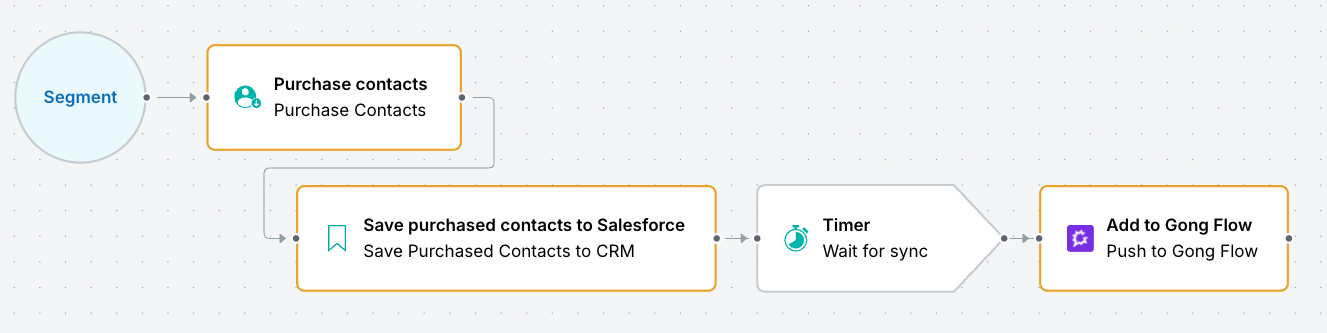
The sync process between a CRM and Gong can range anywhere from 6 minutes to 2 hours. For example, when using a Purchase Contacts > Save Purchased Contacts to CRM > Push to Gong Flow flow, the workflow status will remain in progress while the sync is pending processing.
6sense automatically adds a timer node after Purchase Contacts > Save Purchased Contacts to CRM nodes in a workflow that uses Gong, to account for a maximum 2 hour delay on the Gong side. By default the timer node is set to 2 hours, and you can reduce that time if that works better in your environment.
When using Remove Audience, it runs one record at a time since Gong does not support bulk removal. Large audiences may take longer to process and increase API usage. This is because the Gong Remove Audience API operates on a single record at a time; there's no bulk API for removing records from a Gong Flow.
AI Email considerations
The Push to AI Email (formerly called Conversational Email) node requires multi-product integrations, either:
Both AI Email and Microsoft Dynamics CRM, or
Both AI Email and HubSpot CRM, or
Both AI Email and Salesforce CRM.
Also refer to AI Email - CRM Integration.
AI Email syncs to AWF approximately every 10 minutes. Published AI Email campaigns should appear in AWF within 10-20 minutes.
People-level channel action node properties
Node name: A brief description that displays on the node’s icon.
Description: (optional and recommended) A lengthier description of what the node does.
Destination details: Depending on your CRM or SEP, select whether to push contacts or leads.
If your integrated system only supports one, then it will be the default, and you cannot change it.
The following options differ depending on your integration:
Push to Gong flow: (Gong Flow only) A flow defined in Gong.
Assignee: (Gong Flow only) Either the default Gong user or a specific user from the User pulldown list.
Static List (Marketo only): A static list defined in Marketo. The list appears in the properties panel after it has been made available by the 6sense pipeline. Allow 24-48 hours for a new list to appear in AWF.
Push CRM contacts/leads to Salesforce campaign (Salesforce only): A campaign defined in Salesforce. The workflow pushes people (contacts or leads) to this campaign. The list appears in the properties panel after it has been made available in the 6sense pipeline. Allow 24-48 hours for a new list to appear in AWF.
Campaign member status: The status in Salesforce.
Designated Assignees (Salesloft Cadence only): In order of priority, which user’s inbox each contact or lead should be assigned to for sending emails.
The menu lists 50 Salesloft users. If the list doesn’t include the user you want, enter the email address directly and AWF searches for it.
Conditions and Priorities: (6sense AI Email only):
AWF supports pushing contacts or leads to draft, active, and scheduled AI Email campaigns. You can publish an Audience Workflow even if the AI Email campaign is in draft mode. The workflow will not cause action until the linked AI Email campaign is active.
Push CRM contacts/leads to Dynamics campaign (Microsoft Dynamics only): Select the name of the Microsoft Dynamics campaign.
Push CRM contacts/leads to Dynamics marketing list (Microsoft Dynamics only): Select the name of the Microsoft Dynamics marketing list.
Priority rules and conditions (Optional): You can configure 6sense to purchase contacts based on your persona map configuration and/or “hotspots” – locations where the highest number of visitors have come from that go to your website.
Conditions: Filters on the segment data that specify the types of contacts to purchase.
You must add at least one filter if you don’t use a priority rule.
Filters are categorized as People details (name, job title, etc).
Job Title filters support the following operators: Equals, Does Not Equal, Contains, Does Not Contain, Starts With, Has Word, and Does Not Have Word.
Has Word and Does Not Have Word perform whole-word matching. Use these operators when you want to match complete terms in a job title rather than partial text strings. For example, filtering for CTO matches job titles containing the standalone term CTO and helps avoid unintended matches that can occur with partial-string matching.
For any people-level action node where the customer indicates what personas they are targeting, be sure to check that the personas you're looking to add are set up properly. By default, no Job Title and Job Function persona combinations are selected. If your workflow targets specific personas, configure the appropriate conditions to specify the desired personas. Otherwise, 6sense may select existing contacts or leads that do not align with the intended personas.
New May 12 2026: When using contact engagement filters, engagement is evaluated at the contact level. Non-engaged contacts at the same account are excluded.
If the Predictive add-on is active then:
You can select the Contact Engagement Grade, Account Profile Fit, and/or Contact Profile Fit filters. Refer to 6sense AI filters.
You can select the Persona Importance filter, which is similar to using the persona map and gives you more flexibility in how your filters perform.
You can rearrange the blocks of specified people as per your priority and 6sense will select contacts or leads accordingly.
If Accounts No Longer Meet the Entry Conditions: You can instruct the workflow to either:
Remove audience from [flow, campaign, static list, Cadence]: Remove accounts that did not meet the node entry conditions.
Leave audience in [flow, campaign, static list, Cadence]: Retain accounts that met the entry conditions and push them along through this node.
For example, if you configured a prior decision node to only qualify Awareness stage accounts to be pushed to the campaign, then you can select Remove Audience from [campaign] to ensure that any account that is no longer in the Awareness stage is taken out of the campaign.
Advanced Options:
Max people per account per run [5]: The maximum number of contacts or leads from the same account that the workflow pushes to the campaign, per run.
If people conditions are set, and there are more eligible people than the limit, then the workflow randomly selects 5 people records.
If no people conditions are set on a Push to MAP or Push to SEP node, the workflow randomly selects people records that match the criteria.
Batch size [varies per CRM]: The number of records per API call. Reducing the batch size increases the number of API calls, which increases processing times. Changes take effect the next time this action runs.
Process each account once every [0] Days: Ensures that an account and its contacts or leads that were processed in this node in the last X days are not processed again within the specified number of days. The default, 0, means that the people are processed with each workflow run. Use this to avoid saturating people at an account with the same campaign in quick succession.
If Account exits node, do not process again for [0] days: If an account no longer qualifies for the action on this node, 6sense will not take this action again for the account if they re-qualify for this action within the set number of days. Setting this to "0" means there will be no wait time before this action is taken again for a qualified account.