Custom roles allow administrators to create tailored permission sets that define what users can view, access, or manage within the 6sense platform. Instead of relying only on predefined system roles, you can now configure roles that match your internal responsibilities and security requirements.
This provides greater flexibility in managing access while ensuring users only have permissions necessary for their job functions.
Custom roles help:
Provide granular access control for different users.
Ensure principle of least privilege by limiting unnecessary permissions.
Support enterprise-scale deployments with complex role structures.
Custom roles are recommended when:
Existing default roles do not meet your access requirements.
Teams require specific permissions without full administrative access.
You want to separate operational responsibilities across teams.
Security policies require fine-grained access control.
Custom roles are included in Advanced Security as an optional feature and is not enabled by default. To request enablement, please contact your Customer Success Manager (CSM).
Admins can create new roles and define a set of permissions tailored to specific responsibilities.
Each role can include permissions such as:
Viewing resources.
Creating or editing configurations.
Custom roles can then be assigned to users to control their level of access within the platform. Admins can update, modify, or remove roles as organizational requirements evolve.
Navigate to Settings > User Management > Organization users.
Select the Roles tab.
Select Create role.
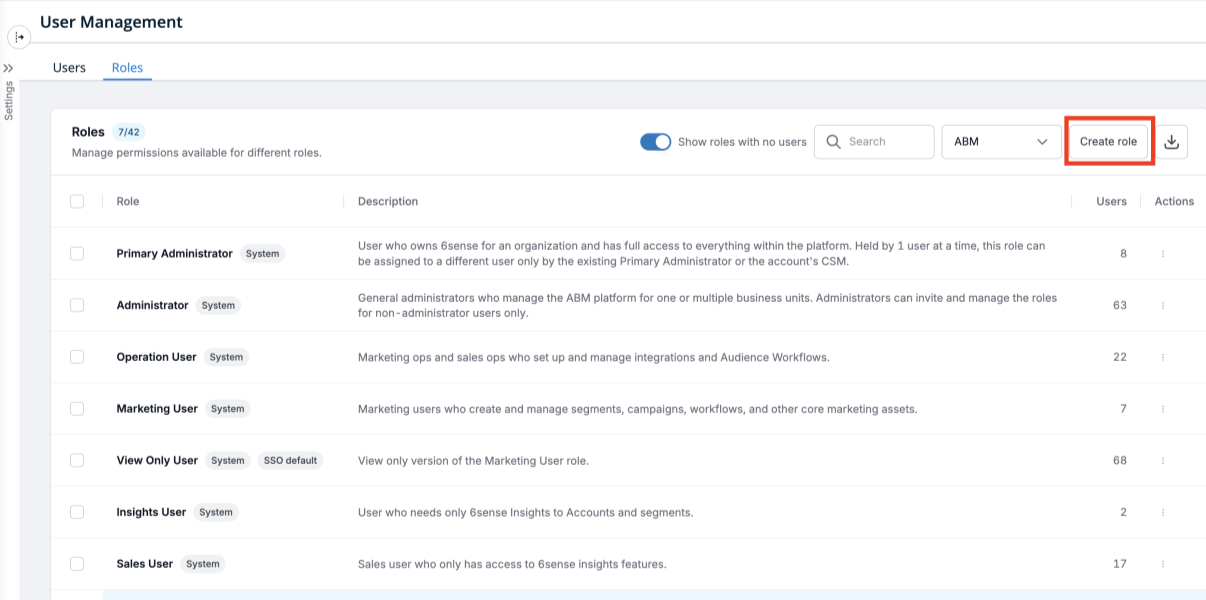
Select the application.
Enter a Role name and Description.
Select the required permissions.
Click Create role to save changes.
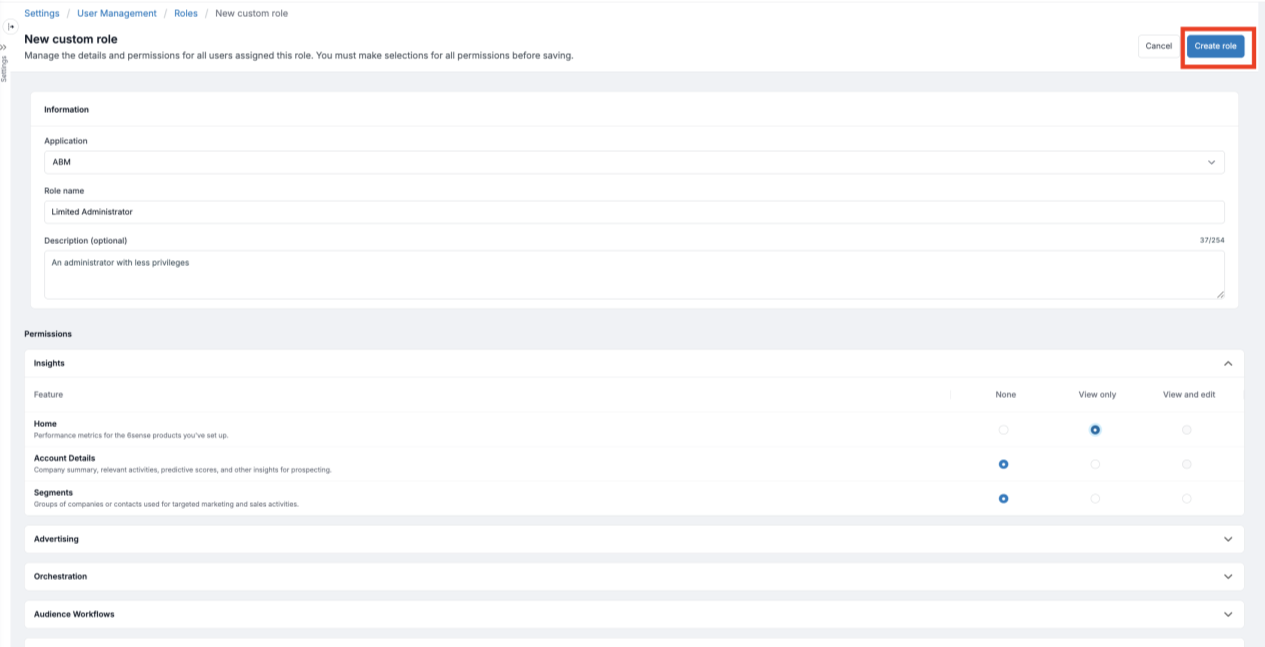
Permissions
Manage the details and permissions for all users assigned this role. You must make selections for all permissions before saving. Select from the following:
None: No access to this feature.
View only: User can only view this feature.
View and edit: User can view or edit this feature.
Assign role
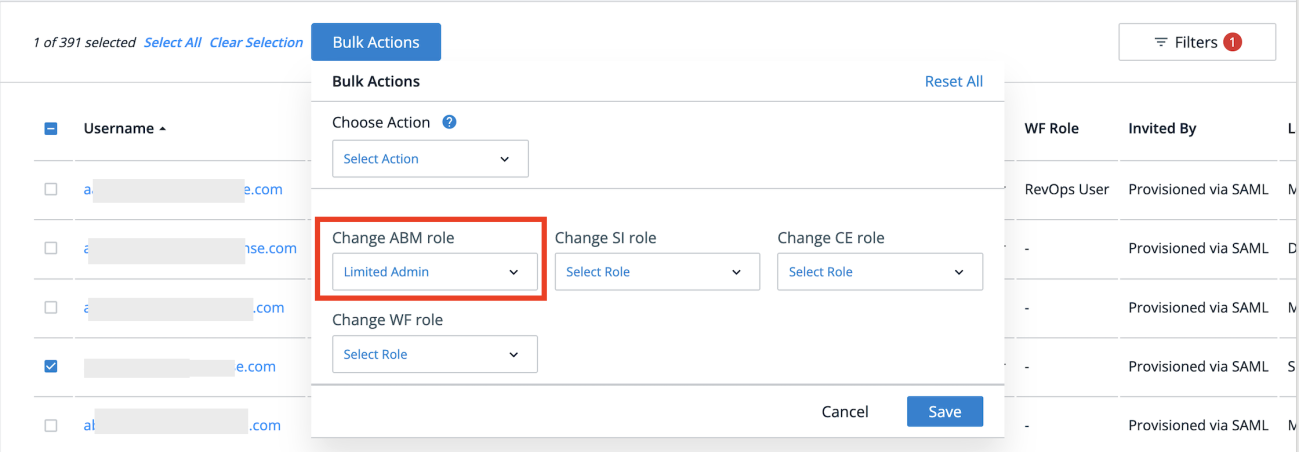
You can now assign the role to users individually or in bulk using bulk actions.
.png)
Edit custom roles
Admins can modify an existing custom role to update its permissions or description as organizational needs evolve.
Navigate to Settings > User management > Organization users.
Select the Roles tab.
Locate the custom role you want to update. Ensure you have selected the the right application if you don’t see the role in the list.
Select the dropdown and select Edit.
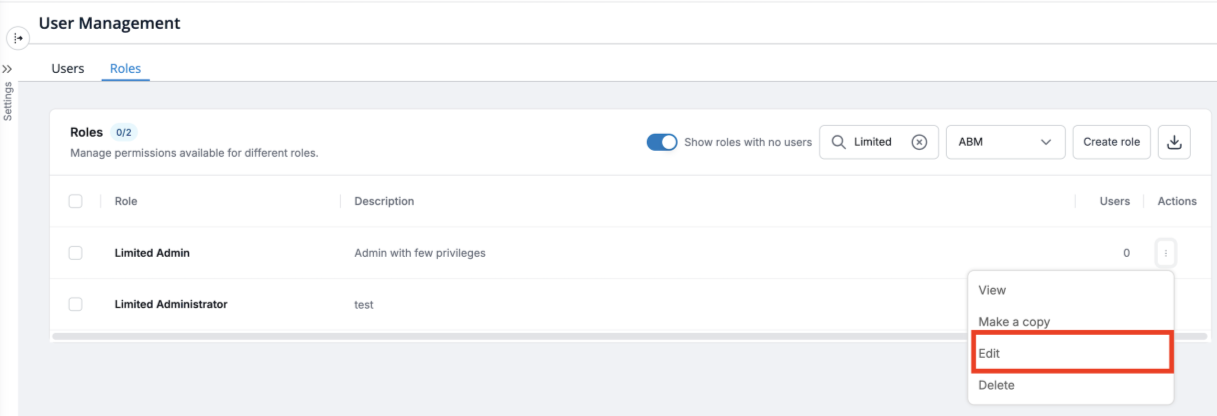
Update the required permissions or role details.
Click Save changes.
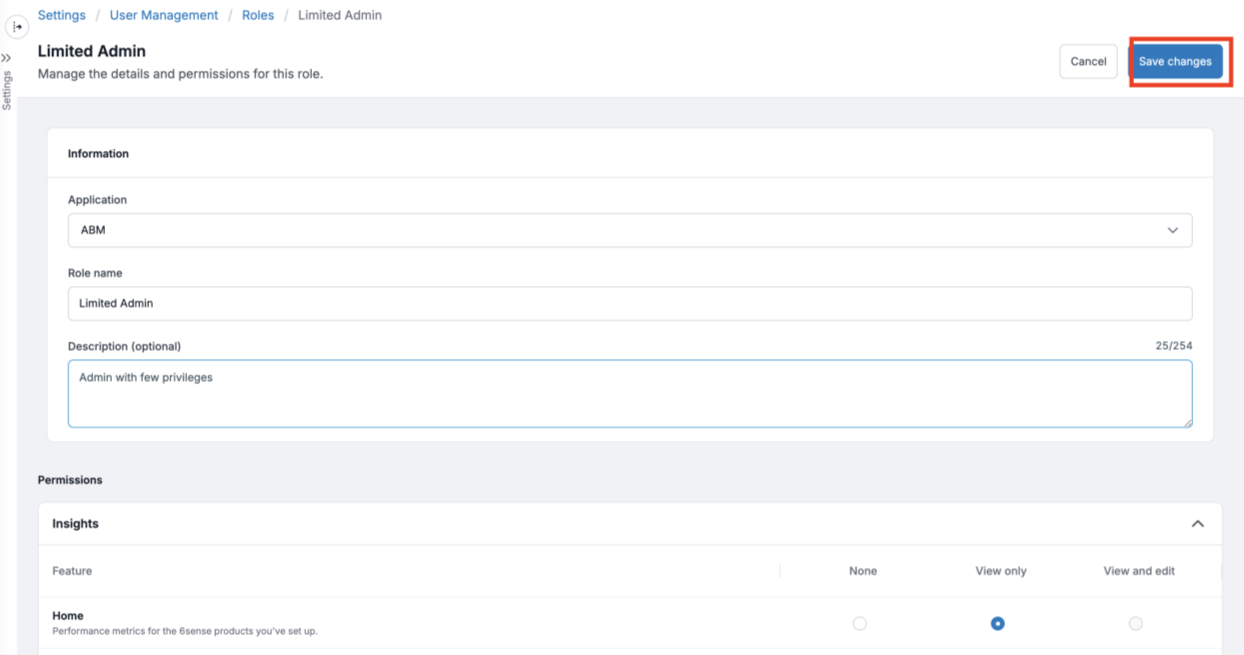
Changes made to a role will apply to all users currently assigned to that role.
Copy role
Admins can create a new role by copying an existing role. This helps quickly create similar roles without configuring permissions from scratch.
Navigate to Settings > User management > Organization users.
Select the Roles tab.
Locate the role you want to duplicate.
Select the dropdown and select Make a copy.
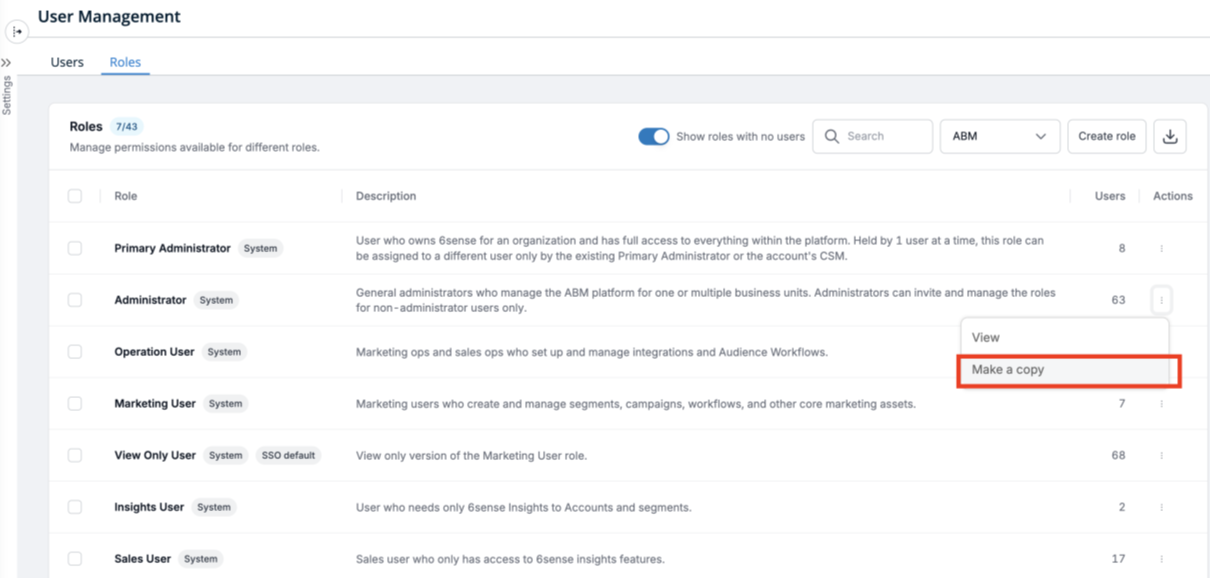
Provide a new role name and description.
Modify permissions if required.
Click Create role.
Creating roles with an identical set of permissions is not allowed. This helps avoid duplicate roles and ensures better security and role management.
Delete a custom role
Admins can delete custom roles that are no longer needed.
Navigate to Settings > User management > Organization users.
Select the Roles tab.
Locate the custom role you want to remove.
Select the dropdown and select Delete.
Confirm the deletion.
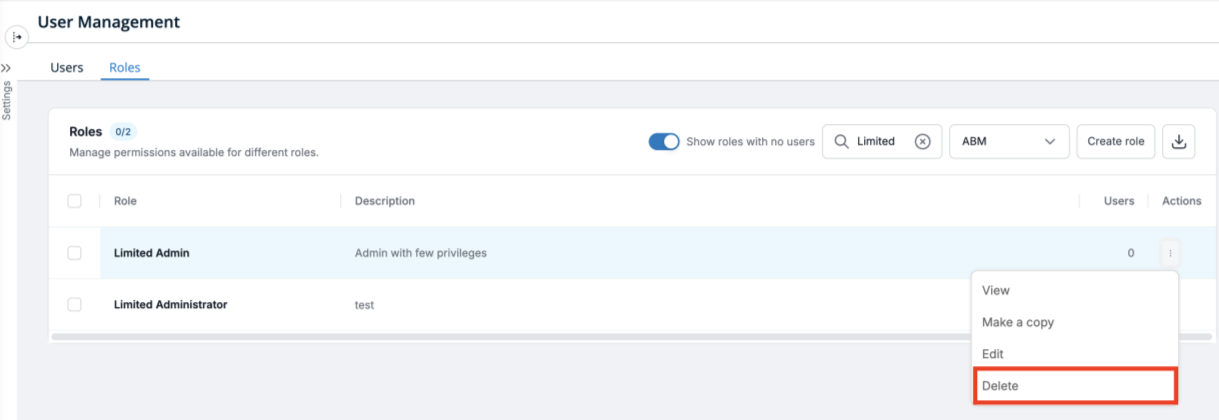
A custom role can only be deleted if:
No active users are currently assigned to the role.
The role is not configured as the SSO default role.
The role is not used in any SSO role mapping configuration.
If the role is currently in use, you will be guided to first reassign users or update the relevant SSO configuration before proceeding with deletion.
Best Practices
Follow the least privilege principle when assigning permissions.
Use clear naming conventions for roles.
Regularly review and audit roles to ensure permissions remain appropriate.
Important Notes
System roles cannot be edited or deleted.
Primary Admin role cannot be copied.
Roles with duplicate permissions cannot be created.
Up to 50 new roles can be created across all applications.
When creating a custom ABM role, the Edit permission for Segments allows users to modify only their own segments. To allow users to edit segments created by others, copy the ABM Administrator role and adjust permissions to fit your needs.
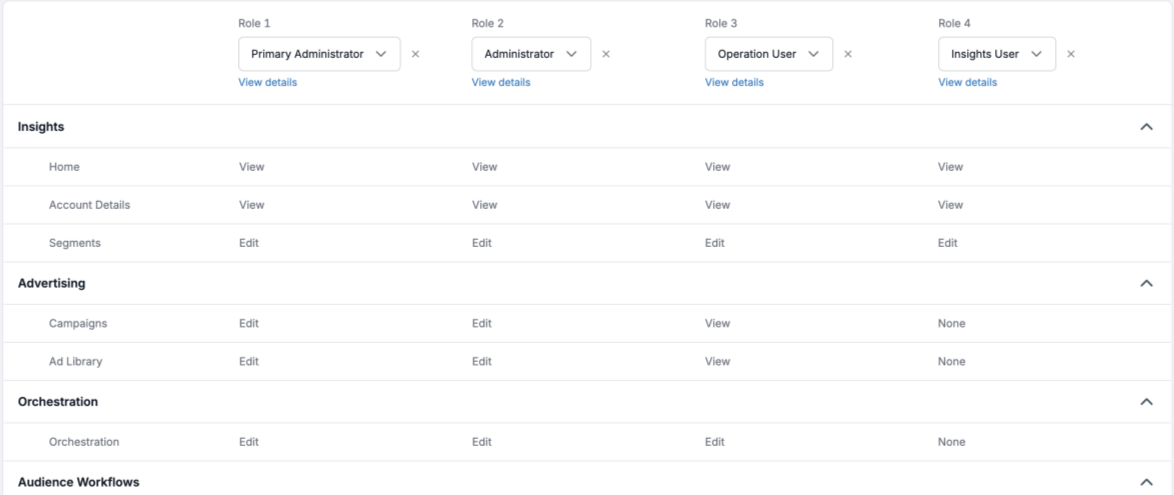
Role comparison view
The compare roles feature allows administrators to select and compare up to three roles to easily review differences in permissions.
Up to four roles can be selected and compared to quickly identify permission differences.
Select the roles you want to compare and select Compare roles.
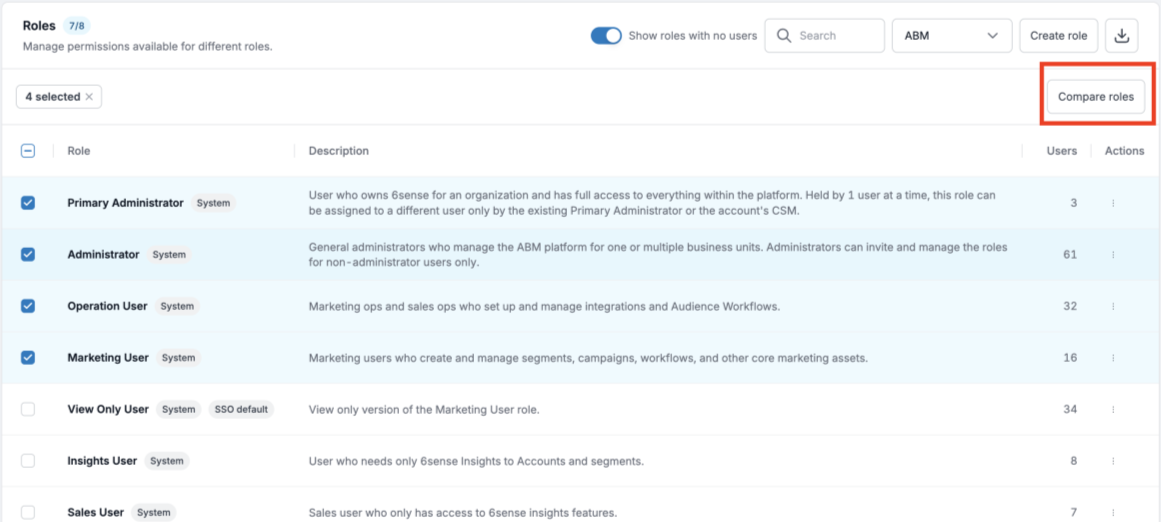
The roles are compared in a table, as seen below:
FAQ
Who can create or manage custom roles?
Only users with Admin-level permissions can create, edit, or assign custom roles.
Can existing predefined roles be modified?
Predefined system roles cannot be edited, but admins can create new custom roles with slightly different permissions.
Can multiple users be assigned the same custom role?
Yes, a single custom role can be assigned to multiple users across the organization.
What happens if permissions are updated in a custom role?
Changes to a role’s permissions are automatically applied to all users assigned to that role.
Why can’t a user access a specific feature?
The feature may not be enabled in the user’s assigned role permissions.
Can a custom role be deleted?
Yes, but roles assigned to users may need to be reassigned before deletion. Moreover, if the custom role being deleted is used as the SSO default role or in group mapping, the admin should select new roles before deleting the custom role.
How do I allow a custom ABM role to edit segments created by other users?
If you want users to be able to edit both their own segments and segments created by others, create the custom role by copying the ABM Administrator role, and then modify the other permissions as needed.
Can a primary admin role be copied?
No, a primary admin role can never be copied for security reasons. We cannot have more than one owner in the organization.
Is there a limit to the number of custom roles that can be created?
The platform supports up to 50 custom roles across apps.
Are permission changes applied immediately?
Yes, permission changes will be applied immediately.
Can two roles have identical permission sets?
No, we do not allow roles to be created with identical permissions. At least one permission selected should be different.