Data Workflows is part of 6sense Intelligent Workflows, which also includes Audience Workflows. For a comparison of Audience and Data Workflow capabilities refer to Compare Audience and Data Workflows.
This page provides a high level overview of the use cases that Data Workflows enables and describes how to set it up so that your team can start creating workflows.
Understanding how 6sense approaches account identification for enrichment is key to implementing enrichment workflows. We highly recommend that you review the RevCity post about Country vs. HQ Account Creation.
Date Workflows use cases
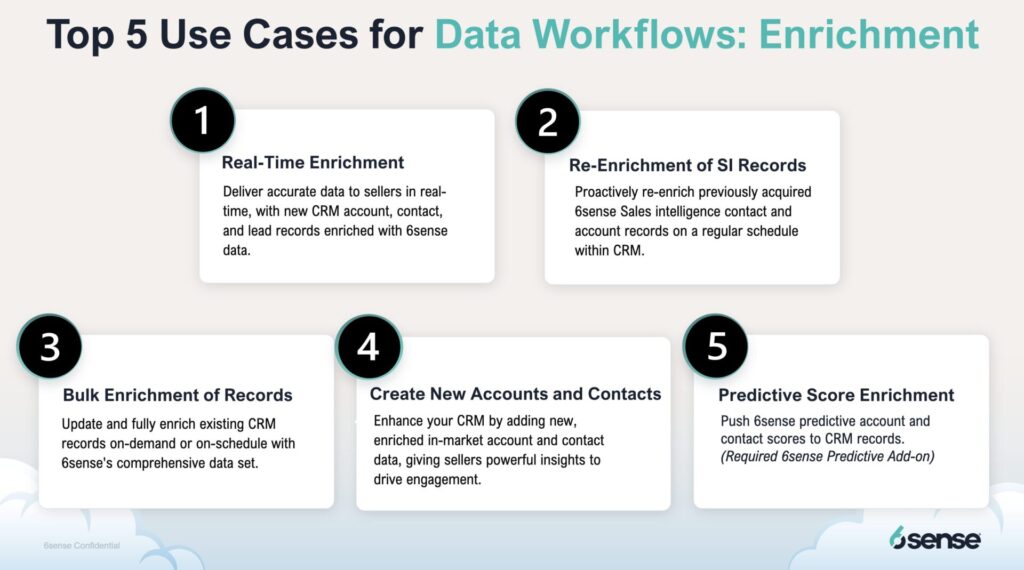
Real-time enrichment
Includes scheduled, on-demand, and real-time enrichments.
Re-enrich SI records
Ensures records previously exported records from Sales Intelligence that are within the 12-month maintenance window are kept up-to-date with company firmographic and technographic data.
No credits are deducted with this workflow as records are within the 12-month maintenance window.
Enrich CRM records in bulk
Enrich your CRM records in bulk and control the records that are enriched using filters on object-specific fields.
Create new accounts in your CRM
Take advantage of custom match rules to avoid creating duplicate records.
Set up workflows to create new accounts and purchase contacts in one workflow.
Start the workflow from a segment.
Purchase contacts and export them to a CRM or CSV
Purchase contacts from 6sense and push them to a CRM or save to a CSV file.
Supports leads and contacts for Salesforce and contacts for HubSpot.
Export 6sense Predictive scores to your CRM
Supports leads, contacts and accounts.
Runs daily after the 6sense data sync.
Set up Data Workflows
Administrators can follow these steps to set up Data Workflows so that designated users can create workflows.
Tip: If you use Salesforce as your CRM you can use a 6sense sandbox to connect to a Saleforce CRM sandbox for testing Data Workflows. Refer to Sandbox Offerings.
1. Invite users to Data Workflows
The 6sense Primary Administrator needs to give 6sense users the Data Workflows role to access the Data Workflows. Refer to Data Workflows Roles and Permissions.
2. Distribute credits to Data Workflows
Distribute 6sense credits to Data Workflows. Refer to Distribute Credits Between Applications. Note: Credits are not deducted for Re-enrichment of SI Record Workflows as these records are within the 12 month maintenance window.
3. Set up a Data Workflows mapping profile
If your team plans to use any data enrichment or contact or account creation workflows, they’ll need a mapping profile. Refer to Mapping Profiles.
4. Set up custom match rules
If your team plans to use a purchase contacts workflow, configure the contact-to-account matching rules. Refer to Custom Match Rules.
5. (Optional) Enable real-time CRM syncs
If you want to use real-time enrichments to enrich newly created leads, contacts, or accounts, activate real-time CRM syncs. Refer to Data Workflows Real-Time Syncs.
6. Start creating workflows
Your designated Data Workflow users can start creating workflows. Refer to Create Data Workflows.
7. Use Data Workflows in Sandbox
If your organization uses Sandbox, you can create, preview, and run Data Workflows in a Sandbox environment before using them in Production.
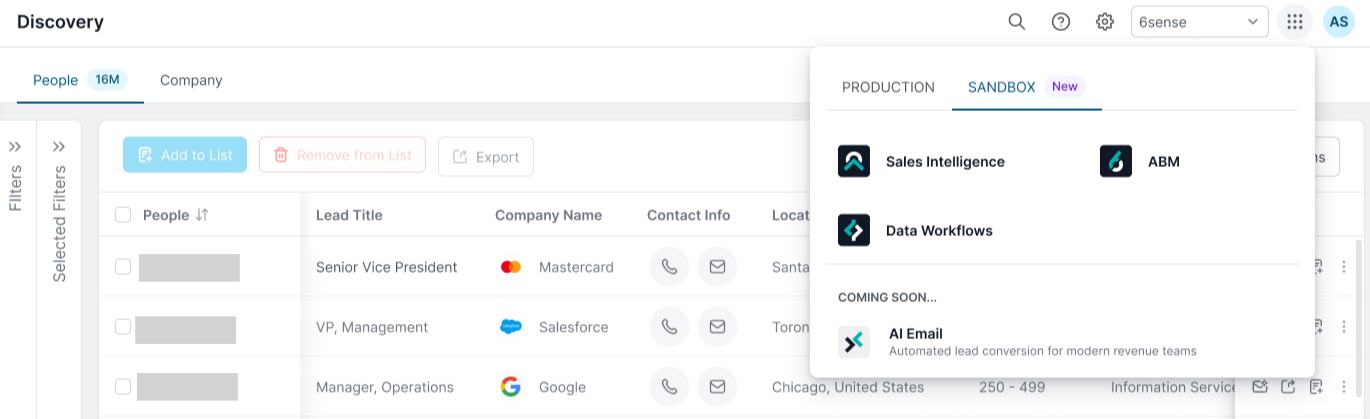
Sandbox allows you to validate workflow configurations, mappings, filters, and workflow behavior without affecting Production systems. Data Workflows created in Sandbox are isolated from Production workflows and can be used to test workflow logic before deployment. For more details, refer to Create Data Workflows. To know more about Sandbox, refer to Create and Use 6sense Sandbox.
8. Promote workflows to Production
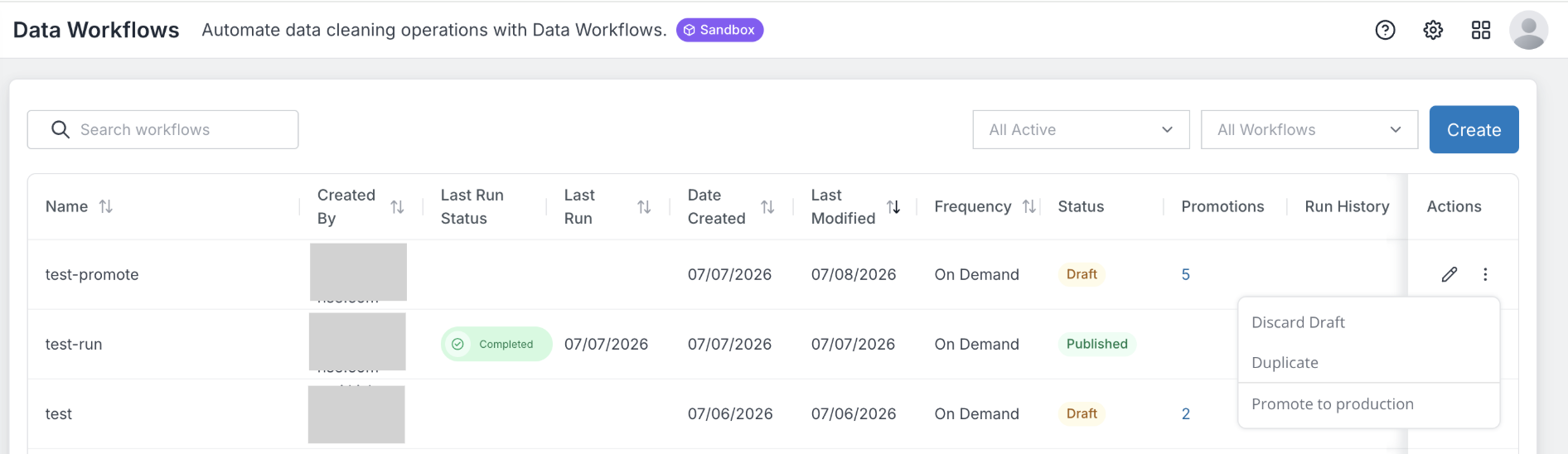
If you are working in the Sandbox environment, you can promote a workflow to Production for final configuration and publishing.
The Promote to production action is available only for workflows in the Sandbox environment. You can promote a workflow while it is in Draft or Published status. Promoting a workflow creates a new workflow in Production. The original workflow remains unchanged in Sandbox.